
Background
As the number of containers at my company grew, managing them across several Docker Desktop instances became difficult to orchestrate and scale horizontally. So, I spent some time researching how to install Jenkins and integrate it with Kubernetes within Docker Desktop for Windows.
Why Use Kubernetes?
- On-demand vertical scaling: easily add or remove new servers (nodes) and manage intra-cluster communication.
- Automatic horizontal scaling and resource reduction based on demand.
- Service and performance monitoring.
- Auto Recovery
- Server resource optimization.
- Load balancing (traffic splitting).
- Service circuit breaking.
- Automated deployments and rollbacks, with automatic rollback if the application state is incorrect.
- Hybrid cloud deployment.
Why Use Kubernetes on Windows?
The company doesn't have Linux servers, and most team members are not proficient with Linux.
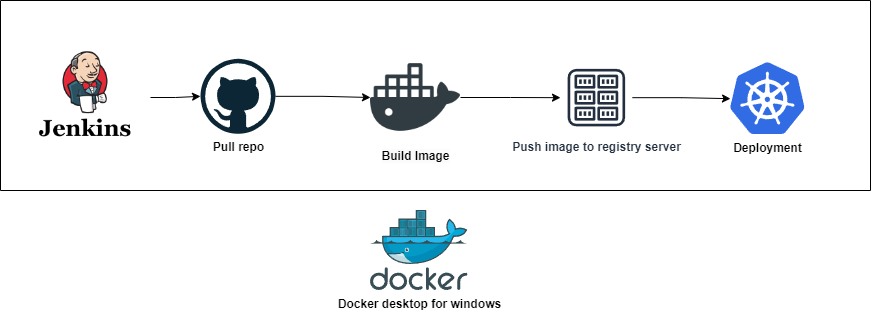
Deployment Flow
Prerequisites
1. Install Docker Desktop, and check the boxes for Kubernetes and Show system containers
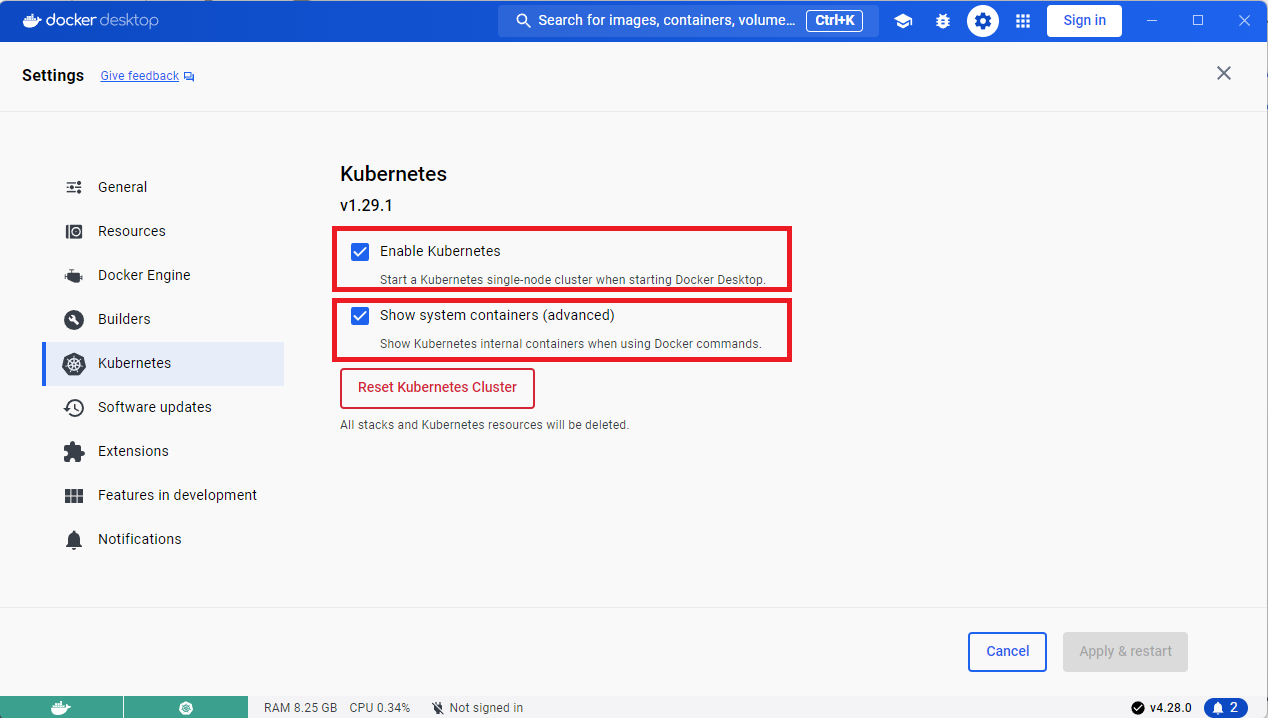 P.S. After you click Apply, the connection file at
 %USERPROFILE%\.kube\config will be created automatically.
2. Set up a Private Docker Registry Server
docker run -d -p 5000:5000 -e REGISTRY_STORAGE_DELETE_ENABLED=true --name registry registry:2
docker update --restart always registry
3. Configure Docker Engine to add the private IP
 "insecure-registries": [
    "192.168.50.49:5000"
  ]
P.S. 192.168.50.49 is the IP of my test machine. You can visit http://192.168.50.49:5000/v2/_catalog to check which images are currently in the private Docker registry.
Configure Kubernetes
Dashboard
kubectl apply -f https://raw.githubusercontent.com/kubernetes/dashboard/v2.7.0/aio/deploy/recommended.yaml

kubectl get pod -n kubernetes-dashboard

kubectl proxy

訪問此目錄
http://127.0.0.1:8001/api/v1/namespaces/kubernetes-dashboard/services/https:kubernetes-dashboard:/proxy/#/login
First, let's create a token (this token will be used by Jenkins)
kubectl describe secrets -n kube-system (kubectl get secrets -n kube-system | Select-String "dashboard" | ForEach-Object { $_ -split " " | Select-Object -First 1 })
Query the Token
$TOKEN=((kubectl -n kube-system describe secret default | Select-String "token:") -split " +")[1]
kubectl config set-credentials docker-for-desktop --token="${TOKEN}"
echo $TOKEN
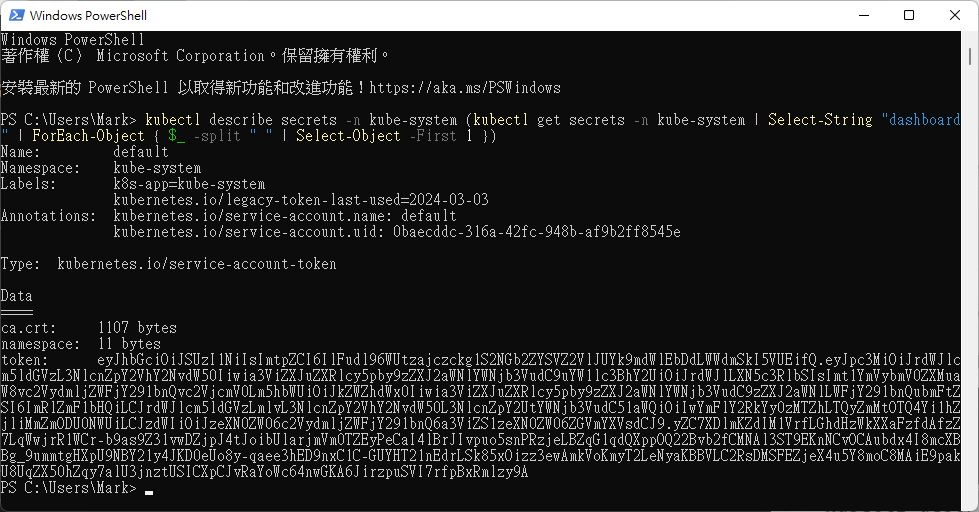
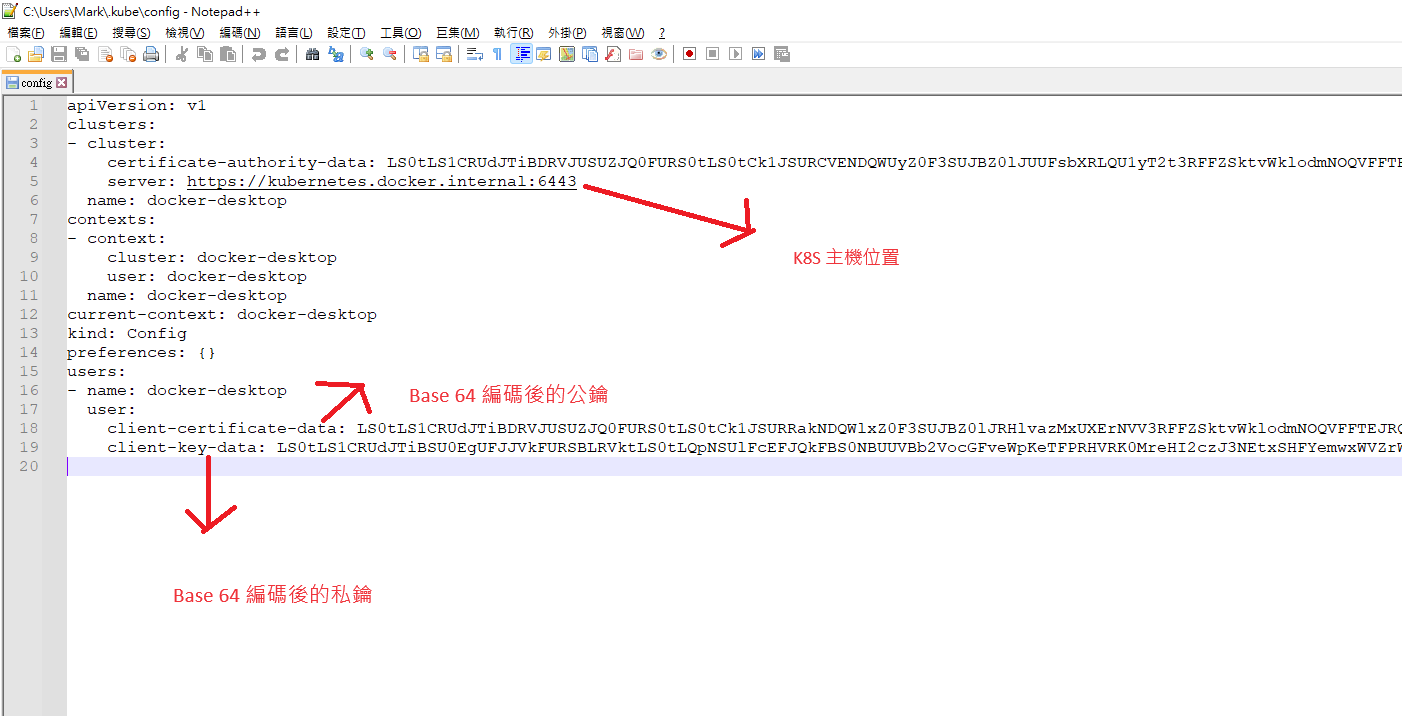
You can also find the token in the config file.
kubectl config view // 同等於訪問 %USERPROFILE%\.kube\config
Configure Kubernetes in Jenkins
Install Jenkins
Refer to the previously written article.
Install kubectl in the Jenkins container
docker exec -it -uroot jenkins bash // 進入jenkins 容器中
curl -LO https://storage.googleapis.com/kubernetes-release/release/v1.29.1/bin/linux/amd64/kubectl // 下載 kubectl
chmod +x ./kubectl // 給予權限
mv ./kubectl /usr/local/bin/kubectl // 複製到系統環境資料夾
kubectl version --client // 查詢版本
P.S. It's best if the kubectl versions in Docker Desktop and the Jenkins container match.
Copy kubectl configuration to the Jenkins container (execute line by line)
docker exec -it -uroot jenkins /bin/bash
mkdir -p /.kube
exit
docker cp C:/Users/Mark/.kube jenkins:/root/.kube // 複製檔案到 Jenkins 容器中
Connect Jenkins to Kubernetes via the Kubernetes CLI
- To connect Jenkins to Kubernetes, you need to install a few plugins. Go to Manage Jenkins > Manage Plugins.
- Kubernetes plugin
- Kubernetes CLI Plugin
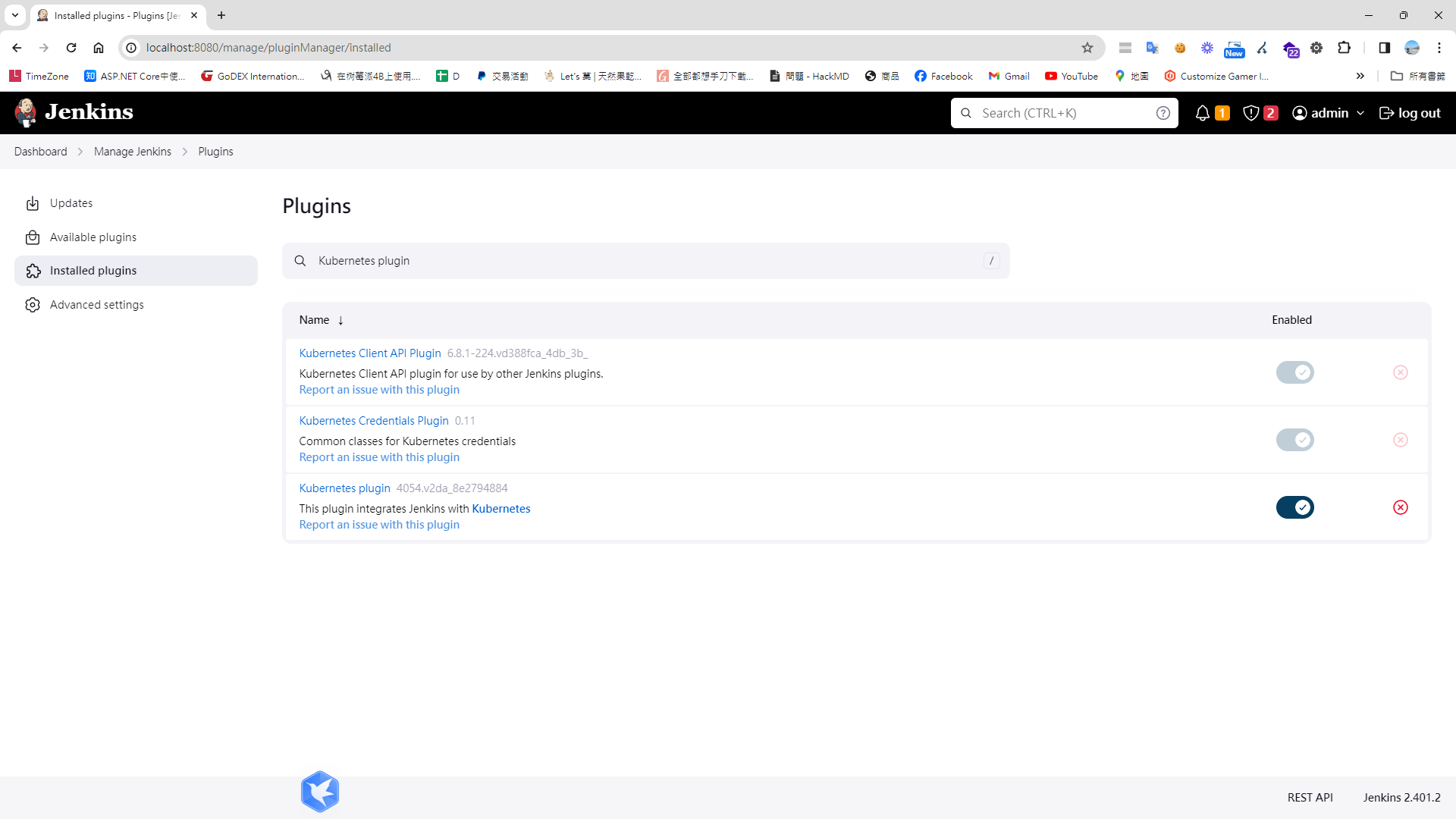
- Set up cloud
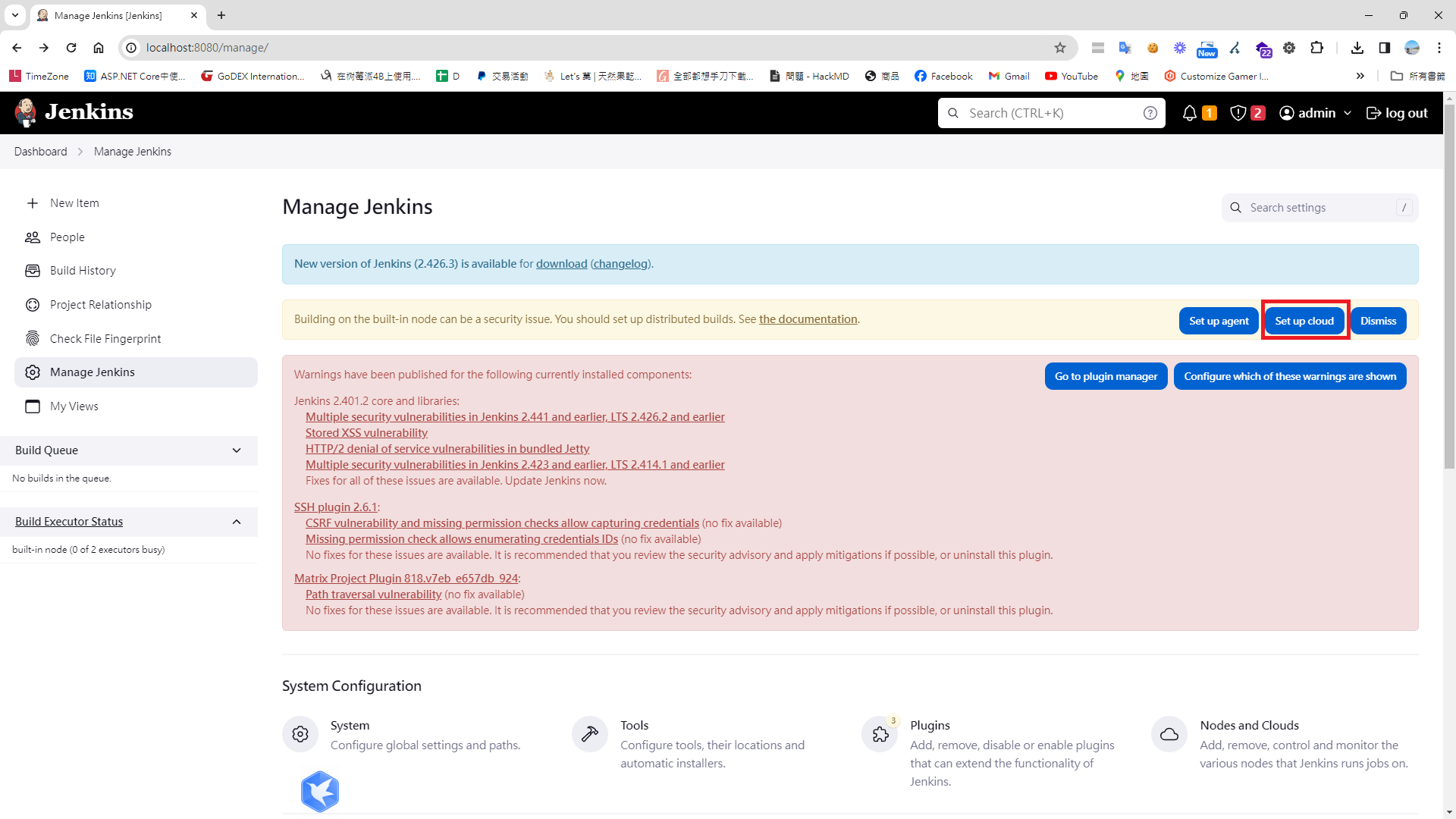
- Set Disable https certificate check => true

- Kubernetes URL => kubectl cluster-info https://host.docker.internal:6443
- Jenkins URL Jenkins URL:http://host.docker.internal:8080/ Jenkins tunnel:host.docker.internal:50000
- Credentials =>
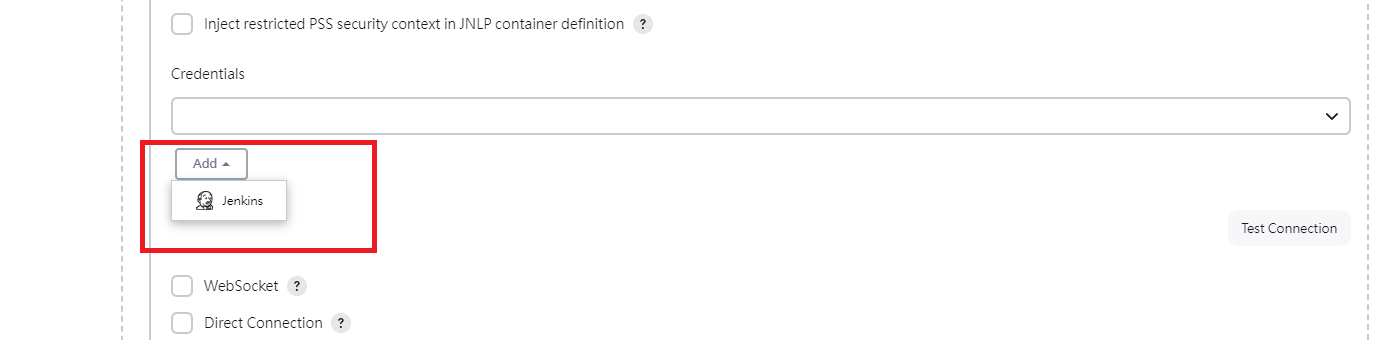
- Copy dashboard token to here
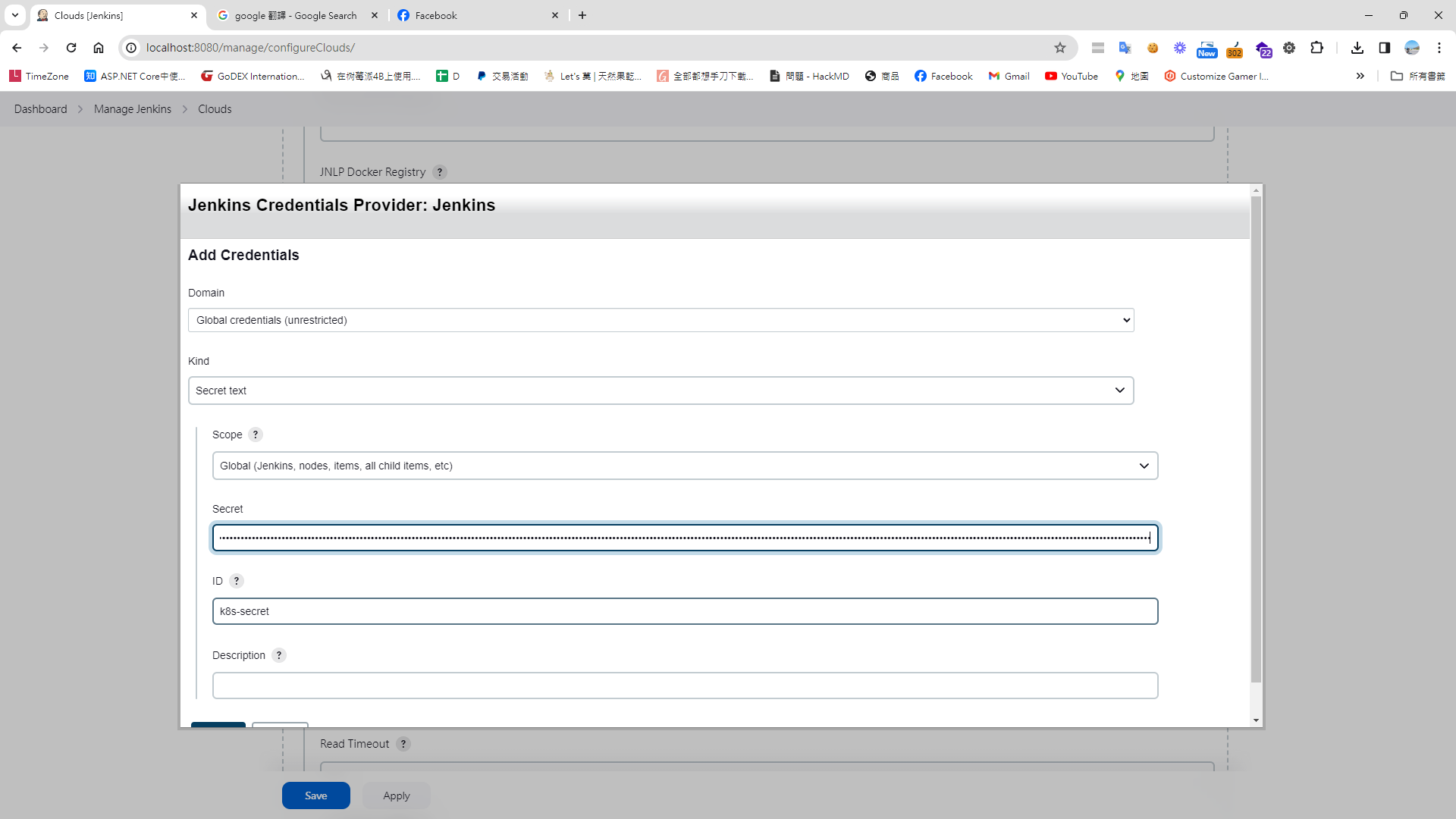
Write the Jenkins Pipeline
properties([pipelineTriggers([githubPush()])])
pipeline {
    agent any

    environment {
        tag = ':latest'
        imageShortName = 'de-next-ap'
        imageName = "${imageShortName}${tag}"
        containerName = "${imageShortName}-1"
        containerUrl = "192.168.50.49:2376"
        dockerfile = "./Dockerfile"
        registry = "192.168.50.49:5000/next-ec"

    }

    stages {
        stage("GitHub Pull") {
             steps {
                git branch: 'main',
                credentialsId: '946a703f-dff7-4138-84b2-0aba700dedca',
                url:  '[email protected]:markku636/ec.git/'
            }

        }

        stage("Building Docker Image") {
			steps {
				script {
					dockerImage = docker.build "$registry:latest"
				}
			}
		}

		stage("Deploying to Registry Server") {
			steps {
				script {
					docker.withRegistry("http://192.168.50.49:5000", "") {
						dockerImage.push()
					}
				}
			}
		}

		stage("Cleaning Up") {
			steps {
				sleep(time: 3, unit: "SECONDS")

				sh "docker rmi --force $registry:latest"
			}
		}

        stage("Deply") {
             steps {
                    withKubeConfig([credentialsId: 'k8s-secret', serverUrl: 'https://host.docker.internal:6443']) {
                     sh 'kubectl apply -f ./next-js-deployment.yaml'
                    }

             }
        }
    }
}
Create the Kubernetes YAML Deployment Config File (next-js-deployment.yaml) in the Github next-ec Project
apiVersion: v1
kind: Deployment
metadata:
  name: nextjs-deployment
  labels:
    app: nextjs
spec:
  replicas: 1
  selector:
    matchLabels:
      app: nextjs
  template:
    metadata:
      labels:
        app: nextjs
    spec:
      containers:
      - name: nextjs
        image: 192.168.50.49:5000/next-ec:latest
        ports:
        - containerPort: 80
        resources:
          limits:
            memory: "128Mi"
            cpu: "500m"

---

apiVersion: v1
kind: Service
metadata:
  name: nextjs-service
spec:
  type: NodePort
  selector:
    app: nextjs
  ports:
  - protocol: TCP
    port: 80
    targetPort: 80
    nodePort: 30099
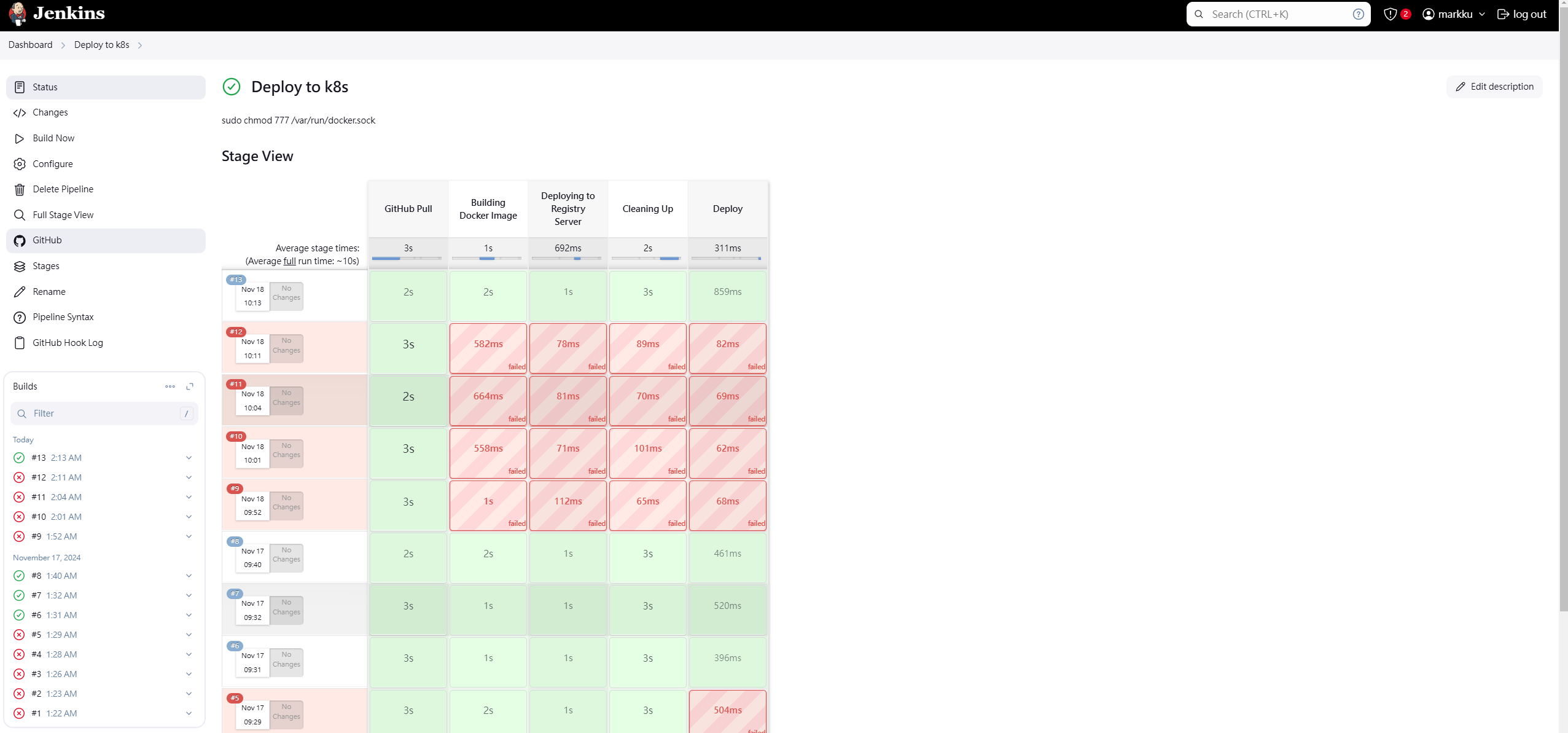
At this point, running the Jenkins build should succeed.
Conclusion
K8s features and configuration are quite complex. The setup alone took a significant amount of time, and many details still require further experimentation and testing.
Other Issues Encountered
1. "no matcher for kind 'Deploy' in version 'v1'" issue
I had to change the apiVersion in the YAML file a few times. Make sure to write your YAML deployment file according to the latest official documentation.
2. kubectl: command not found
You need to install kubectl in the Jenkins container.


Comments