
Super Mermaid
Beautiful Mermaid diagrams out of the box — auto-colored live preview, mouse pan & zoom, high-res PNG / SVG export.
sequenceDiagram
  autonumber
  actor U as 使用者
  participant W as Web 前端
  participant API as Auth API
  participant DB as 資料庫
  U->>W: 輸入帳號密碼
  W->>API: POST /login
  API->>DB: 查詢使用者
  DB-->>API: 使用者資料
  alt 密碼正確
    API-->>W: 200 OK + JWT
    W-->>U: 導向會員中心
  else 密碼錯誤
    API-->>W: 401 Unauthorized
    W-->>U: 顯示錯誤訊息
endKey Features
The little details that make Mermaid diagrams beautiful out of the box
Auto-colored, no tweaking needed
Whether you wrote the Mermaid yourself or an AI generated it for you, saving the file turns it into a nicely colored diagram for free — rounded corners, soft shadows, subgraphs tinted automatically. Sketch and dark themes are one click away.
See it change as you type
Edit a line, see the diagram update in about 0.3s. Mid-edit typo (or an AI still mid-generation)? It keeps showing the last successful render instead of flashing blank.
Big diagrams stay readable
A single AI-generated architecture diagram can get huge fast — mouse-wheel to zoom, drag to pan, one click to fit the width. No more squinting for details.
Export it, use it anywhere
Need the diagram in a slide deck, a doc, or for a coworker without VS Code? Export to PNG / JPG / WebP / SVG in one click, or copy it straight to the clipboard — no screenshot-and-crop.
Click a node, land on the code
A big diagram an AI or teammate drew for you — figuring out which box maps to which line used to mean hunting through the file. Click the node and jump straight to it.
Present the diagram, skip the slides
Go full-screen, flip through diagrams, browse everything at once in Gallery view, or pop out a window for a second monitor — the diagram is the slide deck.
Don't know the syntax? Doesn't matter
Syntax highlighting and autocomplete help as you type, 21 built-in templates give you a starting point — or just ask an AI to draft it and tweak from there.
Share a link, not a file
Want a teammate — or an AI assistant — to look at the same diagram? One click makes a link; whoever opens it can view and keep editing right in the browser. The link opens the Mermaid live preview page on this site (an external website); your code rides in the URL fragment and is never sent to a server, but anyone holding the link can see the diagram.
Supported Diagram Types
Click a type to render it live — the full range of Mermaid diagrams
Drag to pan, scroll to zoom, and use the toolbar to switch theme or export PNG / SVG. Works the same out of the box inside VS Code.
Why Mermaid is the best way to explain architecture to an AI
The same artifact is a picture to you and a few lines of text to the model. Nothing gets lost in translation.
Same architecture, two ways to say it
Roughly 3–6× cheaperSpelling out who calls what, and which branch runs when. Long, and easy to leave something out.
Same information, and the model sees the whole structure at a glance.
Tokens are how much the model can read at once, and what you pay for. The budget you save doesn't vanish, it becomes room for the model to read more of your actual code.
You see a diagram, the AI sees text
One Mermaid source renders as a picture for you and reads as plain text for the model. No screenshot-then-explain round trip, you are both looking at the same diagram.
Fewer tokens: cheaper, and longer memory
A diagram costs 3–6× fewer tokens than the same thing spelled out in prose. Conversations last longer, and the model is less likely to forget what you said earlier.
The AI edits it, instead of redrawing it
When the architecture changes, the model edits one A --> B line and the diagram follows. A screenshot or a .drawio file has to be reopened and redrawn by a human.
Version-controlled next to your code
Diagrams are plain text, so they land in the same commit as the code and show up in the diff. Far less likely to drift away from reality.
Visual Draw Editor
Drag nodes around the canvas like Excalidraw — saving round-trips straight back to clean Mermaid source.
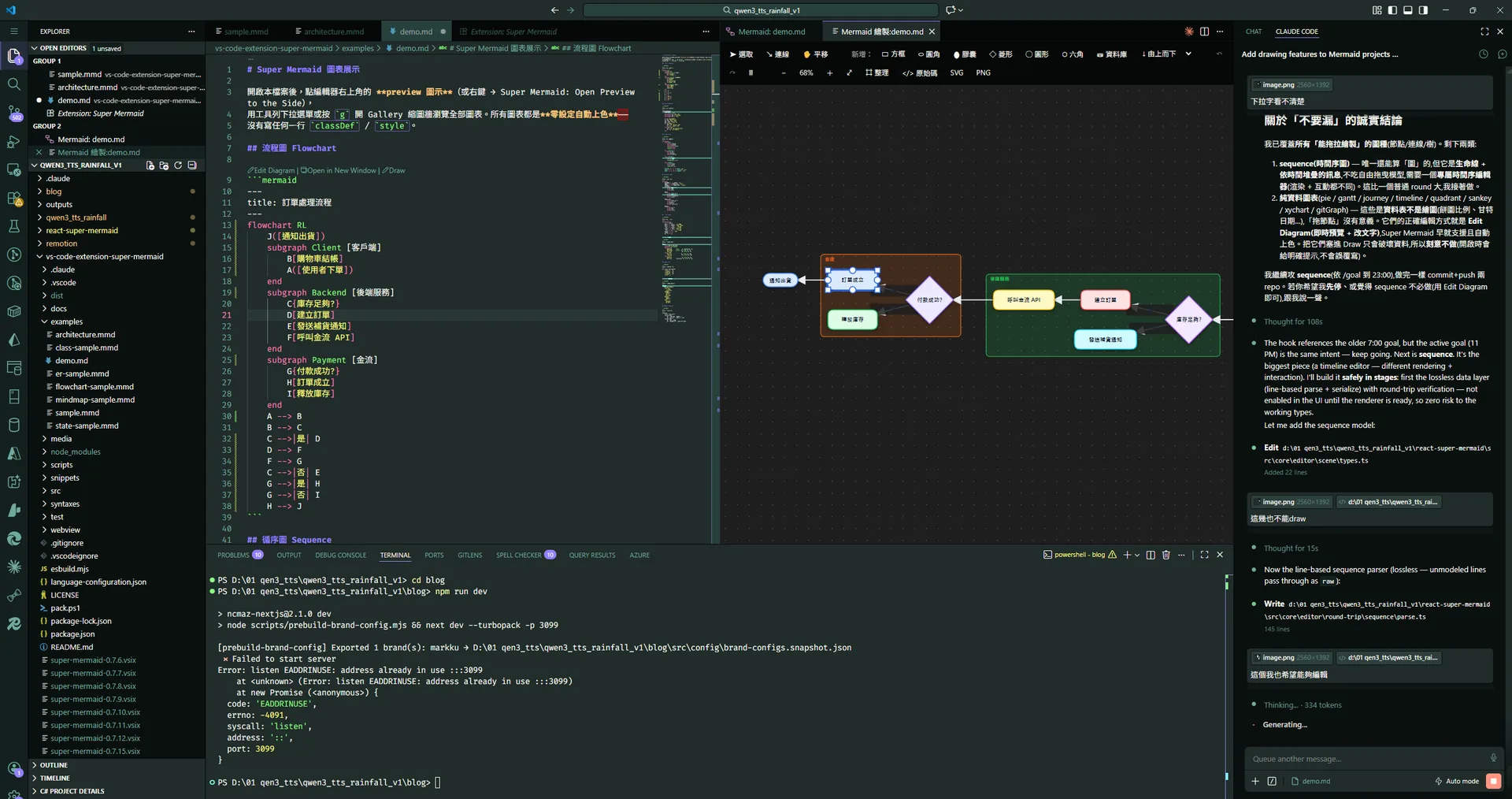
Adjusting an order-flow diagram in the draw editor inside VS Code — Markdown source on the left, AI panel on the right.
- Two-way sync: drag, connect and rename on the canvas, and it round-trips back to Mermaid syntax in real time.
- Diagram right inside VS Code, side by side with your files, Git and AI assistants like Claude Code.
- Sketch a diagram without memorizing syntax — finish with version-controllable plain-text Mermaid.
Handy Shortcuts
- Presentation modep
- Copy diagram to clipboardc
- Gallery viewg
- Fit widthw
- Find in diagram/ or Ctrl+F
How to Install
- 1
Press Ctrl+Shift+X in VS Code to open the Extensions panel.
- 2
Search for "Super Mermaid" and click Install.
- 3
Open a .md with a mermaid block, or a .mmd / .mermaid file, then click the preview icon to start.
You can also install directly from the Marketplace, or run the command below in your terminal.
More Mermaid tools
Same rendering engine, wherever you need it
React Super Mermaid
Need diagrams inside your own React app? One <MermaidViewer> line gets you themes, zoom and export.
Check it outJira / Confluence Super Mermaid
For teams collaborating in Jira and Confluence — diagrams live right inside the issue or page.
Check it outMermaid Live Preview
Don't want to install anything? Write, preview and share a link straight from the browser.
Check it outMake your Mermaid diagrams beautiful out of the box
Free, open source, and works offline. Install Super Mermaid from the VS Code Marketplace now.
Every tool here is free and open source
No paywall, no sign-up, and the source is public on GitHub. If one of them saved you time, buy me a coffee so the updates and the next tool keep coming.