
Live Streaming Website Development Notes - Using Alibaba Cloud
Understanding Push-Stream and Pull-Stream
- Push-stream — the process of sending a live video stream from a local source to a Media Server.
- Pull-stream — the process of connecting to a server that already has live content, establishing a connection using a protocol (RTMP, RTP, RTSP, HTTP, etc.), and pulling the data stream.
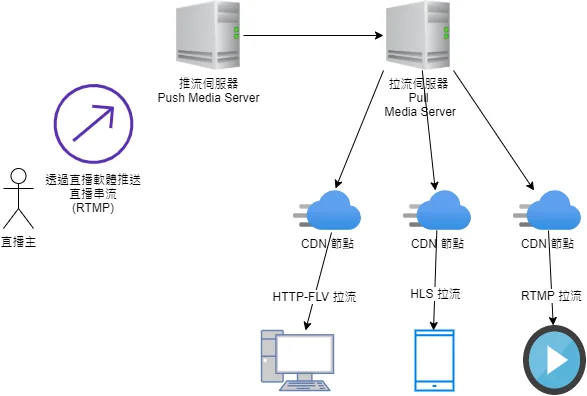
Setting Up Push-Stream and Pull-Stream Servers on Alibaba Cloud
-
Log in to the Alibaba Cloud console > Video Live > Live Console > Domain Management > Add Domain (select "overseas" to bypass China website review) > Enter your push-stream subdomain push.xxx.com > Submit.
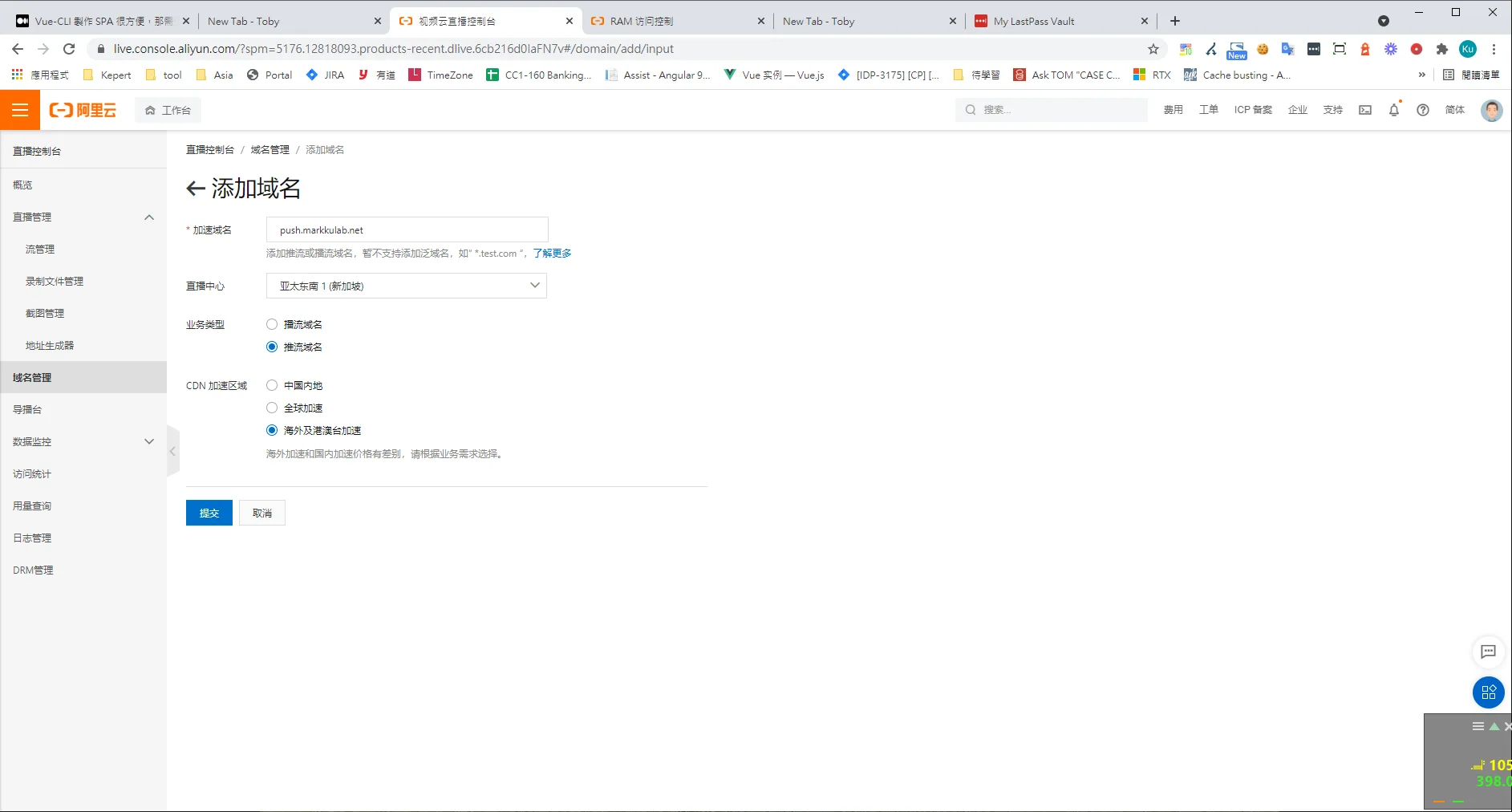
-
Return to the domain list.
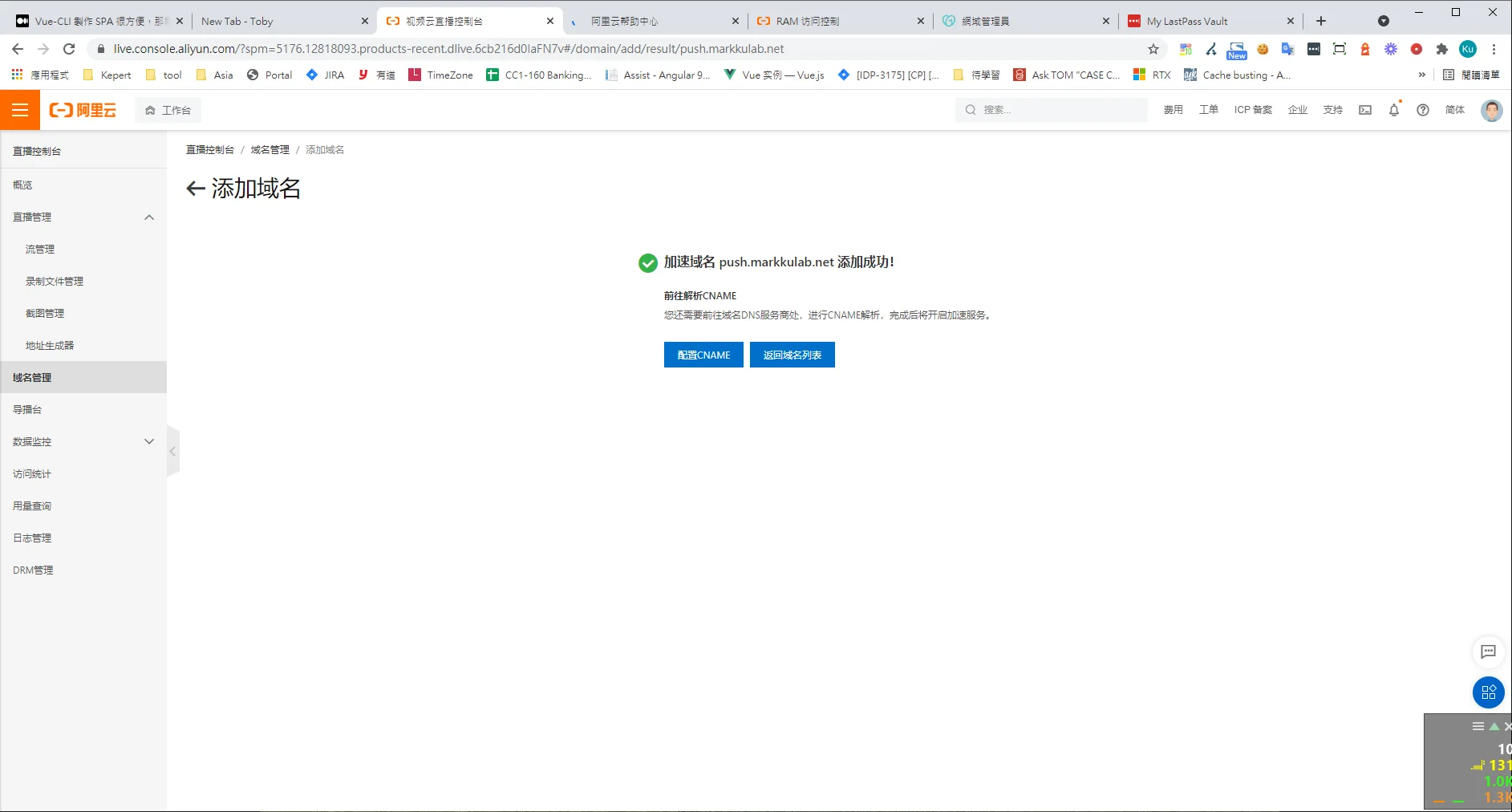
-
Add a pull-stream domain > Return to the domain list > Enter your pull-stream subdomain pull.xxx.com.
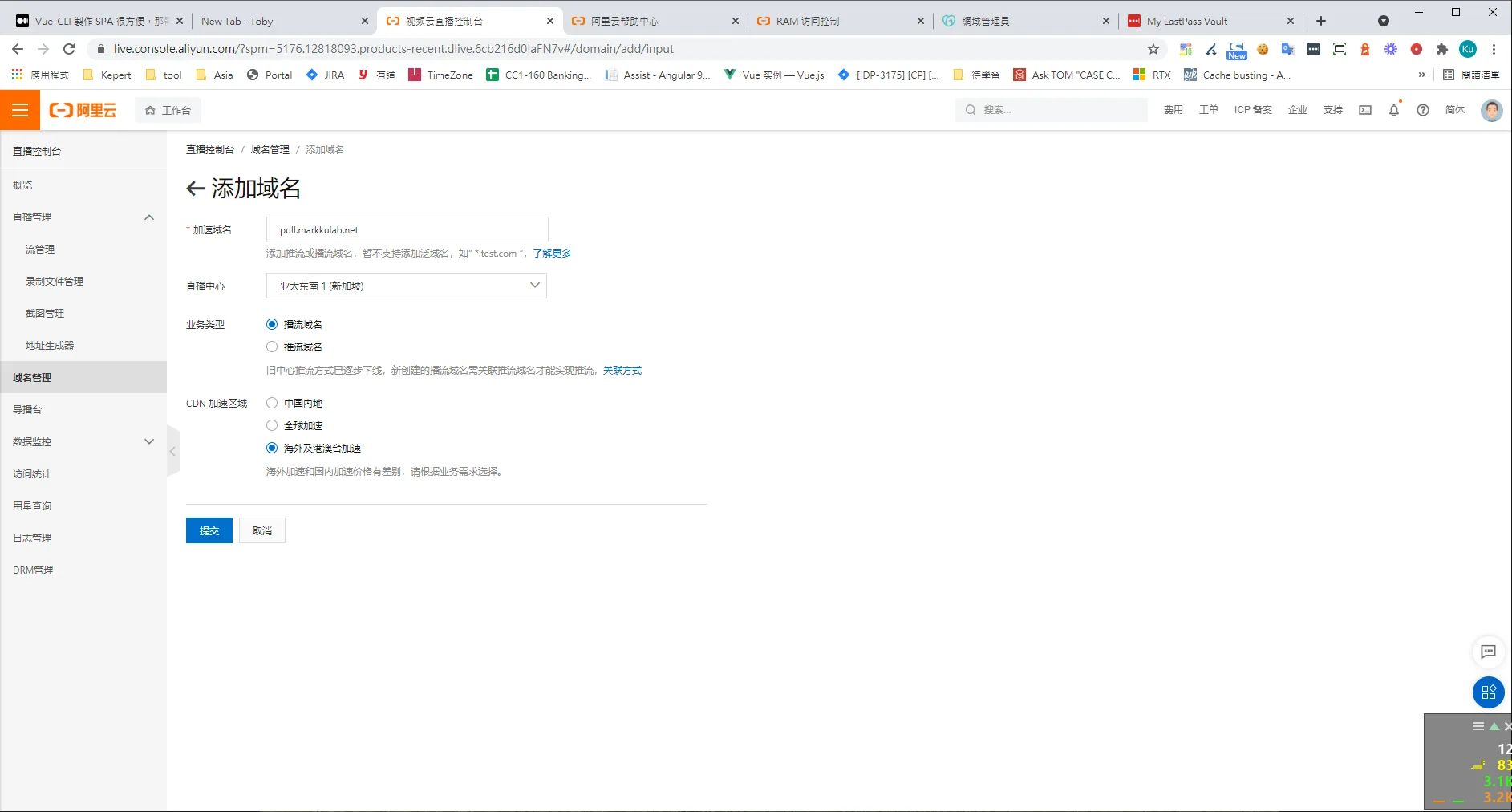
-
At this point, ask your Infra Team to configure the CNAME records that Alibaba Cloud provides in your DNS host, pointing your domains to Alibaba Cloud's live streaming servers.

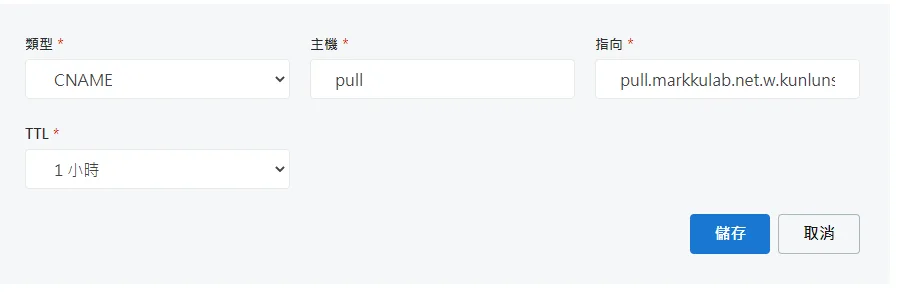
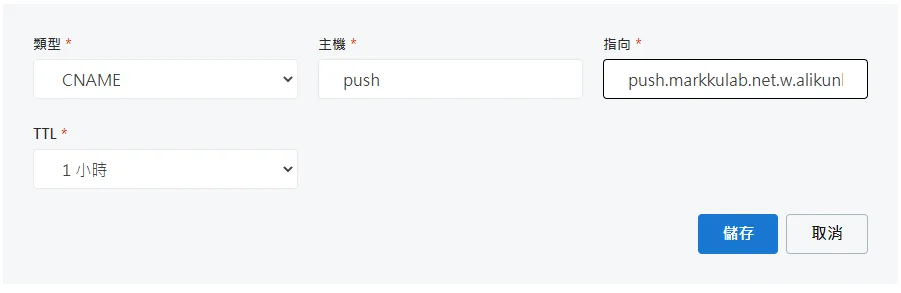
-
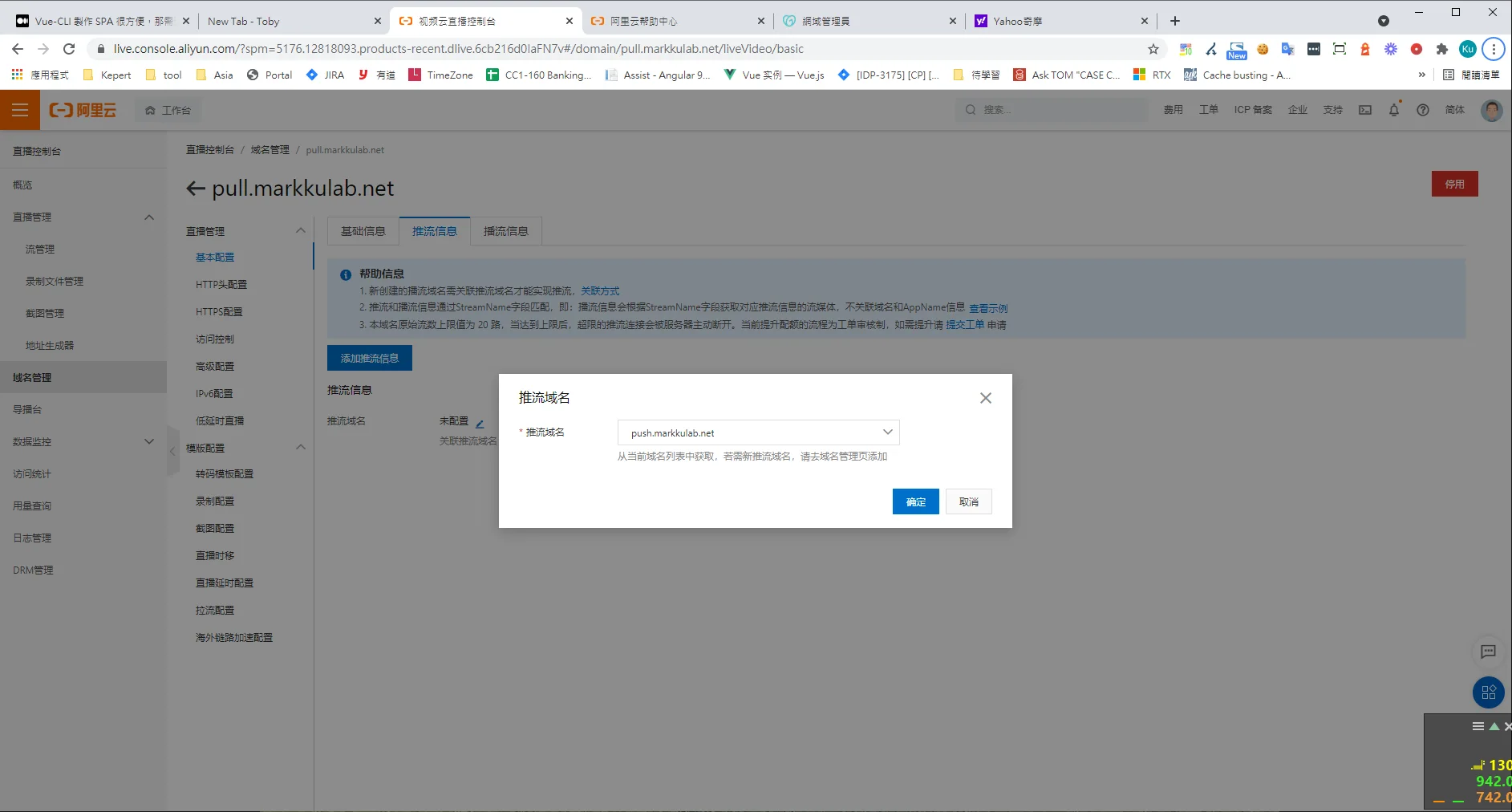
Return to the domain management list. Once the domain status changes from "configuring" to "running normally," you need to associate the push-stream and pull-stream domains. Go to the pull-stream domain (pull.xxx.com) > Domain Configuration > Push-Stream Info > Add Push-Stream Info > Enter the push-stream domain push.xxx.com.
-
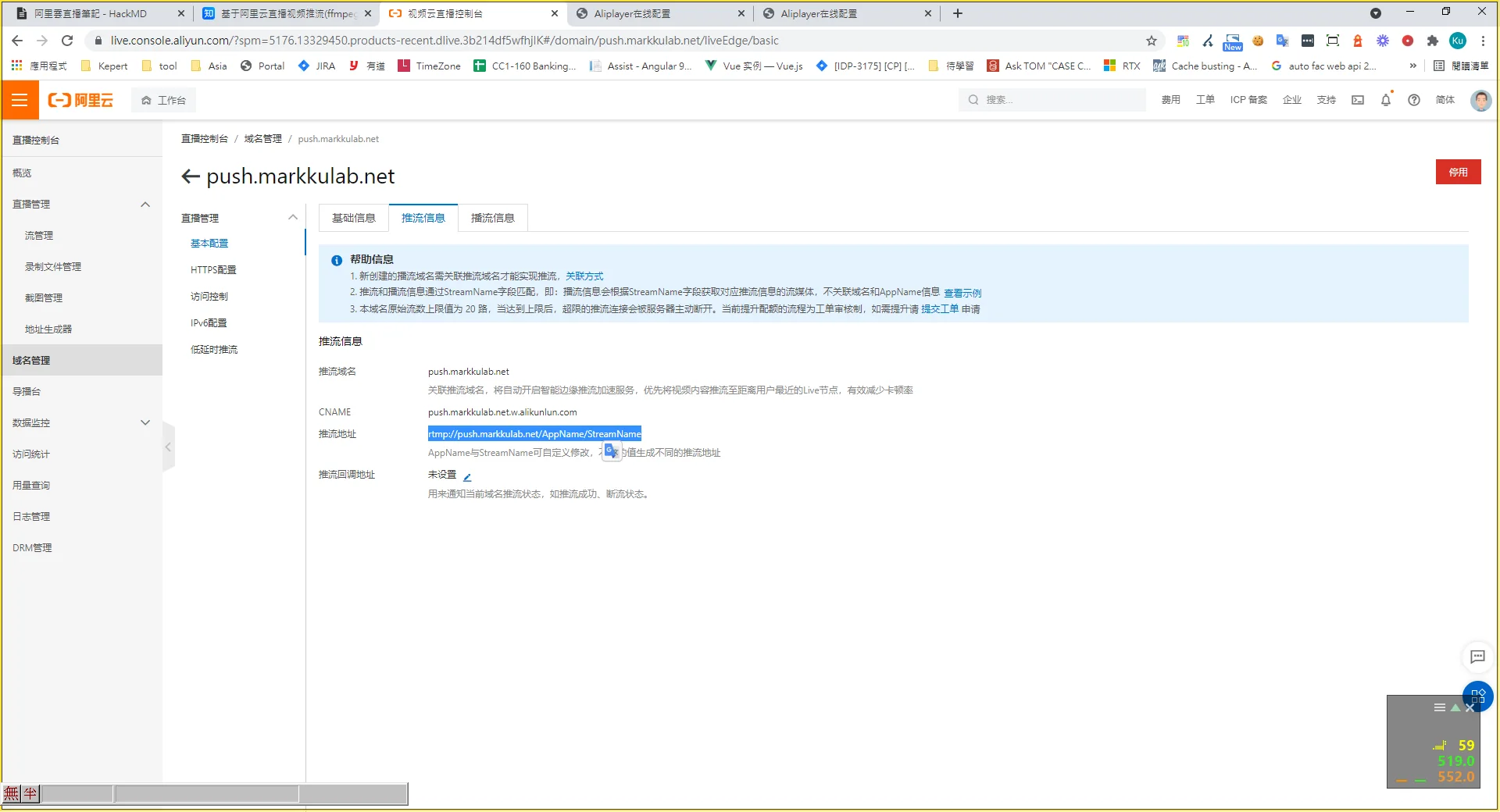
When the association is complete, you'll receive the stream playback info (the highlighted portion — you'll paste this into your streaming software).
-
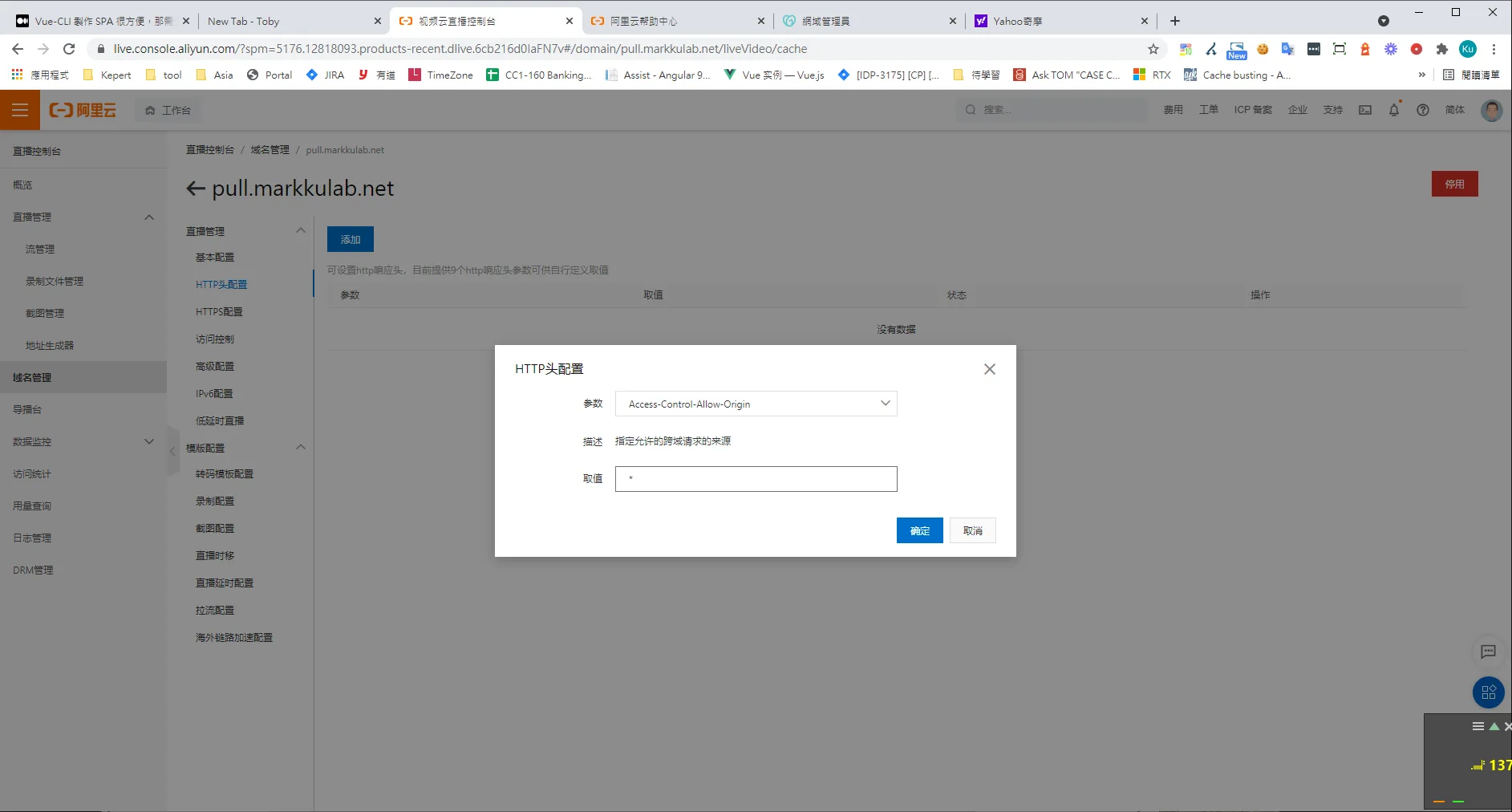
Configure HTTP headers for the pull-stream domain; otherwise, embedding the stream in a website will be blocked by the browser's CORS mechanism => Access-Control-Origin = *
Pushing the Live Stream to the Cloud via Streaming Software
- Go back to the Alibaba Cloud domain list > push-stream domain (push.xxx.com) > Domain Configuration > Access Control > Get the RTMP URL for the push stream.
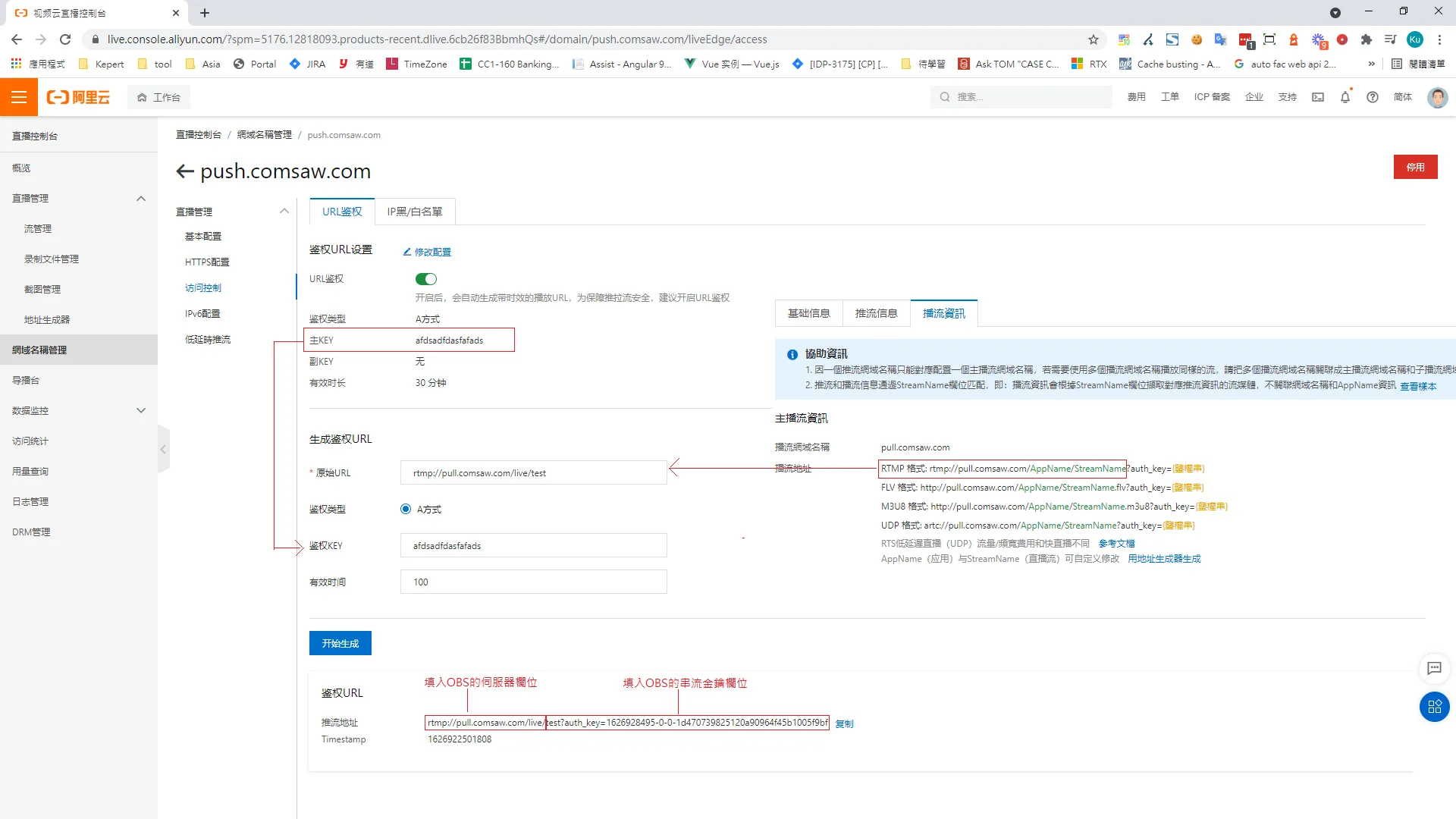
- Install OBS (Open Broadcaster Software).
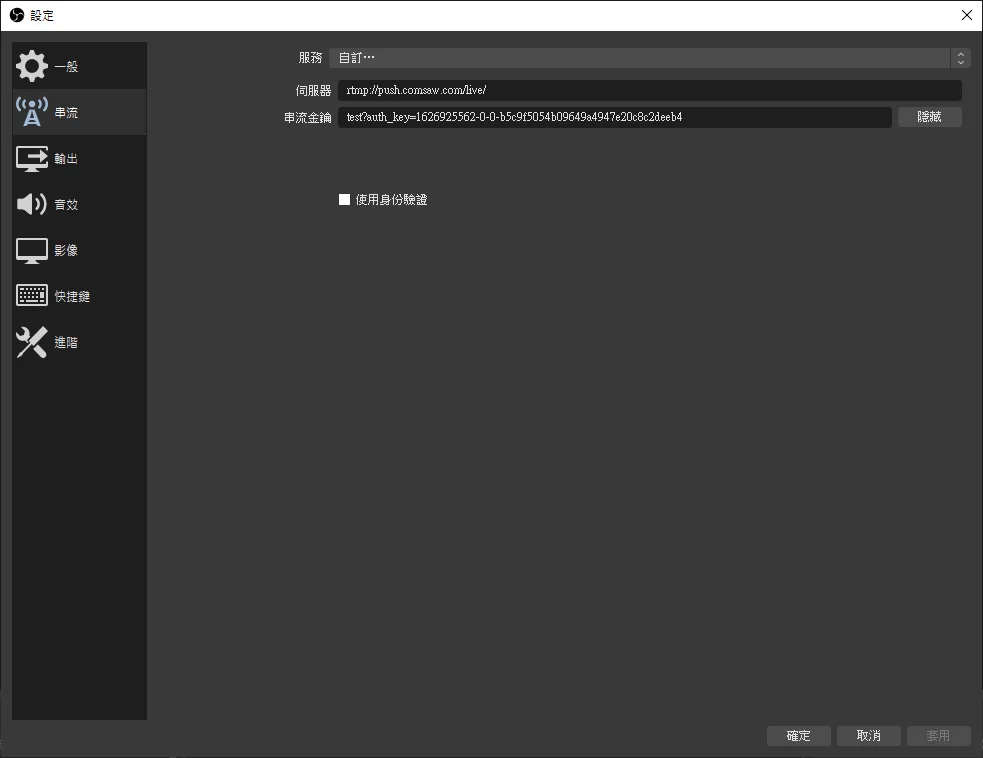
Official download link - Open OBS > Settings > Stream > Fill in the Alibaba Cloud live server address and stream key.
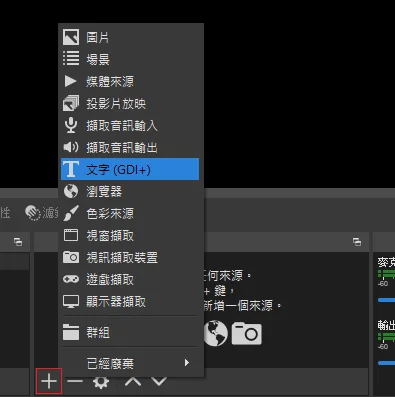
- Click the + button to select the content to stream.
- Click "Start Streaming" — the live video will now be pushed to Alibaba Cloud's push-stream server.
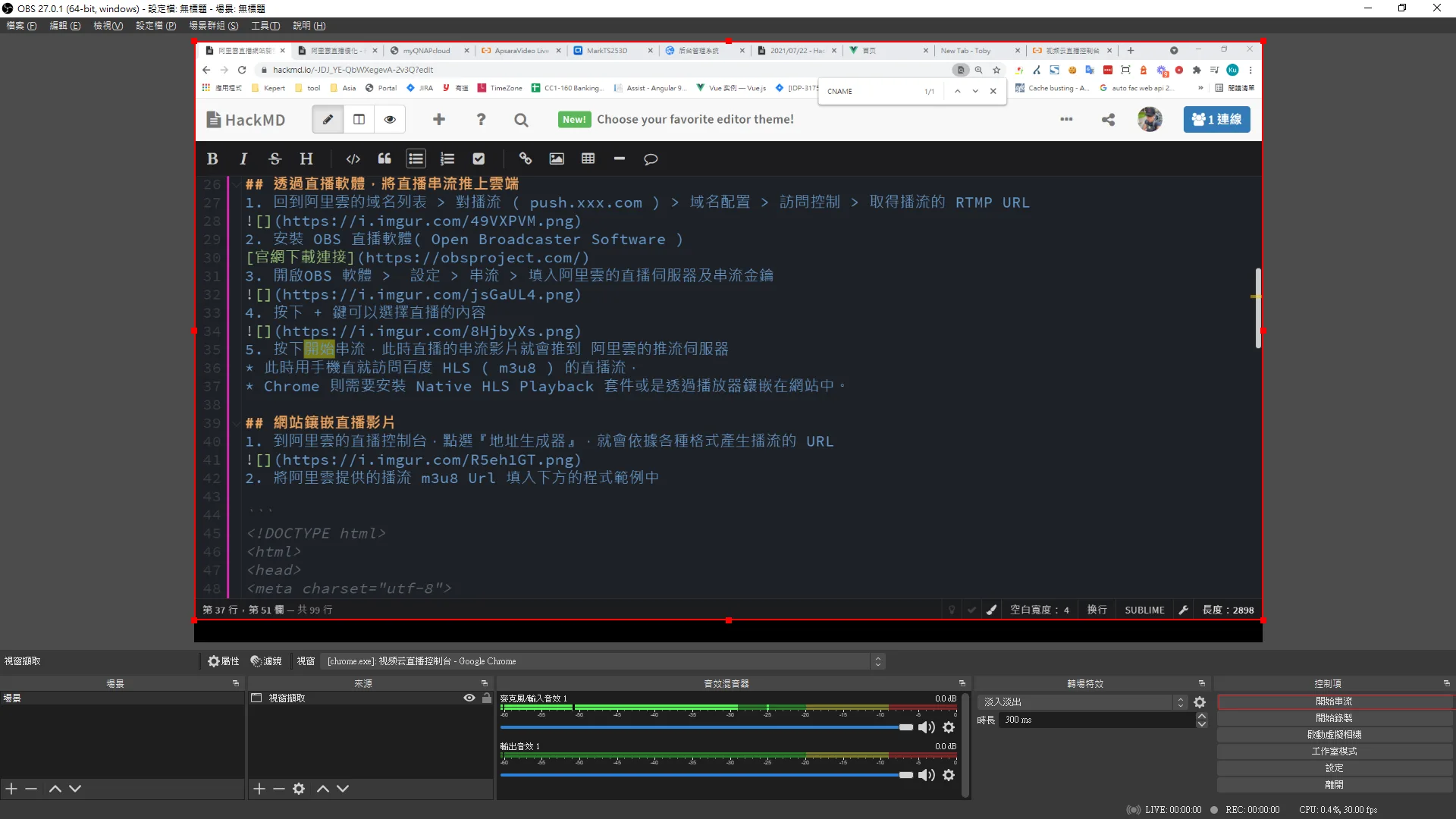
- At this point you can access the Baidu HLS (m3u8) live stream directly on a mobile device.
- Chrome requires the Native HLS Playback extension or embedding the stream via a player in the website.
Embedding the Live Stream in a Website
- Go to the Alibaba Cloud Live console, click "URL Generator," and it will generate playback URLs in various formats.
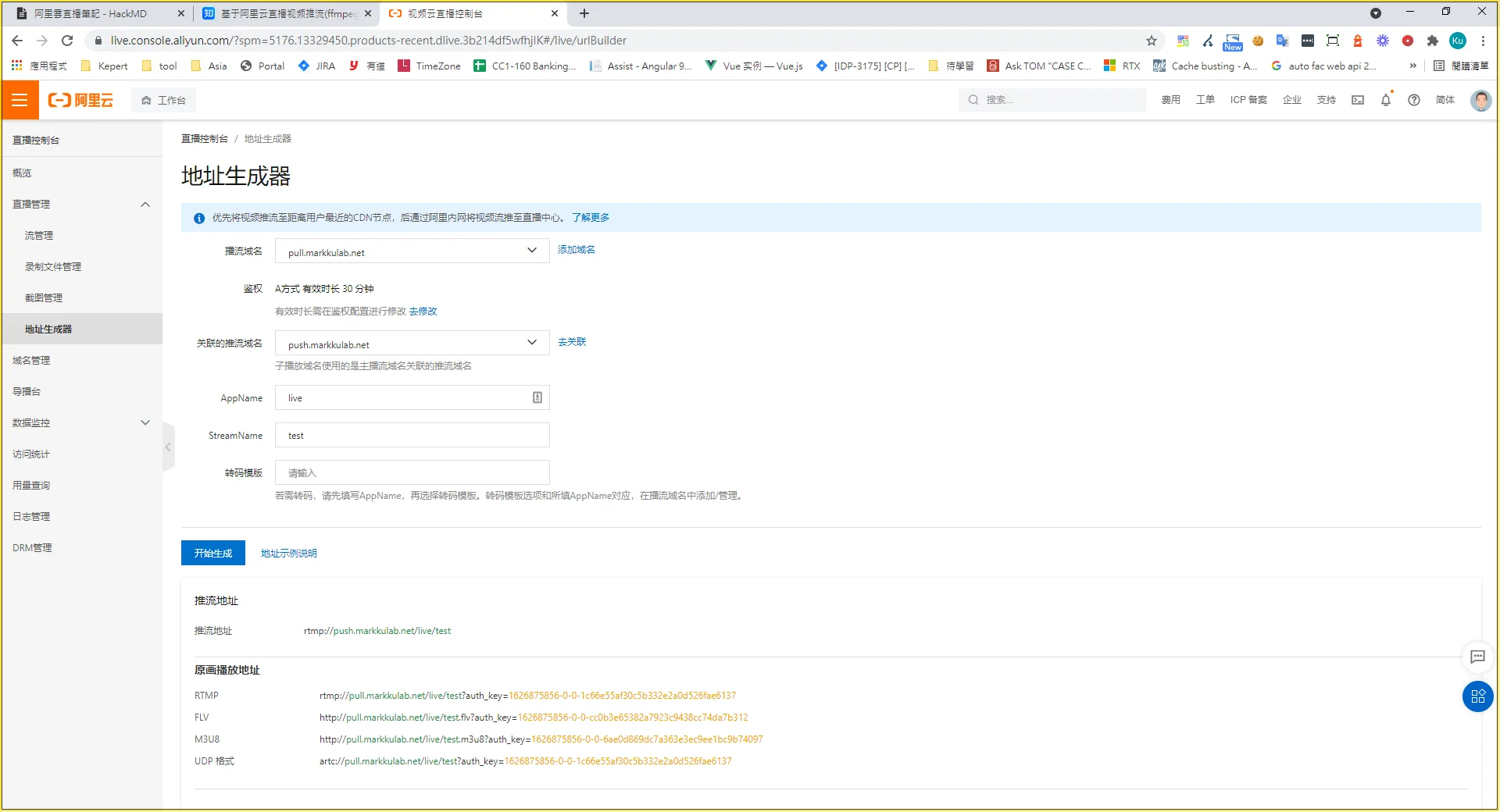
- Fill in the m3u8 URL provided by Alibaba Cloud into the sample code below.
<!DOCTYPE html>
<html>
<head>
<meta charset="utf-8">
<meta http-equiv="x-ua-compatible" content="IE=edge" >
<meta name="viewport" content="width=device-width, height=device-height, initial-scale=1, maximum-scale=1, minimum-scale=1, user-scalable=no"/>
<title>Aliplayer在线配置</title>
<link rel="stylesheet" href="https://g.alicdn.com/de/prismplayer/2.8.1/skins/default/aliplayer-min.css" />
<script type="text/javascript" charset="utf-8" src="https://g.alicdn.com/de/prismplayer/2.8.1/aliplayer-min.js"></script>
</head>
<body>
<div class="prism-player" id="player-con"></div>
<script>
var player = new Aliplayer({
  "id": "player-con",
  "source": "http://ali.v3u.cn/v3u/live.m3u8",
  "width": "100%",
  "height": "500px",
  "autoplay": true,
  "isLive": false,
  "rePlay": true,
  "playsinline": true,
  "preload": true,
  "controlBarVisibility": "hover",
  "useH5Prism": true
}, function (player) {
    player._switchLevel = 0;
    console.log("播放器创建了。");
  }
);
</script>
</body>
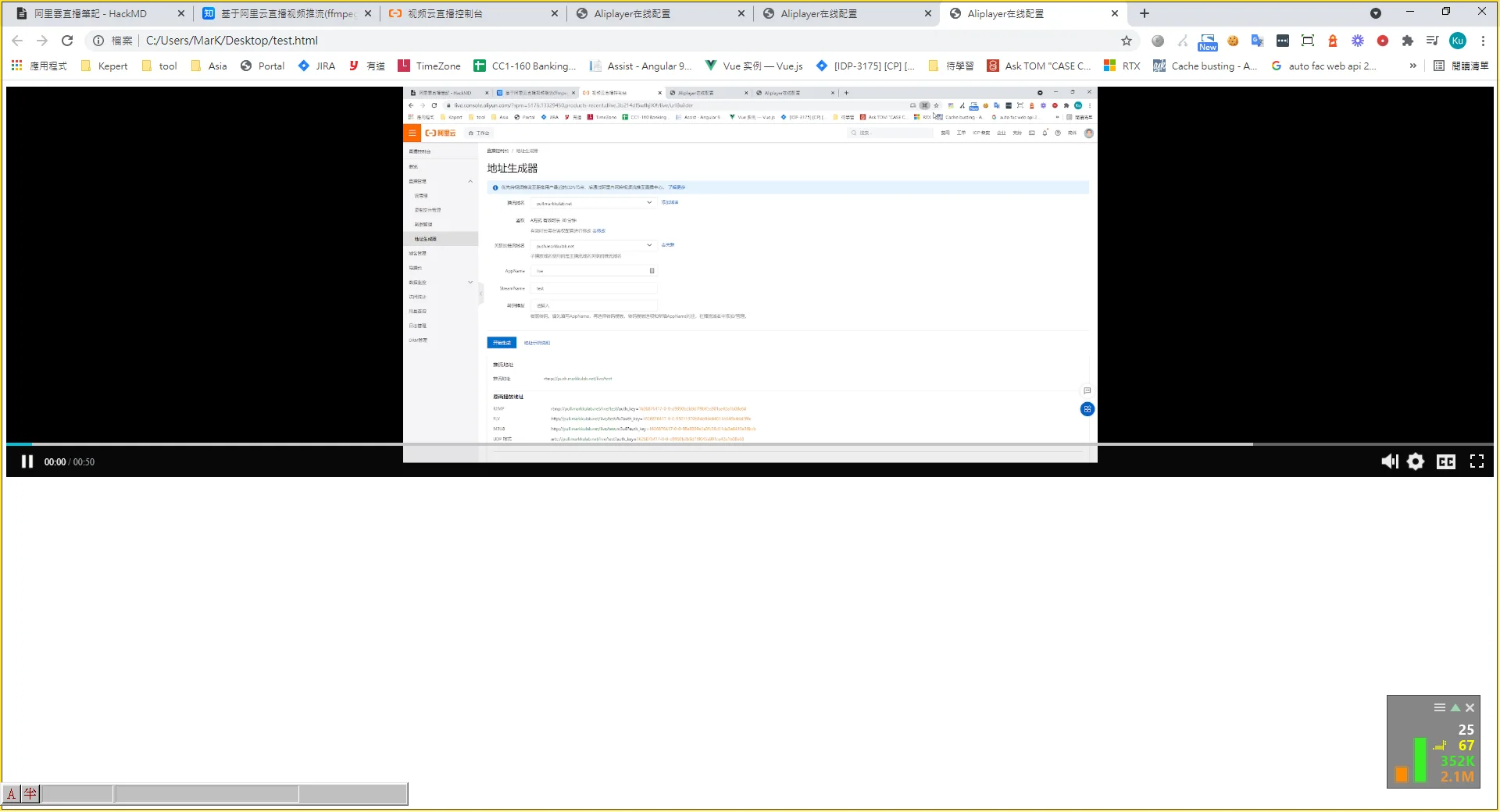
Live Stream Preview
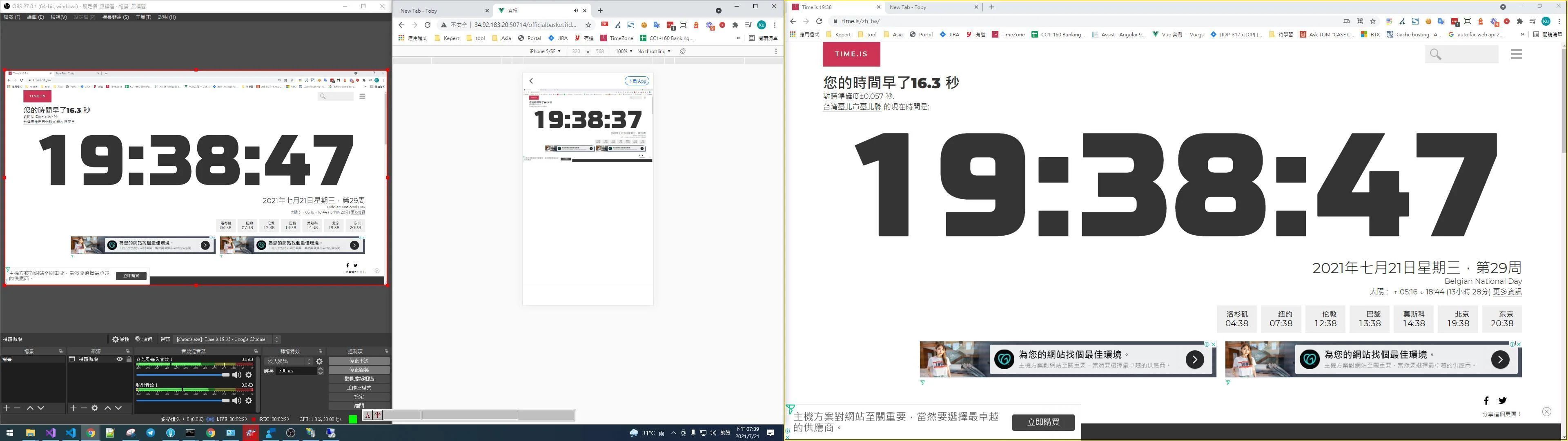
Real-World Measurements (without optimized configuration or CDN acceleration)
- RTMP video latency: 3–5 seconds
- HLS video latency: 8–10 seconds
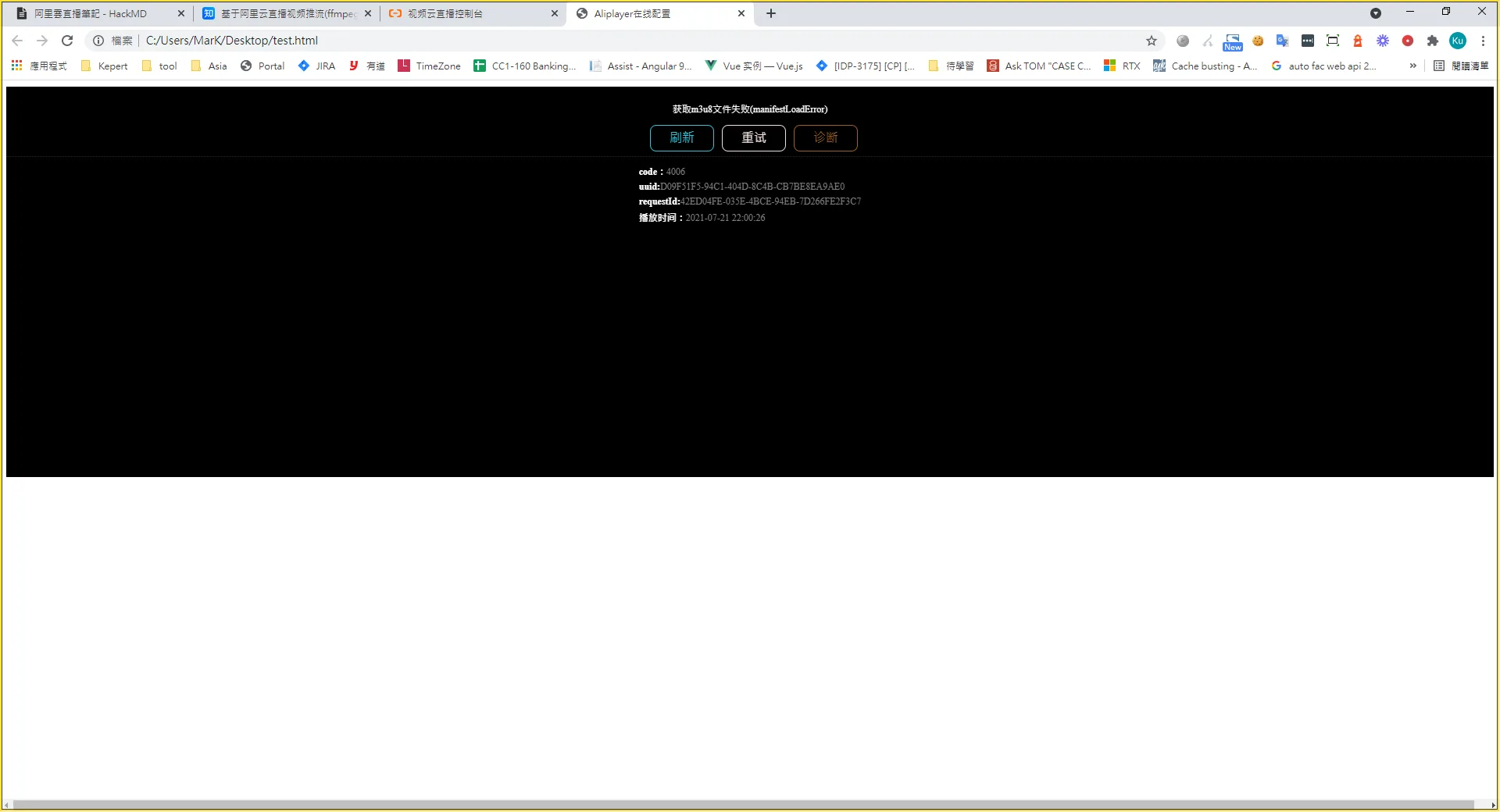
Note — If You See This Screen
This usually means the stream was not pushed correctly, or it was blocked by CORS.


Comments