
Origins of WebP
WebP was developed by Google. Its key advantage is delivering excellent visual clarity without bloating network payloads — which is critical for page load speed.
Why use WebP
For most websites, images account for over 60% of page weight. WebP can shrink JPEG file size by 35% and PNG file size by 50% while preserving quality and transparency. Adopting WebP reduces bandwidth usage and improves user experience.
File size comparison
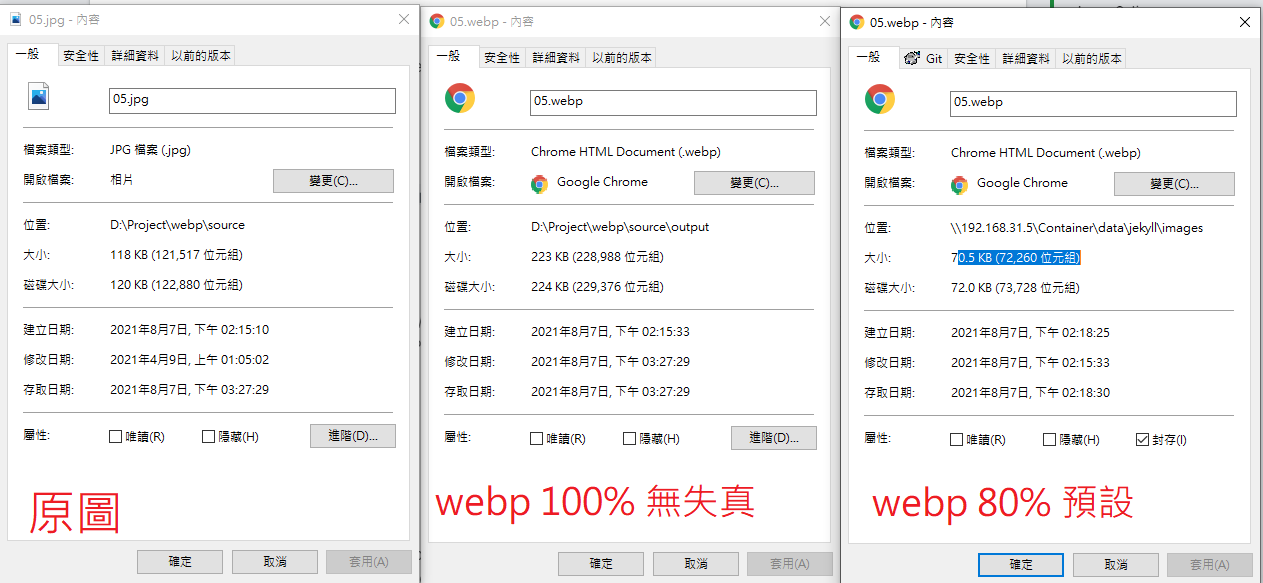
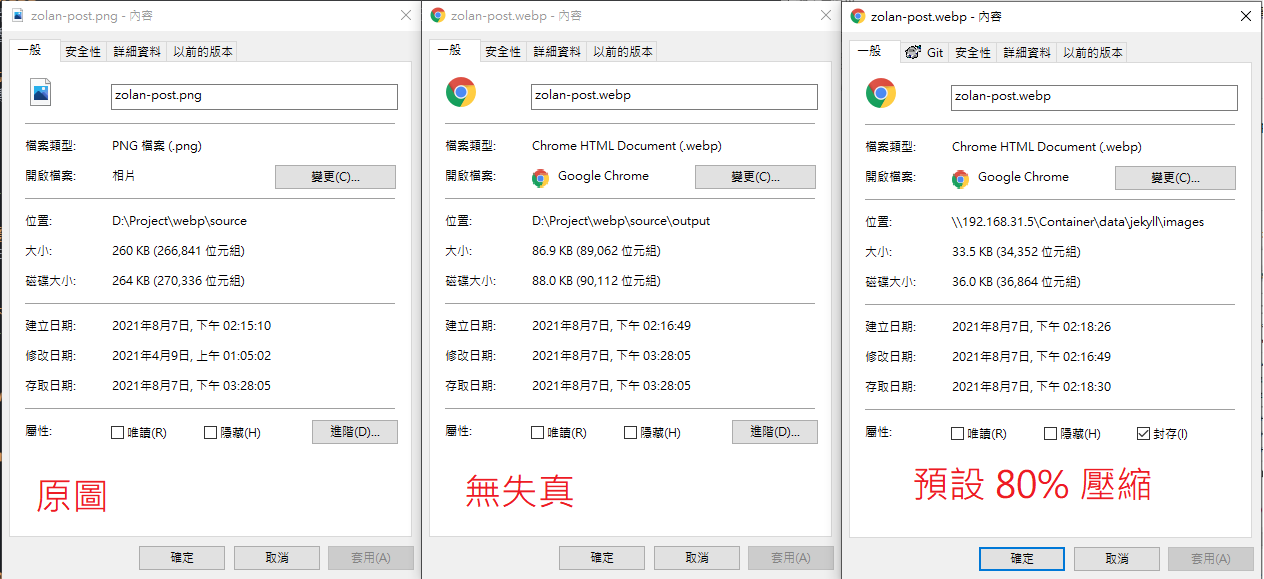
The cwebp tool defaults to 80% quality. Here's a comparison between lossless 100% and the default 80%.
- JPG to WebP — Lossless WebP conversion actually grows the file size by roughly 2x. With the default 80% compression, however, file size drops by ~40%.
- PNG to WebP — Lossless WebP cuts file size by more than half. With the default 80%, files shrink by ~86%.
- An interesting observation:
- The default 80% mode reduces both JPG and PNG sizes meaningfully, but the lossless 100% mode can actually double the size of a JPG.
Browser support
A few years ago WebP support was patchy, but it's now widely supported. One thing to watch out for: iOS only added WebP support starting with version 14, so older versions need a fallback.

Download Google's WebP tool
https://developers.google.com/speed/webp/download

Write the PowerShell script (Convert-WebP.ps1)
$libPath = $PSScriptRoot + "\libwebp-1.2.0-windows-x64\bin\cwebp.exe"
$defaultFoldPath = (Get-Item .)
$outputFolder = 'output'
Function Get-Folder([String] $initialDirectory)
{
    [System.Reflection.Assembly]::LoadWithPartialName("System.windows.forms")|Out-Null

    $foldername = New-Object System.Windows.Forms.FolderBrowserDialog
    $foldername.Description = "Select a folder"
    $foldername.rootfolder = "MyComputer"
    $foldername.SelectedPath = $initialDirectory
	$foldername.ShowNewFolderButton = $false

    if($foldername.ShowDialog() -eq "OK")
    {
        $folder += $foldername.SelectedPath
    }else{
		exit
	}
    return $folder
}


Function Conver-Webp([String] $source, [String] $output)
{
   Write-Host ('$input path:' + $source)
   Write-Host ('$output path:' + $output)

   if (!(Test-Path -Path $output )) {
   New-Item -ItemType directory -Path $output
   Write-Host 'create new folder' + $output
   }

   $files = get-childitem $source -recurse -force -include *.jpg, *.png
   Write-Host $files
   foreach($inputFile in $files){

   #Call cwebp
   $inputFilePath = $inputFile.FullName
   $outputFilePath = Split-Path -Path $inputFile.FullName

   $outputFilePath = $output + "\" + [System.IO.Path]::GetFileNameWithoutExtension($inputFilePath) + ".webp"

   # 使用 80% 品質等級去轉換單張圖片:

   Write-Host $outputFilePath
   $args = "-q 80 " + $inputFilePath + " -o " + $outputFilePath

   Start-Process -FilePath $libPath -ArgumentList $args -Wait

   $originalFileSize = (Get-Item $inputFilePath).length
   $optimizedFileSize = (Get-Item $outputFilePath).length

   $savedBytes = $originalFileSize - $optimizedFileSize
   $savedPercentage = [math]::Round(100-($optimizedFileSize / $originalFileSize)*100)
   $message = $inputFilePath + " " + $outputFilePath + " " + $savedBytes + "bytes " + $savedPercentage + "%"

   Write-Host $message
   }
}


$sourceFolderPath = Get-Folder($defaultFoldPath)
$outputFolderPath =($sourceFolderPath+ '\' + $outputFolder)

Conver-Webp $sourceFolderPath $outputFolderPath

PAUSE
Place the downloaded WebP library next to the script, then right-click Convert-WebP.ps1 > Run with PowerShell
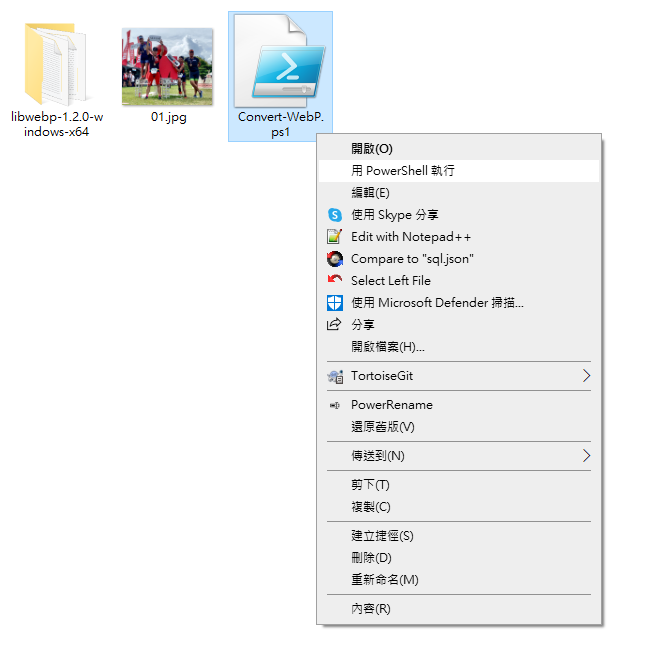
Select the source folder
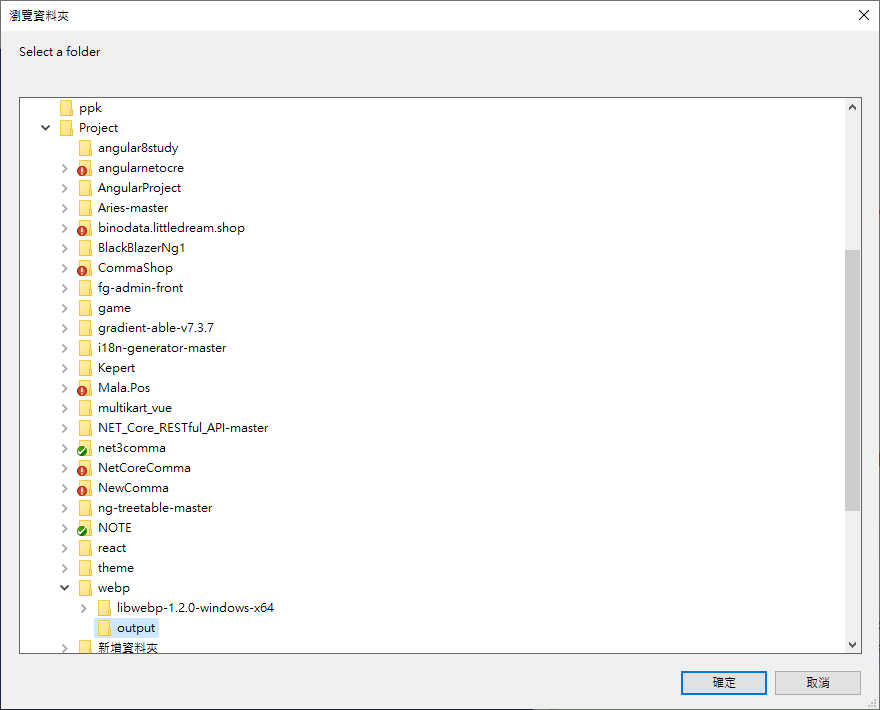
Execution screen
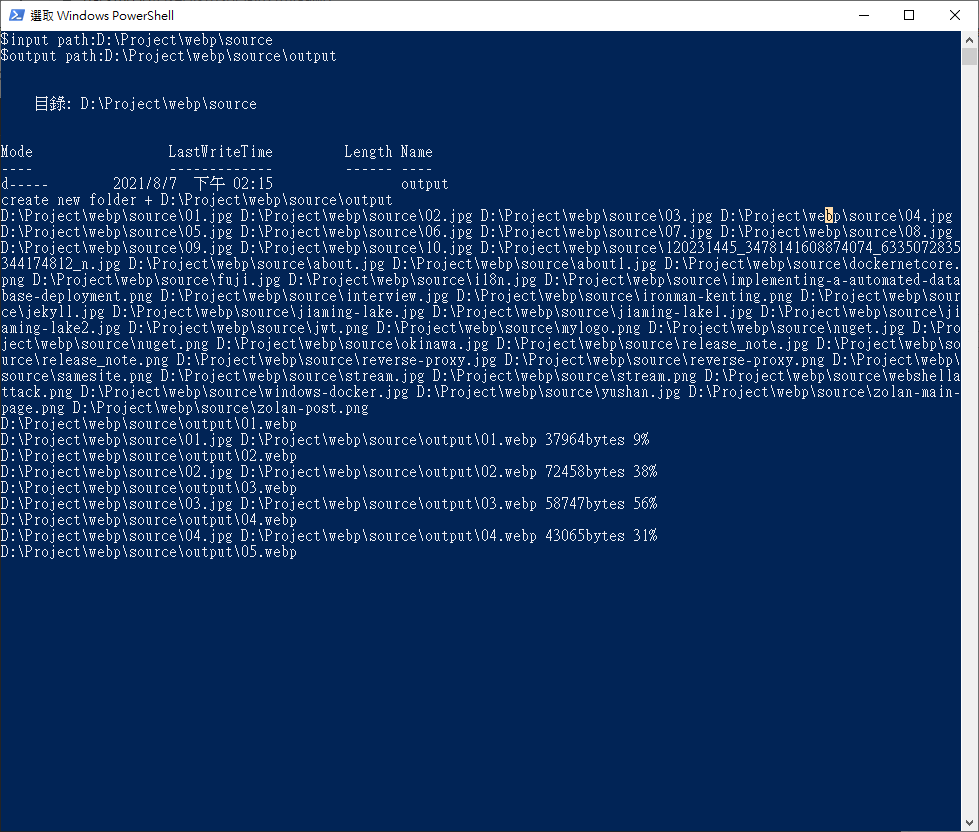
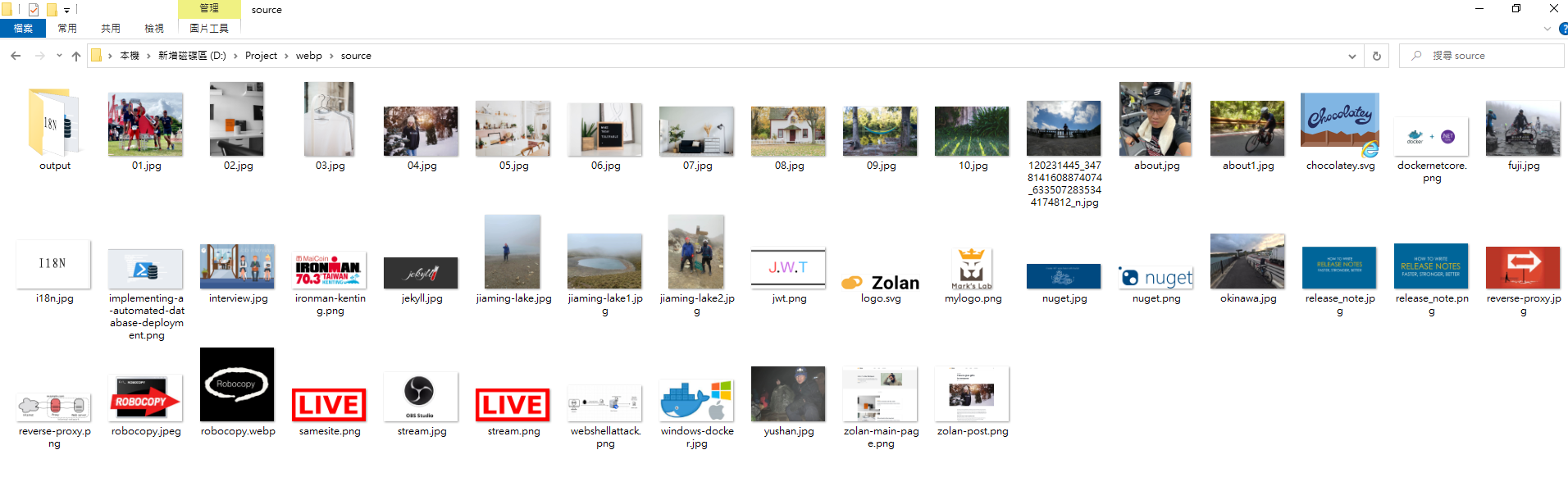
When the script finishes, all jpg/png files are written to the output directory.


Comments