Mark Ku's Blog

Running .NET Core 6.0 Applications and Websites on Raspberry Pi 4B

Environment Setup

Install .NET Core Dependencies

sudo apt install -y libunwind8 libunwind8-dev gettext libicu-dev liblttng-ust-dev libcurl4 libcurl4-openssl-dev libssl-dev uuid-dev unzip libgdiplus libc6-dev libkrb5-3

Download and Unzip the .NET SDK

wget https://download.visualstudio.microsoft.com/download/pr/1f85b038-9917-4d0a-8485-5dc86510eec7/a7555924fe292c6c2140893f066abe65/dotnet-sdk-6.0.100-linux-arm.tar.gz -O dotnet-sdk-linux-arm.tar.gz --no-check-certificate
sudo mkdir -p /usr/local/dotnet && sudo tar zxf dotnet-sdk-linux-arm.tar.gz -C /usr/local/dotnet
sudo ln -s -f /usr/local/dotnet/dotnet /usr/local/bin

P.S. A symbolic link (also called a symlink or soft link) is a type of link file similar to a Windows shortcut. /usr/local is typically where executable programs are placed. Basically, all of Linux's built-in executables are located here.

Test dotnet

dotnet --version

Raspberry Pi terminal displaying dotnet version 6.0.100

Part 1: Running a .NET Core Console Application on Raspberry Pi

Create a new .NET Core console application project
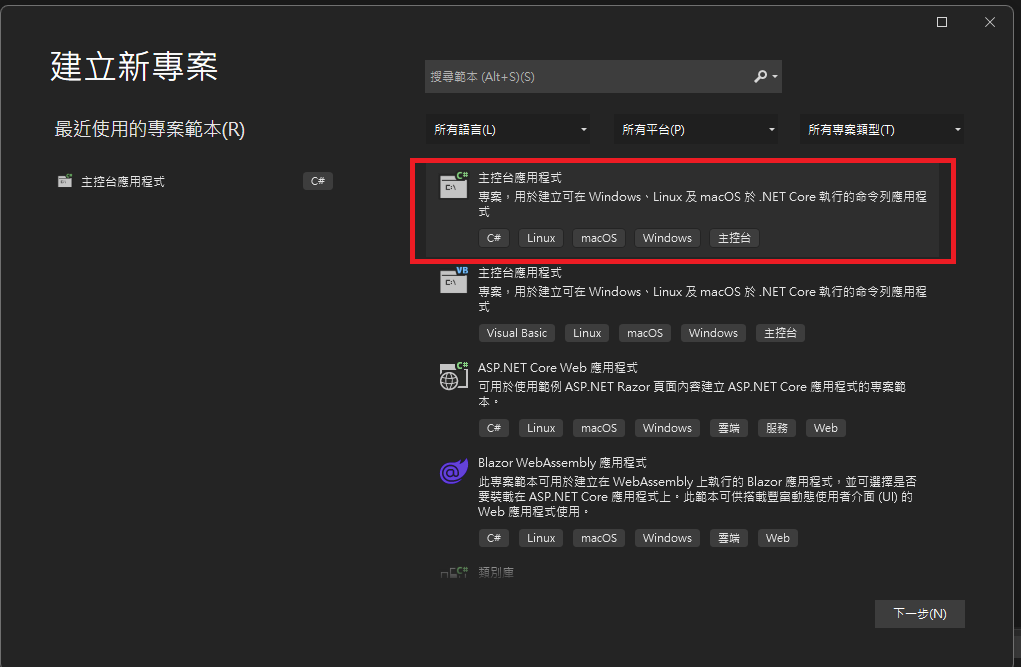
New project dialog highlighting C .NET Core console application template
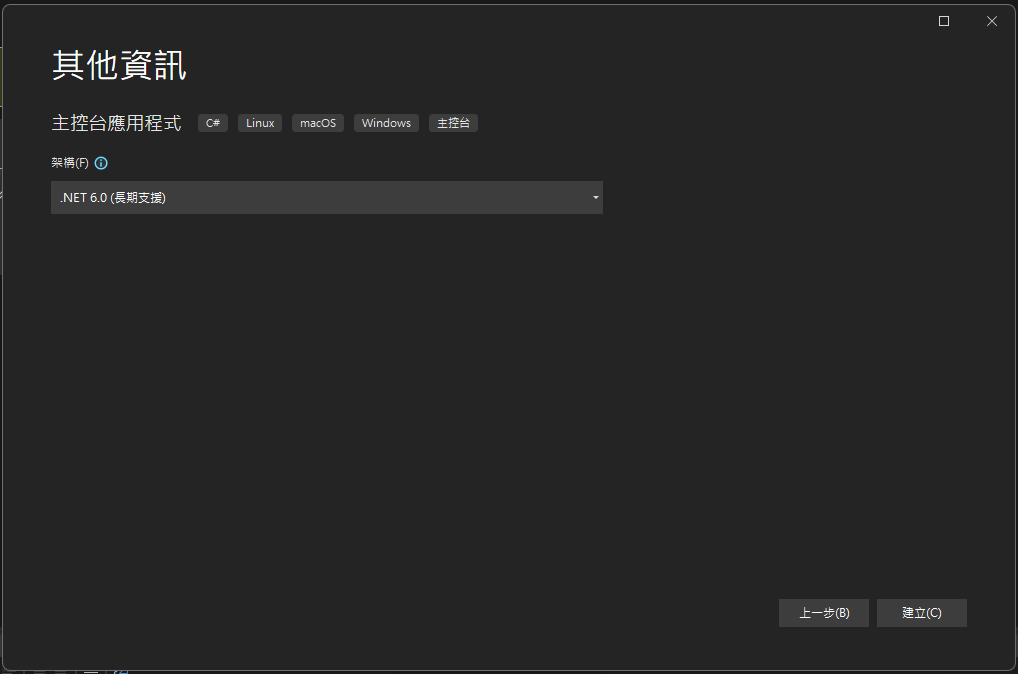
Development UI selecting .NET 6.0 for a console application

Right-click the project, then Publish > Folder > Finish > Publish
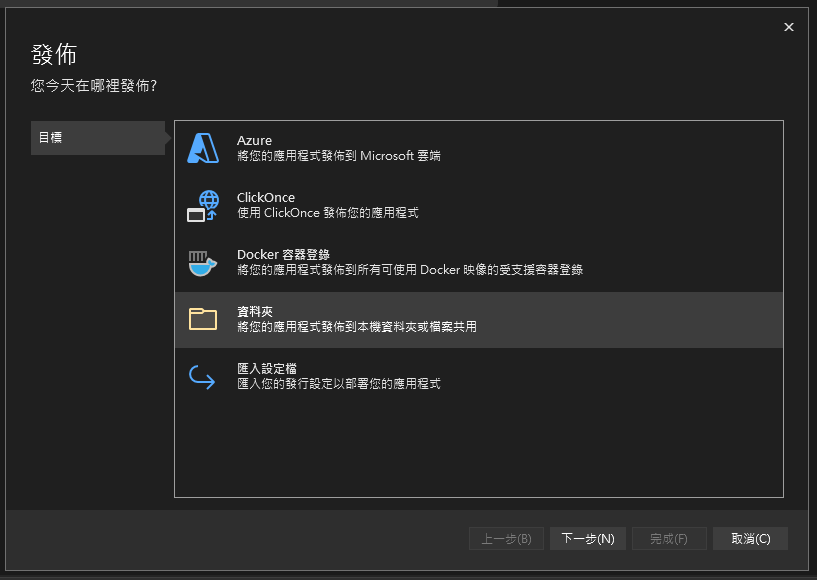
Publish dialog with Folder option selected

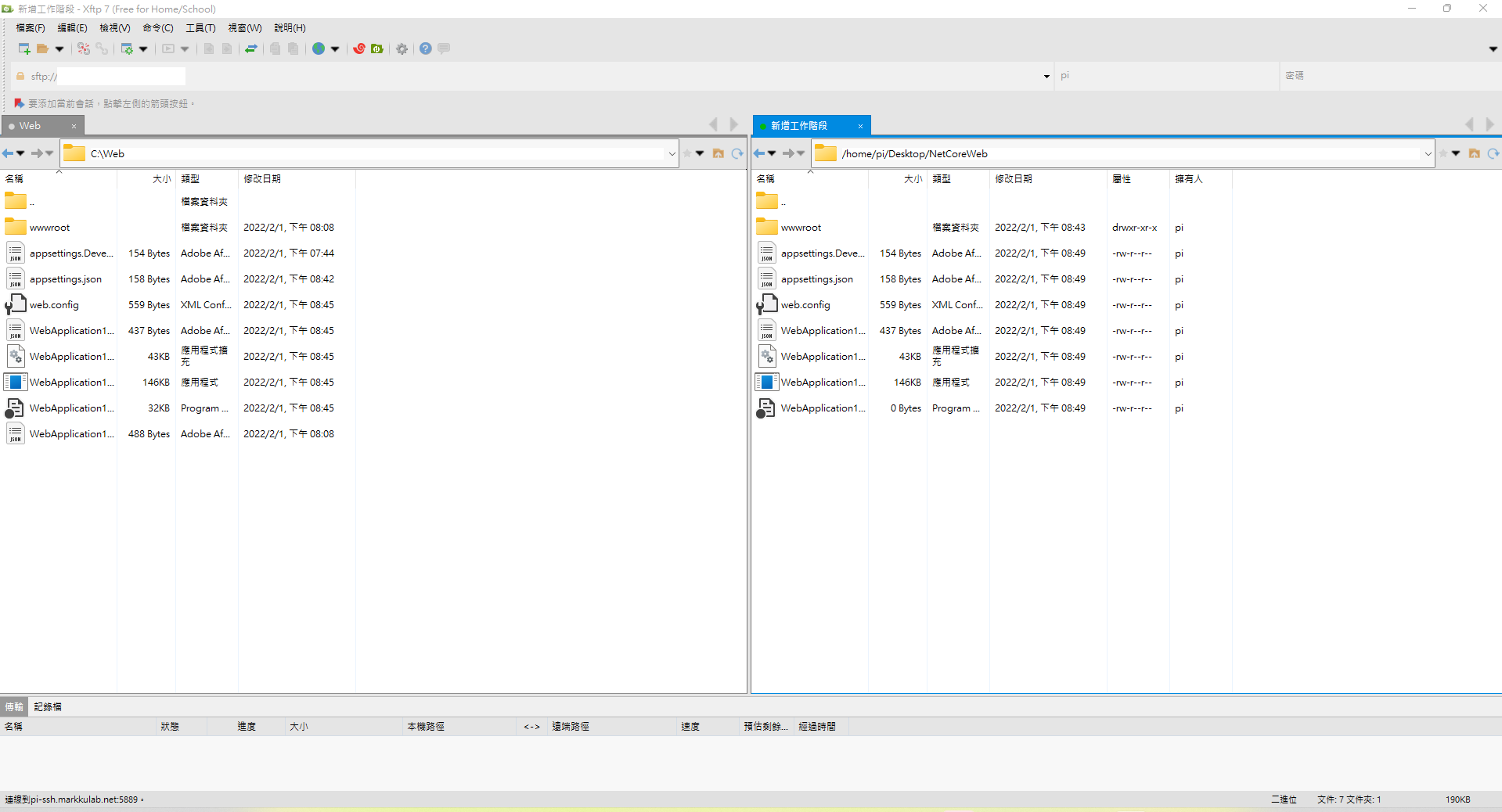
Xftp is a tool that uses the SSH protocol to quickly upload files to Linux through a UI. To copy your locally built .NET Core application to the Raspberry Pi, you can easily do it with Xftp.
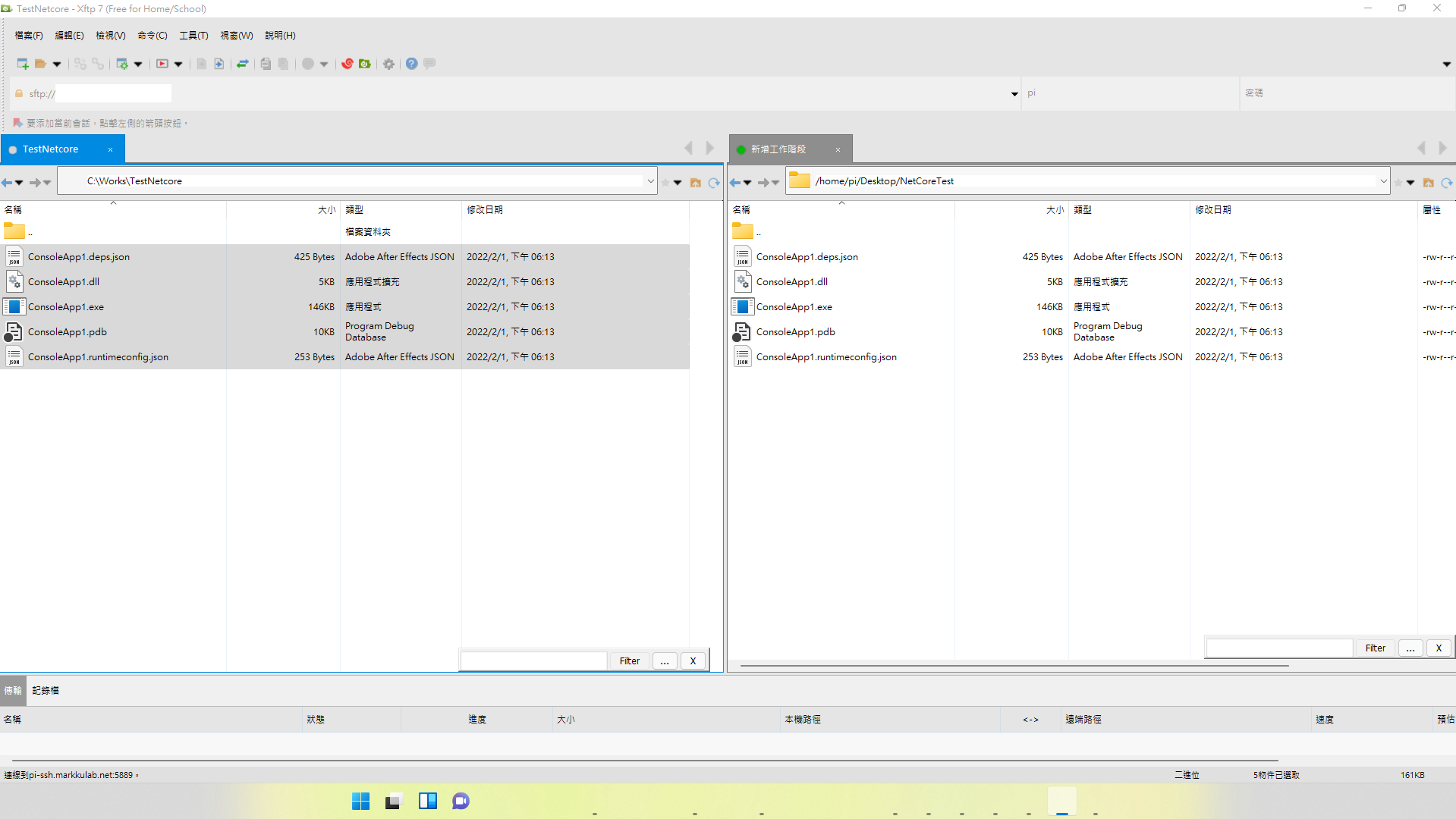
Xftp file manager showing local and remote .NET Core files Xftp download link

Switch to the newly uploaded .NET Core folder

cd NetCoreTest/

Run dotnet ConsoleApp1.dll
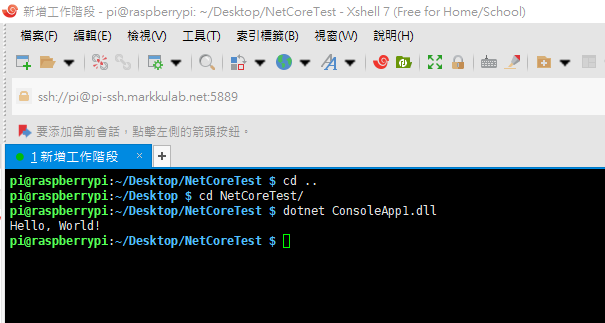
Raspberry Pi terminal running .NET Core 'Hello, World!' application

Part 2: Running a .NET Core Website on Raspberry Pi and Registering It as a Service to Start on Boot

Follow the same steps as for the .NET Core console application to copy the build output of your .NET Core web application to the Raspberry Pi using Xftp.
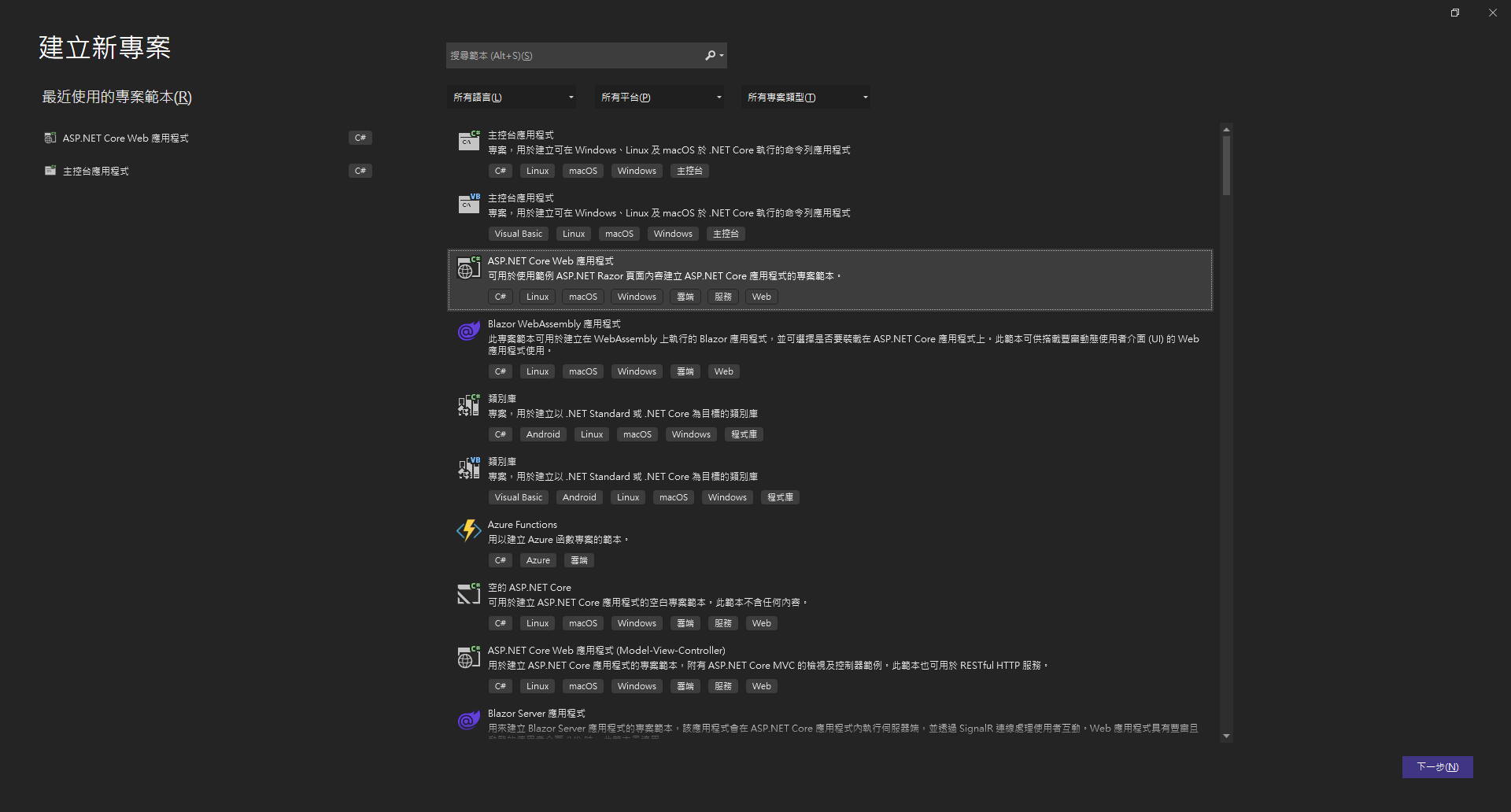
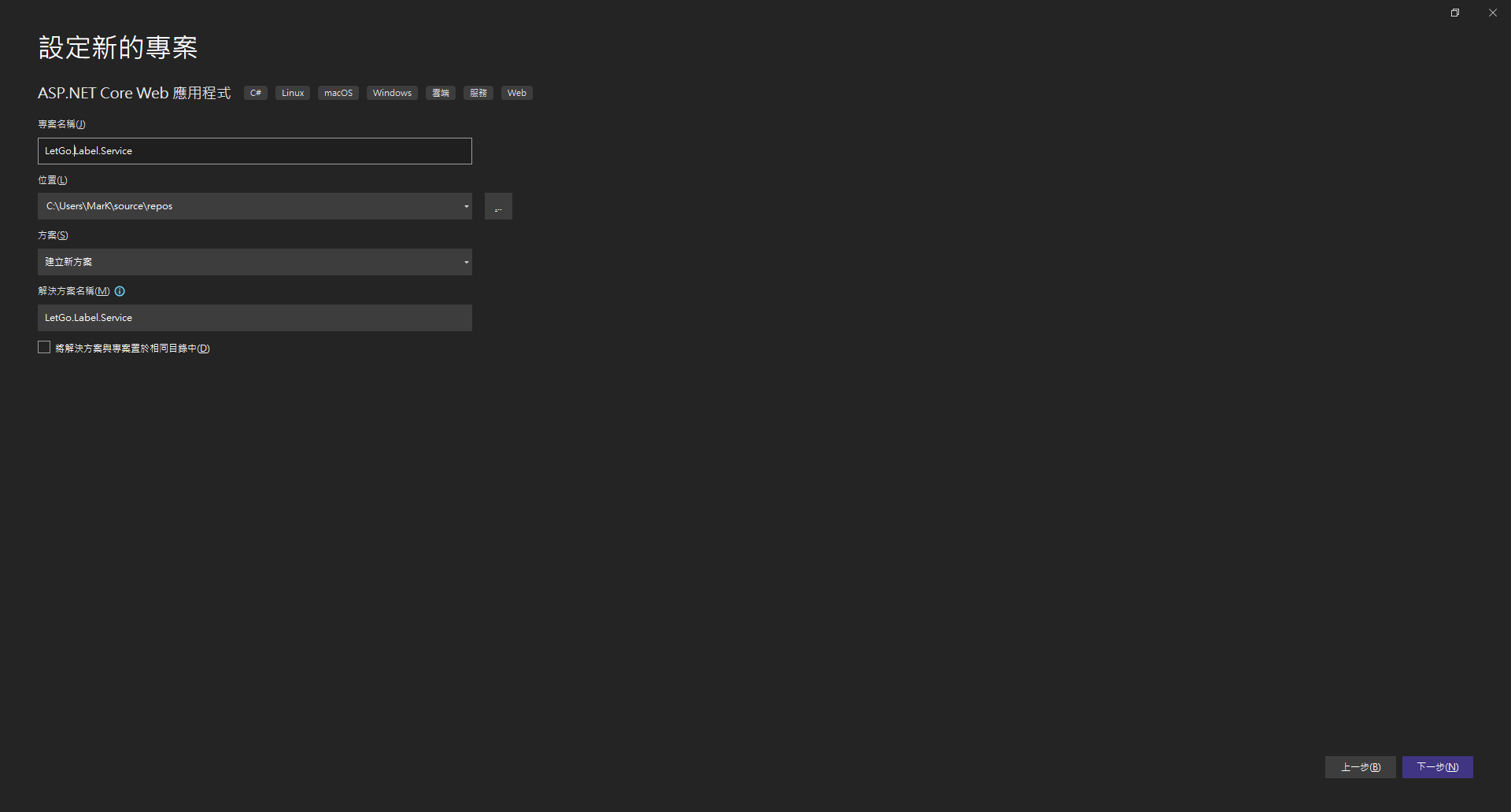
New project dialog, ASP.NET Core Web Application template highlighted
Chinese dialog for new ASP.NET Core web project creation
Xftp displaying .NET Core web app files on local and Raspberry Pi

Right-click the project, then Publish > Folder > Finish > Publish

Publish dialog with Folder option highlighted for local deployment

Switch to the uploaded folder and specify the URL and port number

dotnet LetGo.Label.Service.dll  --urls "http://localhost:5100;https://localhost:5101"

Finally, visit the URL
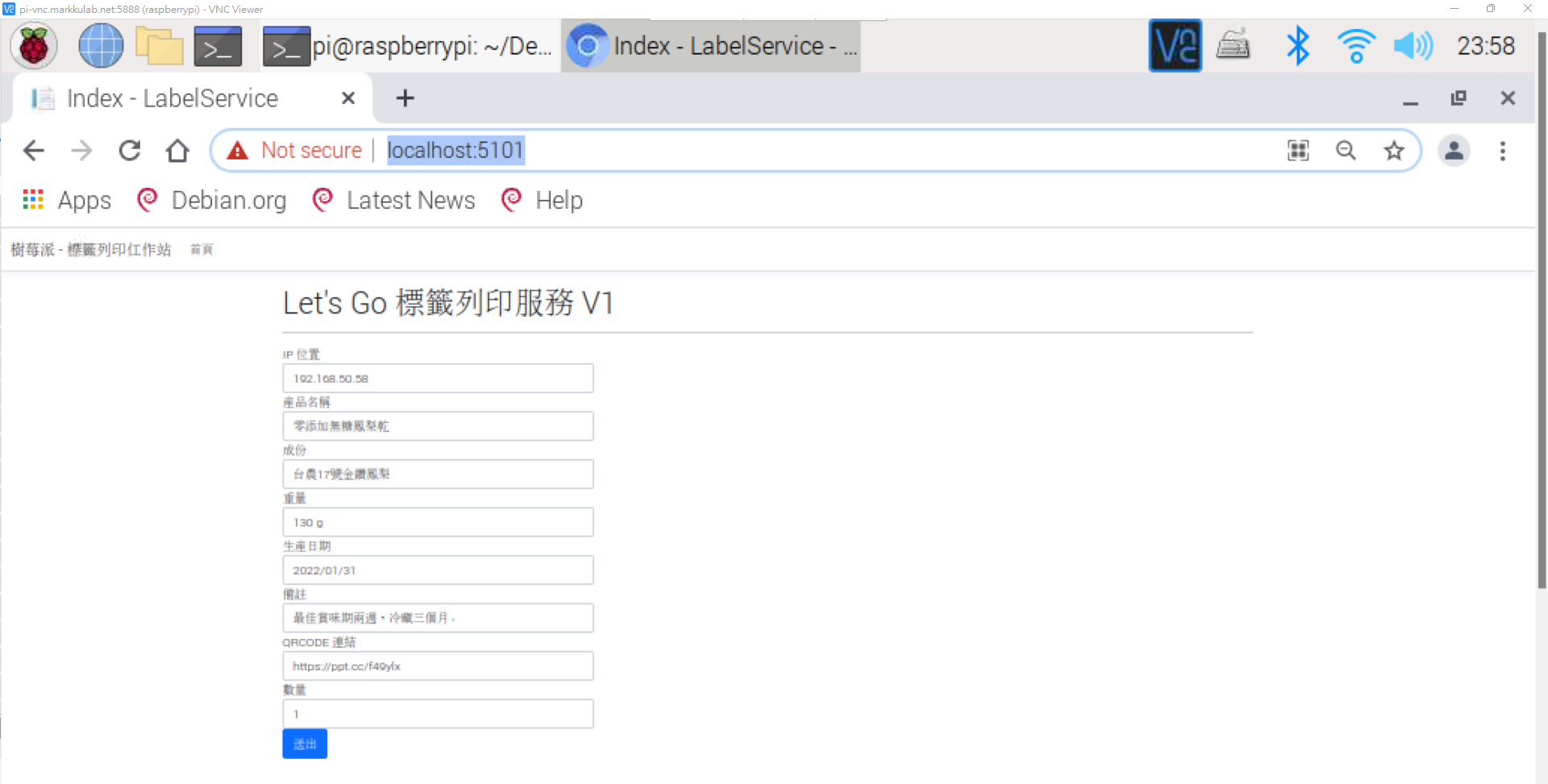
Web browser showing Let's Go Label Service on localhost:5101

If you want the application to start automatically on boot, you can register it as a service.

sudo vim /lib/systemd/system/label.service

[Unit]
Description=Label Services
After=network.target
Wants=network.target

[Service]
Restart=on-failure
RestartSec=5
ExecStart=dotnet /var/label/LabelService.dll  --urls "http://localhost:5100;https://localhost:5101"

[Install]
WantedBy=multi-user.target

Start the label service you just registered

sudo systemctl start label.service //啟動 FRP Server 服務
sudo systemctl stop label.service //停止 FRP Server 服務
sudo systemctl restart label.service //重啟 FRP Server 服務
sudo systemctl enable label.service //開機時自動啟動 FRP Server 服務
sudo systemctl disable label.service //開機時不要啟動 FRP Server 服務
sudo systemctl status label.service //查看FRP Server 狀態
sudo systemctl is-failed label.service // 查看失敗狀態
sudo systemctl daemon-reload  // reload service
sudo systemctl status frpc.service

References

Link

Author

Mark Ku

擁有 10+ 年經驗的資深軟體工程師,現為 AI 應用 Builder,專注於大型平台架構與簡化複雜系統設計,從電商系統到訂閱與收費平台,結合 AI Agent、AI 整合與自動化開發,打造高效率且可持續演進的產品技術基礎。Read More

Found this useful?

The author's free tools, daily podcasts and newsletter are all here.

Mark Ku · This article is licensed under CC BY 4.0. Credit the author and link back to the original when reusing it.

Comments

Subscribe to Newsletter

Subscribe to get new posts delivered instantly — never miss a tech share.

By submitting, you agree to receive emails. You can anytime.

Popular Posts

View all
Mark Ku
··602

Oracle Cloud Always Free Tier: Linux Host and Static IP for a $0 Cloud Solution

Oracle Cloud Always Free Tier: Linux Host and Static IP for a $0 Cloud Solution
Mark Ku
··490

Say Goodbye to Postman's Fee Trap! A Hands-on Guide to Bruno, the Open-Source Git-Native API Testing Powerhouse.

Say Goodbye to Postman's Fee Trap! A Hands-on Guide to Bruno, the Open-Source Git-Native API Testing Powerhouse.
Mark Ku
··333

A Free, Open-Source, Notion-like Knowledge Base — A Complete Guide to Deploying and Backing Up Outline Wiki

A Free, Open-Source, Notion-like Knowledge Base — A Complete Guide to Deploying and Backing Up Outline Wiki
Mark Ku
··264

Training Your Own AI Voice: Hardware Requirements, Open-Source Model Comparison, and LoRA Fine-Tuning

Training Your Own AI Voice: Hardware Requirements, Open-Source Model Comparison, and LoRA Fine-Tuning
Mark Ku
··221

Building an Efficient API Management Platform: Deploying Kong Gateway from Scratch - Part 1

Building an Efficient API Management Platform: Deploying Kong Gateway from Scratch - Part 1
Mark Ku
··215

Setting Up Samba on Ubuntu to Share Folders with Windows 11

Setting Up Samba on Ubuntu to Share Folders with Windows 11