
Installing FRP Server on a Raspberry Pi
Problem Statement
A previous post covered how to set up an FRP reverse proxy server on Google Cloud to expose internal network sites to the internet. However, as the number of sites grew, the monthly cost kept climbing — eventually reaching $200–300 TWD. I decided to self-host FRP Server on a Raspberry Pi instead.
Step 1: Download the Latest Version of frps
wget https://github.com/fatedier/frp/releases/download/v0.47.0/frp_0.47.0_linux_arm.tar.gz
Extract the archive and rename the folder to frp:
tar -zxvf frp_0.47.0_linux_arm.tar.gz
mkdir /var/frps
mv frp_0.47.0_linux_arm/* /var/frps/
cd /var/frps
Edit the frps configuration file (sudo vim frps.ini):
# frps.ini
[common]
bind_addr = 0.0.0.0
bind_port = 7000
vhost_http_port = 80
vhost_https_port = 443
dashboard_port = 7500
dashboard_user = admin
dashboard_pwd = 你的密碼
authentication_method = token
token = frpc 連線的 token
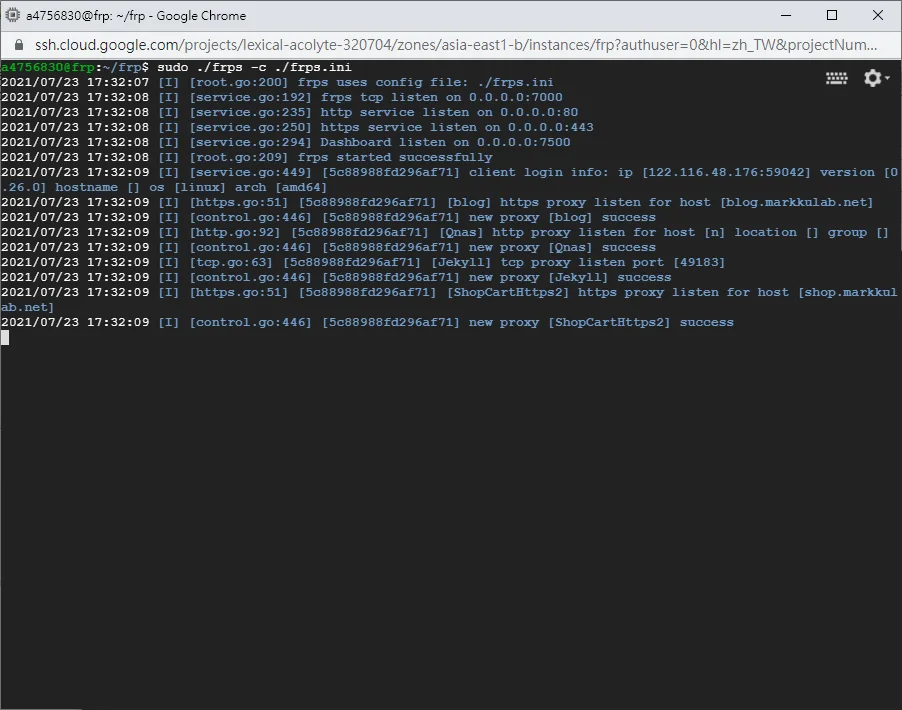
Run frps:
sudo ./frps -c ./frps.ini
Step 2: Configure DNS Records
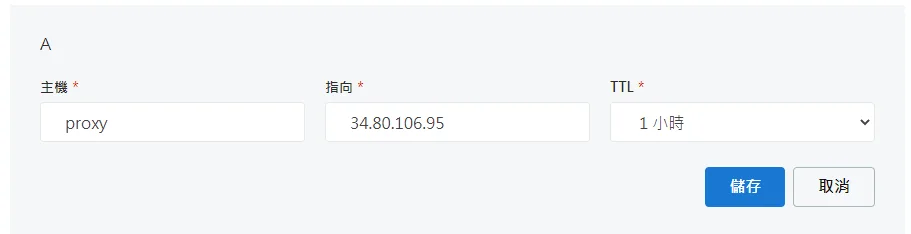
Add a DNS A record pointing proxy.markkulab.net to the FRP Server host:
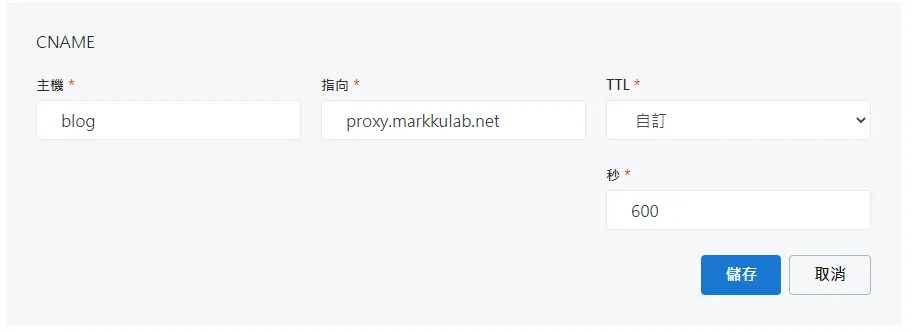
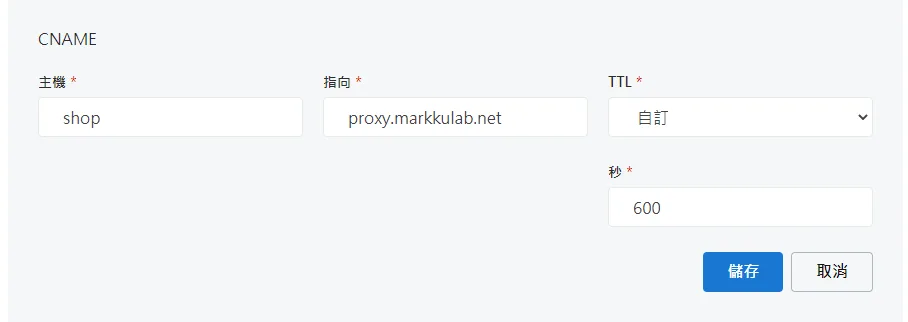
Add a CNAME record so that visitors accessing blog.markkulab.net get routed by frps to the mapped client-side service:
frpc.ini Configuration
[common]
server_addr = proxy.markkulab.net
server_port = 7000
auth_token = 你的密碼
pool_count = 100

[ShopCartHttps2]
type = https
custom_domains = shop.markkulab.net
local_port = 888
plugin = https2http
plugin_local_addr = 127.0.0.1:888
plugin_crt_path = /Public/shop_certificate.crt
plugin_key_path = /Public/shop_private.key
plugin_host_header_rewrite = 127.0.0.1
plugin_header_X-From-Where = frp

[blog]
type = https
local_port = 49183
custom_domains = blog.markkulab.net
plugin = https2http
plugin_local_addr = 127.0.0.1:49183
# HTTPS 证书相关的配置
plugin_crt_path = /Public/blog_certificate.crt
plugin_key_path = /Public/blog_private.key
plugin_host_header_rewrite = 127.0.0.1
plugin_header_X-From-Where = frp
Configure Auto-Start on Boot
Add a systemd service file under /lib/systemd/system/
sudo vim /lib/systemd/system/frps.service
Use the following configuration as a template
[Unit]
Description=FRP Server
After=network.target
Wants=network.target

[Service]
Restart=on-failure
RestartSec=5
ExecStart=/var/frps/frps -c /var/frps/frps.ini

[Install]
WantedBy=multi-user.target
Managing the Service
sudo systemctl start frps.service //啟動 FRP Server 服務
sudo systemctl stop frps.service //停止 FRP Server 服務
sudo systemctl restart frps.service //重啟 FRP Server 服務
sudo systemctl enable frps.service //開機時自動啟動 FRP Server 服務
sudo systemctl disable frps.service //開機時不要啟動 FRP Server 服務
sudo systemctl status frps.service //查看FRP Server 狀態
sudo systemctl daemon-reload  // reload service
Final Note
It turned out that network speeds through the Raspberry Pi were actually faster than through Google Cloud. I ended up keeping the Google Cloud instance as a backup line.


Comments