
Introduction
You've probably all heard of or used the well-known remote desktop tool, TeamViewer. But when it started charging, we began a constant search for free alternatives. I've tried options like AnyDesk and AweSun, but they often suffered from unexplained lag or disconnections. Finally, I found RustDesk—an open-source, free, and easy-to-use remote connection tool that we can self-host with Docker.
Advantages of RustDesk
- Efficient and Secure: RustDesk is written in Rust, a highly efficient and secure programming language.
- Multi-Platform Support: It works seamlessly on Windows, Linux, macOS, and even iOS and Android.
- Simple and Easy to Use: The user experience is as intuitive as TeamViewer, and it uses NAT traversal to ensure stable connections.
- Private and Flexible: RustDesk allows you to host your own relay server, giving you greater control over your privacy.
- Stable Connections: RustDesk maintains a stable connection even on unreliable networks.
- Open and Free: You can use RustDesk completely for free, and its open-source code allows you to inspect or modify it at any time. Come and experience your very own RustDesk remote desktop tool!
Prerequisites
- An Ubuntu server to install the RustDesk Server on.
- A dedicated IP address configured for your Ubuntu server.
- Docker installed on the Ubuntu server.
First, Install the RustDesk Server
On your Ubuntu server with Docker installed, create a docker-compose.yaml file.
vim docker-compose.yml
version: '3'

networks:

  rustdesk-net:

    external: false

services:

  hbbs:

    container_name: hbbs

    ports:

      - 21115:21115

      - 21116:21116

      - 21116:21116/udp

      - 21118:21118

    image: rustdesk/rustdesk-server:latest

    # yourIP 換成你的外部網路 IP

    command: hbbs -r {yourIP}:21117

    volumes:

      - ./data:/root

    networks:

      - rustdesk-net

    depends_on:

      - hbbr

    restart: unless-stopped


  hbbr:

    container_name: hbbr

    ports:

      - 21117:21117

      - 21119:21119

    image: rustdesk/rustdesk-server:latest

    command: hbbr

    volumes:

      - ./data:/root

    networks:

      - rustdesk-net

    restart: unless-stopped
Start the Service
sudo docker compose up -d
Disable the Firewall
sudo ufw allow 21115:21119/tcp
sudo ufw allow 8000/tcp
sudo ufw allow 21116/udp
sudo ufw enable
Test (PowerShell)
test-netconnection domain.com -p 21115
docker logs containerID
Configure the Client
First, download and install the RustDesk client.
Next, let's set a permanent password for this client. Go to Settings > Unlock Security Settings > Set permanent password.
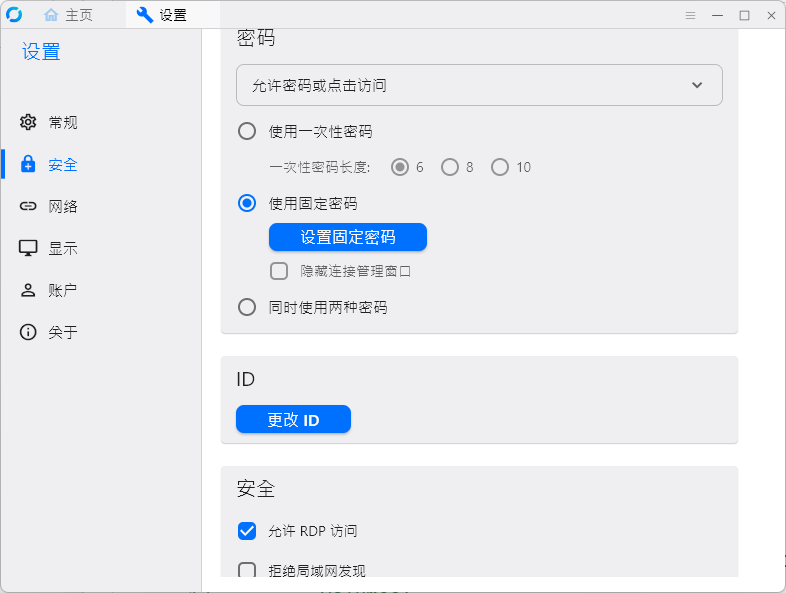
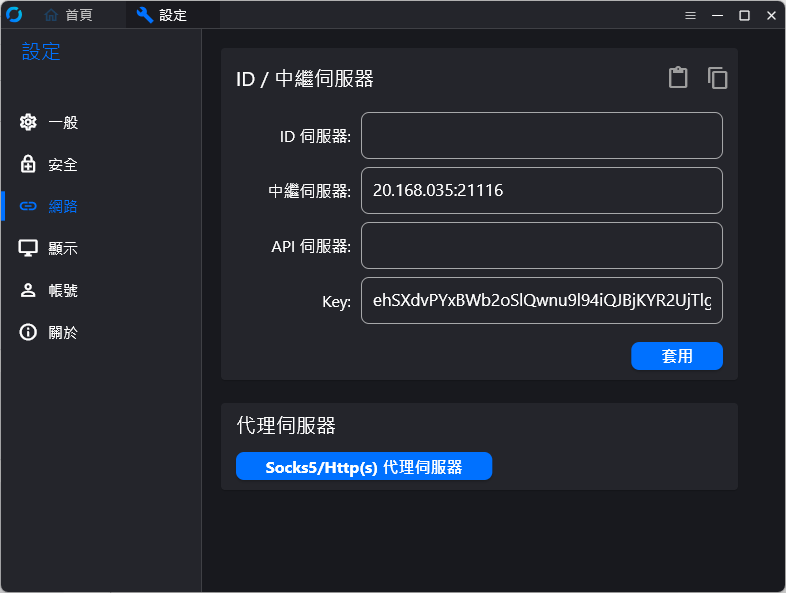
Then, configure it to use the RustDesk Server you set up earlier. Unlock Network Settings > Relay Server > {YourPublicIP}:21116
P.S. The latest versions now require you to enter a key, so you'll need to enter the hbbs container to find out what the key is.
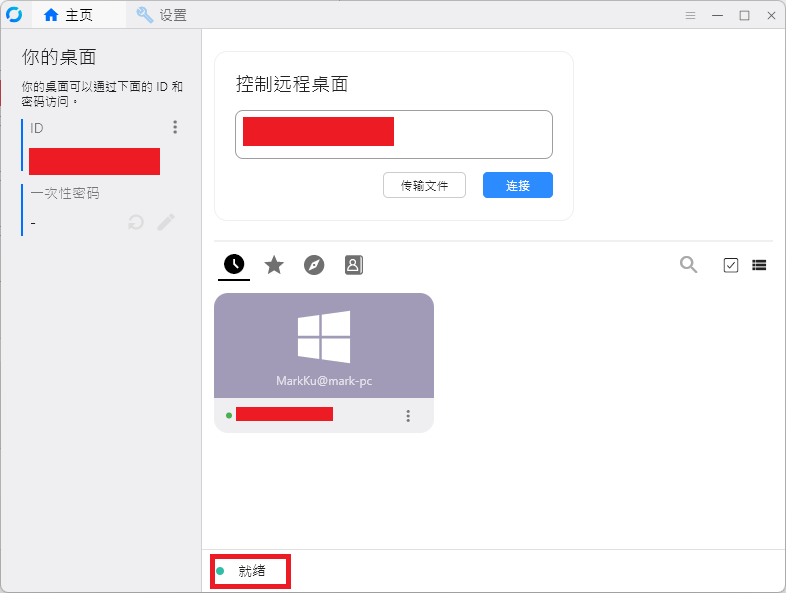
Check the status bar at the bottom. If it shows 'Ready', the connection is successful.
Connection Screen
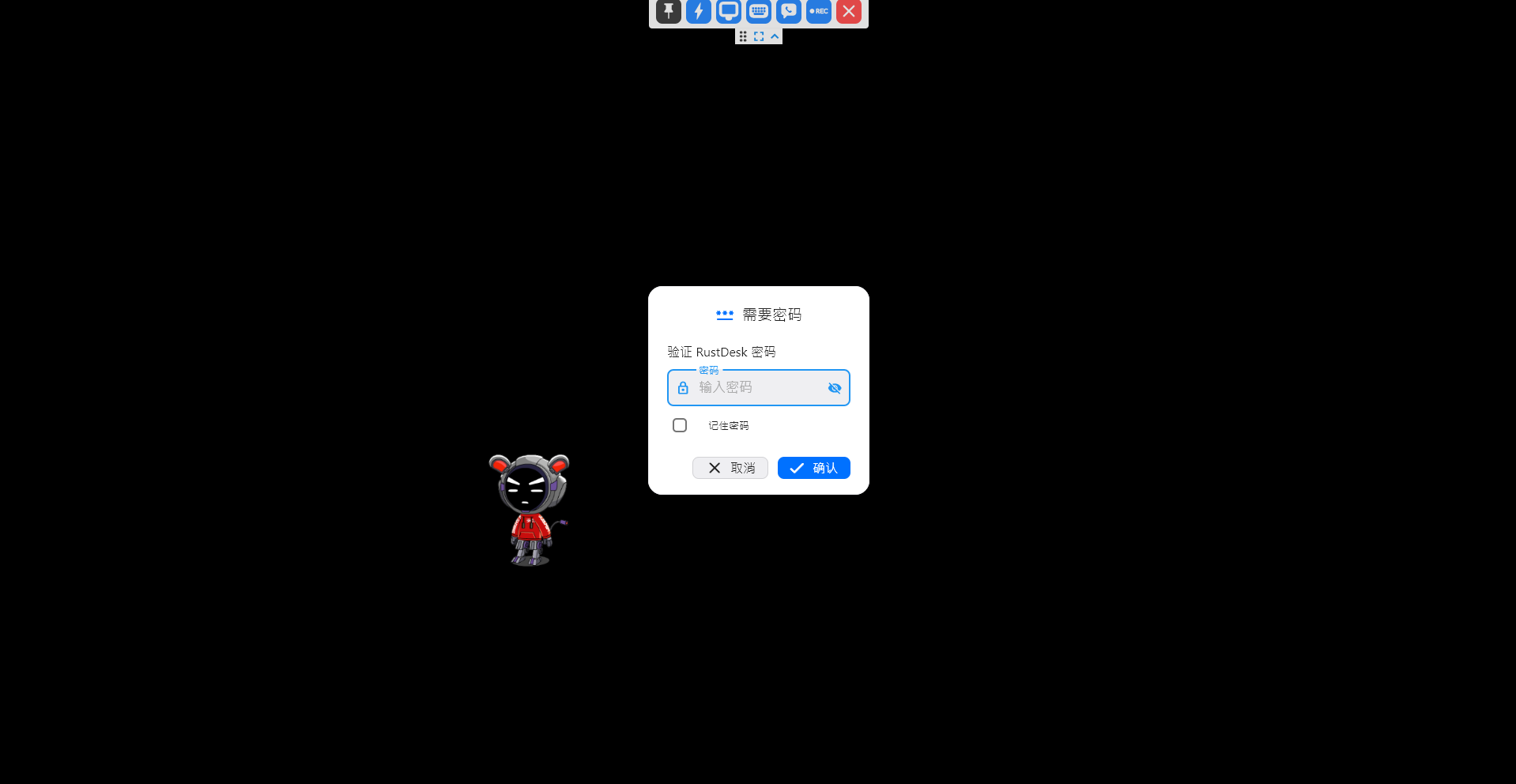
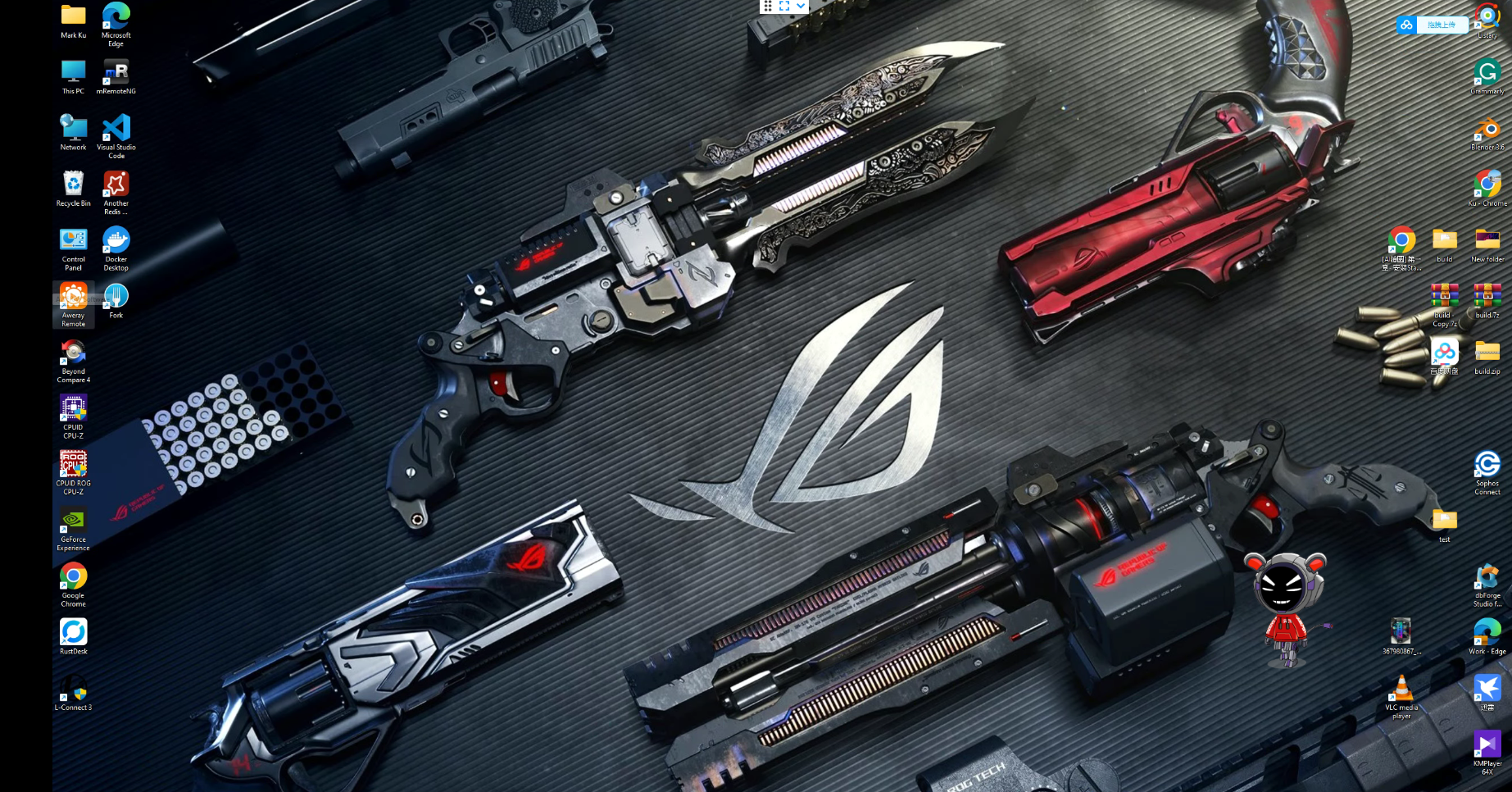
In Use - Desktop Version
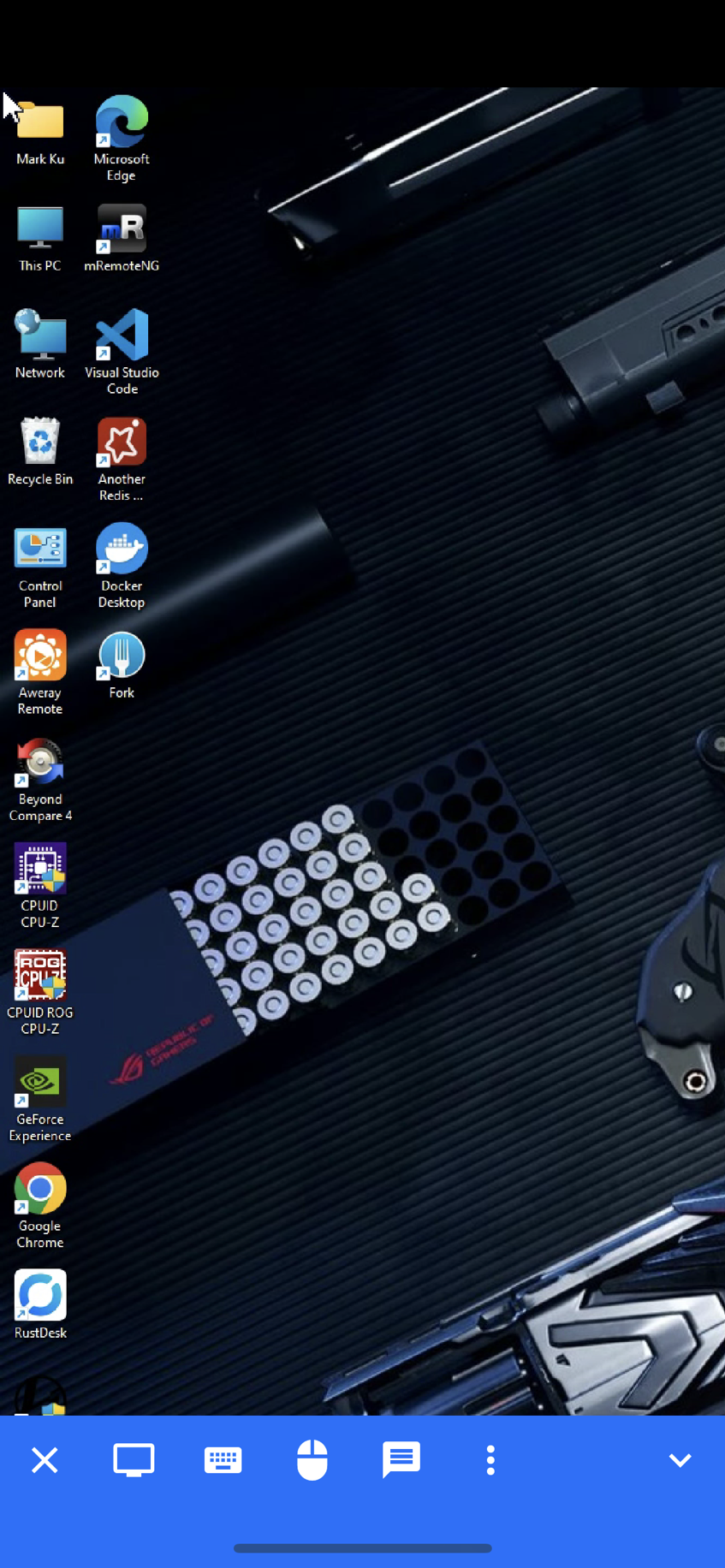
In Use - Mobile Version


Comments