Mark Ku's Blog

What this solves

Earlier I wrote a post about using Uptime Kuma to monitor whether sites and services are running properly. I later found out it supports LINE notifications, so I'm taking the chance to document the application process here.

To use LINE notifications in Uptime Kuma, we need to obtain a user ID and access token from the LINE Messaging API
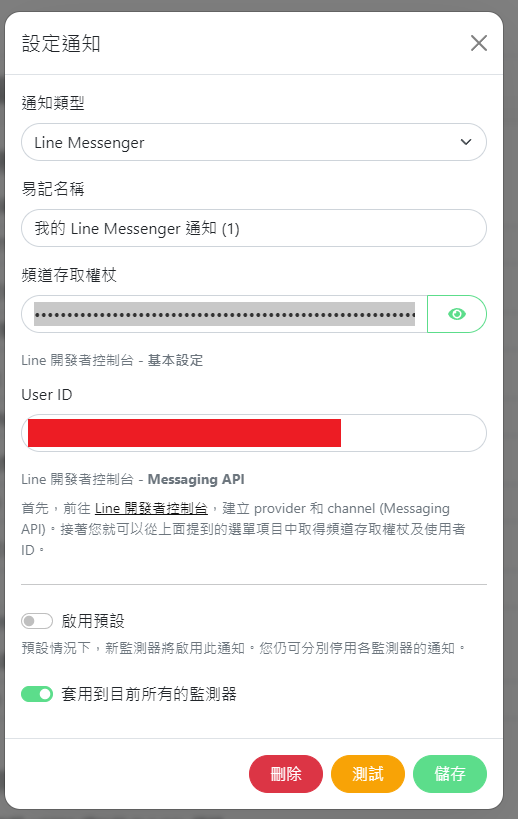
Uptime Kuma Line Messenger notification settings with API fields

Sign in / register a LINE Bot developer account

[LINE Developers site]

Create a new chat group > Create a new channel
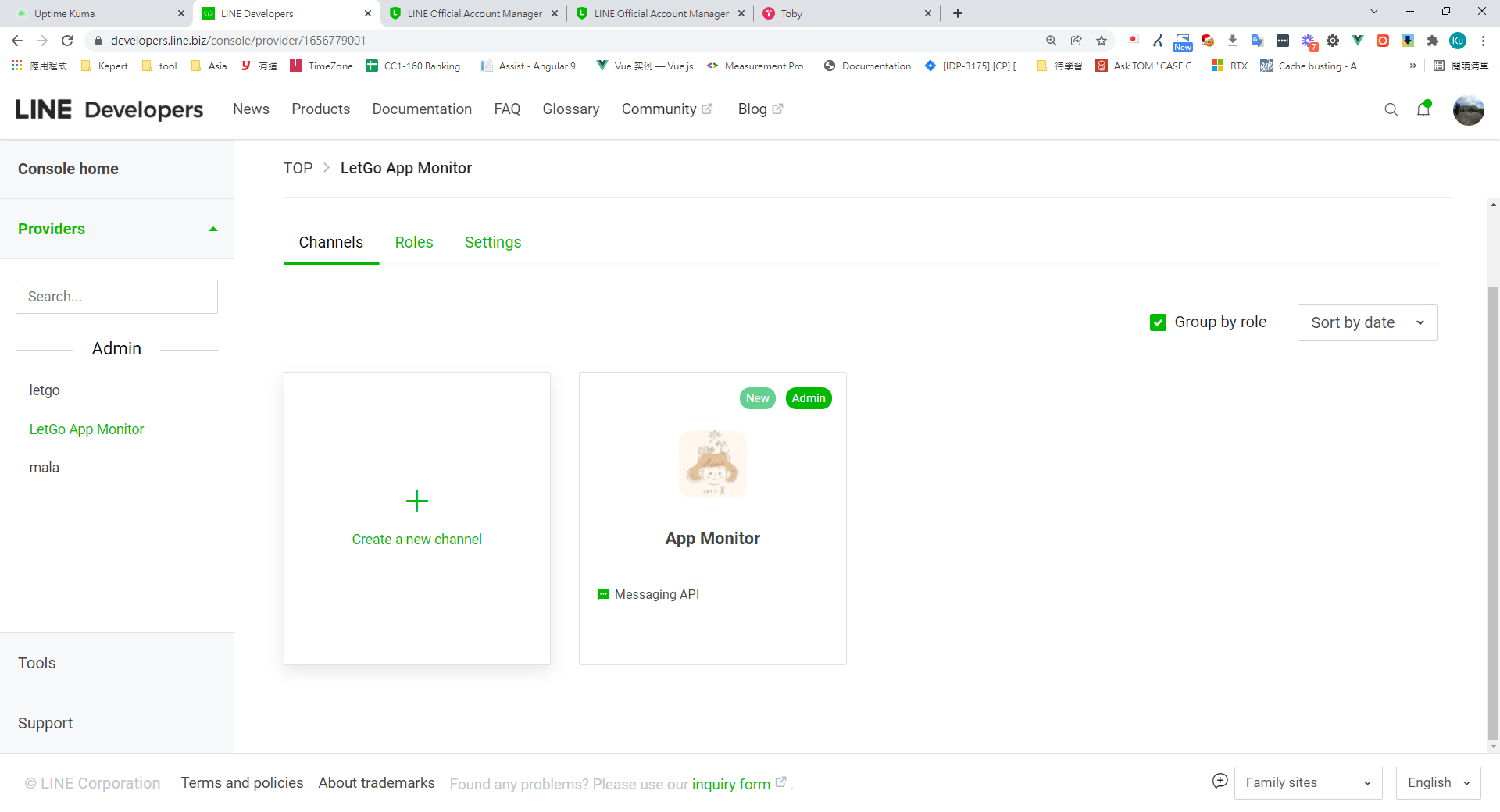
LINE Developers console showing App Monitor channels and creation option

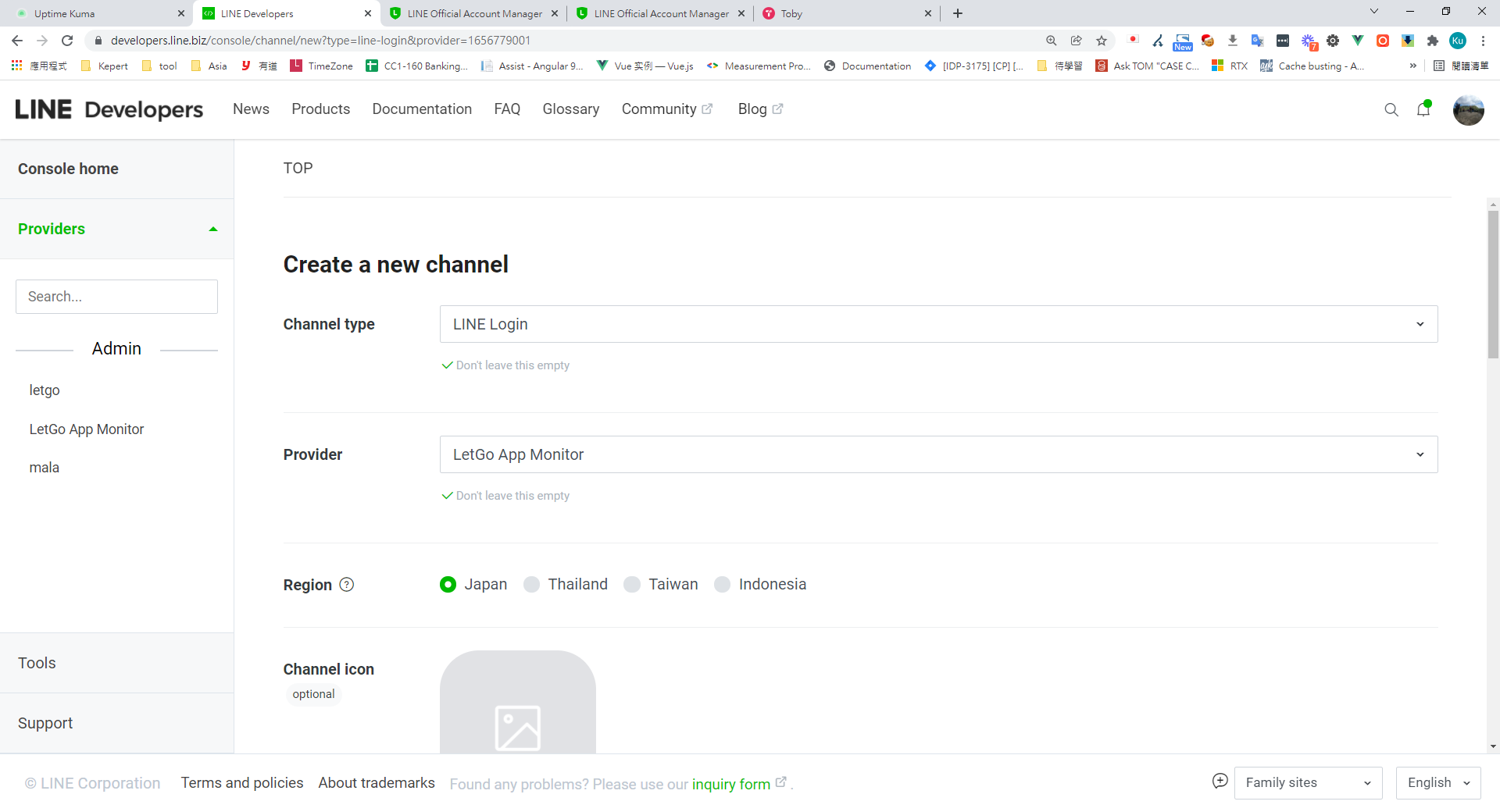
Fill in the required fields > Channel type > Messaging API

Submit. LINE Developers create new channel form for LetGo App Monitor
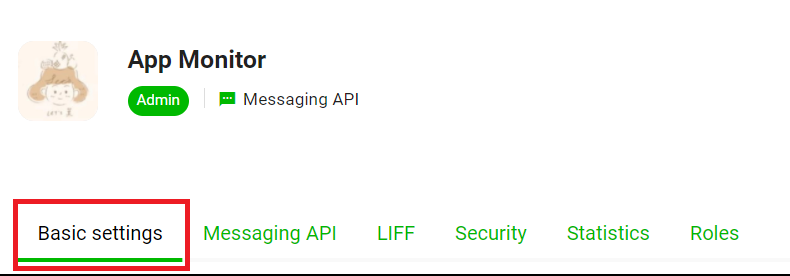
Switch to the Basic settings tab

LINE App Monitor Basic settings tab highlighted

Scroll to the bottom of the page and copy the user ID we'll use later
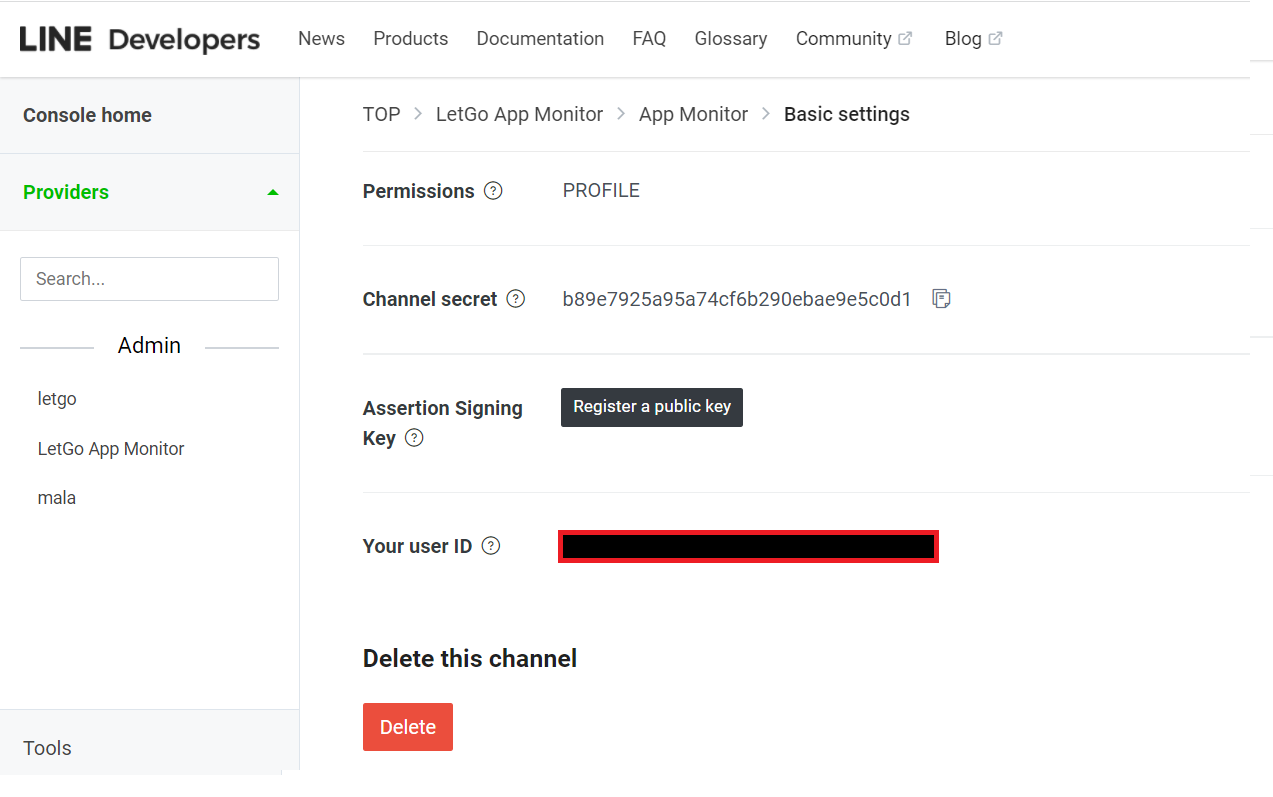
LINE Developers Basic settings page with highlighted user ID field

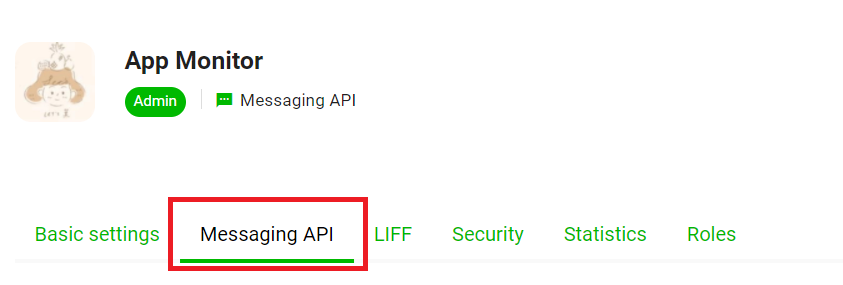
Switch to the Messaging API tab

LINE App Monitor interface with Messaging API tab highlighted

Scroll to the bottom and click the Issue button
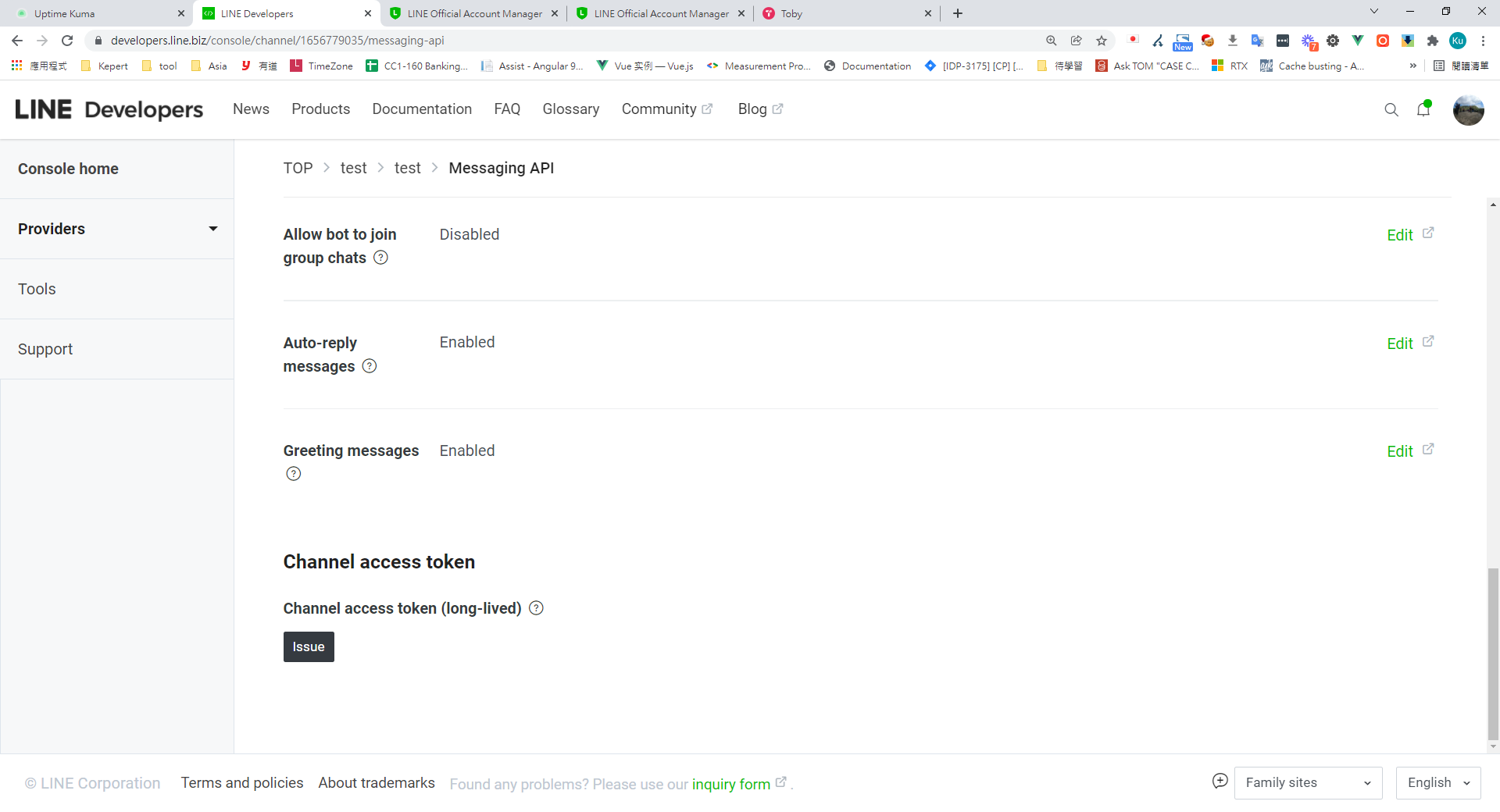
LINE Developers Messaging API tab, 'Issue' button for channel token

After clicking Issue, the LINE bot's access token is generated — copy it
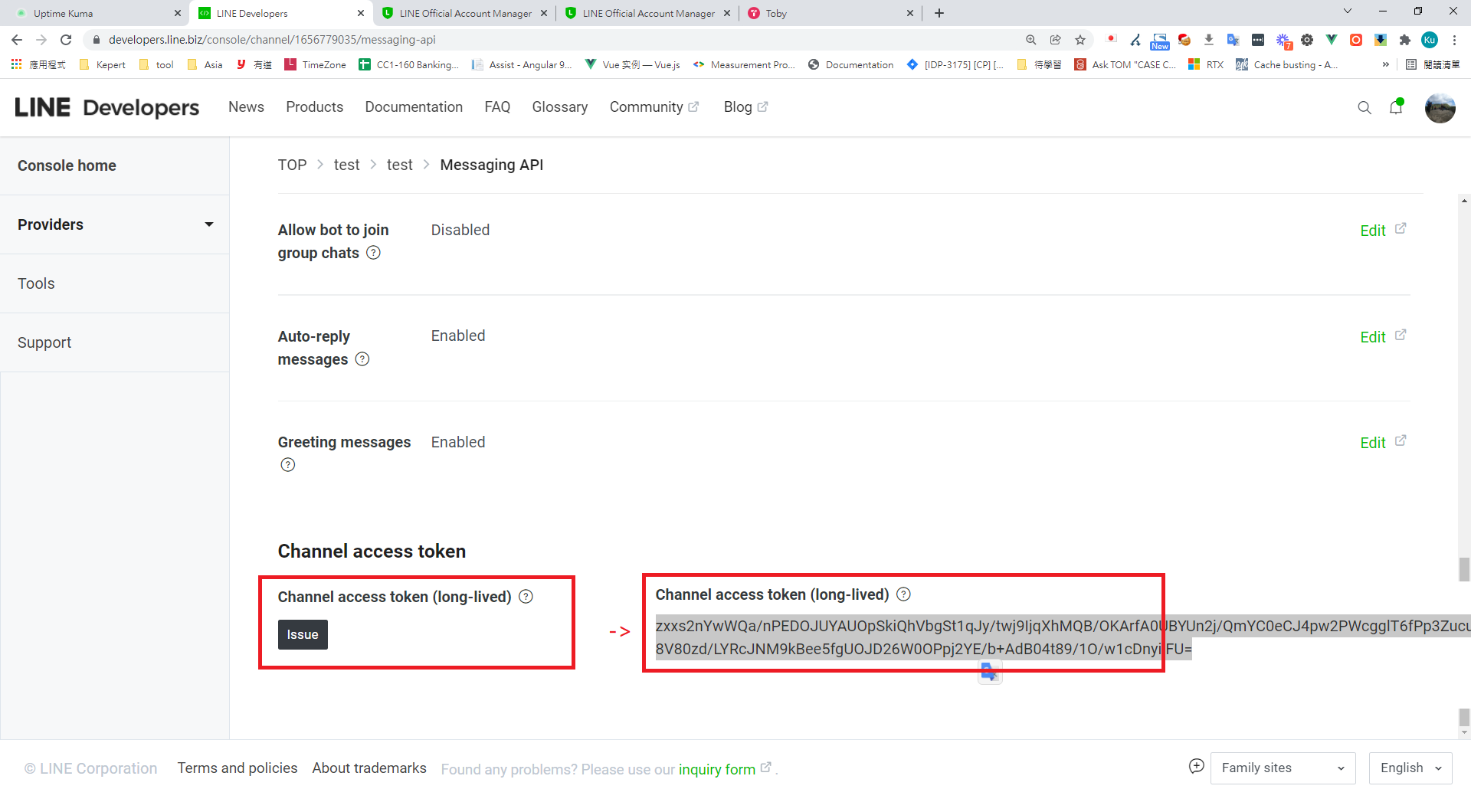
LINE Developers console showing generated channel access token

Back at the top of the Messaging API tab, scan the provided QR code with your phone and add the bot as a friend
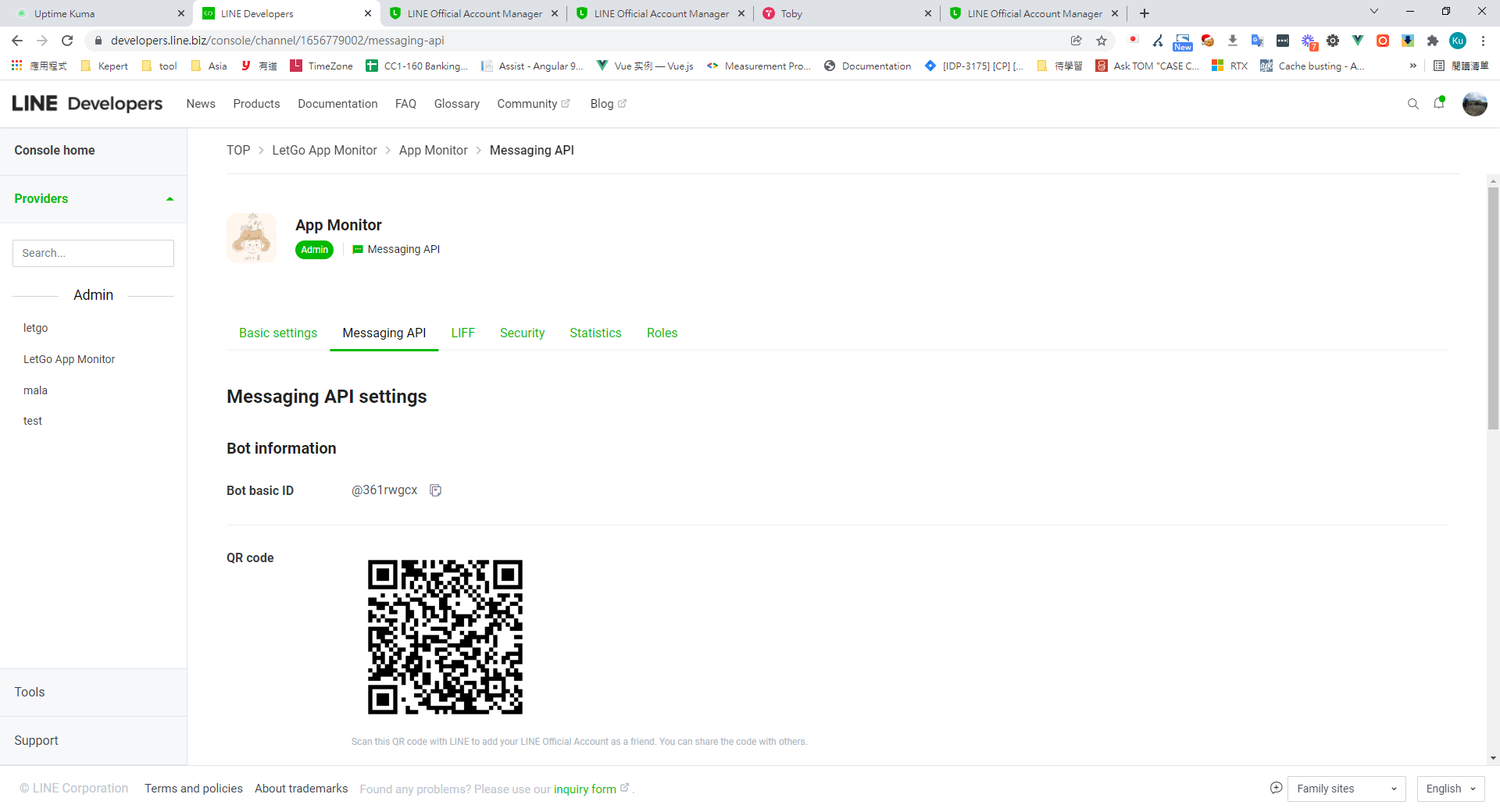
LINE Developers console Messaging API tab with bot QR code

Paste the user ID and token into Uptime Kuma's notification settings, then click Test — a test message should arrive in your LINE app
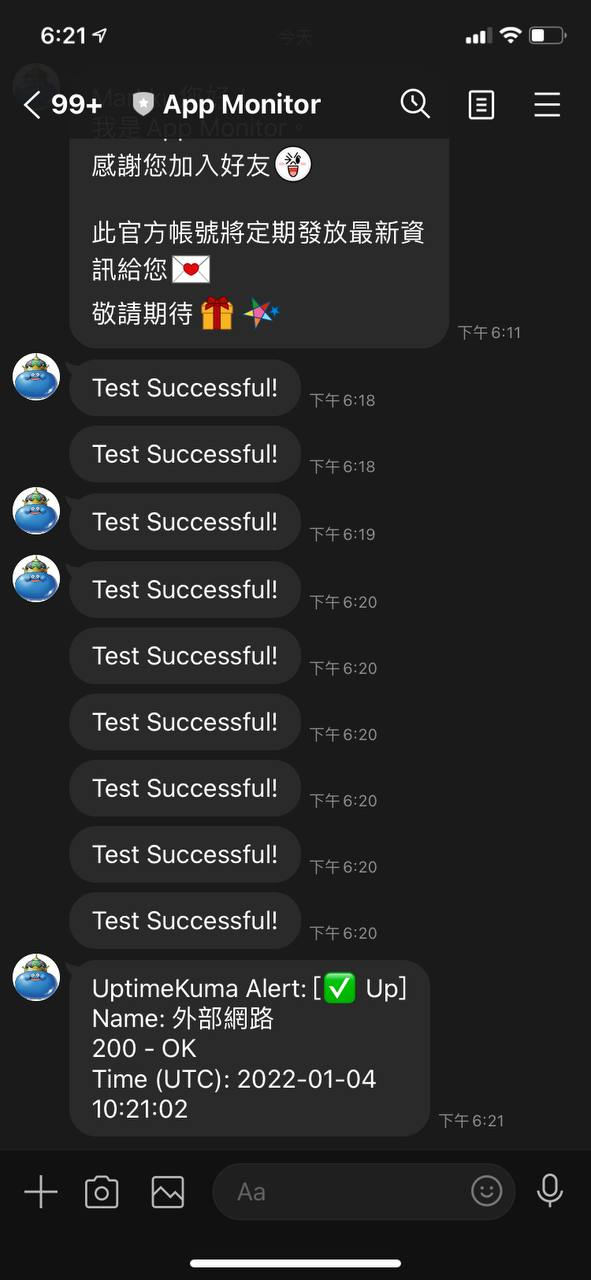
LINE chat showing multiple Test Successful and an UptimeKuma alert

How LINE push messaging works

We can also learn how various community push integrations are wired up by reading Uptime Kuma's source. Looking at the code, you just need to send your message payload to LINE's API and it pushes it to the user. However, LINE enforces CORS restrictions. Sending from the backend avoids the CORS issue. Alternatively, open a browser to LINE's API endpoint and run the following in the console:

fetch("https://api.line.me/v2/bot/message/push", {
    body: JSON.stringify( {
                    "to": 'your line bot id', // linebot id
                    "messages": [
                        {
                            "type": "text",
                            "text": "Test Successful!"
                        }
                    ]
                }), // must match 'Content-Type' header
    cache: 'no-cache', // *default, no-cache, reload, force-cache, only-if-cached
    credentials: 'same-origin', // include, same-origin, *omit
    headers: {
      'content-type': 'application/json',
	  'Authorization':'Bearer api token' // api token
    },
    method: 'POST', // *GET, POST, PUT, DELETE, etc.
  })
  .then(response => response.json()) // 輸出成 json

Your LINE app will then receive the message from the bot.

Author

Mark Ku

擁有 10+ 年經驗的資深軟體工程師,現為 AI 應用 Builder,專注於大型平台架構與簡化複雜系統設計,從電商系統到訂閱與收費平台,結合 AI Agent、AI 整合與自動化開發,打造高效率且可持續演進的產品技術基礎。Read More

Found this useful?

The author's free tools, daily podcasts and newsletter are all here.

Mark Ku · This article is licensed under CC BY 4.0. Credit the author and link back to the original when reusing it.

Comments

Subscribe to Newsletter

Subscribe to get new posts delivered instantly — never miss a tech share.

By submitting, you agree to receive emails. You can anytime.

Popular Posts

View all
Mark Ku
··602

Oracle Cloud Always Free Tier: Linux Host and Static IP for a $0 Cloud Solution

Oracle Cloud Always Free Tier: Linux Host and Static IP for a $0 Cloud Solution
Mark Ku
··492

Say Goodbye to Postman's Fee Trap! A Hands-on Guide to Bruno, the Open-Source Git-Native API Testing Powerhouse.

Say Goodbye to Postman's Fee Trap! A Hands-on Guide to Bruno, the Open-Source Git-Native API Testing Powerhouse.
Mark Ku
··334

A Free, Open-Source, Notion-like Knowledge Base — A Complete Guide to Deploying and Backing Up Outline Wiki

A Free, Open-Source, Notion-like Knowledge Base — A Complete Guide to Deploying and Backing Up Outline Wiki
Mark Ku
··268

Training Your Own AI Voice: Hardware Requirements, Open-Source Model Comparison, and LoRA Fine-Tuning

Training Your Own AI Voice: Hardware Requirements, Open-Source Model Comparison, and LoRA Fine-Tuning
Mark Ku
··218

Building an Efficient API Management Platform: Deploying Kong Gateway from Scratch - Part 1

Building an Efficient API Management Platform: Deploying Kong Gateway from Scratch - Part 1
Mark Ku
··217

Setting Up Samba on Ubuntu to Share Folders with Windows 11

Setting Up Samba on Ubuntu to Share Folders with Windows 11