Mark Ku's Blog

Goal

As a web developer or operator, we usually want to understand how members behave on the site, and we want that event data integrated into Google Analytics so we can study user behavior and use it to improve the site. For example: did the user log in, check out, which payment method did they choose, did they complete the order, and so on.

How It Works

When the member-facing site triggers a specific action, the frontend uses the Google Tag Manager API to fire a pre-configured event, which is then forwarded to the designated Google Analytics property.

Prerequisites

  • Create a Google Analytics account and configure your domain
  • Add the Google Analytics code to your site
  • Add the GTM code to your site

Steps

First, log in to GA: Admin > Data Streams > select your data stream > copy the Measurement ID
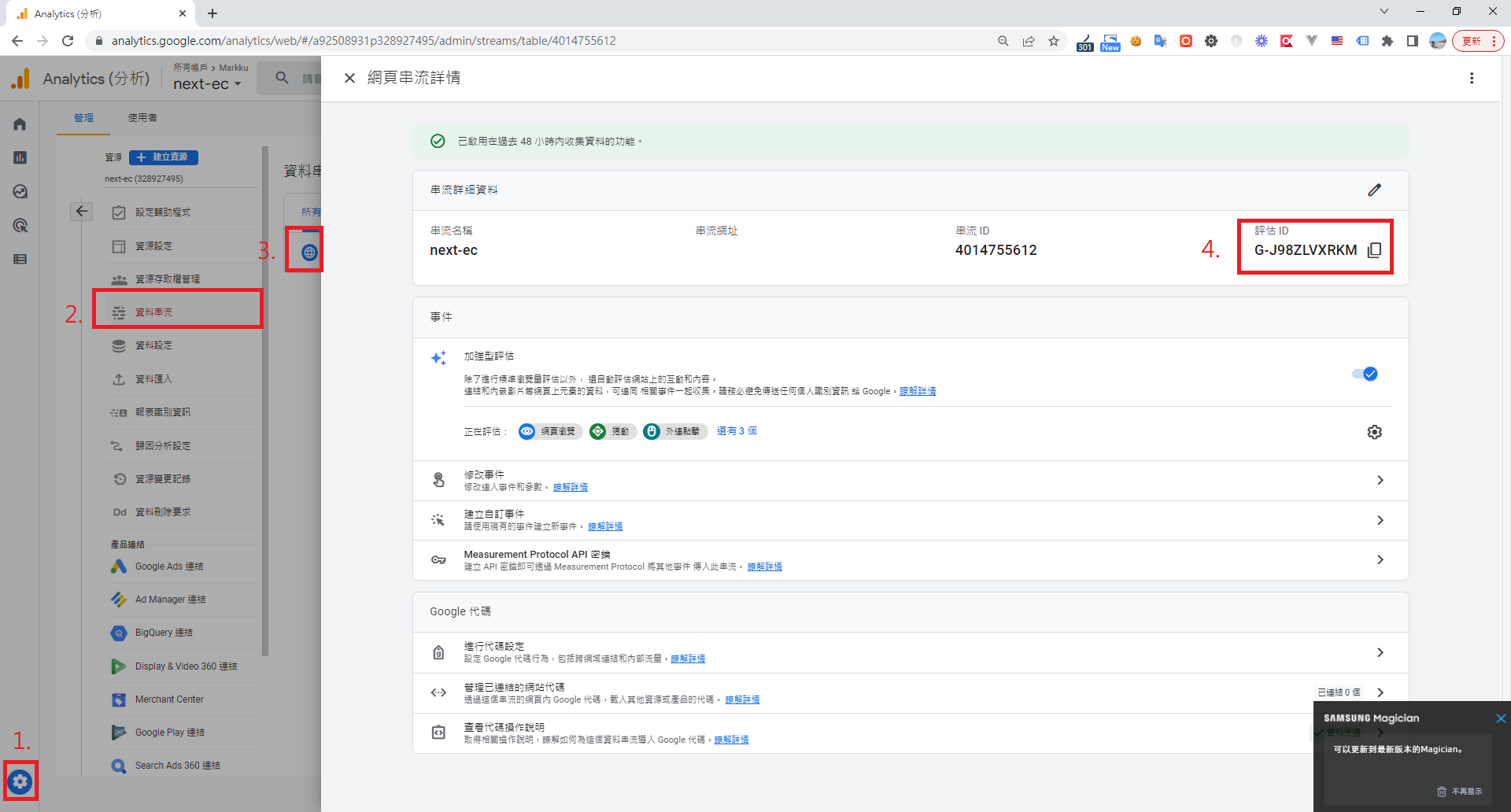
GA4 admin panel displaying Measurement ID for a data stream

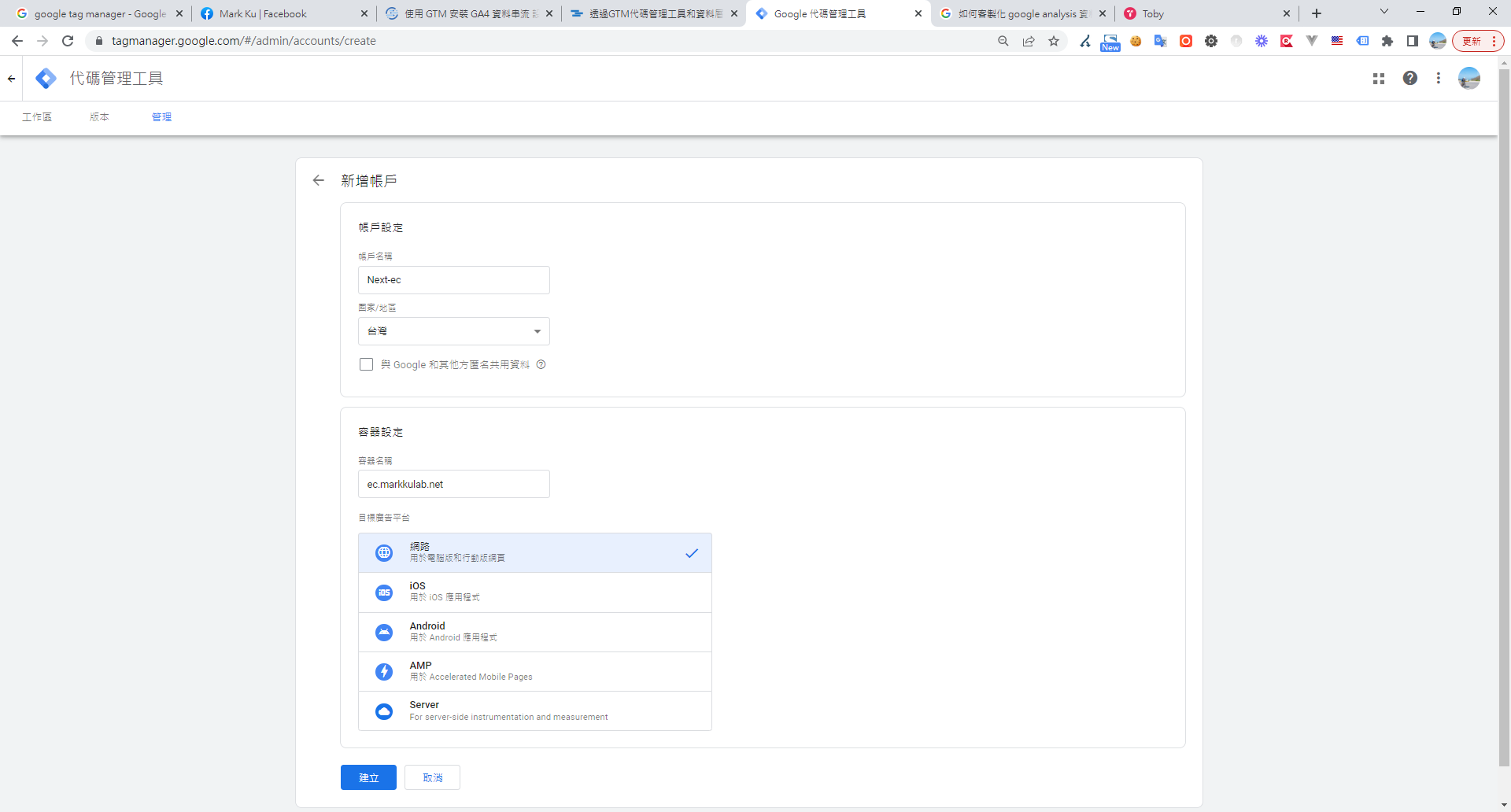
Log in to GTM > Create Account

Google Tag Manager create account form with web container selected
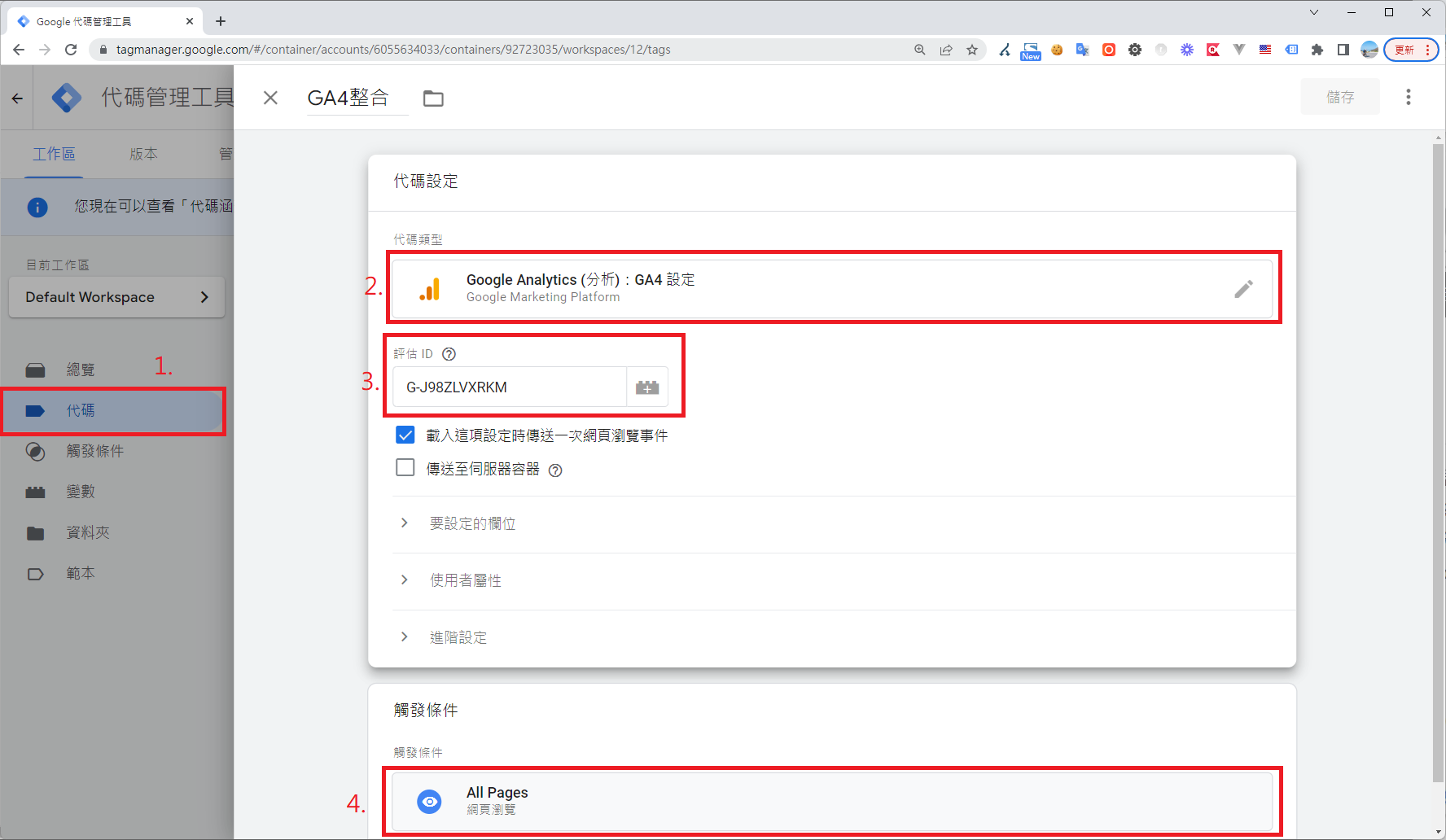
Google Tag Manager GA4 configuration with Measurement ID and All Pages trigger

On your frontend site, push events to GTM with frontend code, and GTM forwards bound events to GA.

export const checkoutViewEvent = (params: GTMProducts[]) => {
  if (window.dataLayer) {
    window.dataLayer.push({ ecommerce: null });
    window.dataLayer.push({
      event: 'checkout',
      ecommerce: {
        checkout: {
          actionField: {
            step: 1,
          },
          products: params,
        },
      },
    });
  }
};

Create a custom event > Triggers > New > select Custom Event > set the event name to the one pushed from the frontend > Save
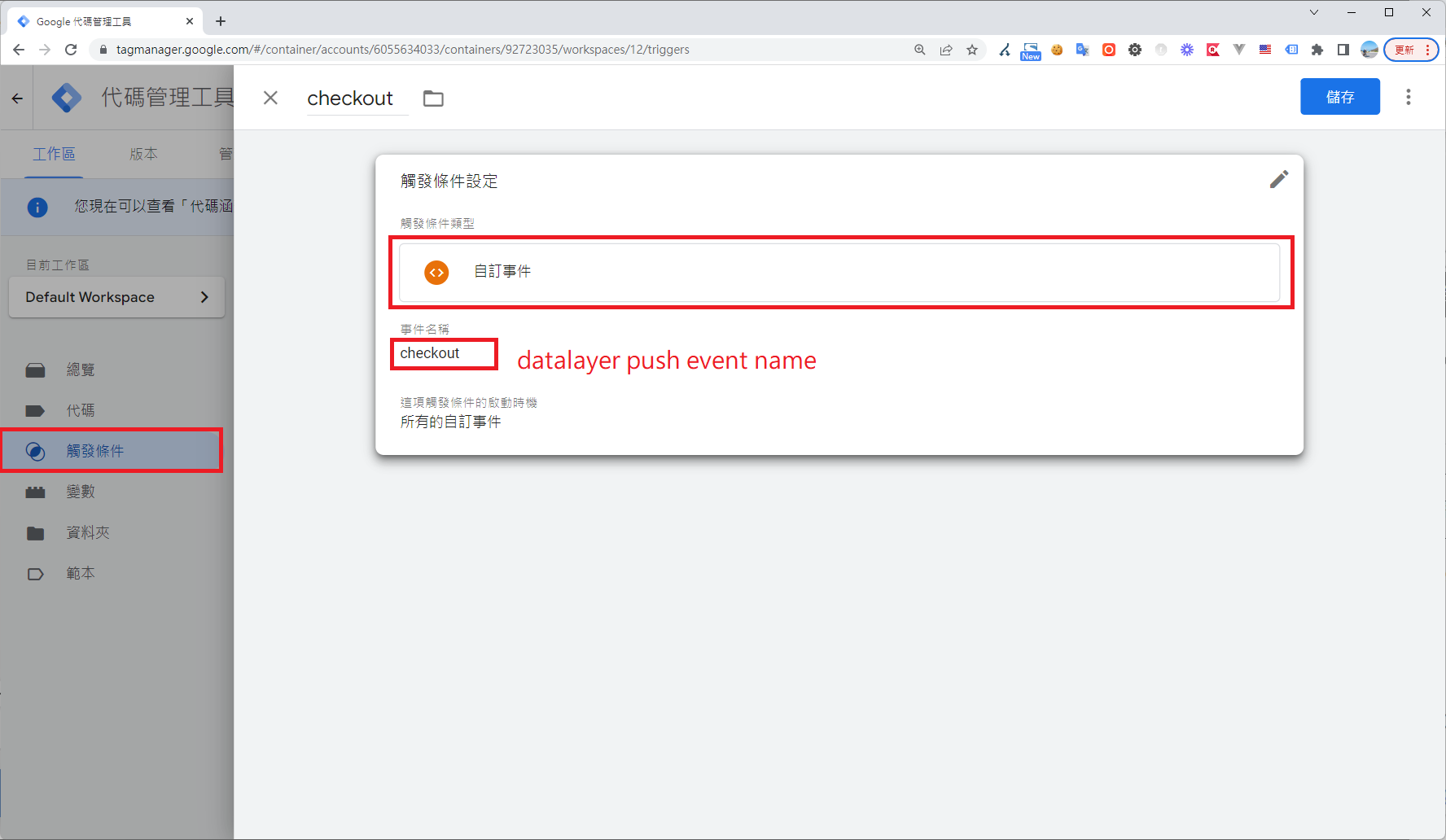
Google Tag Manager custom event trigger for checkout event

Tags > New > Google Analytics: GA4 Event > select "GA4 Integration" > Event Name checkout > Trigger checkout > Save Google Tag Manager GA4 purchase event tag configuration
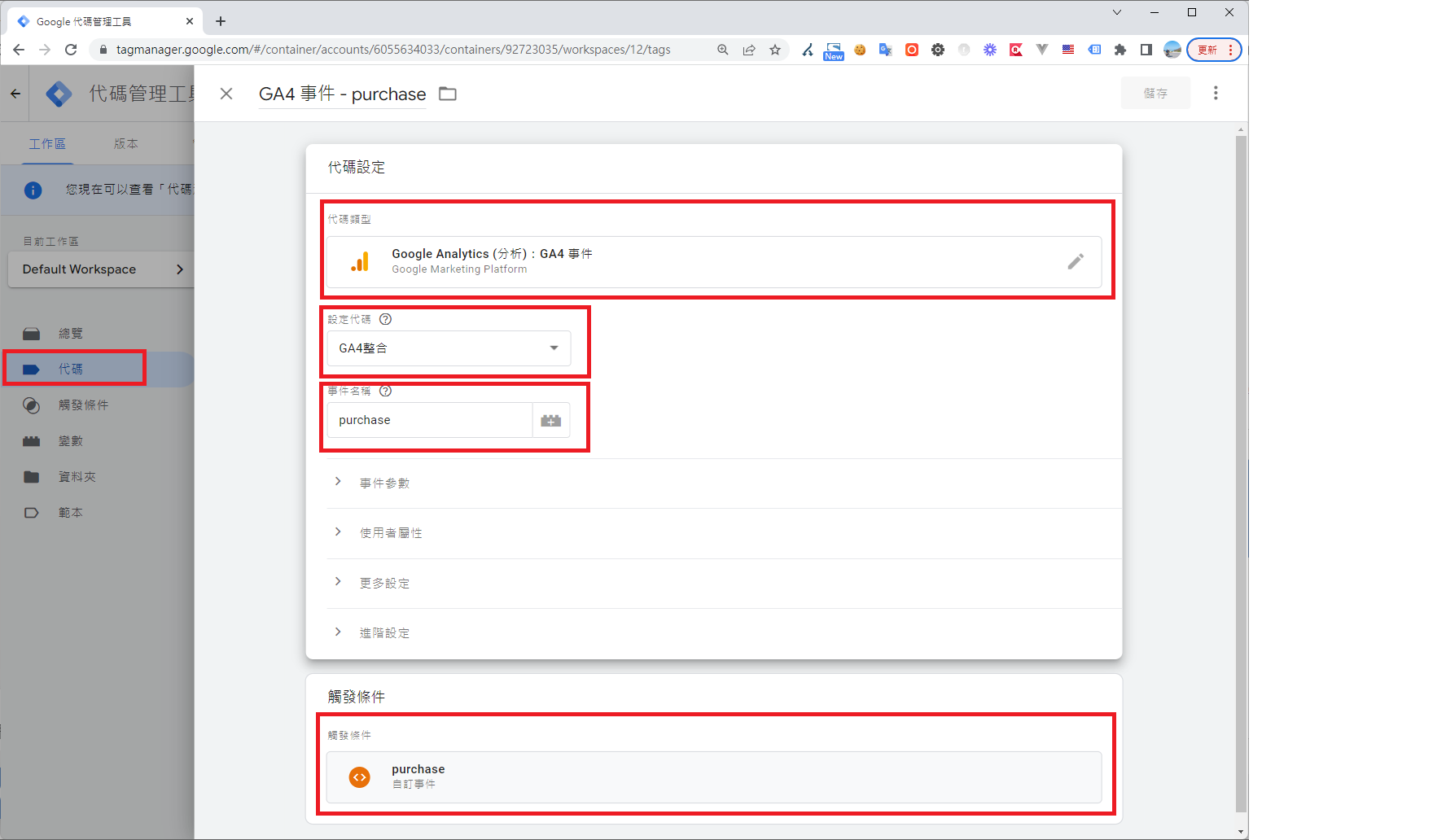
Use the Preview feature to debug and confirm GTM is receiving the events and forwarding them to GA
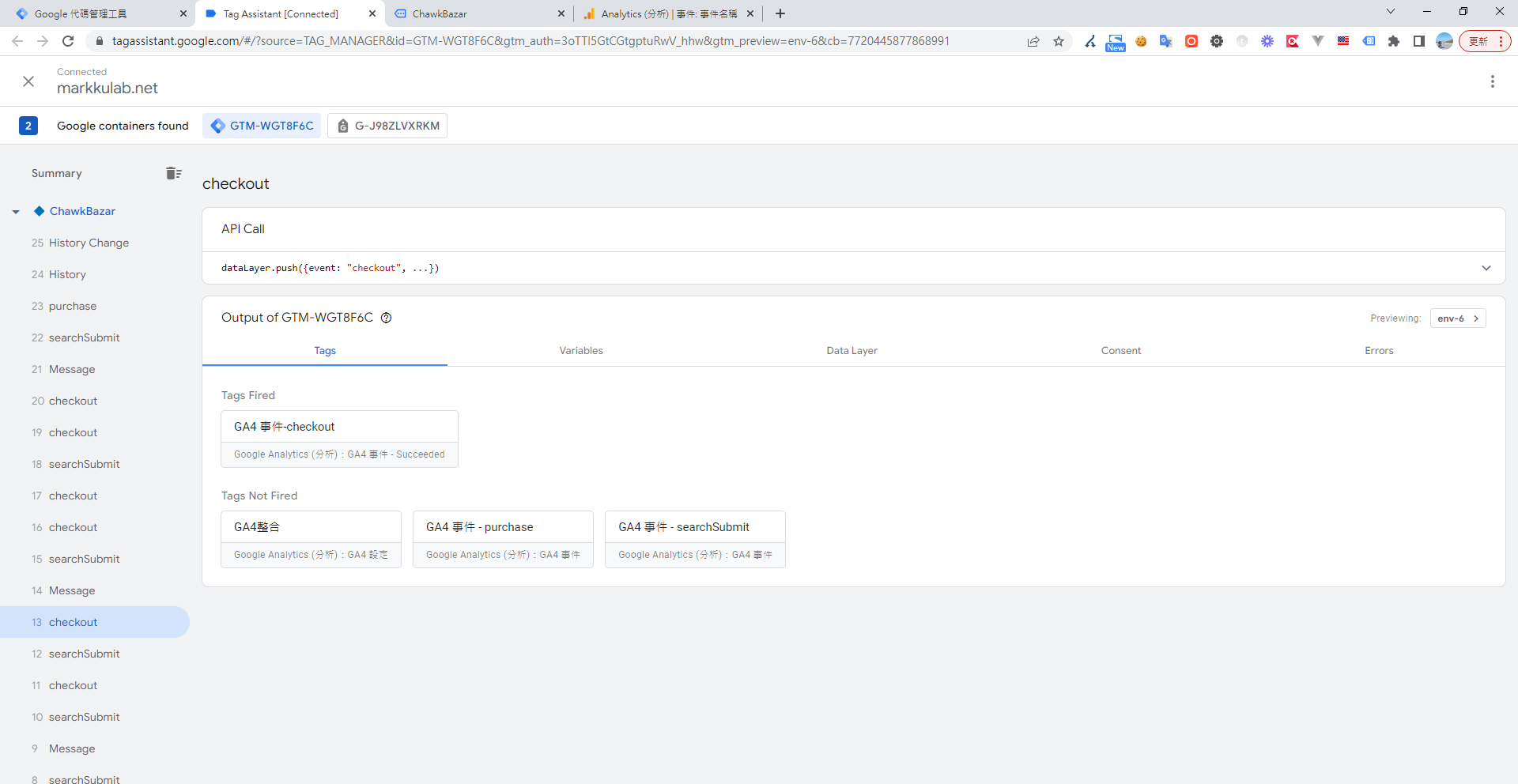
GTM Tag Assistant showing GA4 checkout event tag successfully fired

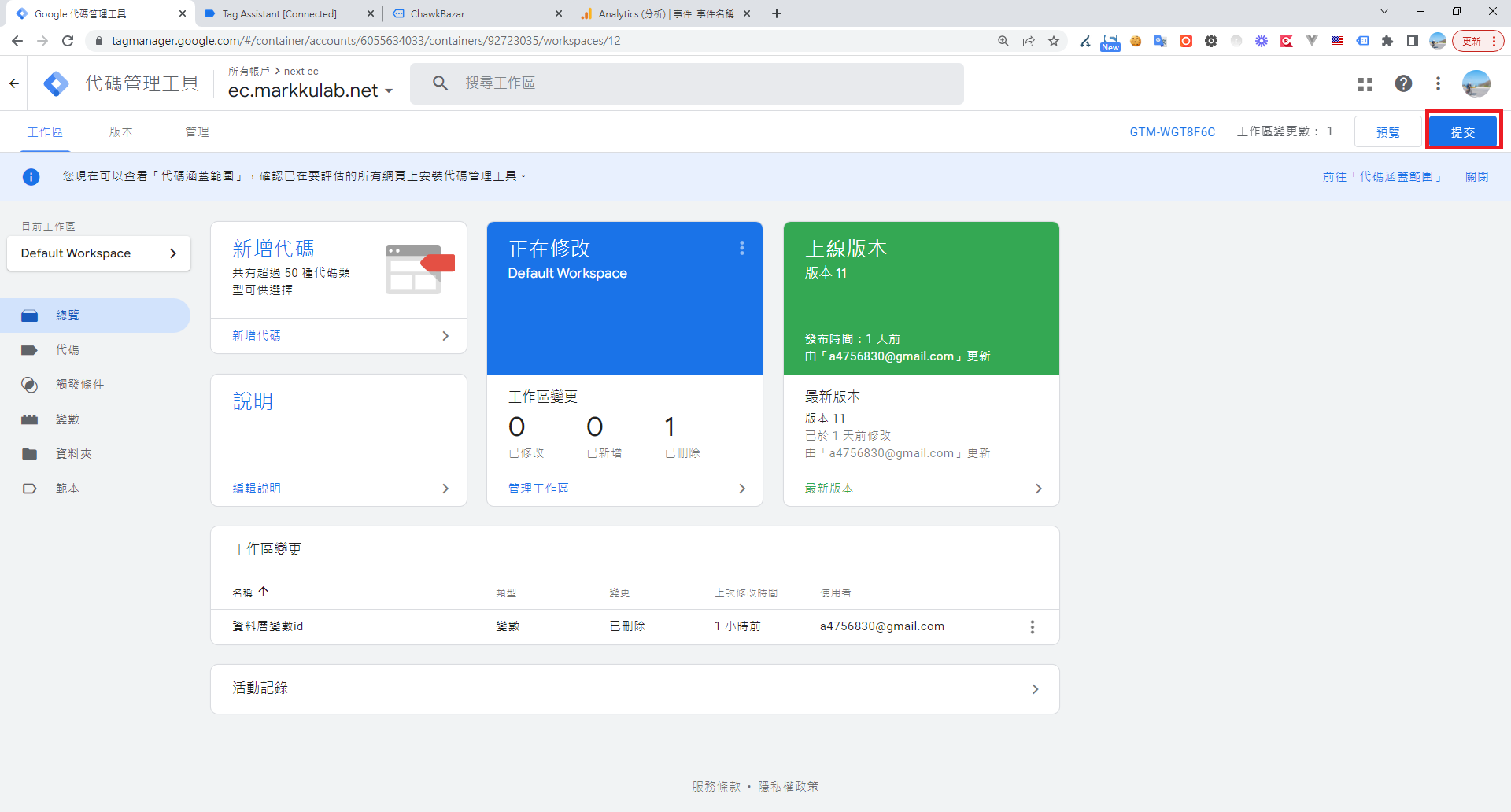
Finally, submit

Google Tag Manager workspace overview with highlighted submit button

Because event tracking, custom dimensions, and custom metrics take 24-48 hours to update, after waiting, log in to GA: Reports > Engagement > Events, and you'll see the custom events from the frontend code
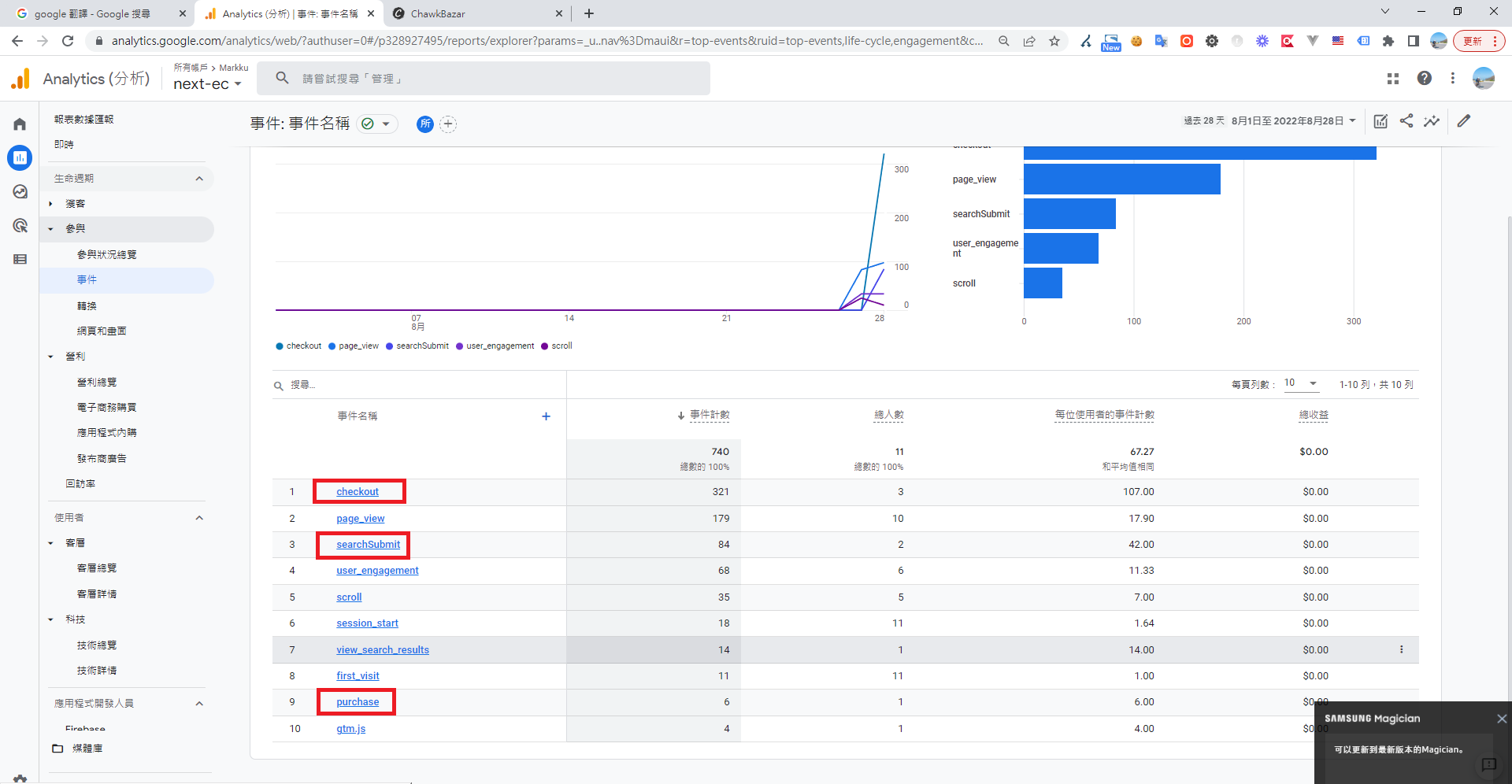
GA4 report displaying event counts for checkout, search, and purchase

References

Google Analytics 4 Event Tracking Guide (2022)

GTM Installing Google Analytics 4 Web Data Stream Tutorial

New GA4 E-commerce Events: Differences from the Old Version and Purchase Conversion Explained

GA Event Tracking in GTM - Pass-Through Data Layer

Author

Mark Ku

擁有 10+ 年經驗的資深軟體工程師,現為 AI 應用 Builder,專注於大型平台架構與簡化複雜系統設計,從電商系統到訂閱與收費平台,結合 AI Agent、AI 整合與自動化開發,打造高效率且可持續演進的產品技術基礎。Read More

Found this useful?

The author's free tools, daily podcasts and newsletter are all here.

Mark Ku · This article is licensed under CC BY 4.0. Credit the author and link back to the original when reusing it.

Comments

Subscribe to Newsletter

Subscribe to get new posts delivered instantly — never miss a tech share.

By submitting, you agree to receive emails. You can anytime.

Popular Posts

View all
Mark Ku
··602

Oracle Cloud Always Free Tier: Linux Host and Static IP for a $0 Cloud Solution

Oracle Cloud Always Free Tier: Linux Host and Static IP for a $0 Cloud Solution
Mark Ku
··490

Say Goodbye to Postman's Fee Trap! A Hands-on Guide to Bruno, the Open-Source Git-Native API Testing Powerhouse.

Say Goodbye to Postman's Fee Trap! A Hands-on Guide to Bruno, the Open-Source Git-Native API Testing Powerhouse.
Mark Ku
··333

A Free, Open-Source, Notion-like Knowledge Base — A Complete Guide to Deploying and Backing Up Outline Wiki

A Free, Open-Source, Notion-like Knowledge Base — A Complete Guide to Deploying and Backing Up Outline Wiki
Mark Ku
··264

Training Your Own AI Voice: Hardware Requirements, Open-Source Model Comparison, and LoRA Fine-Tuning

Training Your Own AI Voice: Hardware Requirements, Open-Source Model Comparison, and LoRA Fine-Tuning
Mark Ku
··221

Building an Efficient API Management Platform: Deploying Kong Gateway from Scratch - Part 1

Building an Efficient API Management Platform: Deploying Kong Gateway from Scratch - Part 1
Mark Ku
··215

Setting Up Samba on Ubuntu to Share Folders with Windows 11

Setting Up Samba on Ubuntu to Share Folders with Windows 11