Mark Ku's Blog

Configuring VS Code for Vue (non-TypeScript) Projects to Get TypeScript-Style IntelliSense

The Problem

Once you have used TypeScript, it is hard to live without IntelliSense. But many older Vue projects don't use TypeScript and don't get IntelliSense out of the box in VS Code. With the right configuration plus the Vetur extension, you can still get IntelliSense and significantly improve your front-end productivity.

Features

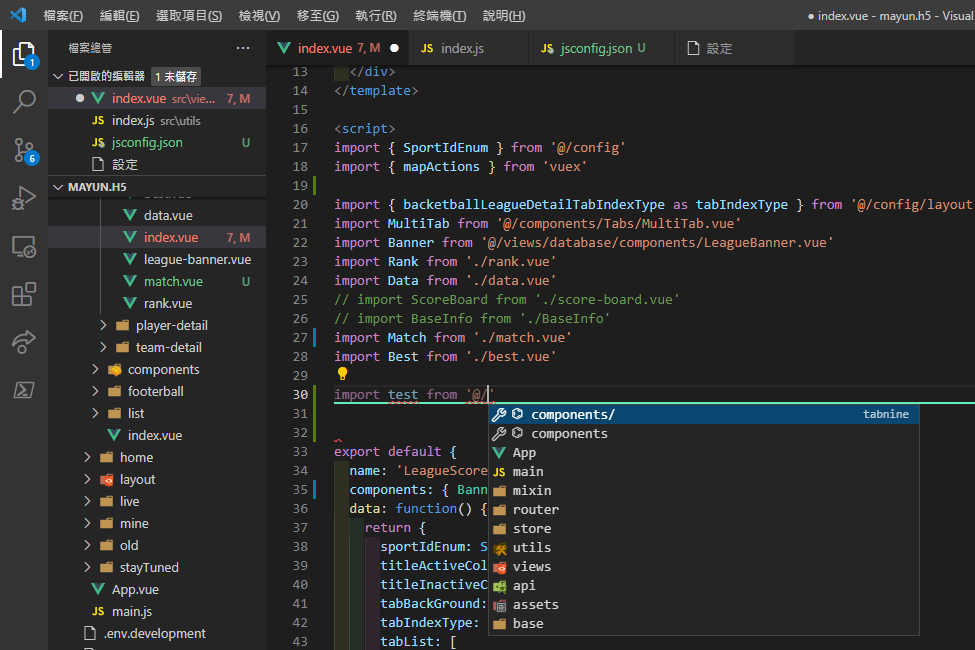
Auto Import Method VS Code editor displaying Vue code with IntelliSense function details
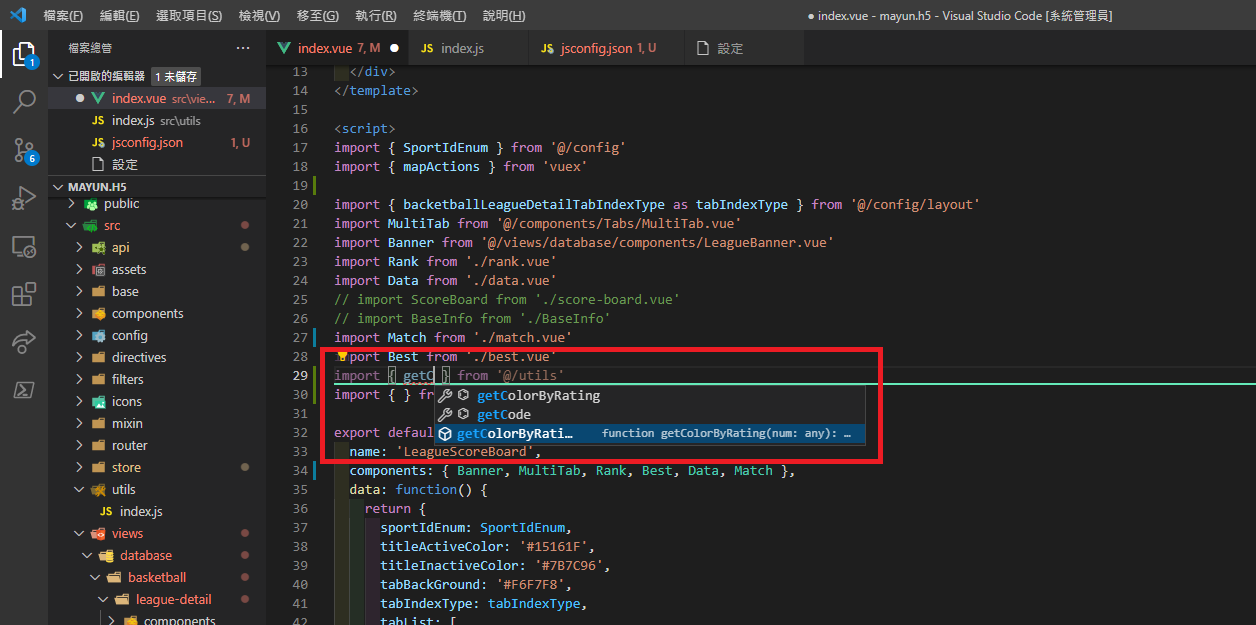
Auto Resolve path and file VS Code showing Vue file with IntelliSense path suggestions

Add jsconfig.json to the project root

{
    "compilerOptions": {
		"module": "commonjs",
        "target": "es6",
        "checkJs": true,
        "baseUrl": ".",
        "noLib": false,
        "paths": {
            "@/*": [
                "src/*"
            ],
            "@components/*": [
                "src/components/*"
            ],
            "@views/*": [
                "src/views/*"
            ],
            "@base/*": [
                "src/base/*"
            ],
            "@utils/*": [
                "src/utils/*"
            ]
        }
    },
    "include": [
        "./src/**/*"
    ],
    "exclude": [
        "node_modules"
    ]
}

Setup

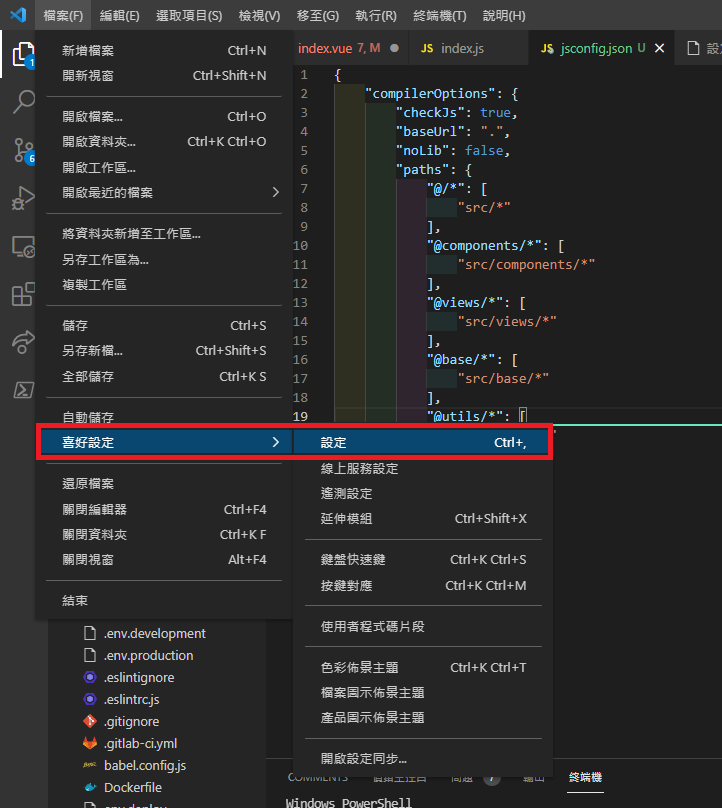
  1. Open File > Preferences > Settings VS Code File menu, Preferences Settings selected

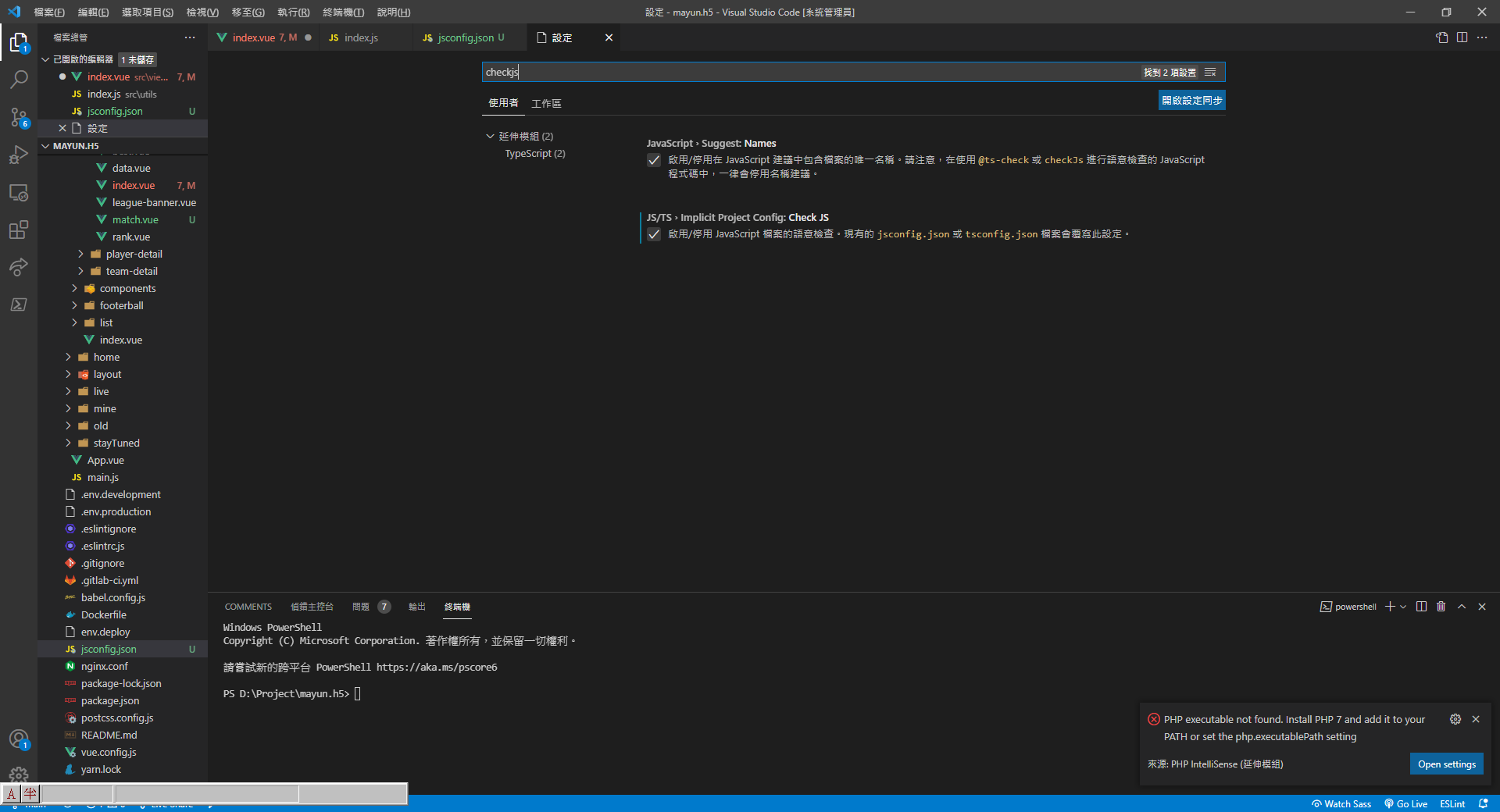
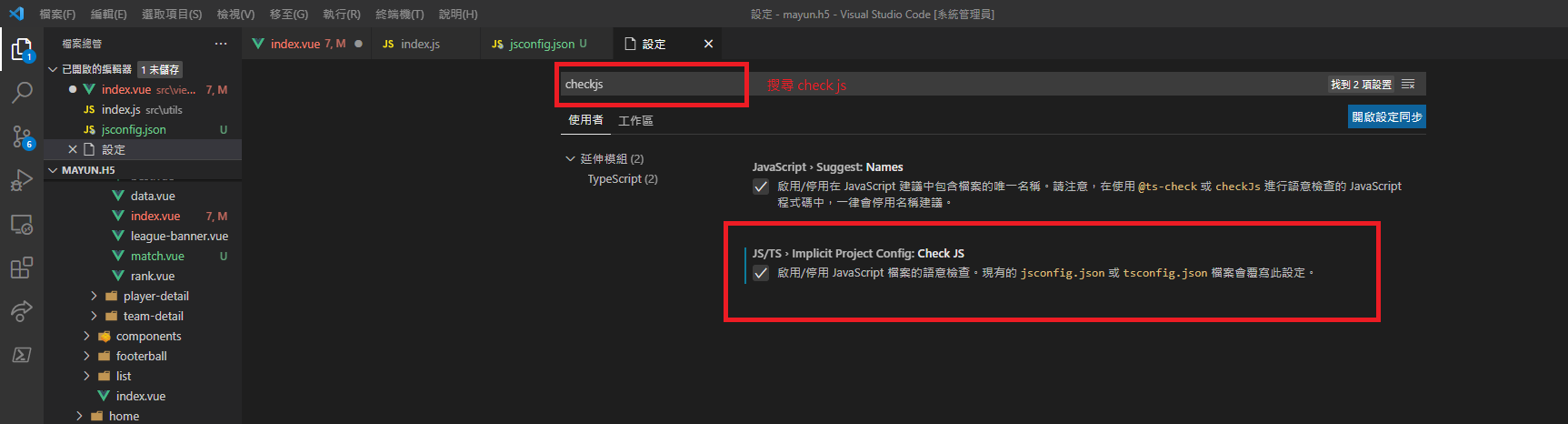
  2. Search for "check js" (with a space) VS Code settings showing checkjs search and Check JS enabled

  3. Enable Check JS VS Code settings showing checkjs search and enabled Check JS option

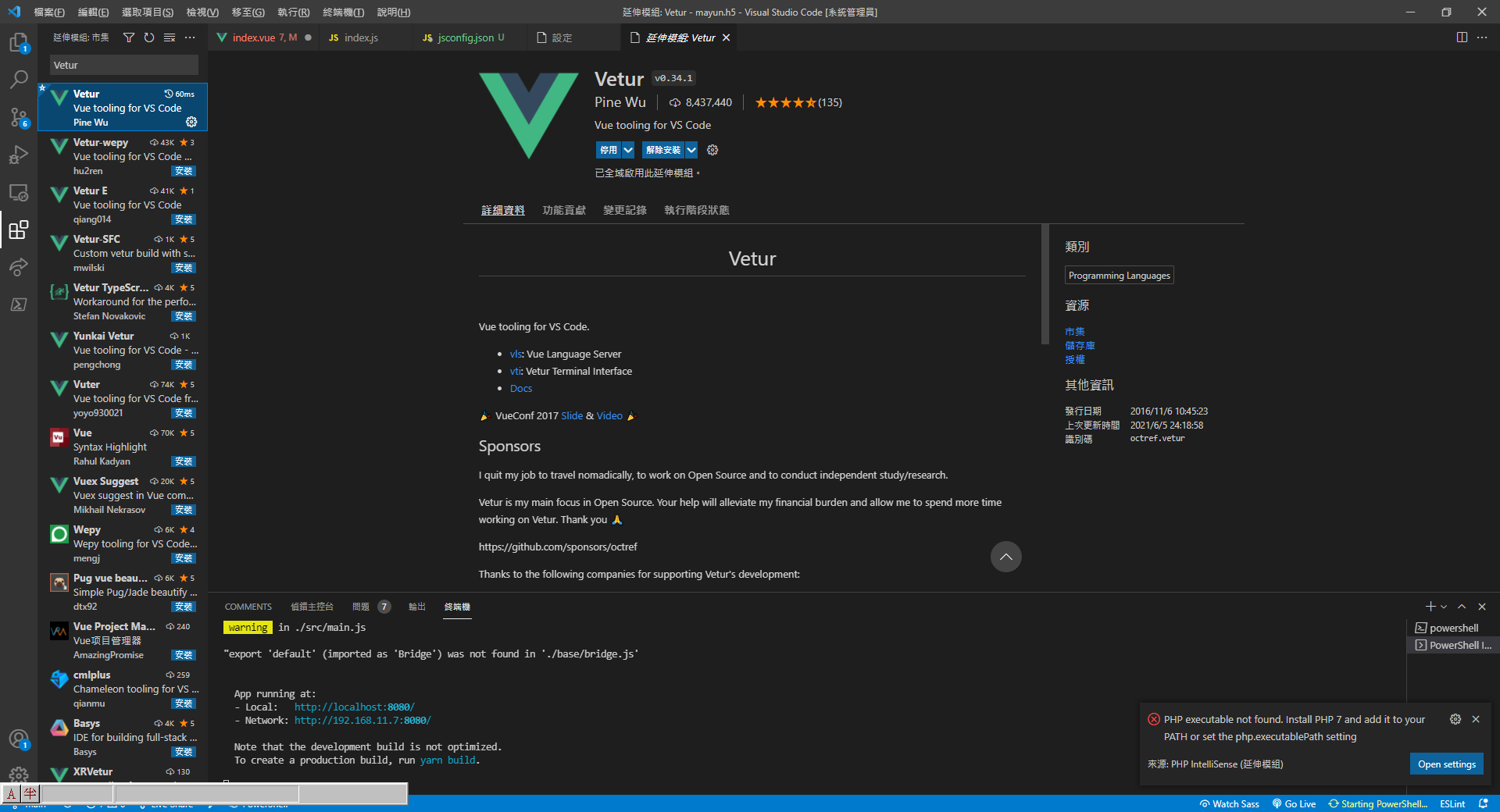
  4. Install the Vetur extension in VS Code Visual Studio Code displaying the Vetur extension page
  5. Restart the VS Code project. Once it has reloaded, you'll have auto-import working.

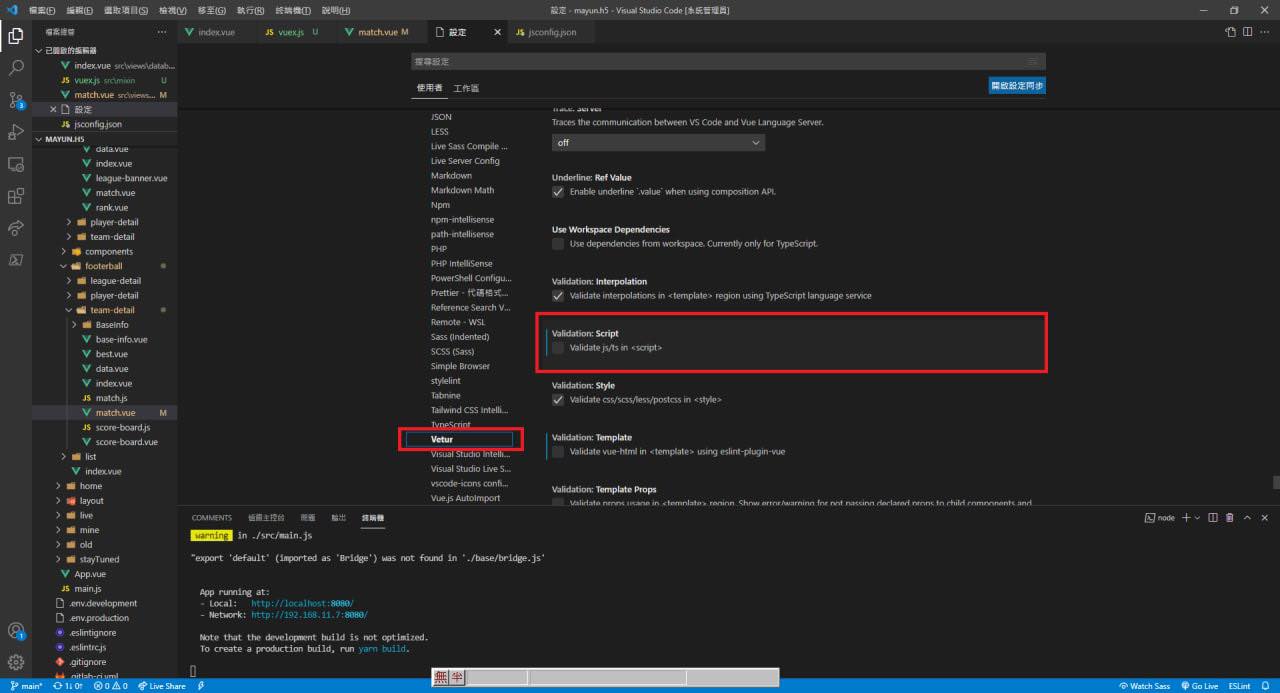
  6. Disable Vetur's Validate option VS Code Vetur settings with script validation disabled

Bonus (Tabnine is also a nice autocomplete option)

https://www.tabnine.com/?utm_term=&utm_campaign=&utm_source=adwords&utm_medium=ppc&hsa_acc=4311736126&hsa_cam=14293437790&hsa_grp=&hsa_ad=&hsa_src=x&hsa_tgt=&hsa_kw=&hsa_mt=&hsa_net=adwords&hsa_ver=3&gclid=Cj0KCQjw4eaJBhDMARIsANhrQADVYEIejSAO4VnG9iBQs4ryKwPZJW4m6lXTt-QNjtJBOUTpJox-AfMaAsyCEALw_wcB

References

https://vuejs.github.io/vetur/guide/setup.html

Author

Mark Ku

擁有 10+ 年經驗的資深軟體工程師,現為 AI 應用 Builder,專注於大型平台架構與簡化複雜系統設計,從電商系統到訂閱與收費平台,結合 AI Agent、AI 整合與自動化開發,打造高效率且可持續演進的產品技術基礎。Read More

Found this useful?

The author's free tools, daily podcasts and newsletter are all here.

Mark Ku · This article is licensed under CC BY 4.0. Credit the author and link back to the original when reusing it.

Comments

Subscribe to Newsletter

Subscribe to get new posts delivered instantly — never miss a tech share.

By submitting, you agree to receive emails. You can anytime.

Popular Posts

View all
Mark Ku
··602

Oracle Cloud Always Free Tier: Linux Host and Static IP for a $0 Cloud Solution

Oracle Cloud Always Free Tier: Linux Host and Static IP for a $0 Cloud Solution
Mark Ku
··490

Say Goodbye to Postman's Fee Trap! A Hands-on Guide to Bruno, the Open-Source Git-Native API Testing Powerhouse.

Say Goodbye to Postman's Fee Trap! A Hands-on Guide to Bruno, the Open-Source Git-Native API Testing Powerhouse.
Mark Ku
··333

A Free, Open-Source, Notion-like Knowledge Base — A Complete Guide to Deploying and Backing Up Outline Wiki

A Free, Open-Source, Notion-like Knowledge Base — A Complete Guide to Deploying and Backing Up Outline Wiki
Mark Ku
··264

Training Your Own AI Voice: Hardware Requirements, Open-Source Model Comparison, and LoRA Fine-Tuning

Training Your Own AI Voice: Hardware Requirements, Open-Source Model Comparison, and LoRA Fine-Tuning
Mark Ku
··221

Building an Efficient API Management Platform: Deploying Kong Gateway from Scratch - Part 1

Building an Efficient API Management Platform: Deploying Kong Gateway from Scratch - Part 1
Mark Ku
··215

Setting Up Samba on Ubuntu to Share Folders with Windows 11

Setting Up Samba on Ubuntu to Share Folders with Windows 11