
Solving the Problem
As the number of computers in the office grows, they often sit idle. But when you need to use one, you have to connect to it remotely. Leaving computers on for extended periods can cause them to overheat, wastes electricity, and increases the risk of fire. This led me to research how to wake them up remotely.
How It Works
The setup uses an always-on machine in Taiwan. This machine accesses a wol-go-web container via a Cloudflare Tunnel to wake up your computers.
Limitations
An Ethernet cable connection is required. Wi-Fi is not supported.
Service Setup
Create the Wake-on-LAN Container Service (Server Setup)
docker run -d --env PORT=9090 -p 9090:9090 --restart=always chishin/wol-go-web
Next, configure a Cloudflare Tunnel to bind to localhost:9090, allowing the wol-go-web container service to be accessible from the internet.
https://wol.ec666.com => http://localhost:9090
Windows 11 Configuration
First, search for and select "Choose a power plan" in Windows Search.

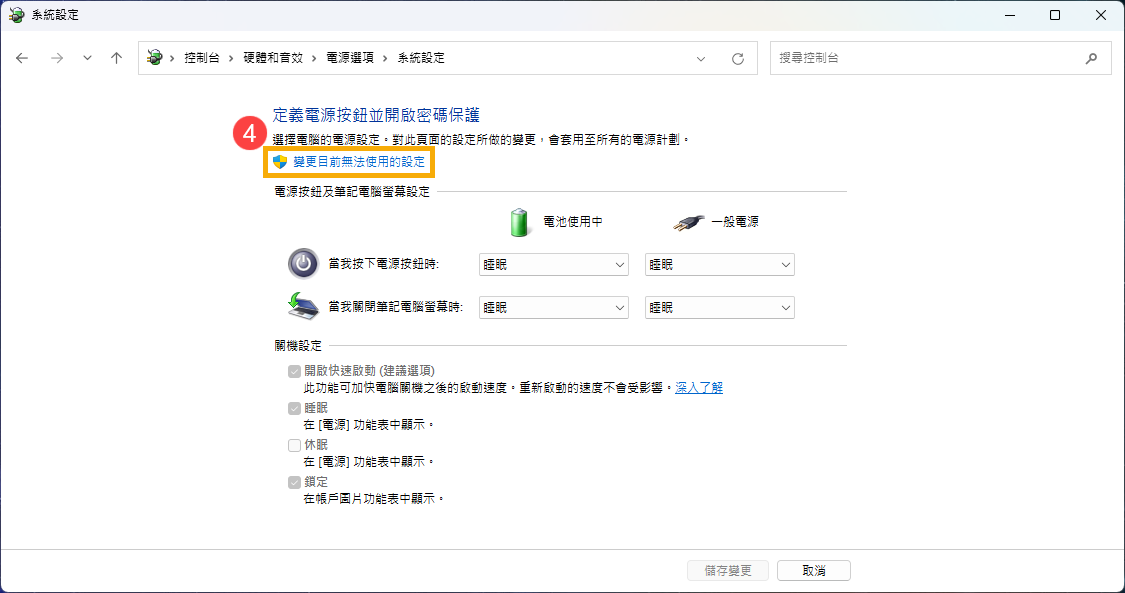
Select "Choose what the power buttons do" > "Change settings that are currently unavailable".

Uncheck the "Turn on fast startup" setting > Save changes.
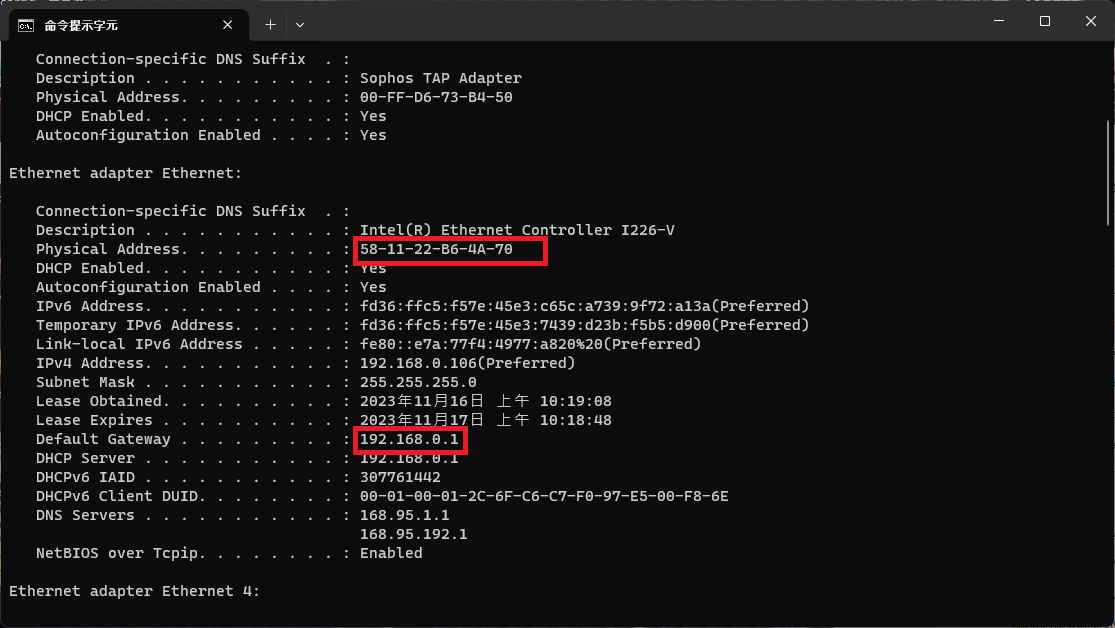
Next, open Command Prompt > run ipconfig /all > scroll up to find your Ethernet adapter (it cannot be a Wi-Fi adapter). You will find the IP address and MAC address there.
BIOS Settings
Restart the computer and press Del to enter the BIOS > Boot > Boot Configuration > First boot > Disable.

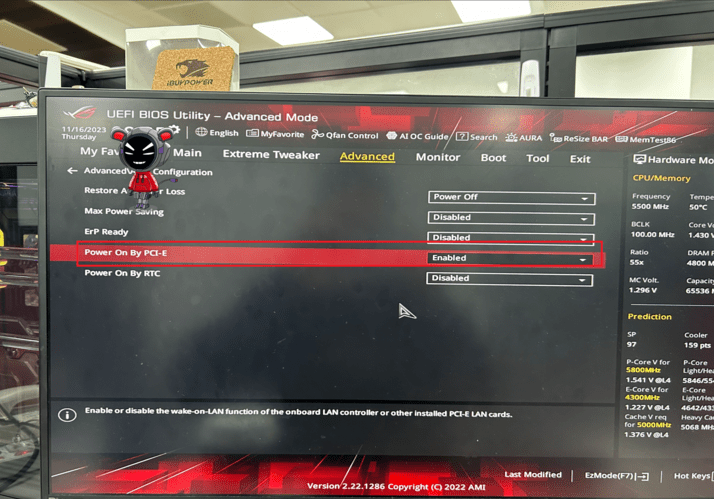
Next, go to Advanced > APM Configuration > POWER ON BY PCI-E.
Finally, replace the internal IP and MAC address parameters in this URL with your own. Visiting the URL will then remotely wake up your office computer.
https://wol.ec666.com/wol?mac=58-11-22-B6-4A-60&ip=192.168.0.1


Comments