Mark Ku's Blog
  1. Use PowerShell to install the software Docker needs (run as Administrator)
function Install-Chocolatey {
    try {
        Invoke-Expression ((New-Object System.Net.WebClient).DownloadString('https://chocolatey.org/install.ps1'));
    }
    catch {
        $ErrorMessage = $_.Exception.Message;
        $FailedItem = $_.Exception.ItemName;
        Write-Host $ErrorMessage + $FailedItem;
        return $false;
    }
    return $true;
}

Write-Host "Install chocolatey"

Install-Chocolatey;

Write-Host "Install Docker Software"

choco install docker-desktop -y
choco install docker-compose -y
choco install docker-kitematic -y

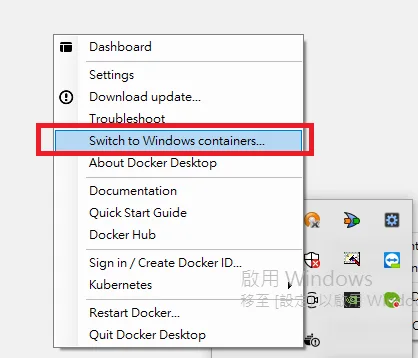
  1. After rebooting, open Docker Desktop and switch to Windows Containers. Docker Desktop menu highlighting Switch to Windows containers option
Build the ASP.NET Website Container

  1. Pull the ASP.NET Docker image
docker pull mcr.microsoft.com/dotnet/framework/aspnet:4.8
  1. Build the ASP.NET container, mapping the container's port 80 to the host's port 888.
docker run -it -d --isolation=process -p 888:80   mcr.microsoft.com/dotnet/framework/aspnet:4.8

# -i, --interactive (interactive mode)
# -t, --tty         (allocate a terminal)
# -d, --detach      (run in the background)
# -- isolation=process (process isolation mode is required to use docker cp)
  1. Use docker ps to list running containers and find the container id. Windows PowerShell output showing running ASP.NET Docker container

  2. Switch to the Release ASP.NET application directory and use docker cp to copy the ASP.NET site into the container's web directory.

C:\WebSite> docker cp . 5d3aadf8028b:c:/inetpub/wwwroot
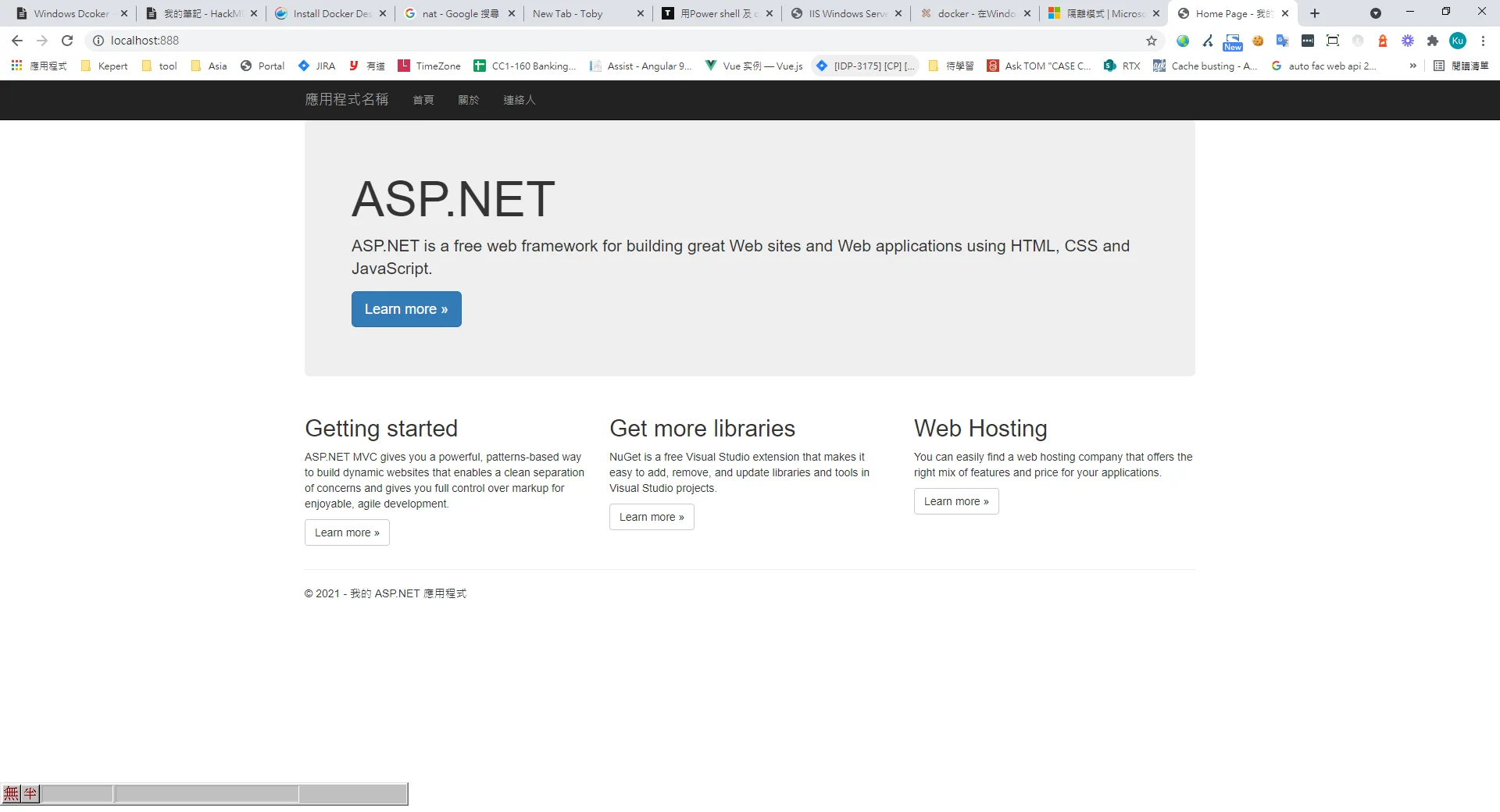
  1. The ASP.NET application is now running. Browser showing ASP.NET default welcome page on localhost
Note 1: The command below opens a terminal inside the container so you can verify all files were copied in.

docker exec -it 5d3aadf8028b cmd

Note 2: Create a new image

docker commit 5d3aadf8028b newImage

Author

Mark Ku

擁有 10+ 年經驗的資深軟體工程師,現為 AI 應用 Builder,專注於大型平台架構與簡化複雜系統設計,從電商系統到訂閱與收費平台,結合 AI Agent、AI 整合與自動化開發,打造高效率且可持續演進的產品技術基礎。Read More

Found this useful?

The author's free tools, daily podcasts and newsletter are all here.

Mark Ku · This article is licensed under CC BY 4.0. Credit the author and link back to the original when reusing it.

Comments

Subscribe to Newsletter

Subscribe to get new posts delivered instantly — never miss a tech share.

By submitting, you agree to receive emails. You can anytime.

Popular Posts

View all
Mark Ku
··602

Oracle Cloud Always Free Tier: Linux Host and Static IP for a $0 Cloud Solution

Oracle Cloud Always Free Tier: Linux Host and Static IP for a $0 Cloud Solution
Mark Ku
··490

Say Goodbye to Postman's Fee Trap! A Hands-on Guide to Bruno, the Open-Source Git-Native API Testing Powerhouse.

Say Goodbye to Postman's Fee Trap! A Hands-on Guide to Bruno, the Open-Source Git-Native API Testing Powerhouse.
Mark Ku
··333

A Free, Open-Source, Notion-like Knowledge Base — A Complete Guide to Deploying and Backing Up Outline Wiki

A Free, Open-Source, Notion-like Knowledge Base — A Complete Guide to Deploying and Backing Up Outline Wiki
Mark Ku
··264

Training Your Own AI Voice: Hardware Requirements, Open-Source Model Comparison, and LoRA Fine-Tuning

Training Your Own AI Voice: Hardware Requirements, Open-Source Model Comparison, and LoRA Fine-Tuning
Mark Ku
··221

Building an Efficient API Management Platform: Deploying Kong Gateway from Scratch - Part 1

Building an Efficient API Management Platform: Deploying Kong Gateway from Scratch - Part 1
Mark Ku
··215

Setting Up Samba on Ubuntu to Share Folders with Windows 11

Setting Up Samba on Ubuntu to Share Folders with Windows 11