
Notes on Auto-Issuing Let's Encrypt SSL Certificates with Certbot on Windows
The Problem
Let's Encrypt is a well-established, free SSL certificate service, but each certificate is only valid for three months. That means re-issuing manually every three months — which is tedious. With Certbot you can drive Let's Encrypt issuance via commands and scheduled tasks, fully automated.
Issuing a Certificate
Download and install Certbot
Open Command Prompt (or PowerShell) as Administrator.
Switch to the directory C:\Program Files (x86)\Certbot\bin, or add it to your system PATH.
Test Certbot:
certbot –-version
certbot -h
Run from PowerShell with admin privileges
certbot certonly --manual -m [email protected] -d *.letgo.com.tw
certbot certonly --manual -m [email protected] -d *.markkulab.net
Copy the DNS TXT record provided by Certbot
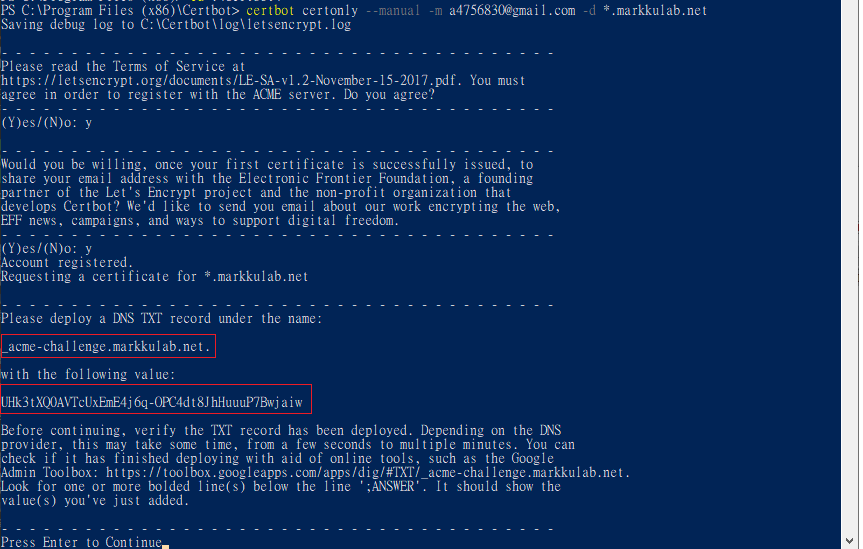
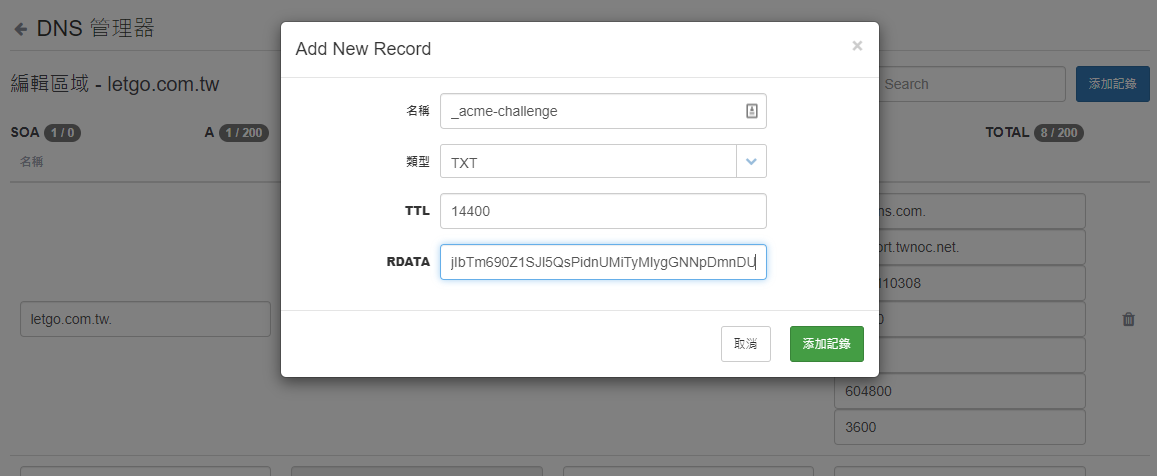
Go to your DNS host's admin panel, add a TXT record, and paste in the value Certbot just gave you
Press Enter to continue, and the certificate will be generated under C:\Certbot\live
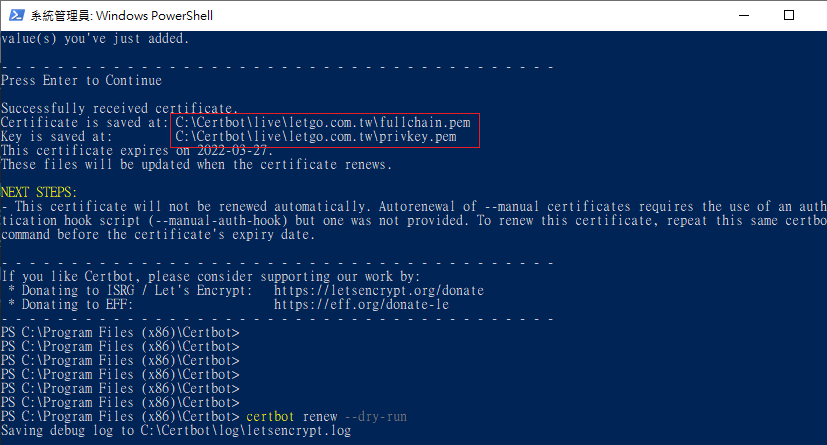
From here you can copy the cert to wherever it's needed.
Renewing a Certificate
Renewal command — certificates can only be renewed within 30 days of expiry. A single command lets Certbot renew automatically, but it seems only Nginx and Apache support fully automated renewal.
certbot renew
P.S. If the cert was just issued, this command will usually report "Cert not yet due for renewal" since it doesn't need renewing yet.
Test whether renewal works
certbot renew --dry-run
Later I wrote a script to manually fetch the cert and copy it to my FRP server
certbot certonly --manual -m [email protected] -d *.letgo.com.tw
certbot certonly --manual -m [email protected] -d *.markkulab.net
NET USE X: \\192.168.50.52\Container\data
robocopy C:\Certbot\live X:\frpc /E
NET USE X: /delete


Comments