
Background
After migrating my Taiwan dev environment from Windows 11 to Linux, I unexpectedly noticed abnormal traffic on our network equipment, even causing network congestion.
The original dev environment was Windows 11. Since Microsoft provides extensive protection against worms and malware, the system's security is relatively high. Linux is not inherently insecure, but its information security has to be self-managed. For example, when I once shared a database folder over Samba, I forgot to restrict write permissions, and after a few nights some unknown .exe files showed up in that folder.
Initial investigation
At first I thought I had installed something I shouldn't have, causing abnormal NAT traffic. But after multiple rounds of uninstalling software and cross-testing, the problem persisted. Eventually, I noticed several suspicious container services running in Docker - that was clearly the culprit.
Even after limiting TCP/IP connections to 300 on the firewall, the router was still being overwhelmed, repeatedly bringing down the office network.
Pinpointing the root cause
After investigation, I found several anomalous Ubuntu containers running on the Docker host. My theory: someone's machine on the LAN was infected with a worm that, via Docker's remote management port, pulled the official Ubuntu Docker image, gained full control inside the container, and used these malicious containers to drain host resources - network, CPU, and disk - or steal data.

How to avoid this kind of issue
After understanding how worms exploit Docker's overly broad permissions, before locating which machine had the worm, I decided to harden security by adding TLS certificates so the dev machine's Docker couldn't be hijacked.
Prerequisites
- Dev machine (Docker host): Ubuntu (192.168.0.123), with the remote management port enabled
- Docker remote management - client: Windows 11
- Environment: Docker installed on both machines
Steps to generate TLS certificates
1. On the Ubuntu Docker host, generate the CA key and enter a passphrase
openssl genrsa -aes256 -out ca-key.pem 4096
Tip: Keep the passphrase safe.
Generate the CA certificate:
openssl req -new -x509 -days 365 -key ca-key.pem -sha256 -out ca.pem
2. Generate the server key and certificate
Generate the server key:
openssl genrsa -out server-key.pem 4096
Generate the server certificate signing request (CSR):
openssl req -subj "/CN=*" -sha256 -new -key server-key.pem -out server.csr
Use the CA to sign the server certificate:
openssl x509 -req -days 1000 -sha256 -in server.csr -CA ca.pem -CAkey ca-key.pem -CAcreateserial -out server-cert.pem
3. Generate the client key and certificate
Generate the client key:
openssl genrsa -out key.pem 4096
Generate the client certificate signing request (CSR):
openssl req -subj "/CN=client" -new -key key.pem -out client.csr
Use the CA to sign the client certificate:
openssl x509 -req -days 365 -sha256 -in client.csr -CA ca.pem -CAkey ca-key.pem -CAcreateserial -out cert.pem
4. Modify the Docker configuration file
Edit the Docker service config:
vim /lib/systemd/system/docker.service
Change ExecStart to:
ExecStart=/usr/bin/dockerd --tlsverify --tlscacert=/var/tls/ca.pem --tlscert=/var/tls/server-cert.pem --tlskey=/var/tls/server-key.pem -H tcp://0.0.0.0:2376 -H unix:///var/run/docker.sock
5. Set file permissions
Set permissions on the keys and certificates:
chmod 0400 ca-key.pem server-key.pem key.pem
chmod 0444 ca.pem server-cert.pem cert.pem
6. Copy the certificates to the remote client
Use SCP to copy the certificates to the Windows client:
scp -r [email protected]:/var/tls E:\tls
Windows users can place the certificates (ca.pem, cert.pem, and key.pem) into the %USERPROFILE%/.docker folder so they will be used automatically; otherwise they have to be specified manually.
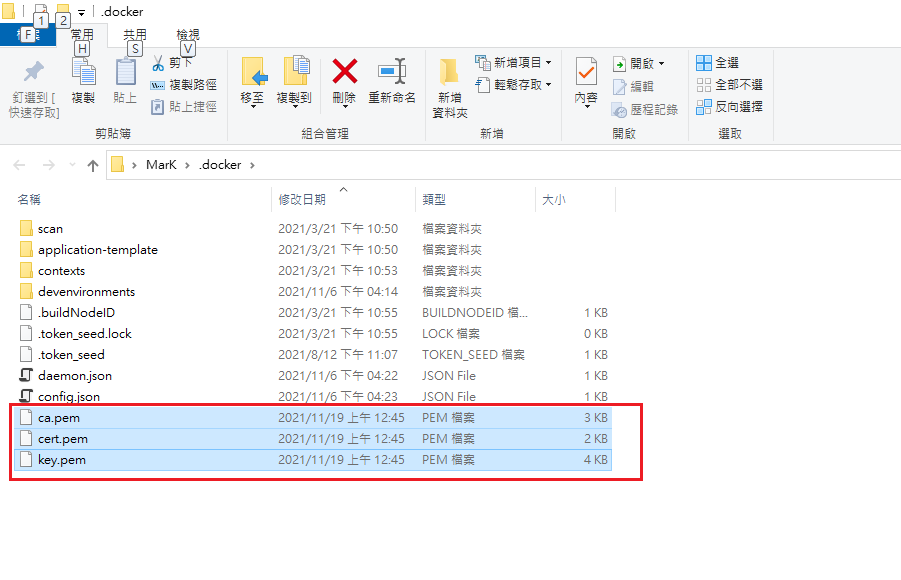
Linux users can place the certificates into /etc/docker/certs.d so they are used automatically.
7. Restart the Docker service
Reload and restart Docker:
systemctl daemon-reload
systemctl restart docker
Testing
Try the same command that previously managed Docker without certificates:
docker -H="tcp://192.168.0.123:2376" ps
Without the TLS certificate, Docker management is no longer allowed:
Error response from daemon: Client sent an HTTP request to an HTTPS server.
W Now, with the TLS certificates included, we can manage Docker remotely:
docker --tls -H="tcp://192.168.0.123:2376" ps

Wrap-up
After enabling TLS, no more unknown containers or NAT-saturating traffic appeared. I really didn't expect that an unencrypted Docker remote management port could be exploited by worms so easily. Information security is especially important on Linux. By deploying TLS certificates, we effectively raised the security of Docker remote management, preventing resource exhaustion and network outages from hacker exploits. I'd also recommend periodically reviewing Docker containers and image sources to reduce risk.
Addendum
You can use Wireshark to capture traffic and check whether any LAN machines exhibit anomalous behavior.


Comments