Mark Ku's Blog

Introduction

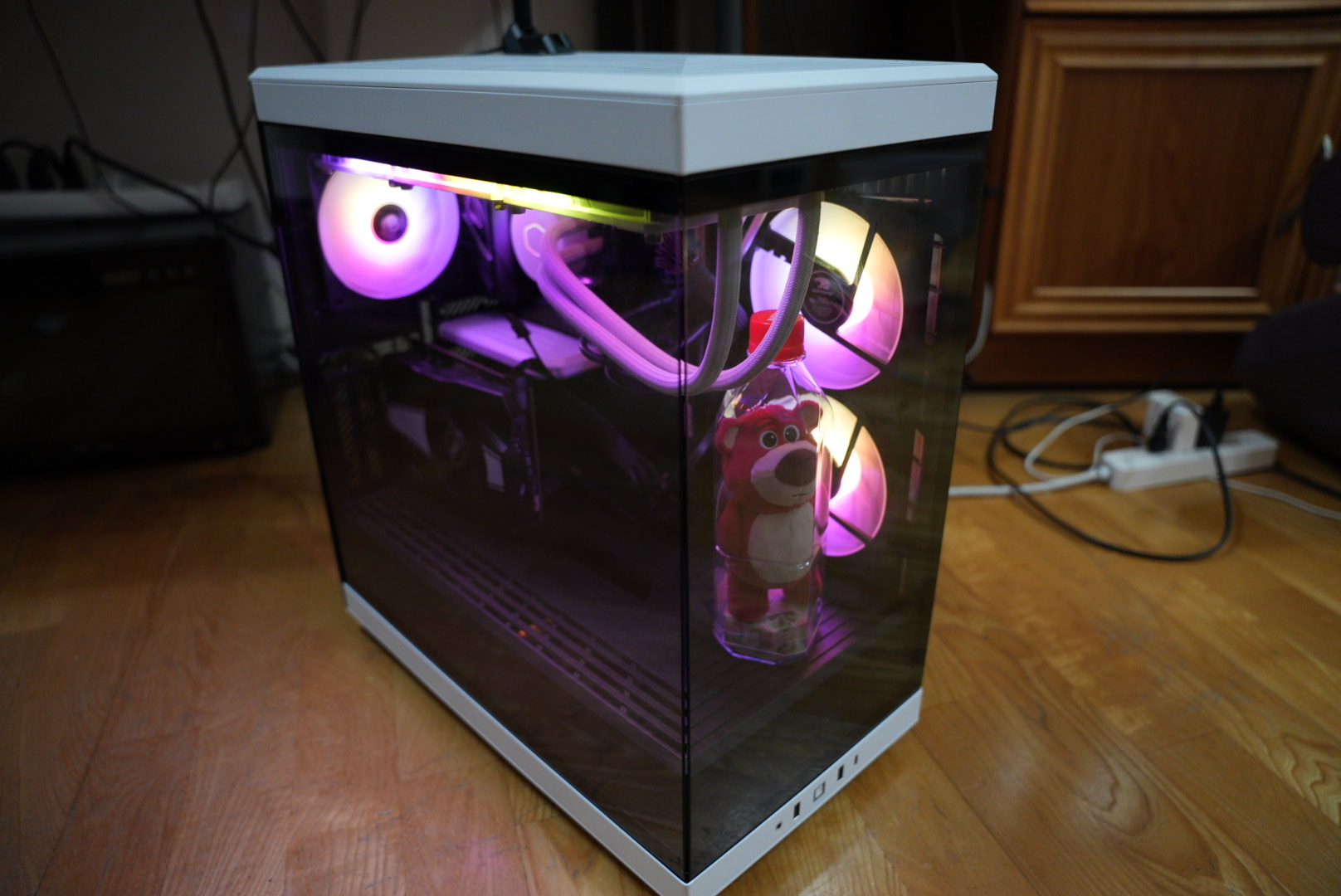
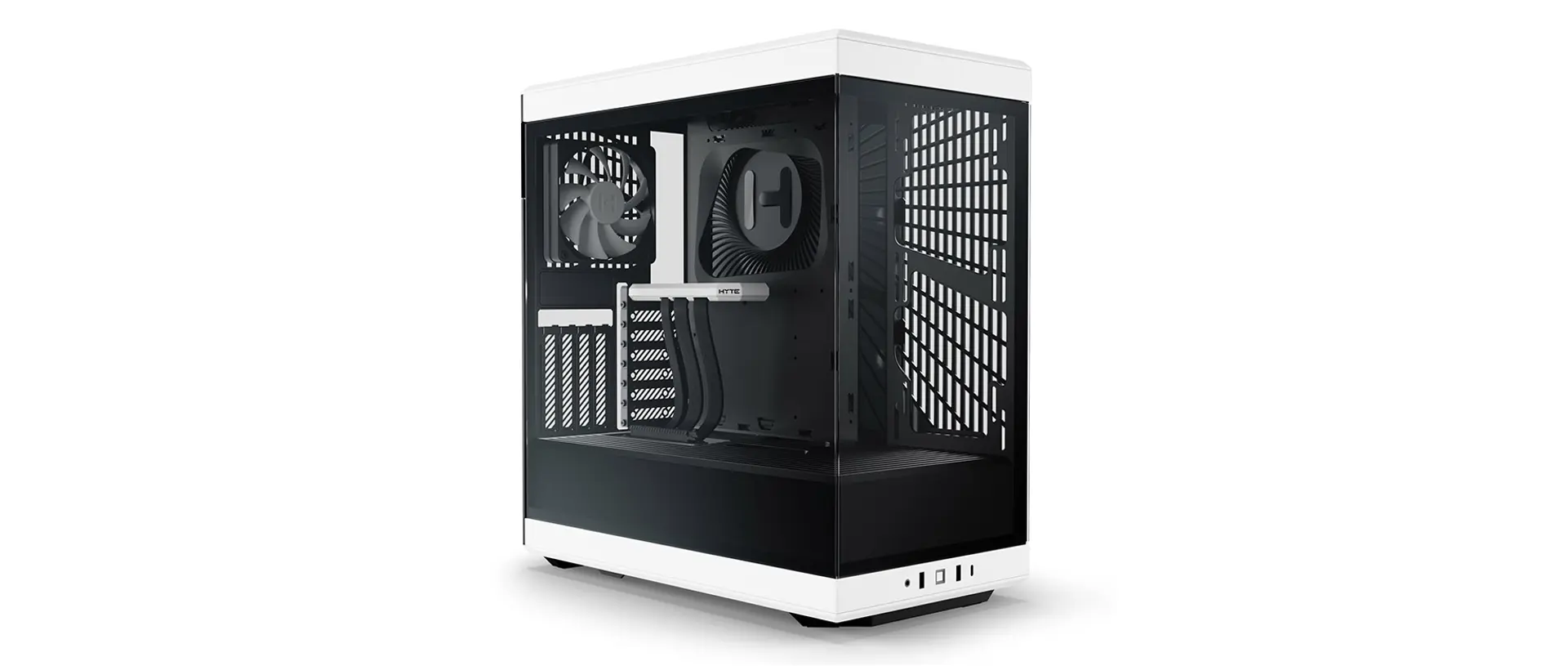
HYTE, the gaming brand from North America, has recently officially entered the Taiwanese market. Today, I'll be unboxing the HYTE Y40 case. This is a beautiful panoramic case with a rich set of I/O. Let's see if it's truly every gamer's dream case. White HYTE Y40 panoramic gaming PC case with internal fans
Unboxing

The box was super heavy; I was sweating all over carrying it home.
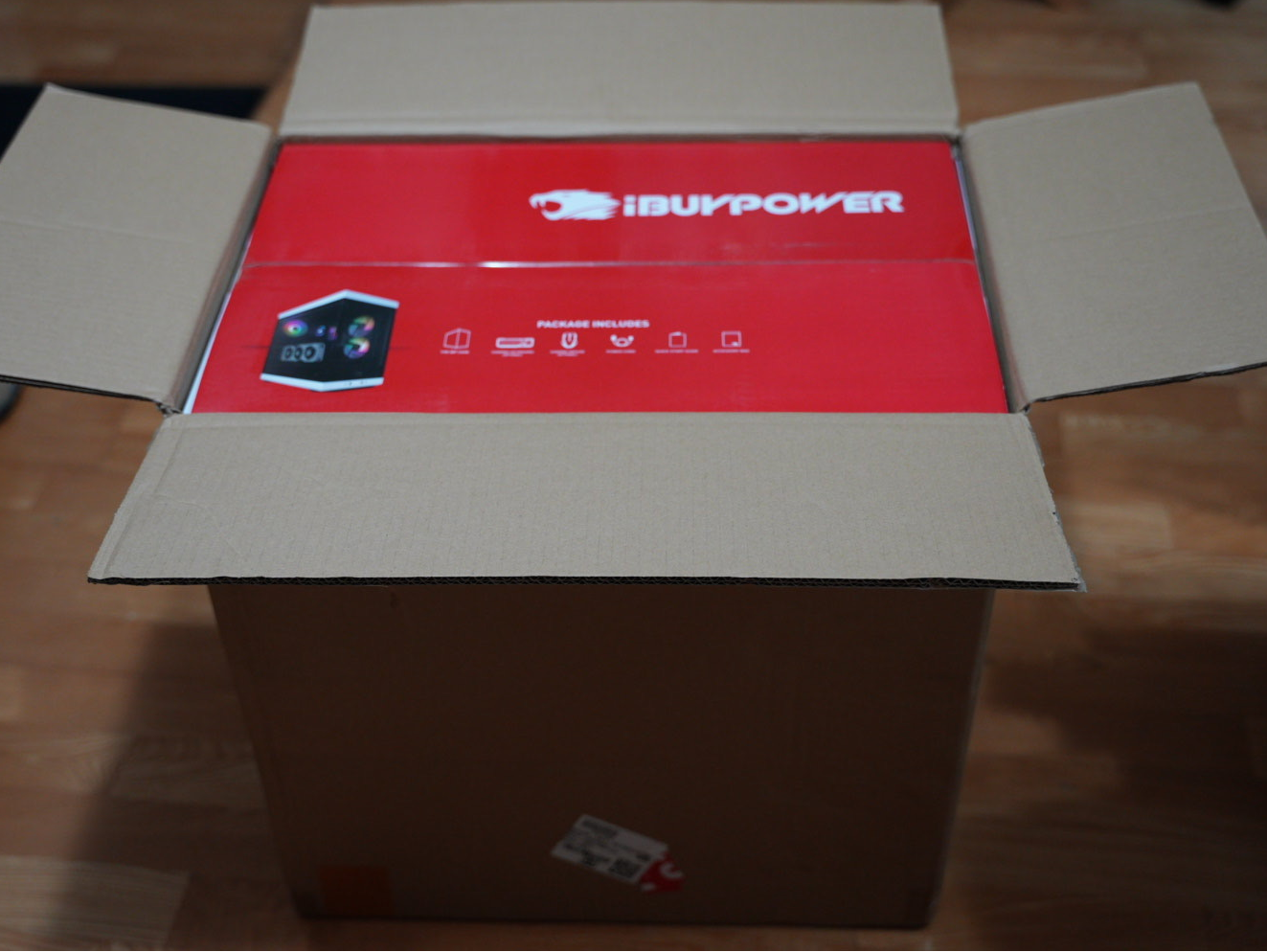
Open cardboard box revealing red iBUYPOWER product packaging

Since the case has two glass panels, the packaging is quite exquisite, likely to prevent damage during shipping.
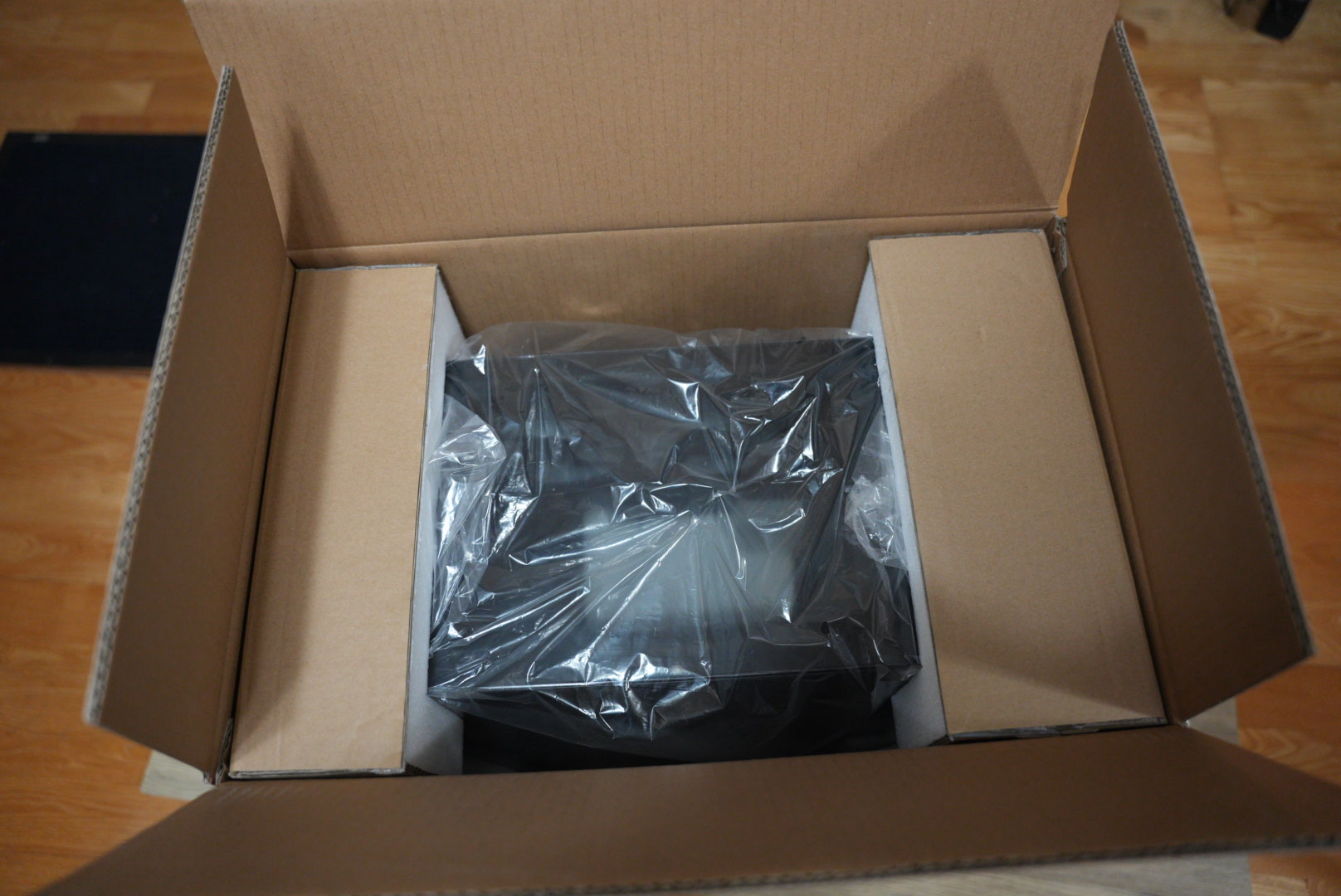
HYTE Y40 gaming PC case inside its protective packaging

Product Features

The front panel features one Type-C and two USB 3.0 ports.
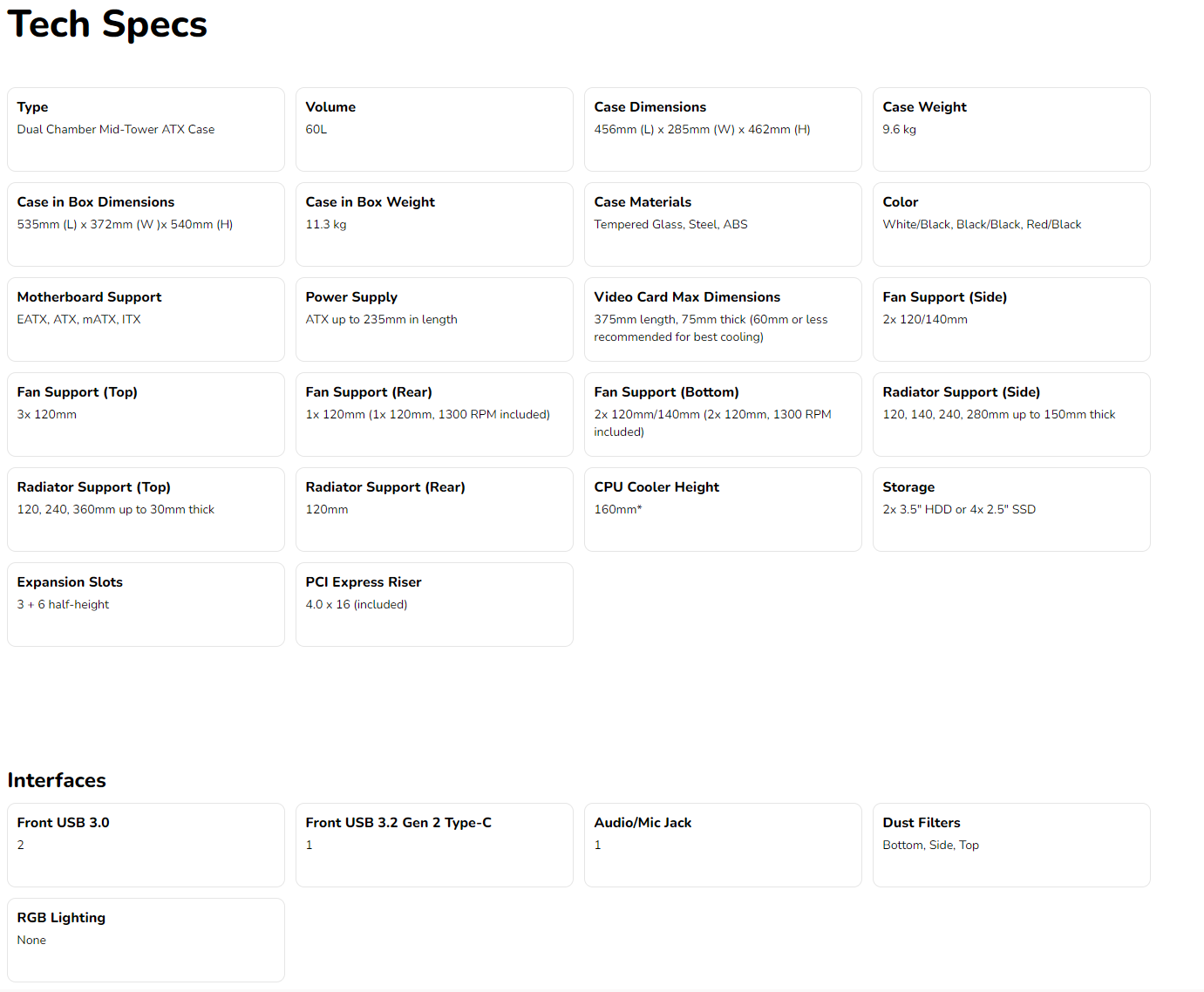
HYTE Y40 PC case technical specifications and features table

Built-in PCI-E 4.0 Riser Cable: These typically cost over NT$2,000 on the market, so this is an incredibly generous inclusion.
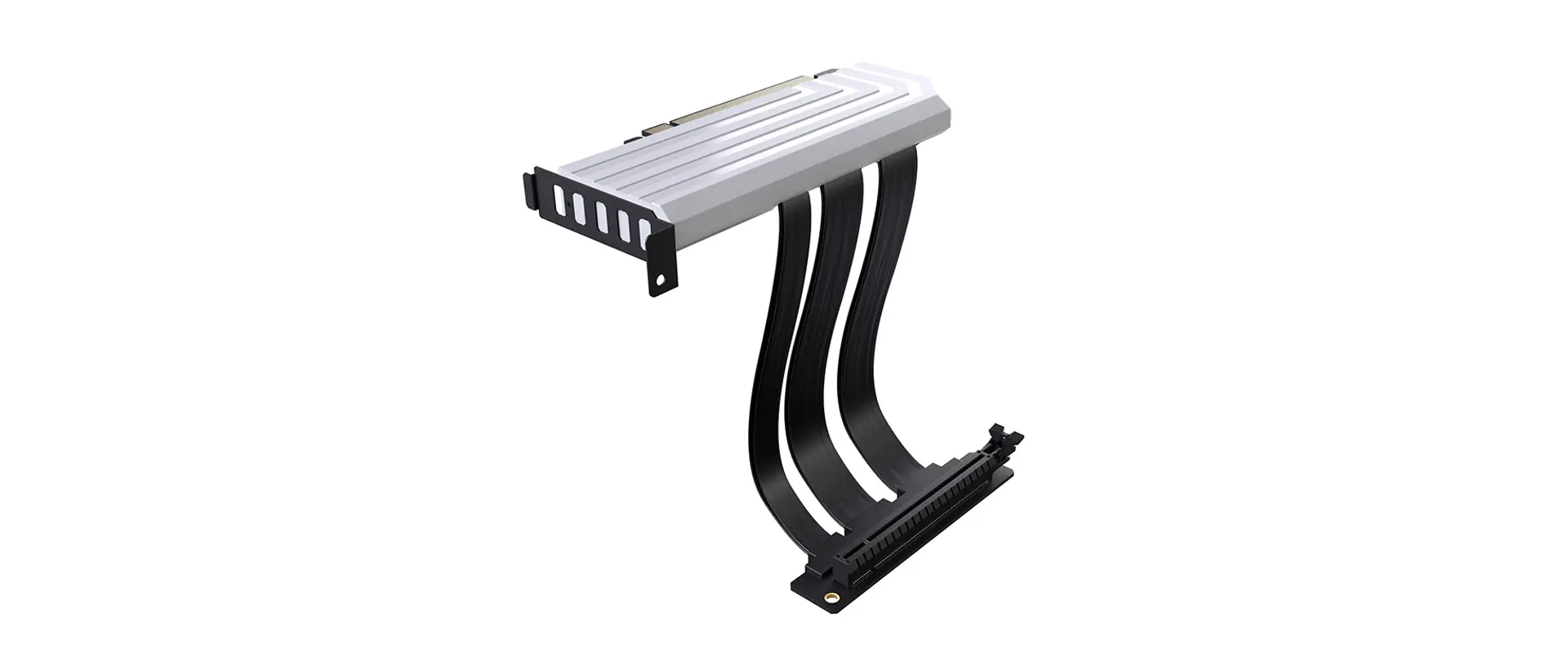
Silver and black PCIe 4.0 riser cable with curved flat cables

Complete Screw and Accessory Kit: Everything you need is ready for you right where you install the power supply, so you no longer have to hunt around for the right screws.
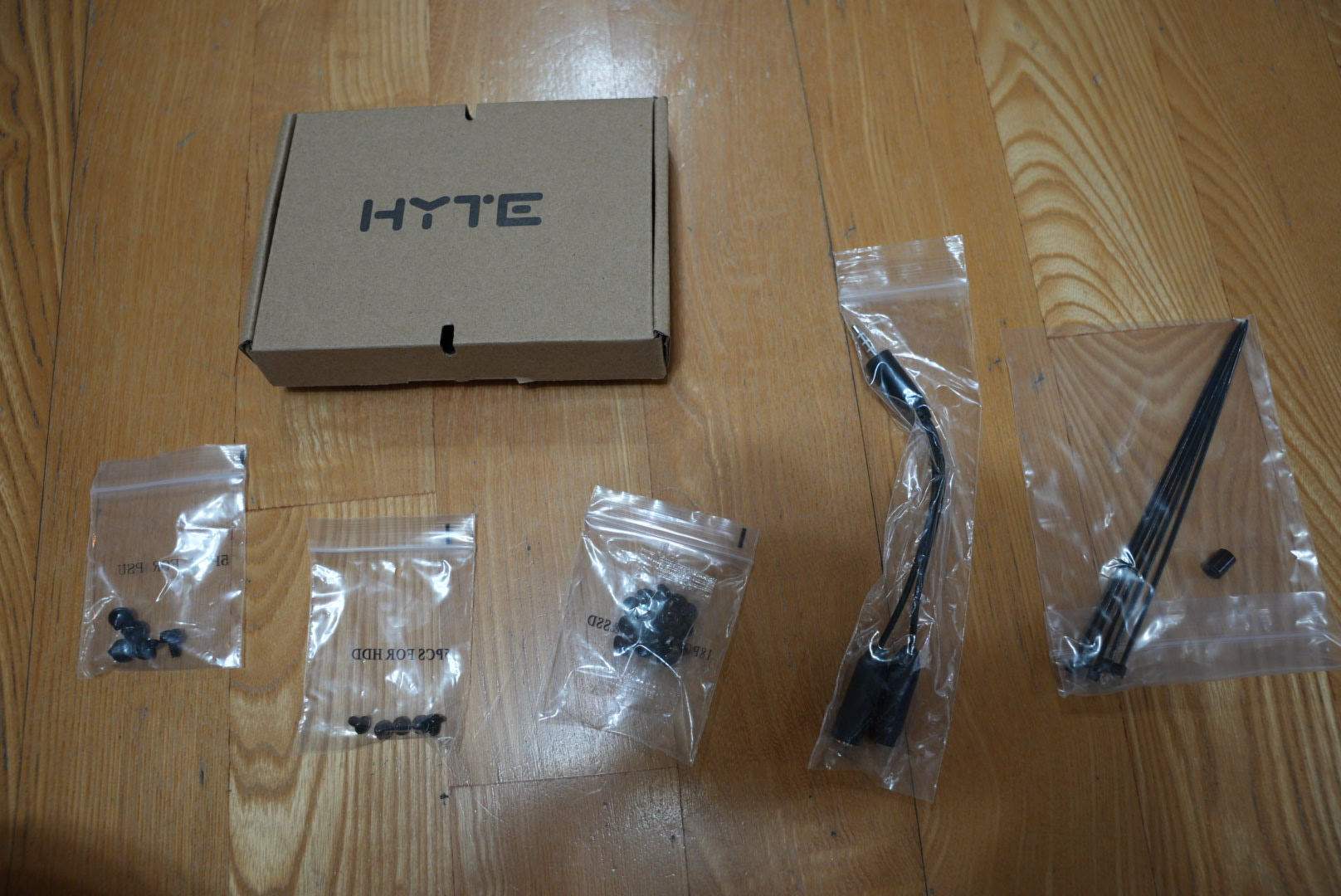
HYTE accessory kit box, screws, audio cable, and zip ties

Easier Front Panel Connector Installation: Compared to the complex pin headers of the past, the unified connector makes installation a breeze.
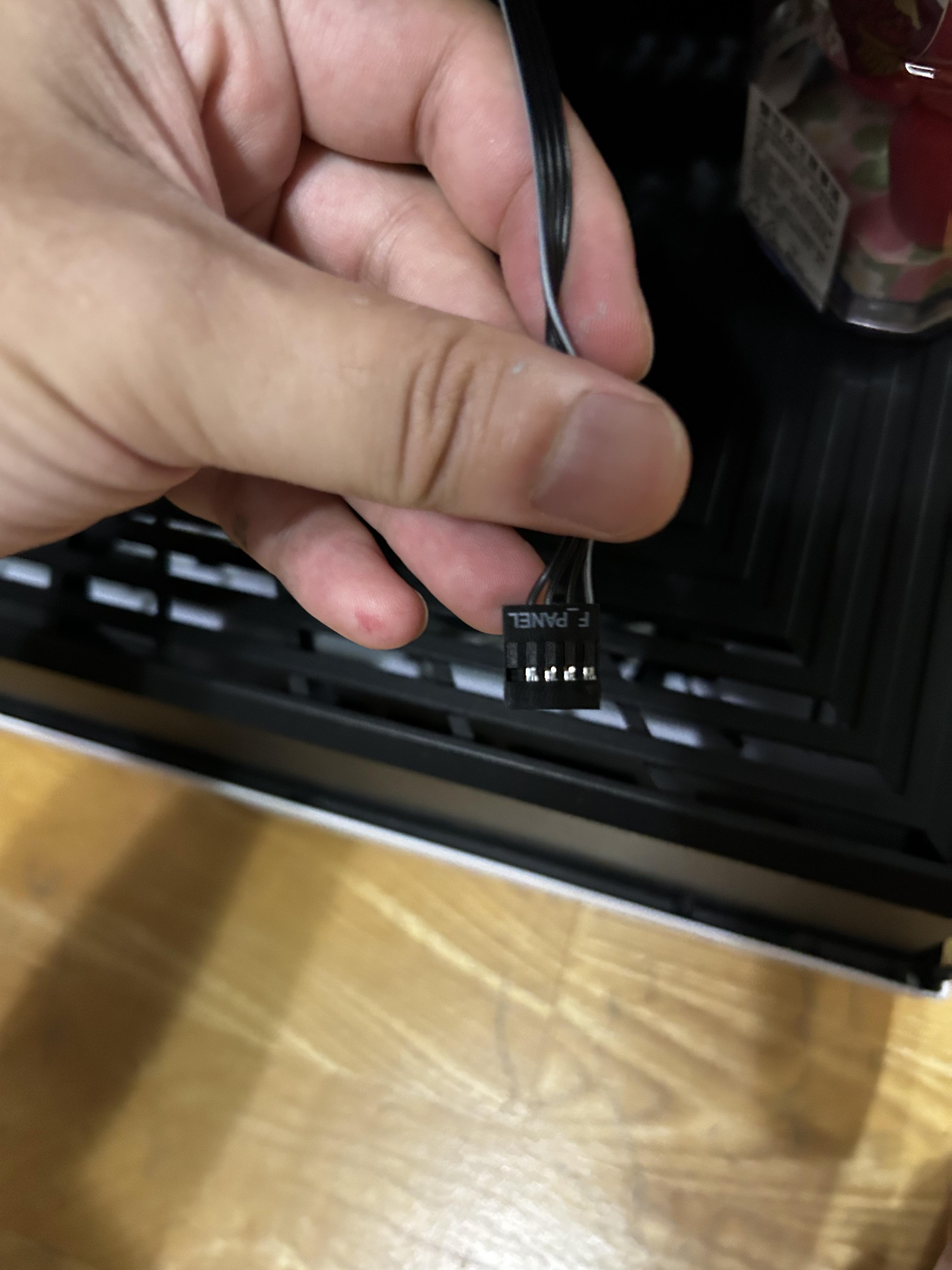
Hand holding a unified front panel connector cable

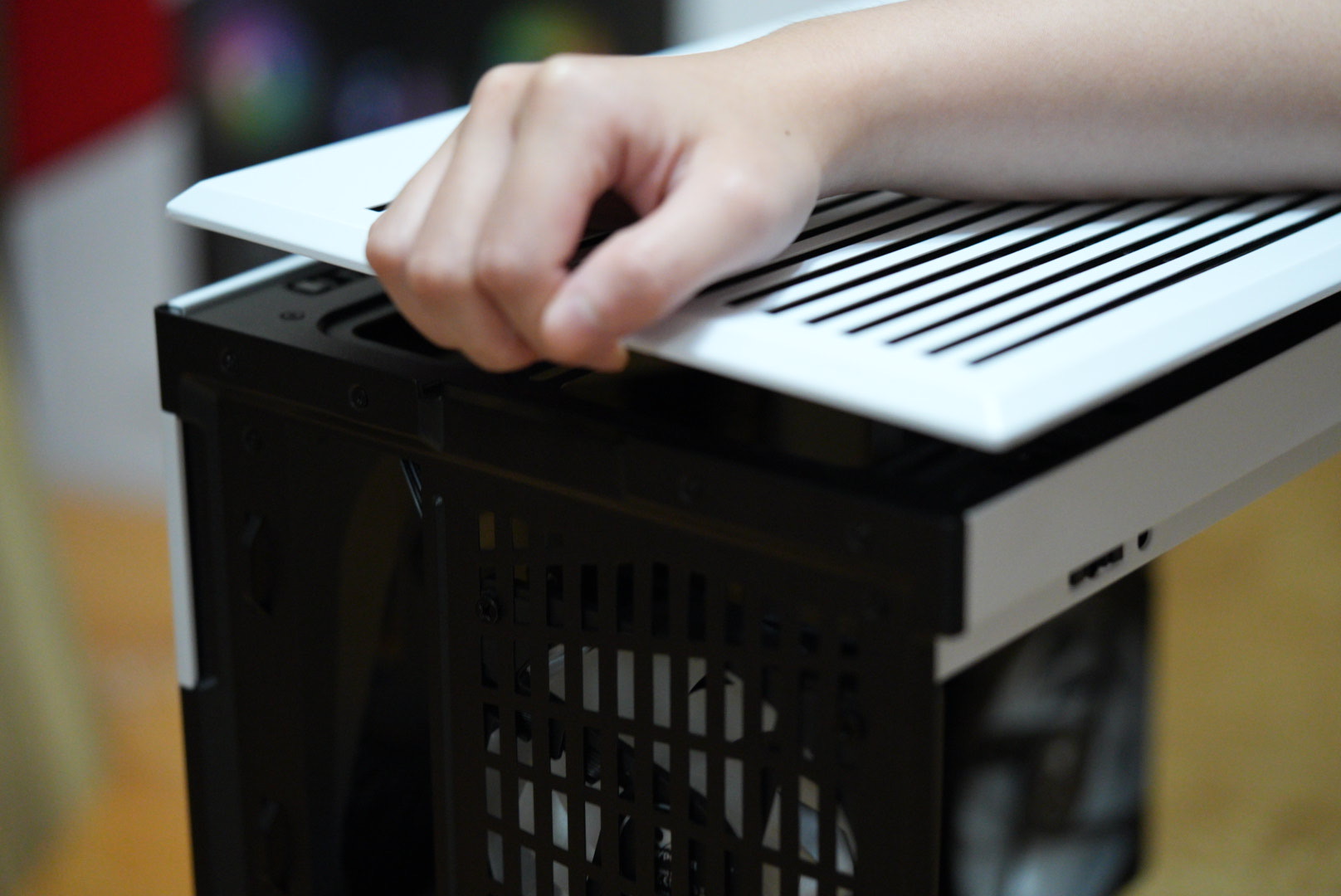
User-Friendly Top and Side Panel Design: The easy-to-open recessed grips make your build process much less of a struggle.
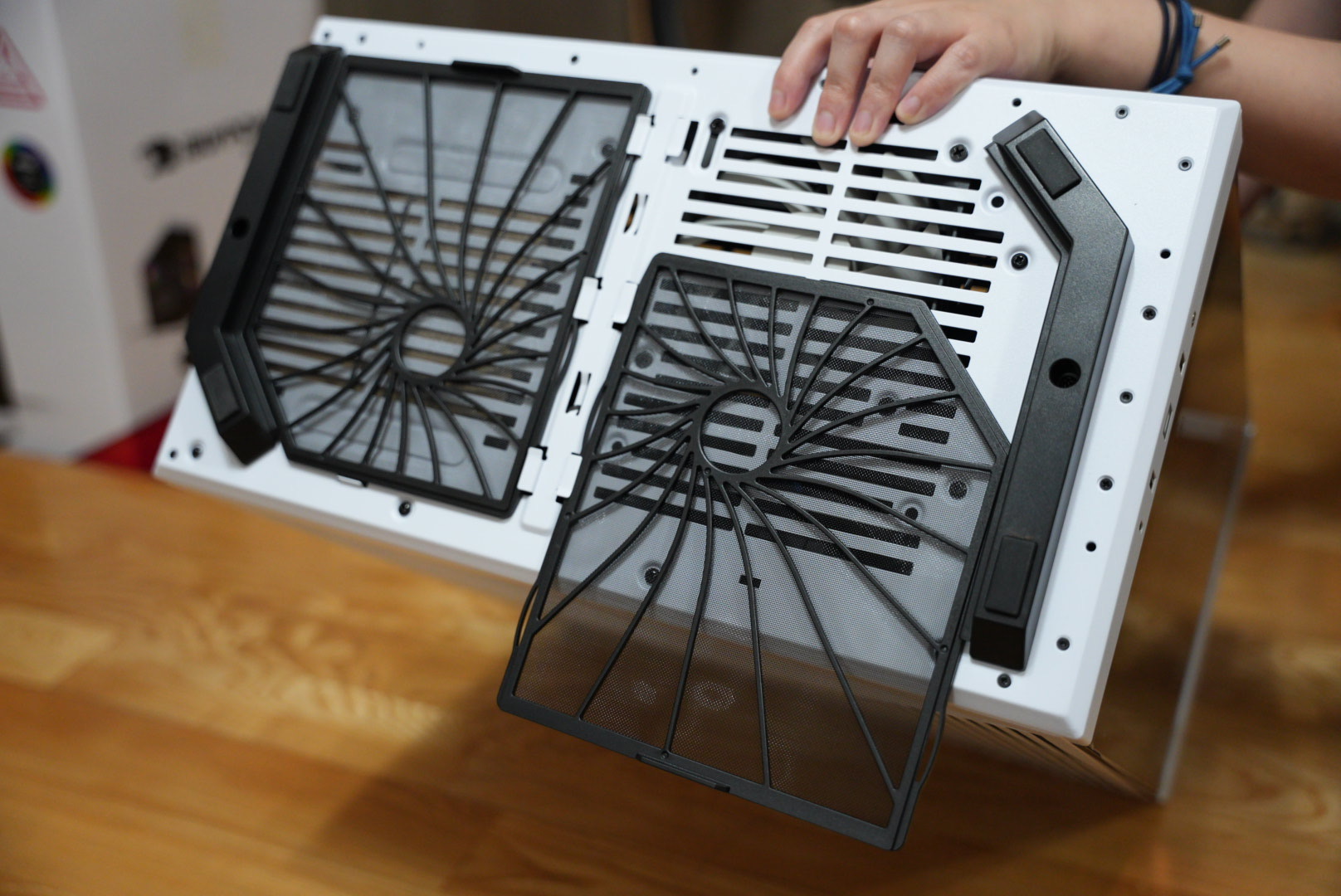
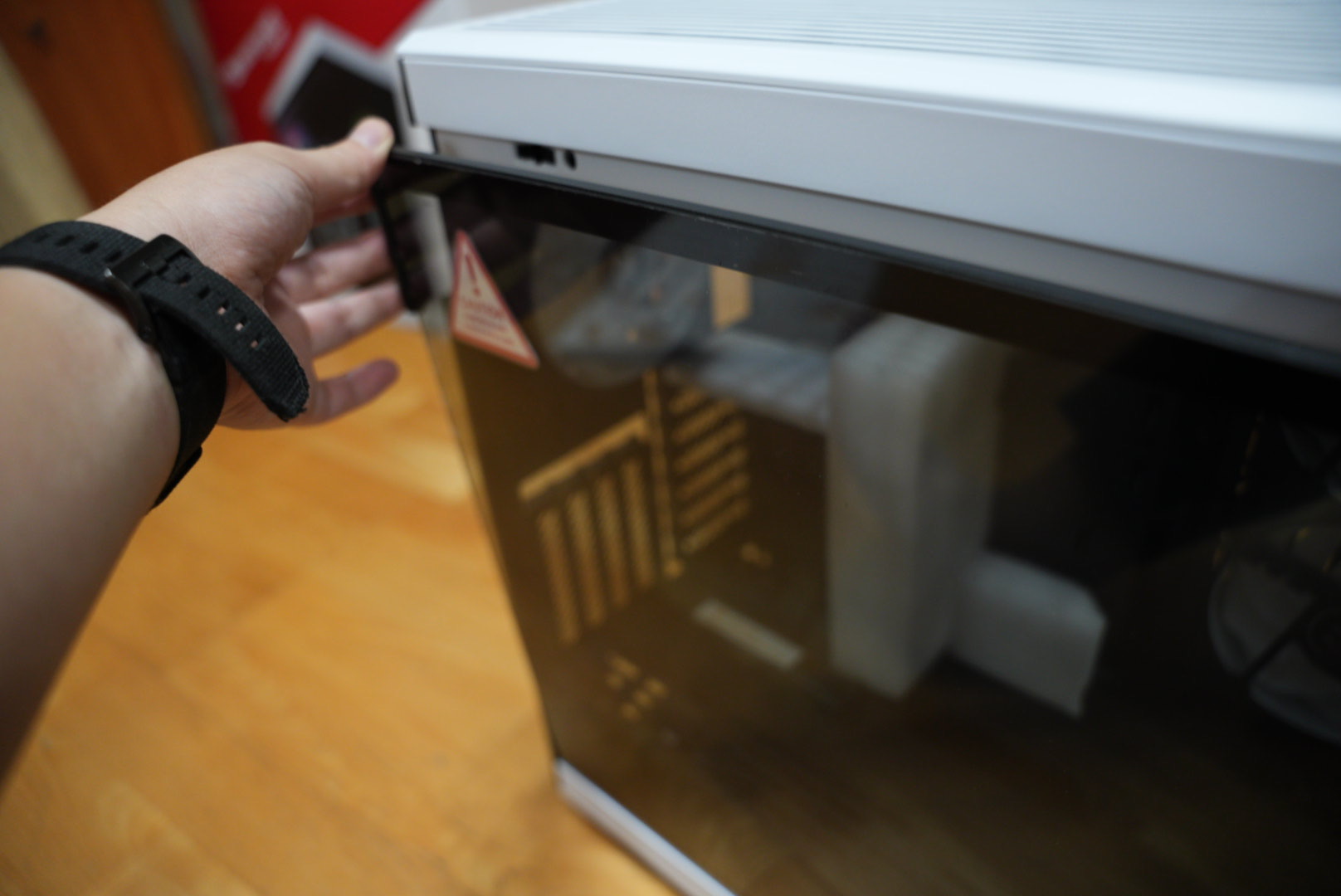
Hand removing two magnetic dust filters from white HYTE Y40 PC caseHand demonstrating easy-to-open top panel of HYTE Y40 PC caseHand removing white vented top panel from HYTE Y40 PC case

Built-in Rear ARGB Hub: It's thoughtfully attached directly to the back panel, unlike other brands where you have to purchase an ARGB hub separately.
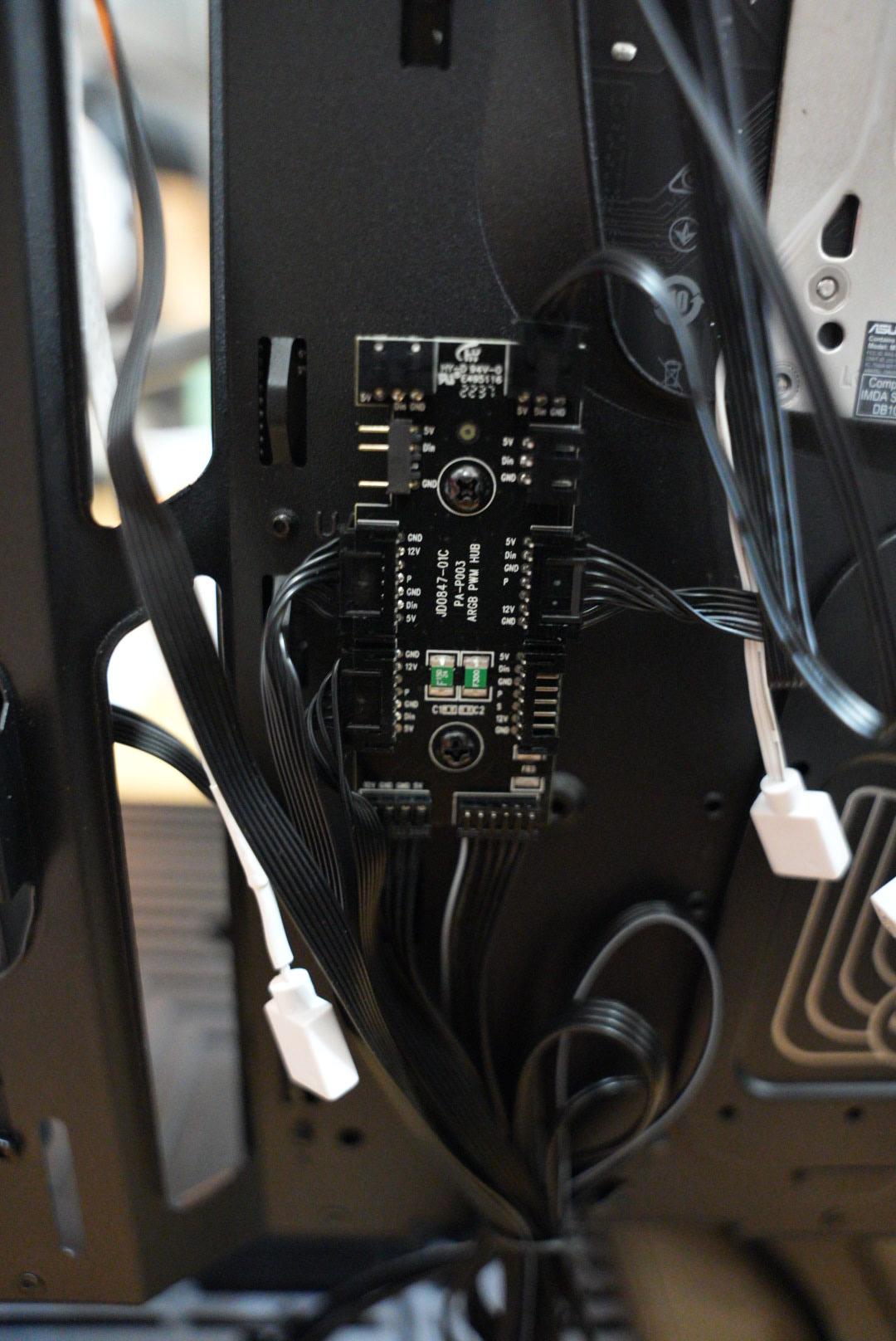
HYTE Y40 built-in ARGB PWM hub with connected wires

My Build Process

  1. Open both side panels and the top cover, and remove the PCIe riser cable first.
  2. Locate the motherboard screw kit in the power supply installation area.
  3. Mount the liquid cooling radiator.
  4. Install the power supply unit.
  5. Secure the motherboard in the case and connect the power cables and other relevant cables.
  6. Install the ARGB power and signal cables.
  7. Install the graphics card riser cable and the graphics card.

Final Thoughts

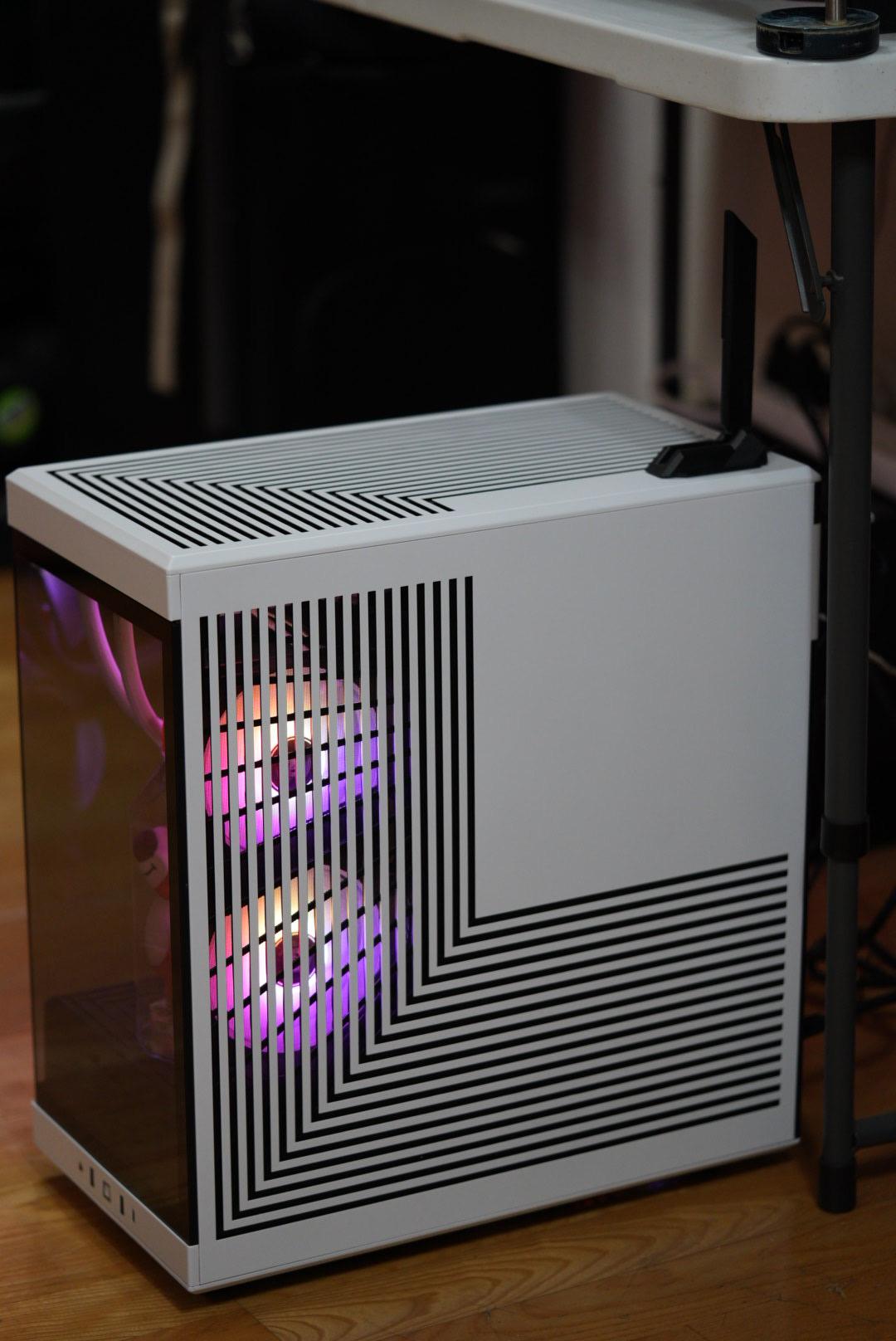
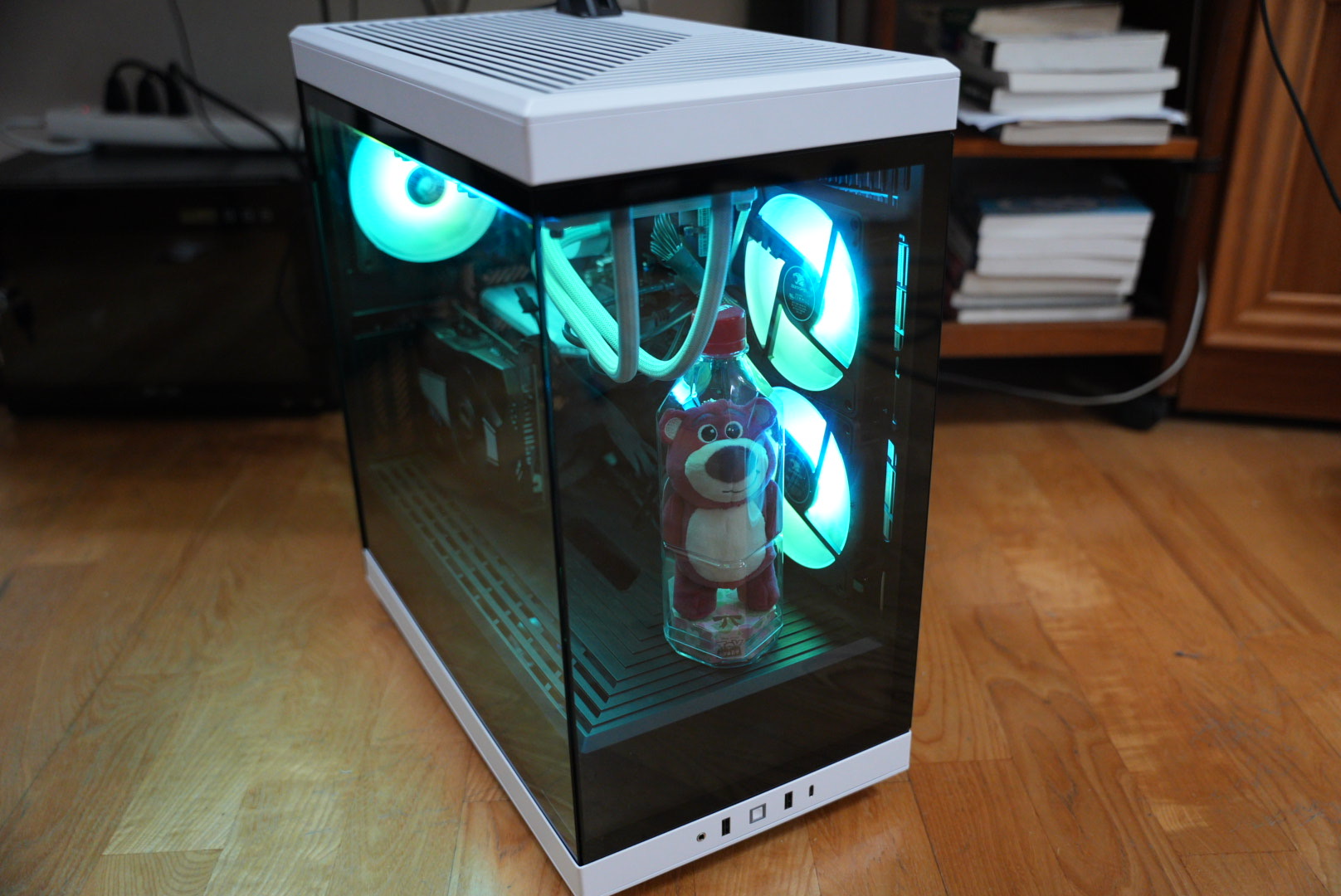
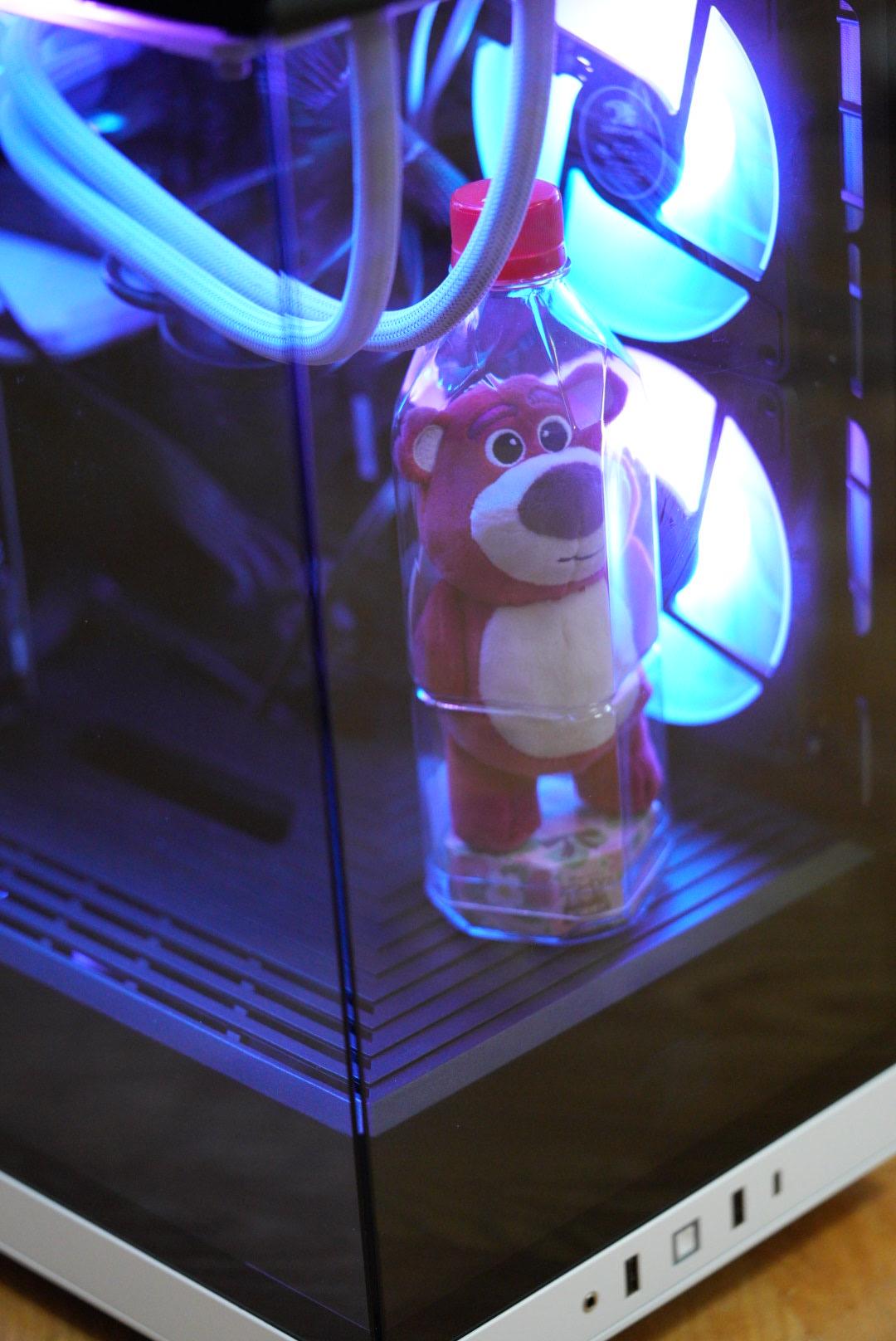
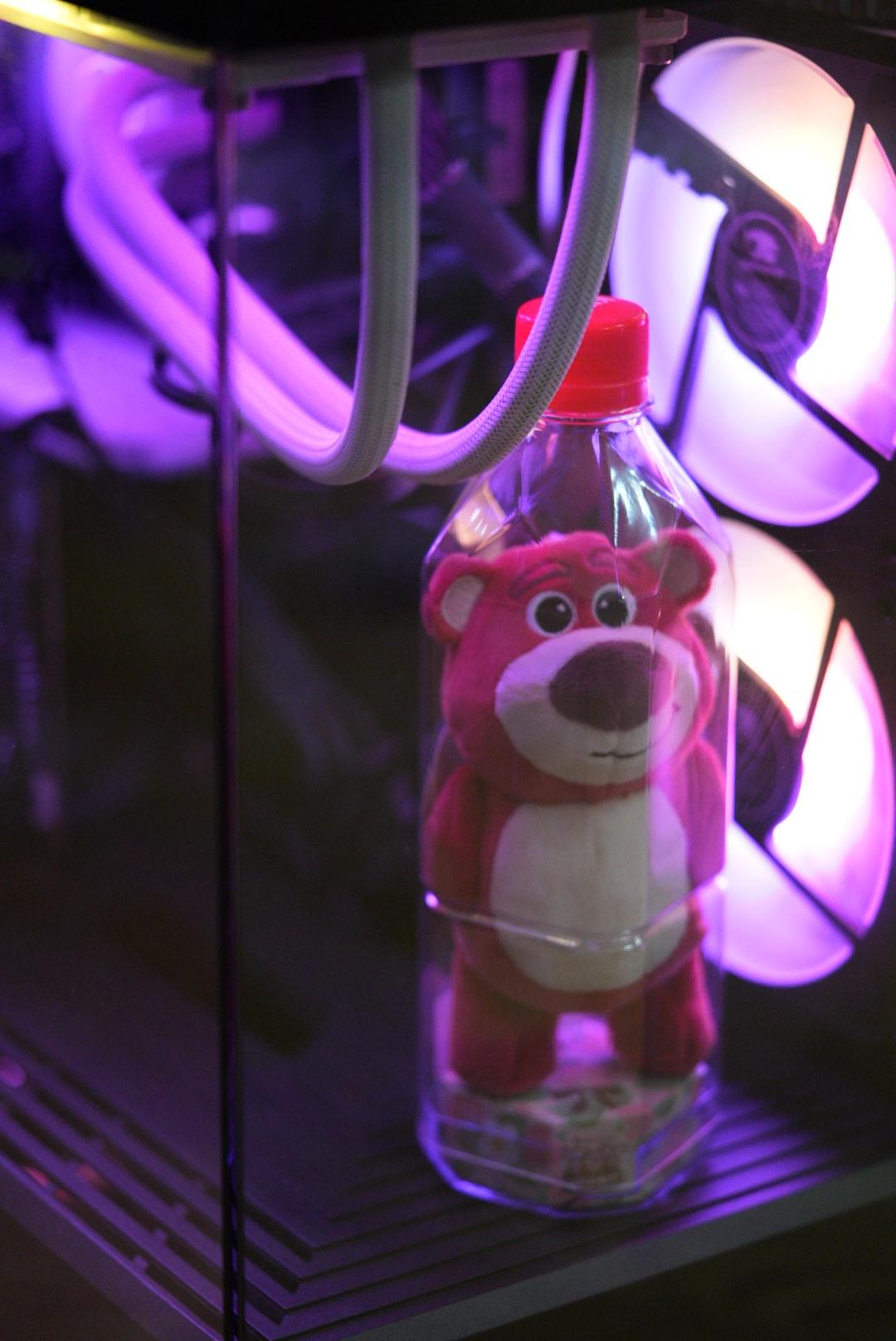
After swapping to this case, I suddenly feel like my Nvidia 1060 graphics card is a bit unworthy of such a cool case. The Y40 not only features modern I/O specifications, but the building experience is also incredibly easy. In particular, its L-shaped panoramic view design provides a display space where you can place your favorite decorations or figures, enriching your workspace. Its simple and straightforward installation process makes it easy for both seasoned builders and beginners to get started. It truly lives up to the name of a "cool PC."

If you're a PC user who seeks a balance of performance and aesthetics, then the HYTE Y40 might just be the choice you've been waiting for. Pink Lotso bear in bottle inside a purple lit gaming PC
More Photos

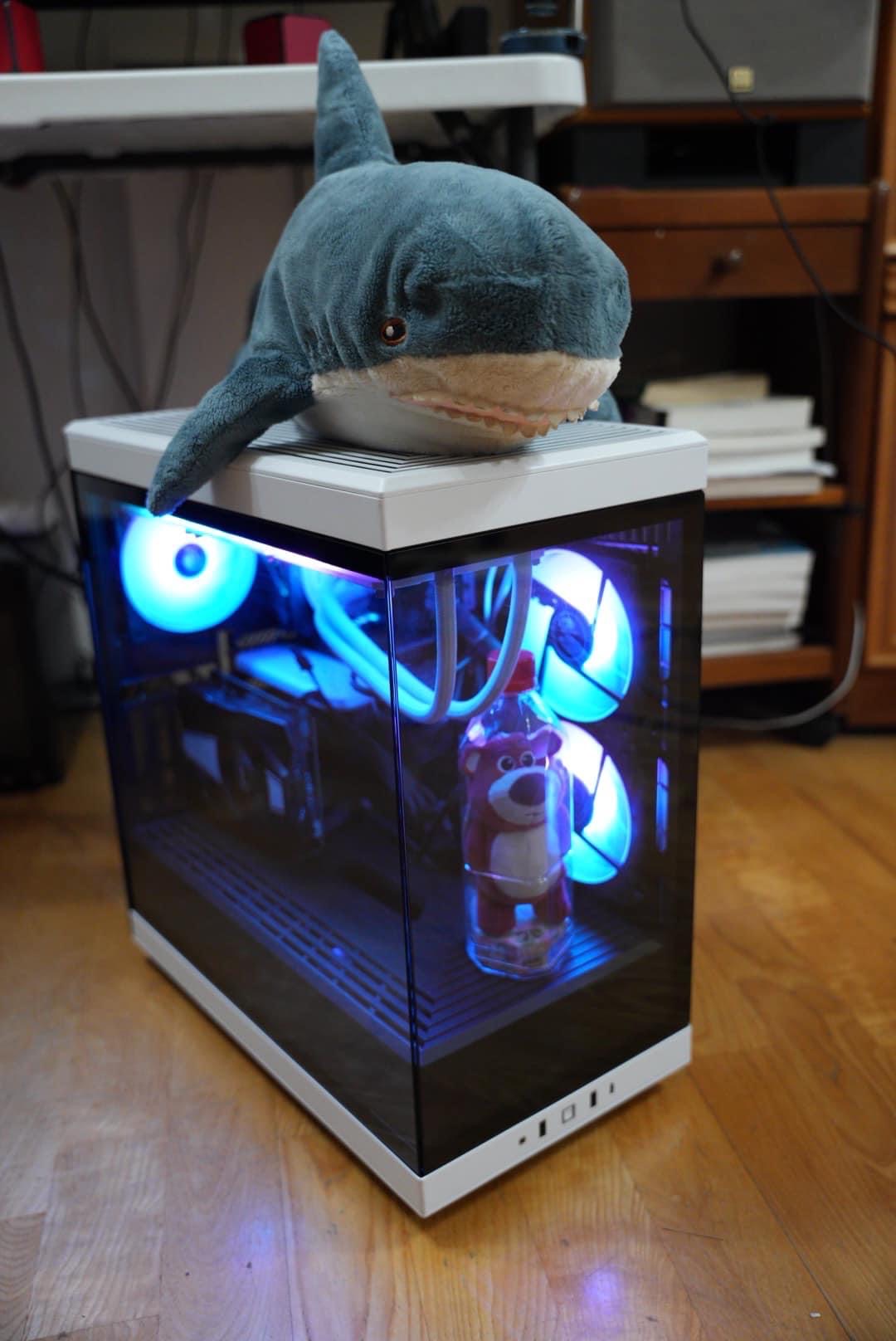
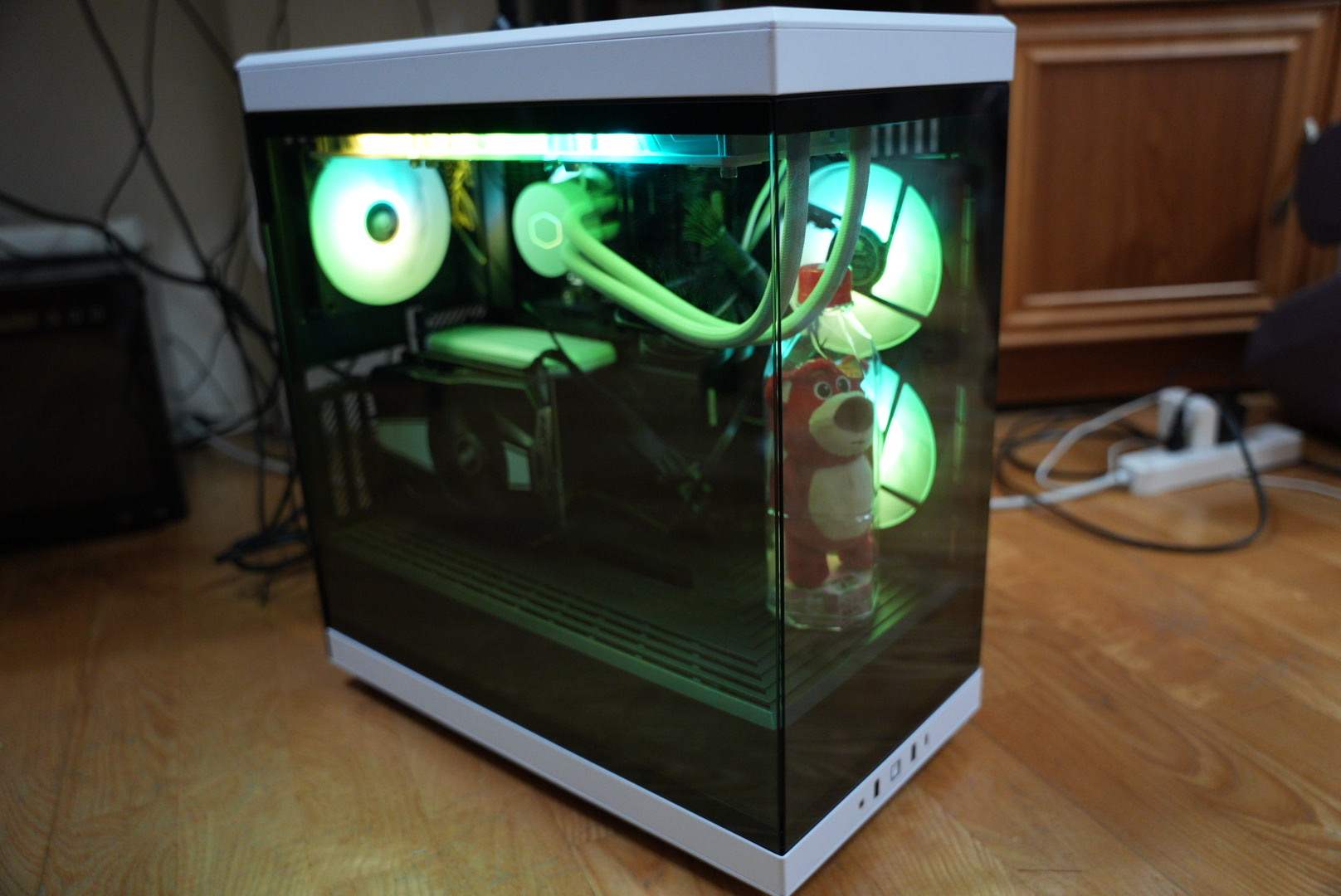
HYTE Y40 PC case with blue internal lighting and a plush sharkWhite HYTE Y40 gaming PC case with glowing RGB fansWhite HYTE Y40 gaming PC case with green RGB lighting and Lotso bearWhite HYTE Y40 gaming PC case with glowing RGB fans and Lotso toyHYTE Y40 gaming PC case with teal RGB fans and Lotso bearLotso bear plushie in bottle inside HYTE Y40 PC case with

Official Website

Author

Mark Ku

擁有 10+ 年經驗的資深軟體工程師,現為 AI 應用 Builder,專注於大型平台架構與簡化複雜系統設計,從電商系統到訂閱與收費平台,結合 AI Agent、AI 整合與自動化開發,打造高效率且可持續演進的產品技術基礎。Read More

Found this useful?

The author's free tools, daily podcasts and newsletter are all here.

Mark Ku · This article is licensed under CC BY 4.0. Credit the author and link back to the original when reusing it.

Comments

Subscribe to Newsletter

Subscribe to get new posts delivered instantly — never miss a tech share.

By submitting, you agree to receive emails. You can anytime.

Popular Posts

View all
Mark Ku
··602

Oracle Cloud Always Free Tier: Linux Host and Static IP for a $0 Cloud Solution

Oracle Cloud Always Free Tier: Linux Host and Static IP for a $0 Cloud Solution
Mark Ku
··490

Say Goodbye to Postman's Fee Trap! A Hands-on Guide to Bruno, the Open-Source Git-Native API Testing Powerhouse.

Say Goodbye to Postman's Fee Trap! A Hands-on Guide to Bruno, the Open-Source Git-Native API Testing Powerhouse.
Mark Ku
··333

A Free, Open-Source, Notion-like Knowledge Base — A Complete Guide to Deploying and Backing Up Outline Wiki

A Free, Open-Source, Notion-like Knowledge Base — A Complete Guide to Deploying and Backing Up Outline Wiki
Mark Ku
··264

Training Your Own AI Voice: Hardware Requirements, Open-Source Model Comparison, and LoRA Fine-Tuning

Training Your Own AI Voice: Hardware Requirements, Open-Source Model Comparison, and LoRA Fine-Tuning
Mark Ku
··221

Building an Efficient API Management Platform: Deploying Kong Gateway from Scratch - Part 1

Building an Efficient API Management Platform: Deploying Kong Gateway from Scratch - Part 1
Mark Ku
··215

Setting Up Samba on Ubuntu to Share Folders with Windows 11

Setting Up Samba on Ubuntu to Share Folders with Windows 11