
What is Ingress?
Ingress is a key component in a Kubernetes cluster, primarily responsible for simplifying and managing access for external traffic to internal services. In principle, a Kubernetes cluster exists in a private network space, and external sources cannot directly access services or Pods within the cluster. Therefore, you need to use a Service (LTM) or Ingress to route traffic to services inside the cluster.
Service (LTM) vs. Ingress
In GKE, a Service provides Layer 4 load balancing and cannot process HTTP protocol content. Although you can point a DNS or CNAME record to the load balancer's external IP and set Cloudflare's SSL to "Flexible" to bind a domain, a Service cannot redirect or set rules based on the HTTP protocol, request content, or path.
However, Ingress provides Layer 7 load balancing, understands the HTTP protocol, and can use Ingress rules to determine how to forward requests to specific Services based on the path or domain name.
For example:
www.letgo.com.tw => Service A => Cluster => Pods => Container
Ingress is similar to Nginx's domain resolution and traffic forwarding capabilities, but its functionality is more focused on traffic management (Nginx also provides website features like caching). Through Ingress's domain resolution and path forwarding, we can easily implement traffic splitting.
Example:
/blog  => Service A
/store => Service B
Creating an Ingress
There are three ways to create an Ingress: through the web interface, using commands, or by writing a YAML configuration file. Before you start, you must first create a Deployment and a Service. It's crucial to note that this Service's type must be set to ClusterIP, not LoadBalancer. This example will demonstrate how to create an Ingress through the web interface.
-
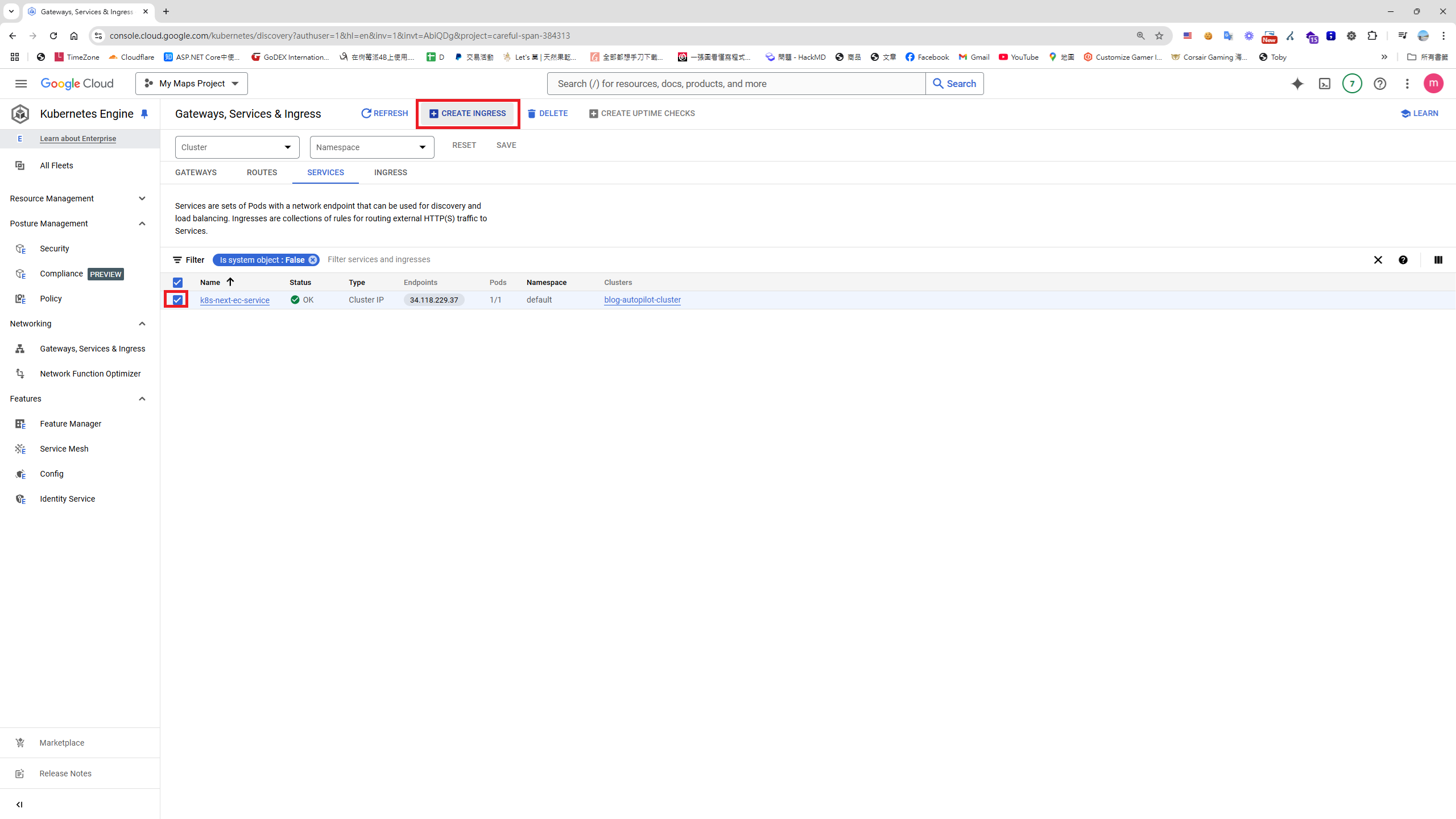
Go to GCP's Google Kubernetes Engine > Gateways, Services & Ingress > click the SERVICES tab > select your Service.
-
Enter the Ingress name
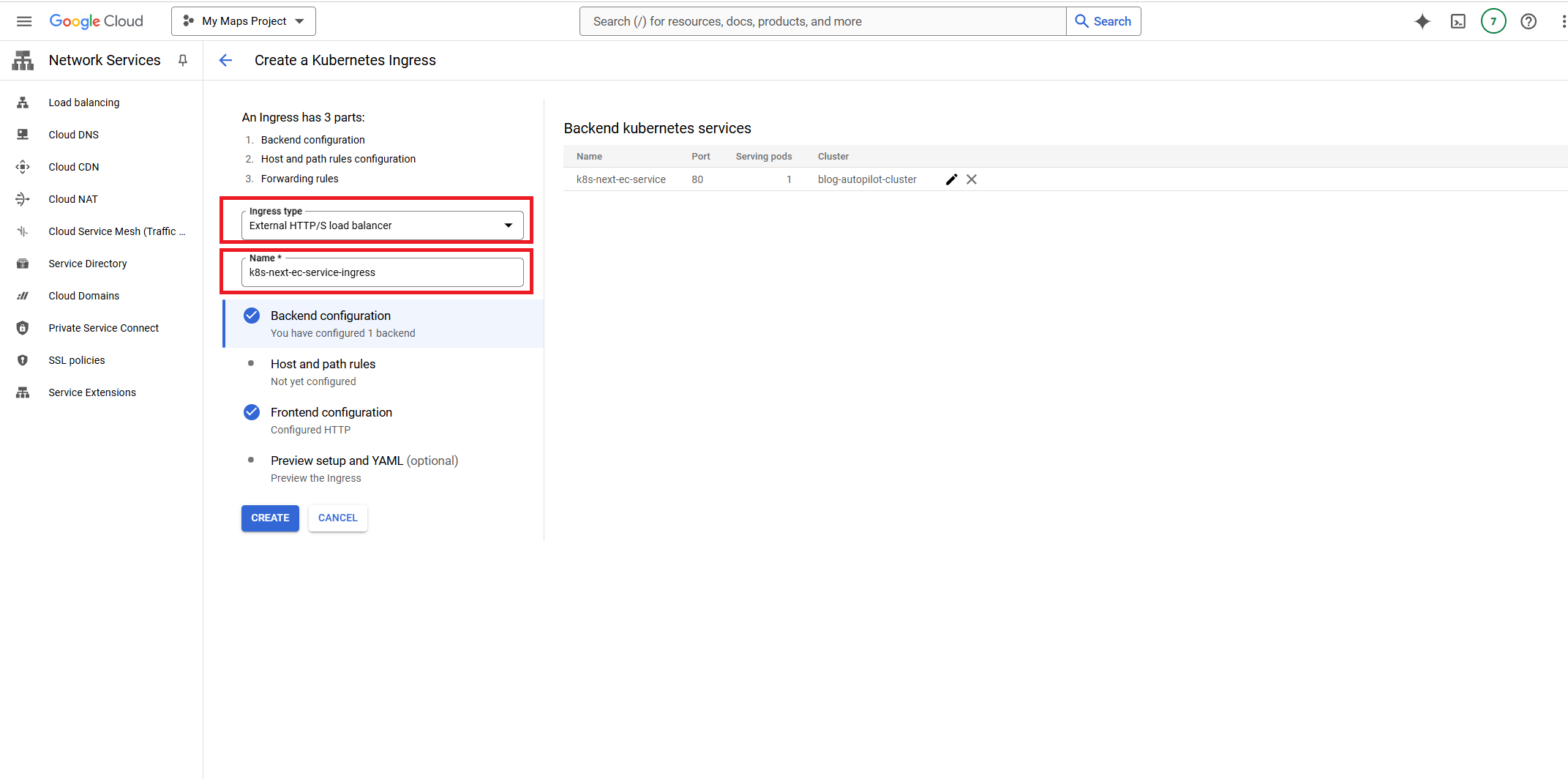
P.S. Selecting the External type will automatically generate a unique IP address.
- Enter the domain name and bind it to the previously created Service
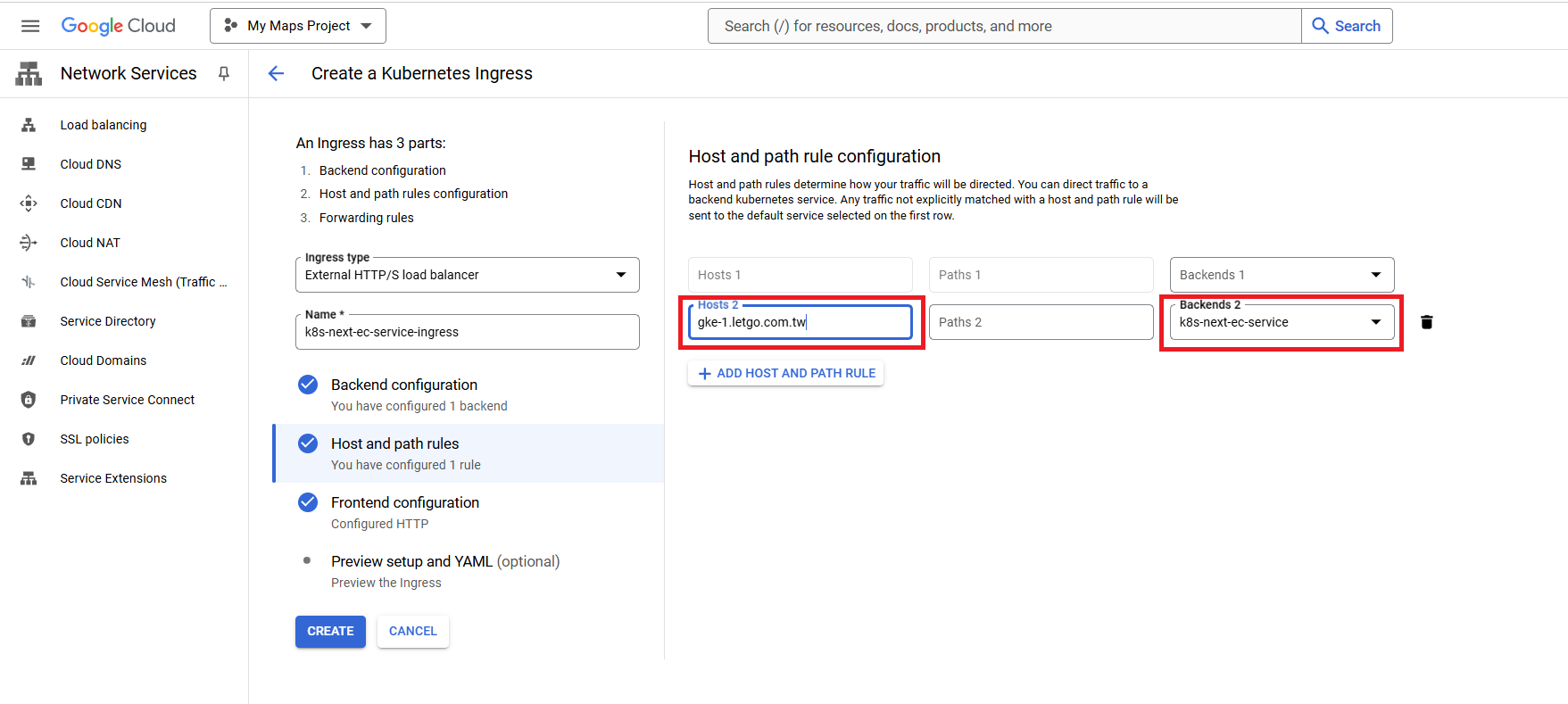 P.S. The previously created Service's Type must be ClusterIP.
2. Configure the Cloudflare Certificate
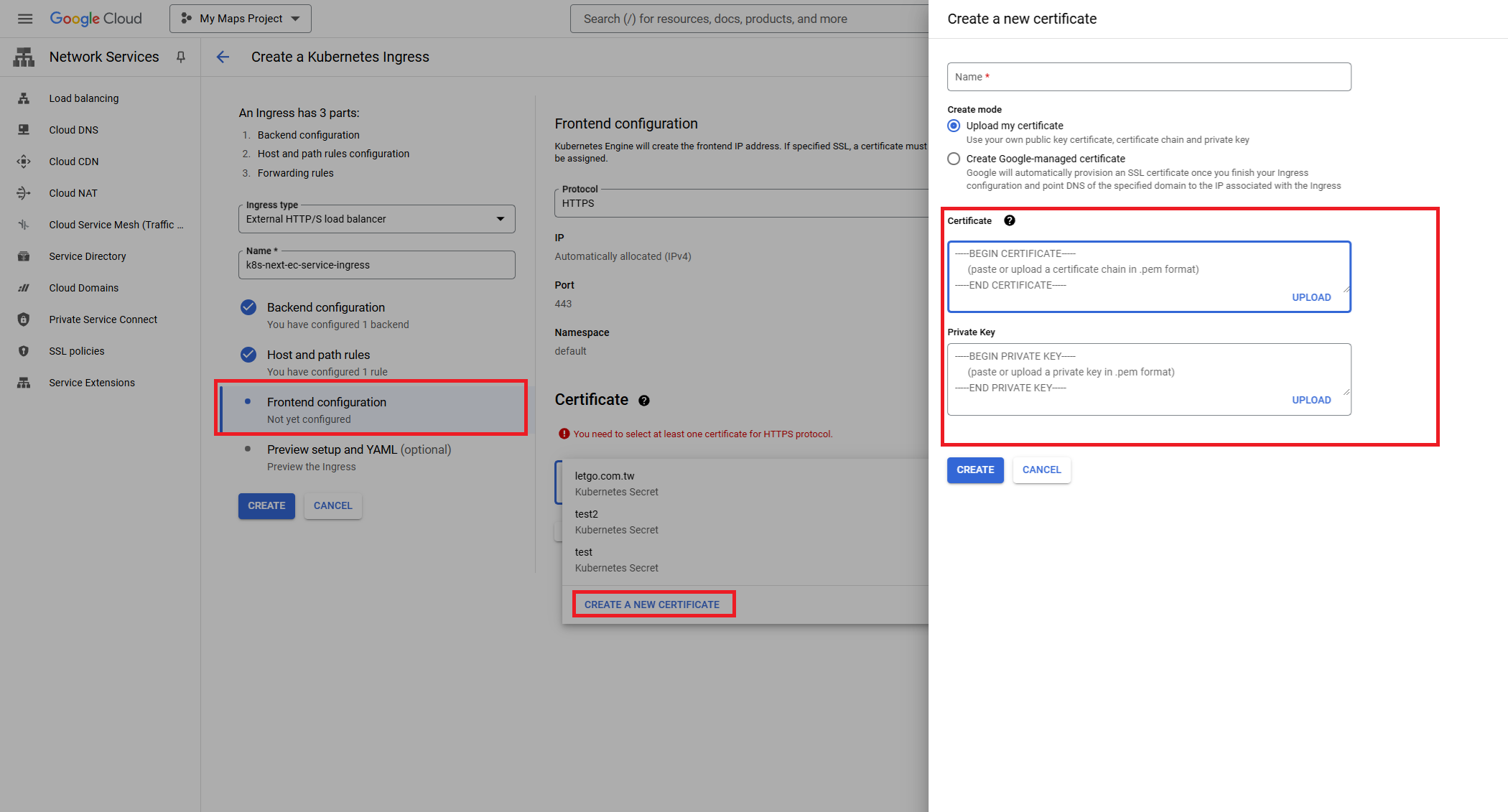
3. Obtain the certificate. Using Cloudflare as an example, if you want to point your domain to the Ingress IP, you can follow these steps to obtain a Cloudflare certificate:
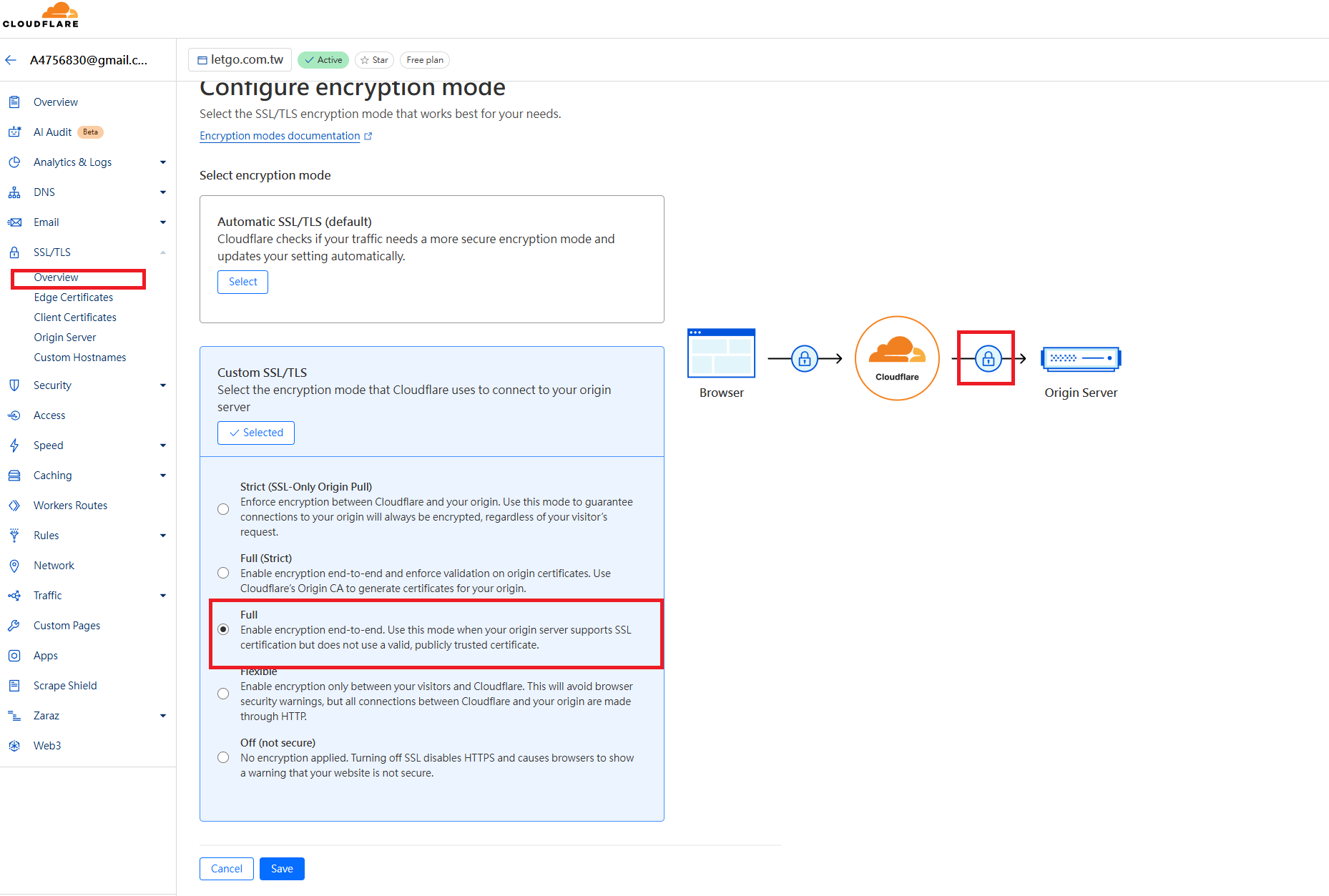
Log in to the Cloudflare dashboard, go to SSL/TLS > Overview > Configure > SSL/TLS encryption > set it to Full
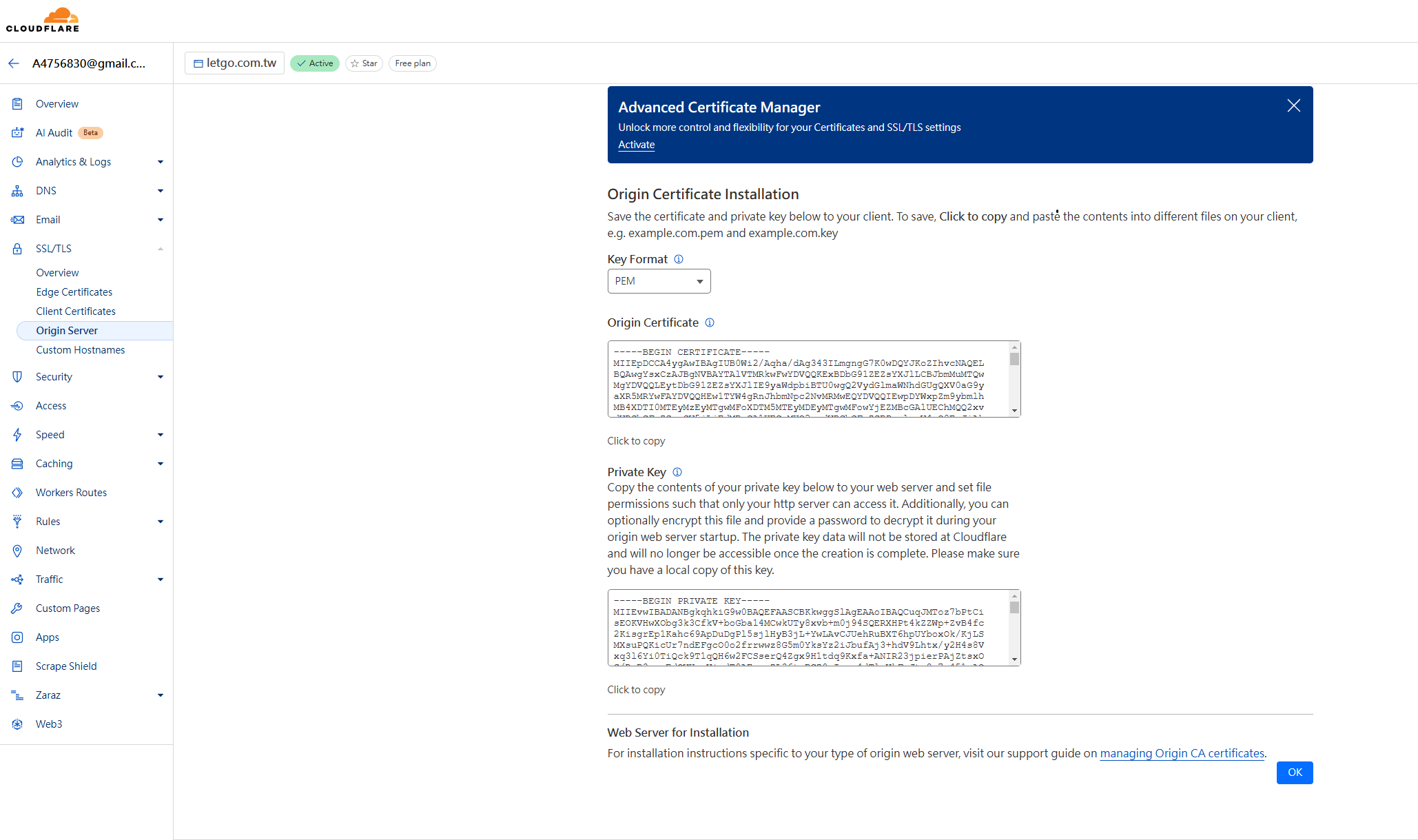
 SSL/TLS > Origin Server > Create Certificate > Create > Create
Additional Notes
- A client certificate focuses on authentication and encryption from the client to the server.
- An origin server certificate provides encryption between Cloudflare and your backend server.
Once the Ingress is created, it will generate a unique IP. You can then point your domain to the Ingress's external IP via DNS.
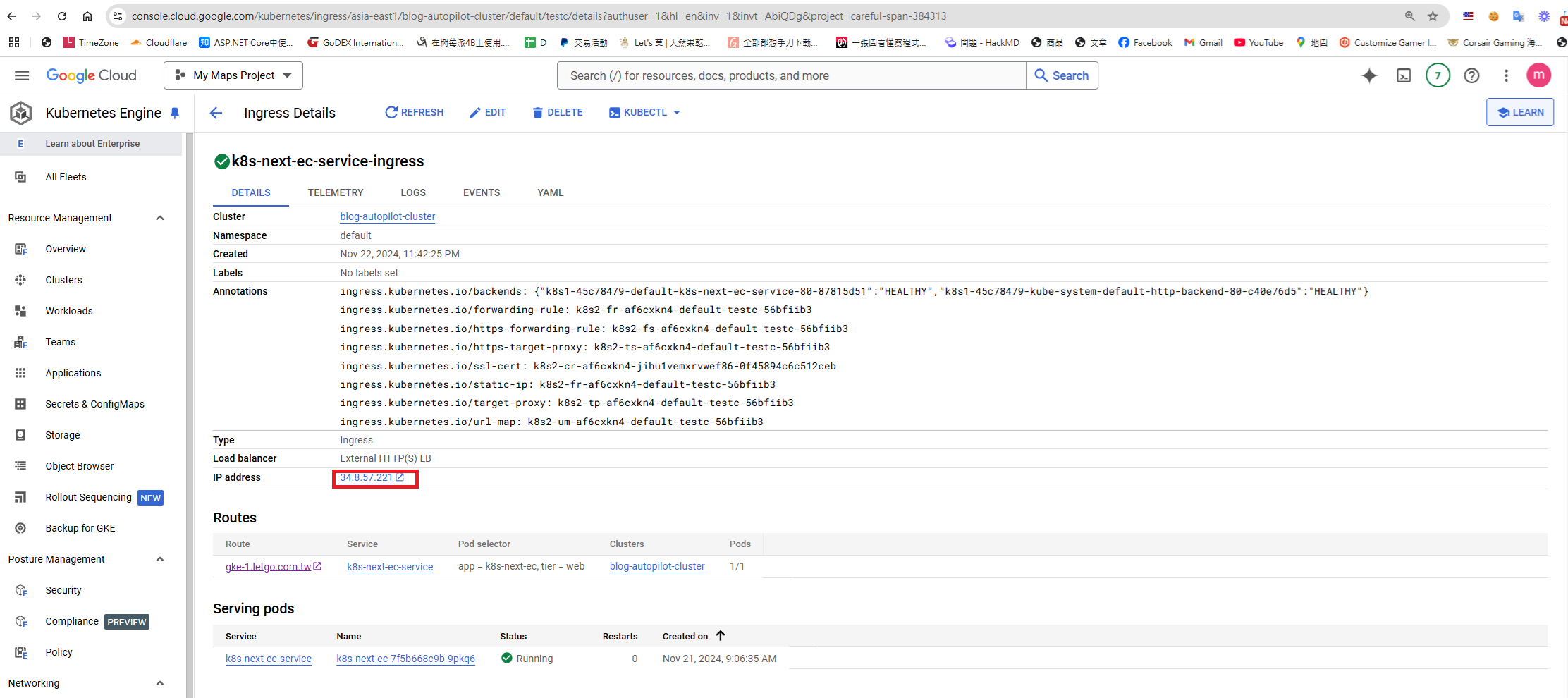
Next, add an A record in your DNS and point it to the real IP of the previously created Ingress.
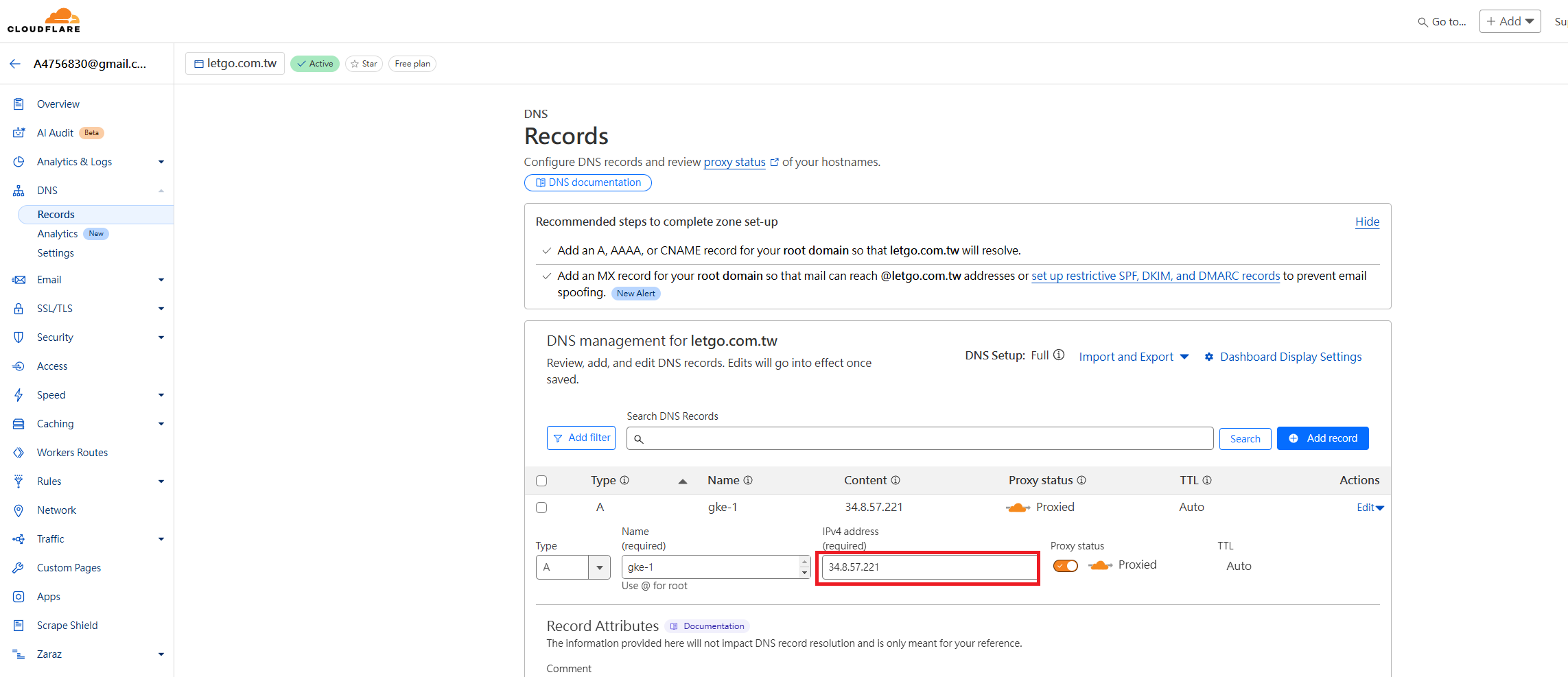
At this point, your website domain, HTTPS certificate, and Google Kubernetes Engine Ingress are now integrated.
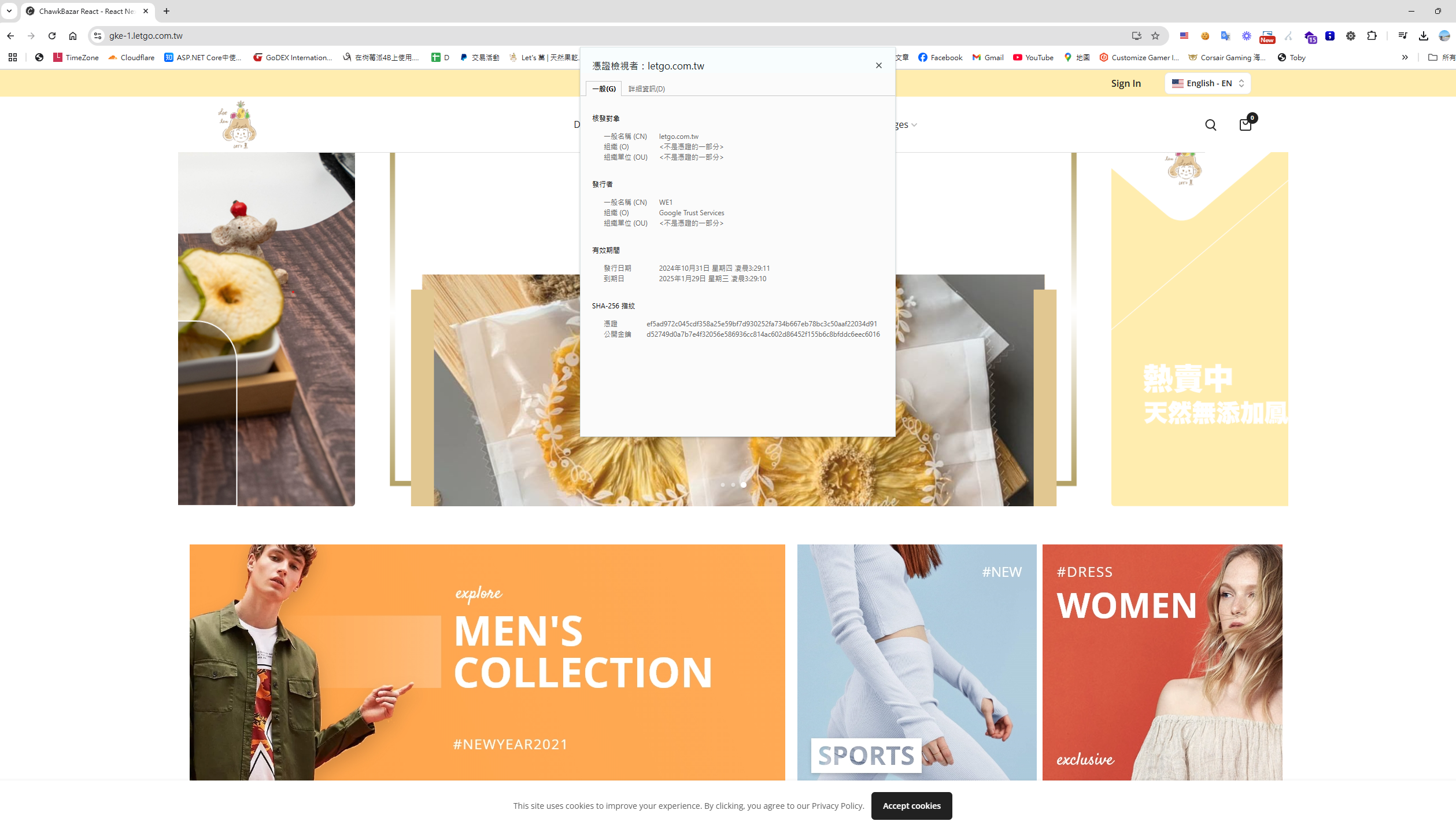
Additional Notes - Uploading a Certificate via Command and Creating an Ingress via Config File (YAML)
Use the kubectl command to upload (get the certificate from Cloudflare as shown before):
kubectl create secret tls letgo.com.tw --cert letgo.cert.pem --key letgo.cert.key
Create ingress.yaml
---
apiVersion: "networking.k8s.io/v1"
kind: "Ingress"
metadata:
  name: "k8s-next-ec-service-ingress"
  namespace: "default"
spec:
  tls:
  - secretName: "letgo.com.tw"
  rules:
  - http:
      paths:
      - path: ""
        backend:
          service:
            name: "k8s-next-ec-service"
            port:
              number: 80
        pathType: "ImplementationSpecific"
    host: "gke-1.letgo.com.tw"
status:
  loadBalancer: {}
kubectl apply -f ./ingress.yaml
References
- Special thanks to Mickey and David for their guidance
- Is the Gateway API, which uses an Ingress mechanism, more convenient?
- Deploying to GKE with Azure DevOps (2) — Load Balancer vs. Ingress
- The Things About Kubernetes — Ingress Chapter (Part 1)
- Deploying to GKE with Azure DevOps (8) — Cloudflare Integration


Comments