
Introduction
Mermaid is a common tool for "Diagram as Code." It has over 85,000 stars on GitHub and a large user base, and it's often used to describe system architecture and flows when developers and AI work together. Research suggests that describing the same architecture in Mermaid syntax takes roughly 400–500 tokens, versus around 2,000 tokens for plain text—about a 3–6x saving, which still matters for LLM conversations.
That said, anyone who has written Mermaid has probably run into two things: the default styles aren't easy to read in dark mode, and to get a usable PNG you often have to copy the code into an external site to convert it, where the resolution tends to come out blurry.
In May 2026, VS Code 1.121 built Mermaid rendering directly into the Markdown preview, so basic rendering is now standard. But theming and exporting were still missing, and that's where I started building Super Mermaid.
What's still missing after VS Code's built-in Mermaid
1. Default styles and readability
VS Code's built-in renderer uses the default Mermaid theme, whose low-contrast lines and text aren't easy to make out in dark mode. A developer on the Cursor forums mentioned that presenting a Mermaid diagram in a larger engineering meeting was hard to read because the contrast was low. GitHub Discussions and the Obsidian forums also have a fair number of "hard to read in dark mode" reports.
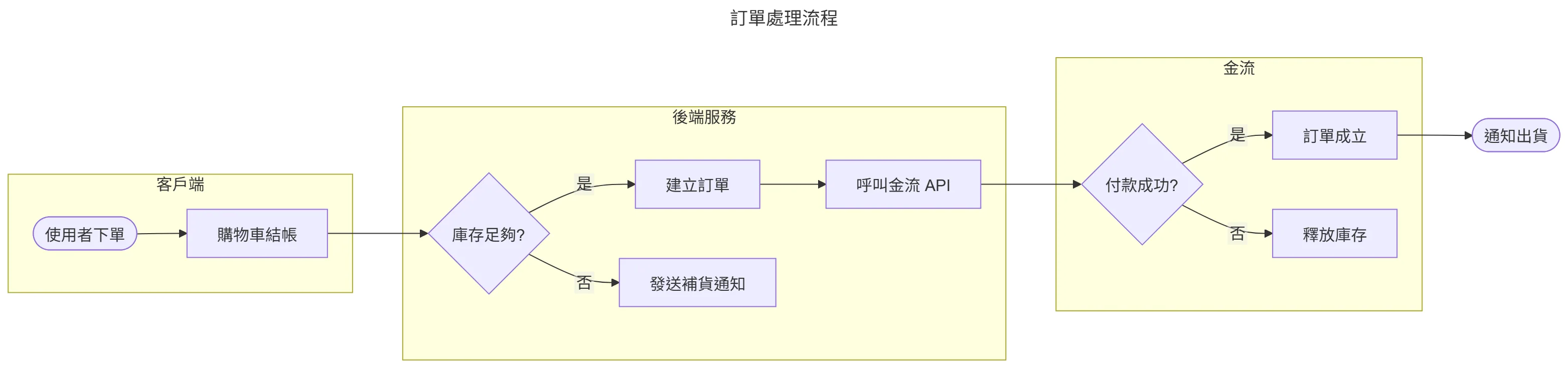
Mermaid added look: handDrawn (based on rough.js) and the Neo style in v11.14.0, but it requires manually adding a %%{init}%% block to each diagram. That's not a low bar, and it turns into repetitive work once a document has many diagrams.
2. The export workflow
To get a PNG, the usual approach with most tools is: copy the code → open a browser → paste it into mermaid.live → download the image. This breaks your flow inside VS Code, and the default export resolution is only 1x, so it tends to look blurry in presentations or technical documents. For presentations, at least 4x (around 384 DPI) is generally recommended.
Market landscape
| Extension / Tool | Installs | Limitations |
|---|---|---|
| Mermaid Chart (Official) | 840k | Free plan limited to 5 diagrams, requires a cloud account, rated around 3/5 |
| beautiful-mermaid | 10.4K ⭐ on GitHub | Standalone renderer, not a VS Code extension |
| Markdown Preview Mermaid Support | 4.9M (Deprecated) | Marked as deprecated after VS Code 1.121 added native support |
Existing solutions are mostly either feature-limited or don't integrate directly into the VS Code workflow.
How Super Mermaid approaches it: automatic coloring and one-click high-resolution export
Automatically applies a high-contrast theme
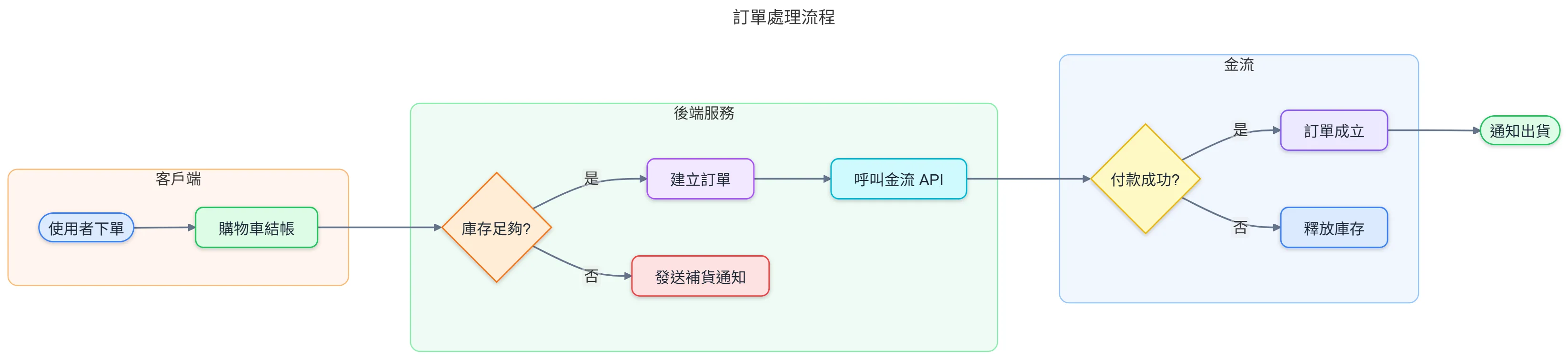
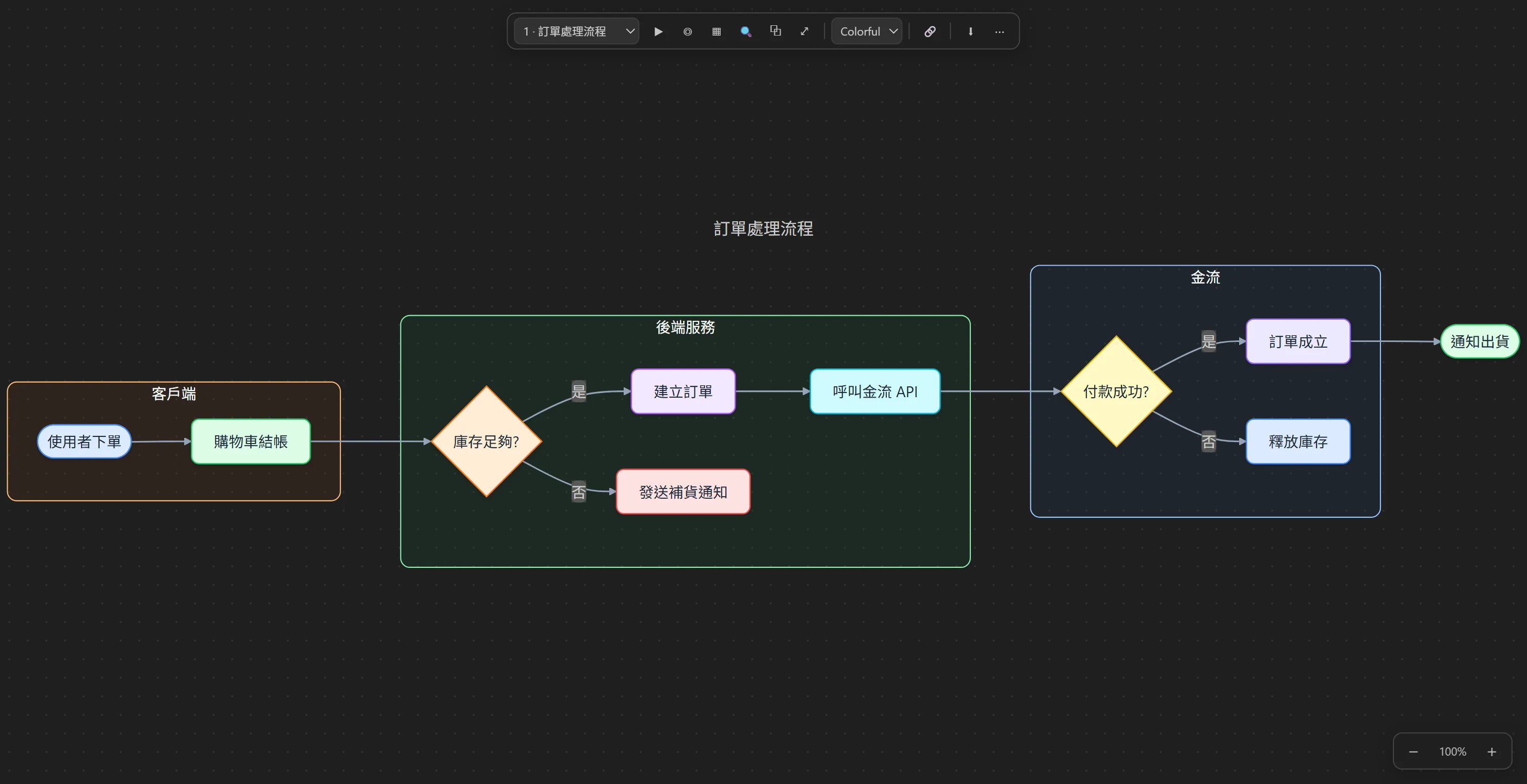
Without any manual configuration, Super Mermaid applies a high-contrast Colorful theme that colors each subgraph and node type, so it reads a bit better than the default in both dark and light mode. The same "Order Processing Flow" diagram is clearer once the theme is applied:
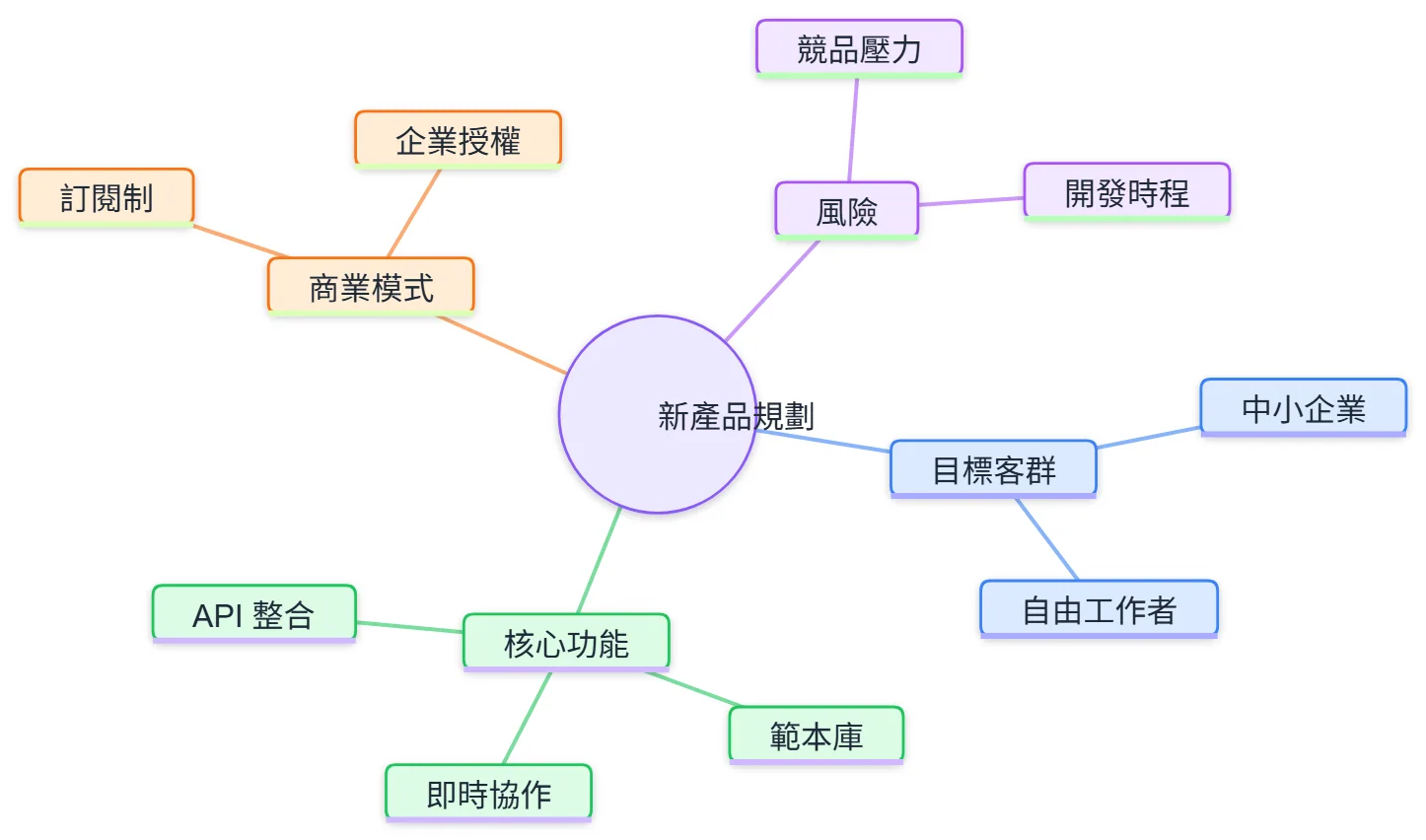
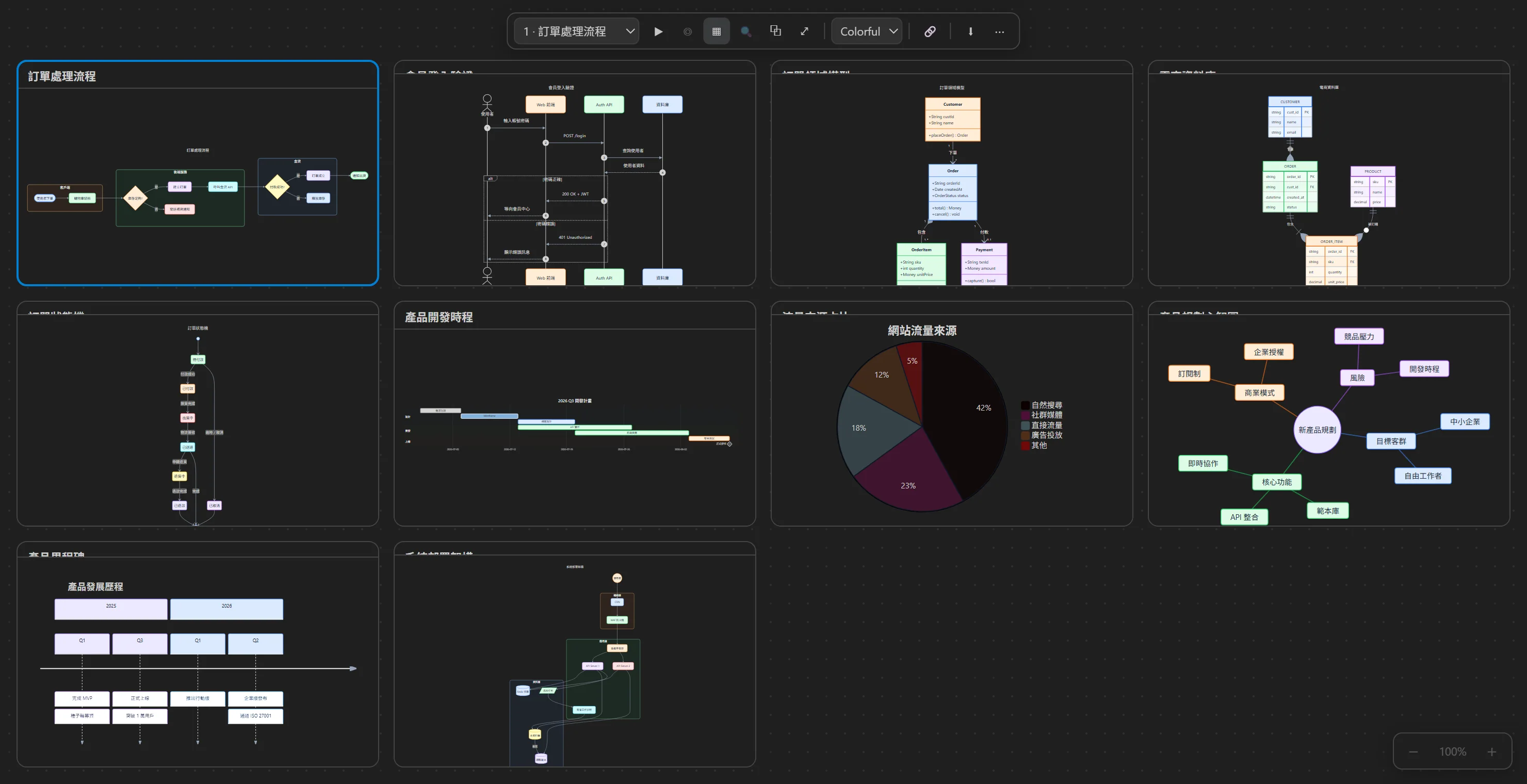
Auto-coloring isn't limited to flowcharts—sequence diagrams, ER diagrams, Gantt charts, mind maps, pie charts, and so on get a palette too:
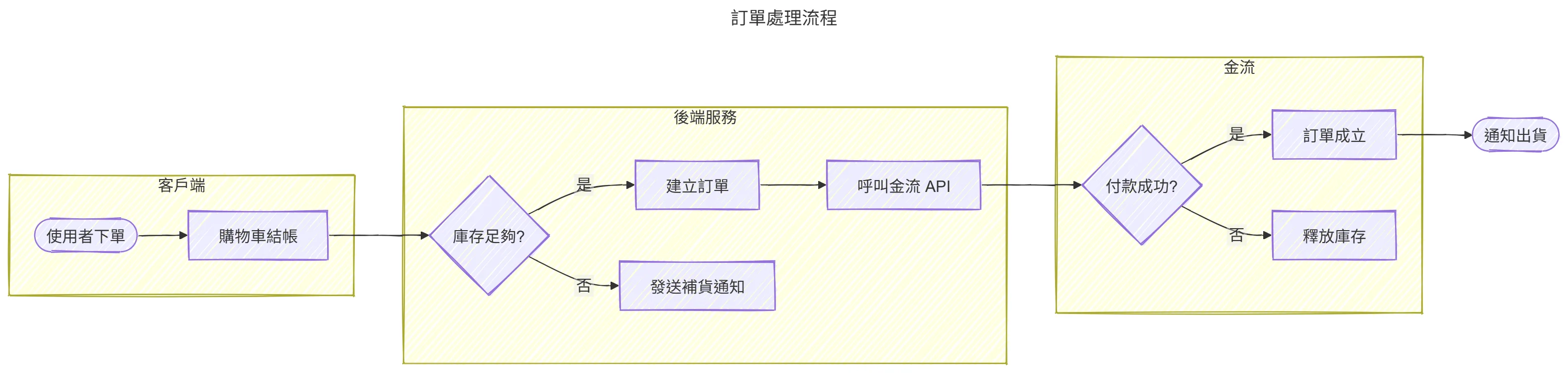
If you prefer a whiteboard, hand-drawn look, switching the theme in the toolbar applies the Sketch style—handy for teaching or brainstorming:
One-click high-resolution export without leaving VS Code
The preview interface has Export as PNG and Export as SVG buttons, so you can generate 4x high-resolution (around 384 DPI), transparent-background images in one click—good enough for presentations and technical documents. The process doesn't require switching windows or opening a separate browser.
A few features for regular users
- Export All: when a Markdown file has a dozen or so Mermaid diagrams, you can export them all at once instead of one by one
- Presentation mode: show diagrams full-screen directly inside VS Code, which is convenient in meetings
- Diagram search: when a document is long and full of diagrams, quickly locate the one you want
- Shareable link: generate a link so colleagues without the extension can view the diagram
Development: building this extension with Claude Fable 5
For this project I used Claude Fable 5, Anthropic's fifth-generation model aimed at longer, autonomous coding tasks, which became available in GitHub Copilot in June 2026. Here are a few moments from the process.
From goal to implementation
I described the core goal to Fable 5: "Build a VS Code extension that intercepts and beautifies Mermaid rendering and provides high-resolution image export." It quickly picked up the direction—inject custom styles through Markdown-It's rendering pipeline and use a Puppeteer headless browser for high-resolution screenshots.
Boilerplate to the AI
VS Code extensions involve a fair bit of boilerplate: the contributes settings in package.json, managing the Extension Host lifecycle, and wiring up the Markdown-It rendering engine. Fable 5 could generally produce a workable base structure for these, which let me focus more on the theme engine and export quality.
Working through the technical details together
For the "4x high-resolution export," the key was Puppeteer's deviceScaleFactor. Fable 5 and I went through a few rendering strategies and settled on rendering the SVG at 4x zoom in a headless browser and then capturing the diagram area:
const browser = await puppeteer.launch({ headless: true });
const page = await browser.newPage();

await page.setViewport({
  width: 1280,
  height: 800,
  deviceScaleFactor: 4, // 4x 高解析渲染,約 384 DPI
});

// 注入 Mermaid SVG 並等待渲染完成
await page.setContent(htmlWithMermaidSvg);
const svgElement = await page.$('svg');

// 截取 SVG 元素,自動裁切到圖表邊界
const pngBuffer = await svgElement.screenshot({
  type: 'png',
  omitBackground: true, // 透明背景
});
The idea is straightforward: use deviceScaleFactor: 4 so the browser renders at 4x pixel density, and omitBackground: true to get a transparent background. The resulting PNG comes out a bit sharper than 1x when placed in a presentation.
Conclusion
Super Mermaid mainly fills the gaps in VS Code's native Mermaid support around theming and exporting, automating the more tedious steps. For people who often use Mermaid to communicate architecture with AI, a clear, easy-to-share diagram is usually less effort than a block of text and makes it easier to stay on the same page.
If you're interested, you can download Super Mermaid from the VS Code Marketplace, or head to GitHub to file an issue or contribute code.


Comments