
Background
Our company's current server architecture is nested Hyper-V. As we all know, a single machine only has one HTTPS (443) port, so every time we need to scale out a web application under this architecture we have to spin up another VM. That is very inefficient and wastes server resources (CPU, memory, disk, public IP). These days, with one Docker command you can stand up a bunch of services without having to install an OS and configure a heap of environment settings before deploying. Since we cannot move to K8s in the short term, we are using Nginx to simplify the architecture first.
Benefits
- Maximizes server utilization and reduces unnecessary performance overhead.
- Easier to back up and takes up less space.
- Easier to scale horizontally.
- Because our DNS is managed by Cloudflare and the IP is already bound, adding a new domain no longer requires asking the network admin to reconfigure the firewall.
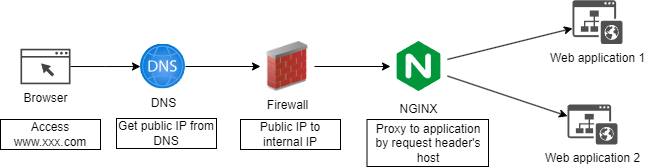
Network Architecture
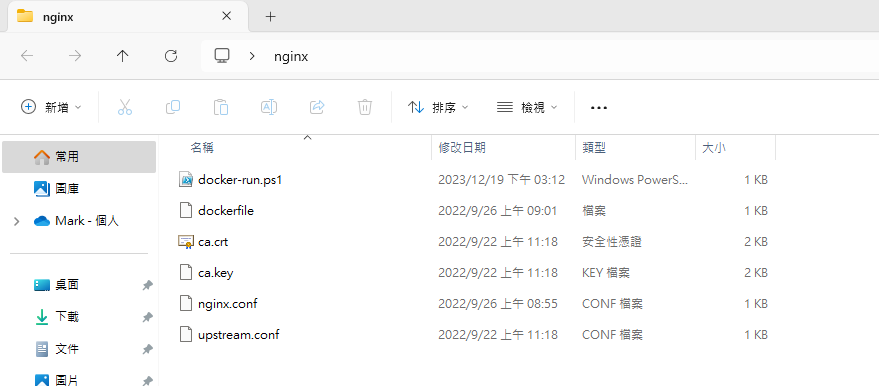
Configuration files needed to build the Nginx container
First, download the HTTPS certificate
Because our DNS is hosted on Cloudflare, we get HTTPS for free. You can download the certificate from the Cloudflare dashboard.
Next, write the Dockerfile
FROM nginx
COPY nginx.conf /etc/nginx/conf.d/default.conf
COPY upstream.conf /etc/nginx/conf.d/upstream.conf
COPY ca.crt /etc/nginx/ca.crt
COPY ca.key /etc/nginx/ca.key
Then configure nginx.conf
Nginx forwards requests to different upstream servers based on the domain name specified in the server_name directive. When an HTTPS request reaches the Nginx server, Nginx checks the HTTP Host header to decide which server block handles the request.
server {
    # Listen HTTP - From Firewall
    listen 80;
    server_name aafes.abc.com;

    # Redirect HTTP to HTTPS
    return 301 https://$host$request_uri;
}

server {
    # Listen HTTPS - From Firewall
    listen 443 ssl;
    server_name aafes.abc.com;

    # SSL config
    ssl_certificate /etc/nginx/ca.crt;
    ssl_certificate_key /etc/nginx/ca.key;

    # Proxy Config
    location / {
        proxy_pass http://192.168.0.99:20080;
        proxy_http_version 1.1;
        proxy_set_header X-Forwarded-Host $host;
        proxy_set_header X-Forwarded-Server $host;
        proxy_set_header X-Real-IP $remote_addr;
        proxy_set_header X-Forwarded-For $proxy_add_x_forwarded_for;
        proxy_set_header X-Forwarded-Proto $scheme;
        proxy_set_header Host $http_host;
        proxy_set_header Upgrade $http_upgrade;
        proxy_set_header Connection "Upgrade";
        proxy_pass_request_headers on;
    }
}

server {
    # Listen HTTP - Cloudflare Tunnel
    listen 80;
    server_name new-aafes.abc.com;

    location / {
        proxy_pass http://192.168.0.99:10080;
        proxy_http_version 1.1;
        proxy_set_header X-Forwarded-Host $host;
        proxy_set_header X-Forwarded-Server $host;
        proxy_set_header X-Real-IP $remote_addr;
        proxy_set_header X-Forwarded-For $proxy_add_x_forwarded_for;
        proxy_set_header X-Forwarded-Proto $scheme;
        proxy_set_header Host $http_host;
        proxy_set_header Upgrade $http_upgrade;
        proxy_set_header Connection "Upgrade";
        proxy_pass_request_headers on;
    }
}

server {
      # Listen on HTTP
    listen 80;
    server_name cdn.abc.com;

    # Root directory for static content
    root /var/www/html;

    # Default location
    location / {
        # Enable directory listings
        autoindex off;

		# Try to serve file as is, return 404 if not found
        try_files $uri $uri/ =404;
    }

    # Other configurations (if needed)
}
Configure load balancing (only needed if the application has multiple instances) — upstream.conf
upstream cms.abc.com {
     server 192.168.0.99:27777;
}
Build and run the container with PowerShell
$imageName = "certificate-centerlize-nginx"
docker build -t $imageName .
$containerName="certificate-centerlize-nginx"
$port80="80:80"
$port443="443:443"
docker run -d --name $containerName --restart=always -p "${port80}" -p "${port443}"  $imageName
PAUSE
Reload configuration without downtime
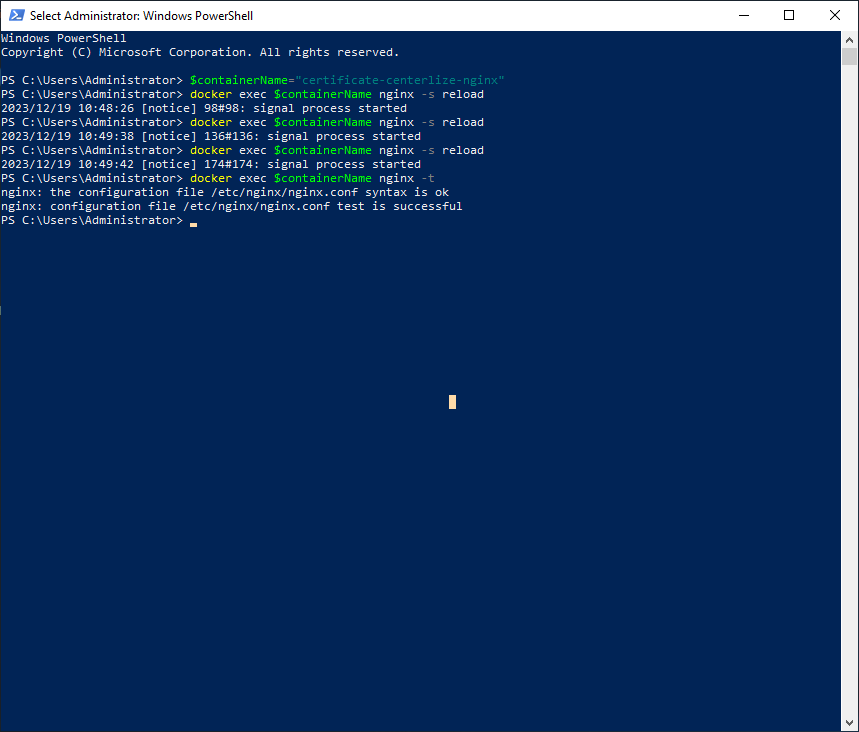
One of Nginx's strengths is that when the config or certificate changes, running nginx -s reload to reload the configuration usually doesn't cause service interruption or unavailability.
$containerName = "certificate-centerlize-nginx"
$localDir = (Get-Location).Path
$nginxConfigPath = "$localDir\nginx.conf"
$nginxUpstreamConfig = "$localDir\upstream.conf"

docker cp "${nginxConfigPath}" "${containerName}:/etc/nginx/conf.d/default.conf"
docker cp "${nginxUpstreamConfig}" "${containerName}:/etc/nginx/conf.d/upstream.conf"
docker exec $containerName nginx -s reload
Wrap-up
Following the steps in this article, readers can learn how to use Docker to set up Nginx for centralized HTTPS forwarding and load balancing, improving the efficiency and flexibility of web application deployment. This solution works for both small projects and easily scales up to large enterprise applications.
References
Nginx Load Balancing Configuration
Understanding Nginx Load Balancing in Five Minutes
Implementing Nested Hyper-V Virtualization to Boost R&D Efficiency
A Friendly Management UI and Automated HTTPS for Nginx — Nginx Proxy Manager


Comments