---
title: "Visual studio 程式碼品質管理筆記:透過 Roslyn Analyzer + EditorConfig + Code Cleanup + Copilot 提昇級約束程式碼品質"
description: "整理 Visual Studio 程式碼品質管理方法,涵蓋 Roslyn Analyzer 規則設定、EditorConfig 風格約束、Code Cleanup 自動格式化,以及 GitHub Copilot 輔助開發與審查。"
canonical_url: "https://blog.markkulab.net/post/improving-visual-studio-code-quality"
author: "Mark Ku"
author_url: "https://blog.markkulab.net/author/mark-ku"
site: "Mark Ku's Blog"
date_published: "2025-09-04 05:00:00 +0800"
category: "Architecture"
tags: [".net", "roslyn", "analyzer", "editorconfig", "copilot", "code quality", "visual studio"]
language: "zh-TW"
license: "CC BY 4.0"
license_url: "https://creativecommons.org/licenses/by/4.0/"
attribution: "轉載或引用請註明作者並附上原文連結"
---
# Visual studio 程式碼品質管理筆記:透過 Roslyn Analyzer + EditorConfig + Code Cleanup + Copilot 提昇級約束程式碼品質
## 前言
在軟體專案規模不斷擴大的今天,程式碼品質往往比功能本身更影響專案的可維護性與團隊效率,不一致的命名、雜亂的格式、缺乏規範的程式碼,很容易在日後維護或交接時成為隱形成本。
本篇文章+將以 Visual Studio 為核心,整理出一套常見且實用的程式碼品質管理方法,從內建工具 Roslyn Analyzer 與 .editorconfig 的規範設定,到 Code Cleanup 的自動化格式化,再到 GitHub Copilot 的 AI 輔助開發與程式碼審查。
透過這些工具與流程的搭配,讓開發團隊能,
在撰寫程式碼的同時就及早發現問題,
以自動化方式維持一致的程式碼風格,
善用 AI 減少重複性工作,專注在真正的設計與邏輯。
## 預先安裝
* Visual studio 2022 以上
* Github copilot
## 1️⃣ 使用Visual studio 內建規則引擎 Roslyn Analyzers 跟及規則設定.editorconfig,來約束程式碼風格。
Roslyn Analyzer 就是 .NET 世界裡的程式碼檢查工具,功能有點像 JavaScript 的 ESLint,它本身是一個「規則引擎」,會在你寫程式、編譯的時候自動幫你檢查程式碼品質,而 .editorconfig 則是「規則設定檔」,你可以在裡面決定規則要怎麼跑,比如命名要不要用駝峰、縮排要幾格。
簡單說:
Roslyn Analyzer = 負責檢查
.editorconfig = 規則怎麼檢查
### 結合 .editorconfig 設定
在專案根目錄建立 `.editorconfig`:
```ini
root = true
[*]
charset = utf-8
end_of_line = crlf
insert_final_newline = true
trim_trailing_whitespace = true
indent_style = space
indent_size = 4
max_line_length = 120
dotnet_style_qualification_for_field = false:error
dotnet_style_qualification_for_property = false:error
dotnet_style_qualification_for_method = false:error
dotnet_style_qualification_for_event = false:error
[*.cs]
csharp_style_var_for_built_in_types = false
dotnet_diagnostic.IDE0008.severity = error
csharp_style_namespace_declarations = file_scoped:error
```
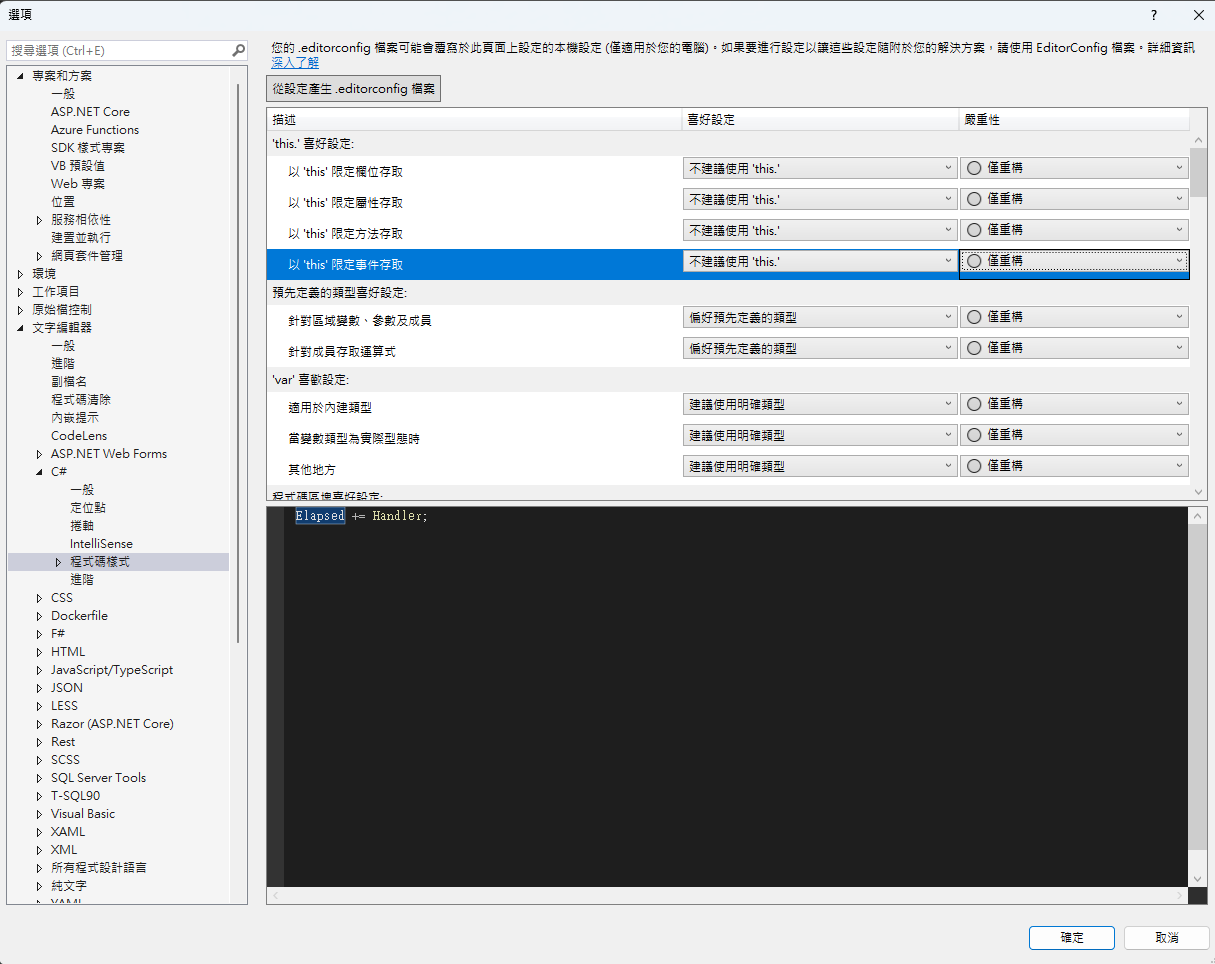
### 也可以透 Visual Studio UI 調整 .editorconfig 設定
* 開啟 `工具 > 選項 > 文字編輯器 > C# > 程式碼樣式`
* Visual Studio 2022 版本內建支援 EditorConfig,重新載入專案即可生效
---
### 修改專案檔 `WebApplication1/WebApplication1.csproj`:
```xml
net8.0
enable
enable
true
true
true
```
### 參數說明
- **`EnableNETAnalyzers`**:啟用 .NET 程式碼分析器,在建置時檢查程式碼品質問題
- **`EnforceCodeStyleInBuild`**:將程式碼風格違規視為建置錯誤,確保團隊程式碼風格一致
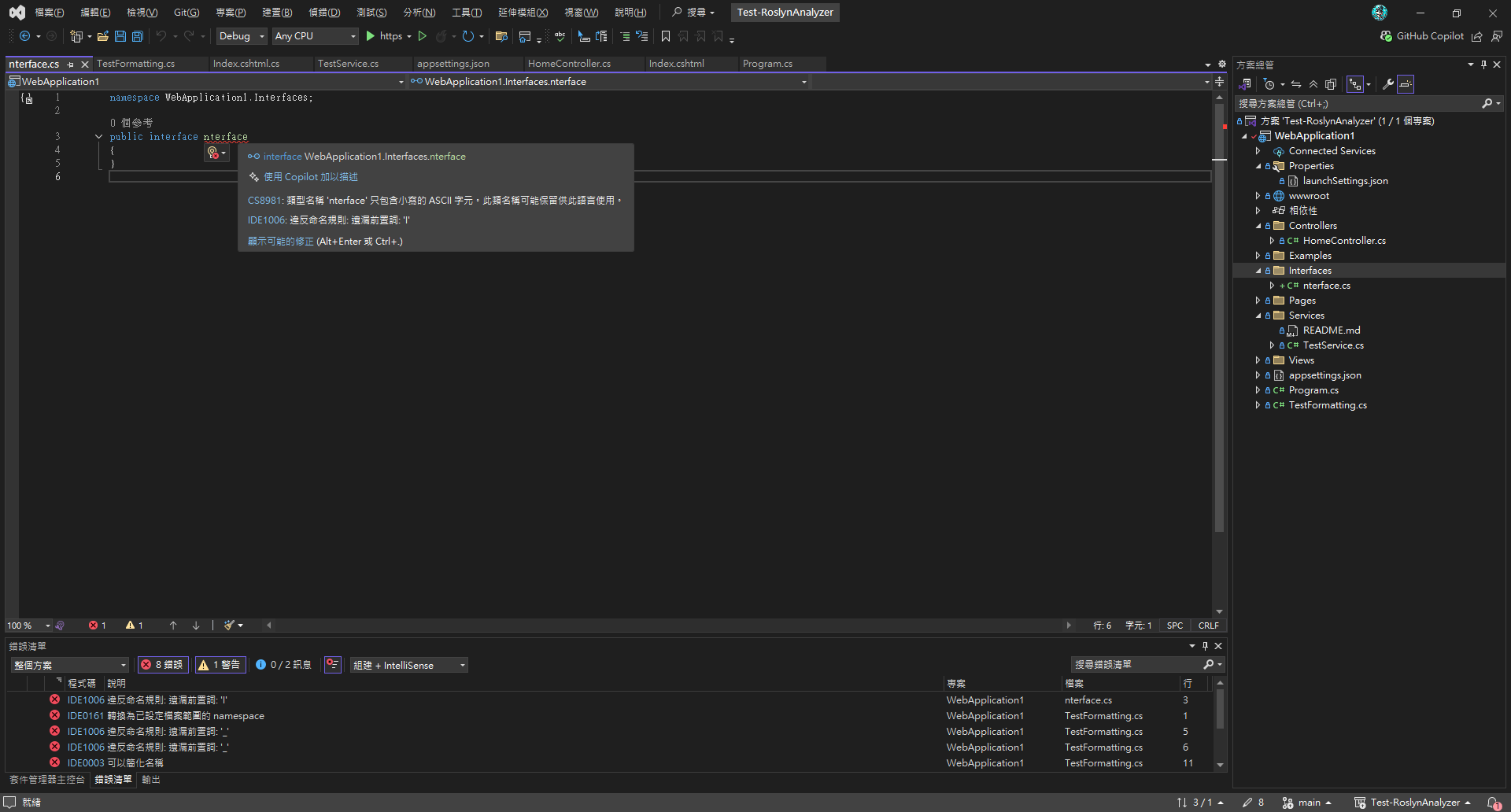
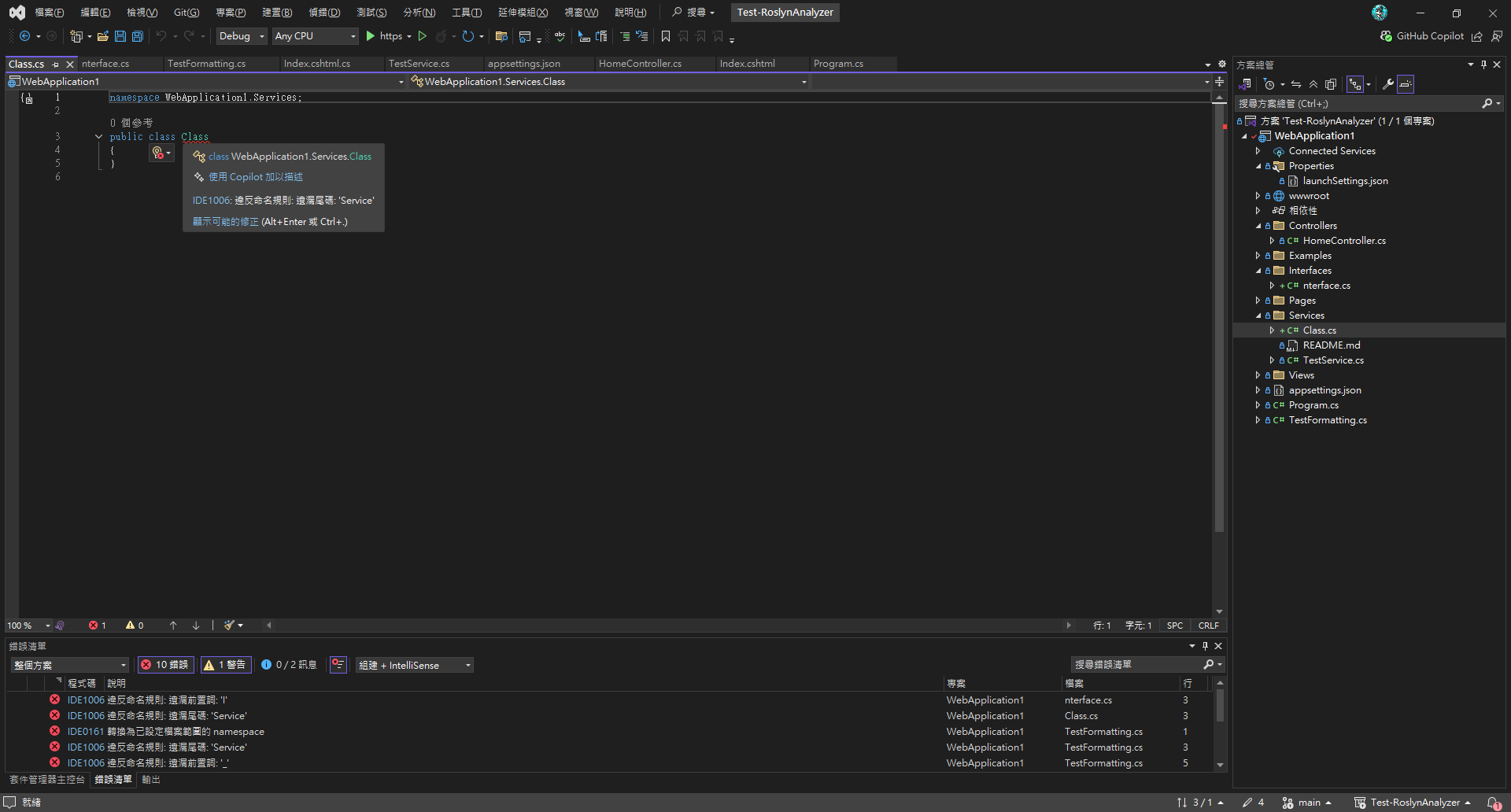
此時建置專案,會就出現規則錯誤
---
### 修正錯誤
* 錯誤清單視窗 (`檢視 > 錯誤清單`)
* 編輯器波浪線提示錯誤
* 快速修正:`Ctrl+.` → 選擇建議方案
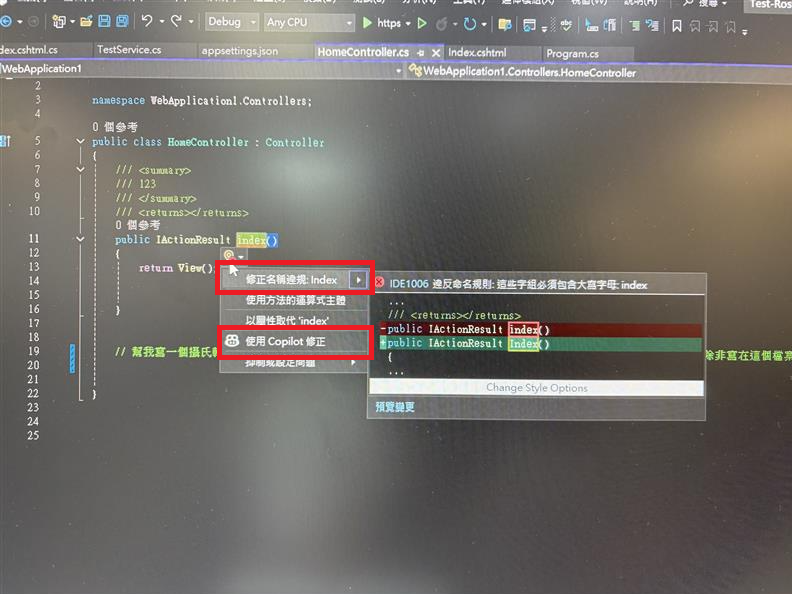
### 補充說明,也可以透過命令列 (CLI 去執行驗證規則,方便整合在CICD上)
```bash
# 建置並顯示警告
dotnet build --verbosity normal
# 僅執行程式碼分析
dotnet build --no-restore --verbosity normal
# 將警告視為錯誤
dotnet build /p:TreatWarningsAsErrors=true
```
P.S. 如果要更複雜的邏輯,可以自己客製 NamingConventionAnalyzer,這就得自己寫程式
---
## 2️⃣ 程式碼清除功能 (Code Cleanup)- 存檔時自動格式化程式碼樣式
### Visual Studio 設定
* 開啟 `工具 > 選項 > 文字編輯器 > C#`
* 勾選:
* `在儲存時自動格式化文件`
* `在儲存時移除並排序 using`
### 程式碼清除設定
* 開啟 `工具 > 選項 > 文字編輯器 > 程式碼清除 > 設定程式碼清除`
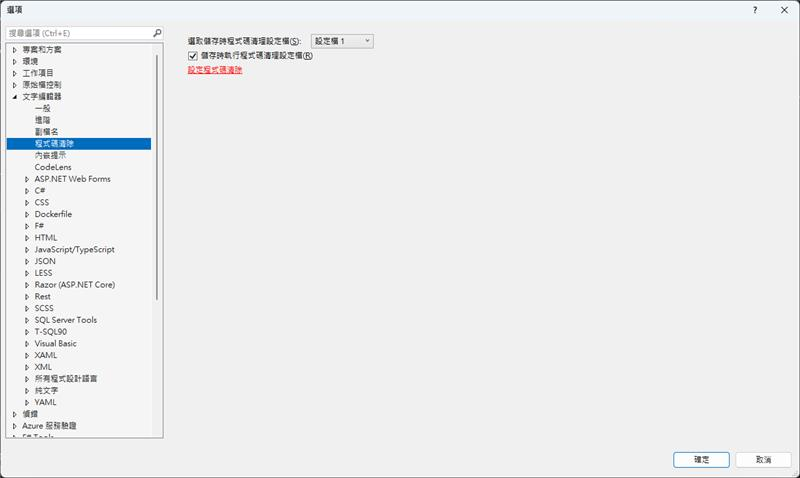
* 選擇要執行的規則,設定快捷鍵 `Ctrl+K, Ctrl+E`
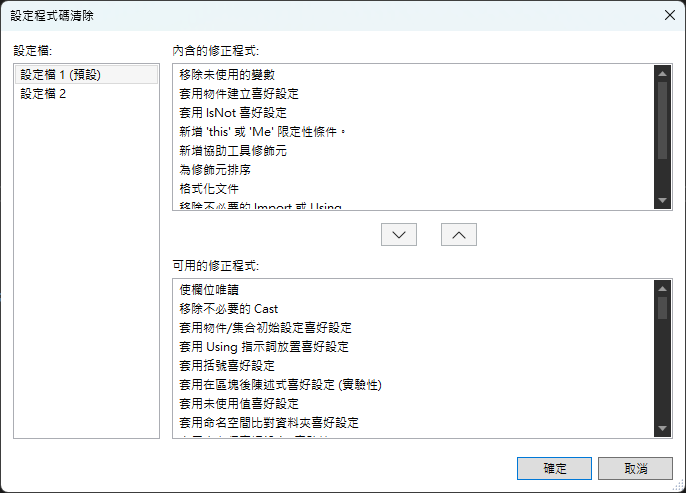
**比較麻煩的事,團隊得人工同步設定**:
* Windows: `%USERPROFILE%\AppData\Local\Microsoft\VisualStudio\\CodeCleanupProfiles.json`
* Mac: `~/Library/Preferences/VisualStudio//CodeCleanupProfiles.json`
---
### 範例:自動格式化效果
**格式化前**:
```csharp
namespace WebApplication1
{
public class TestFormatting
{
private string fieldName;
private int fieldValue;
public TestFormatting()
{
this.fieldName = "test";
this.fieldValue = 42;
}
}
}
```
**存檔後,自動格式化後的結果**:
```csharp
namespace WebApplication1;
public class TestFormatting
{
private string fieldName;
private int fieldValue;
public TestFormatting()
{
fieldName = "test";
fieldValue = 42;
}
}
```
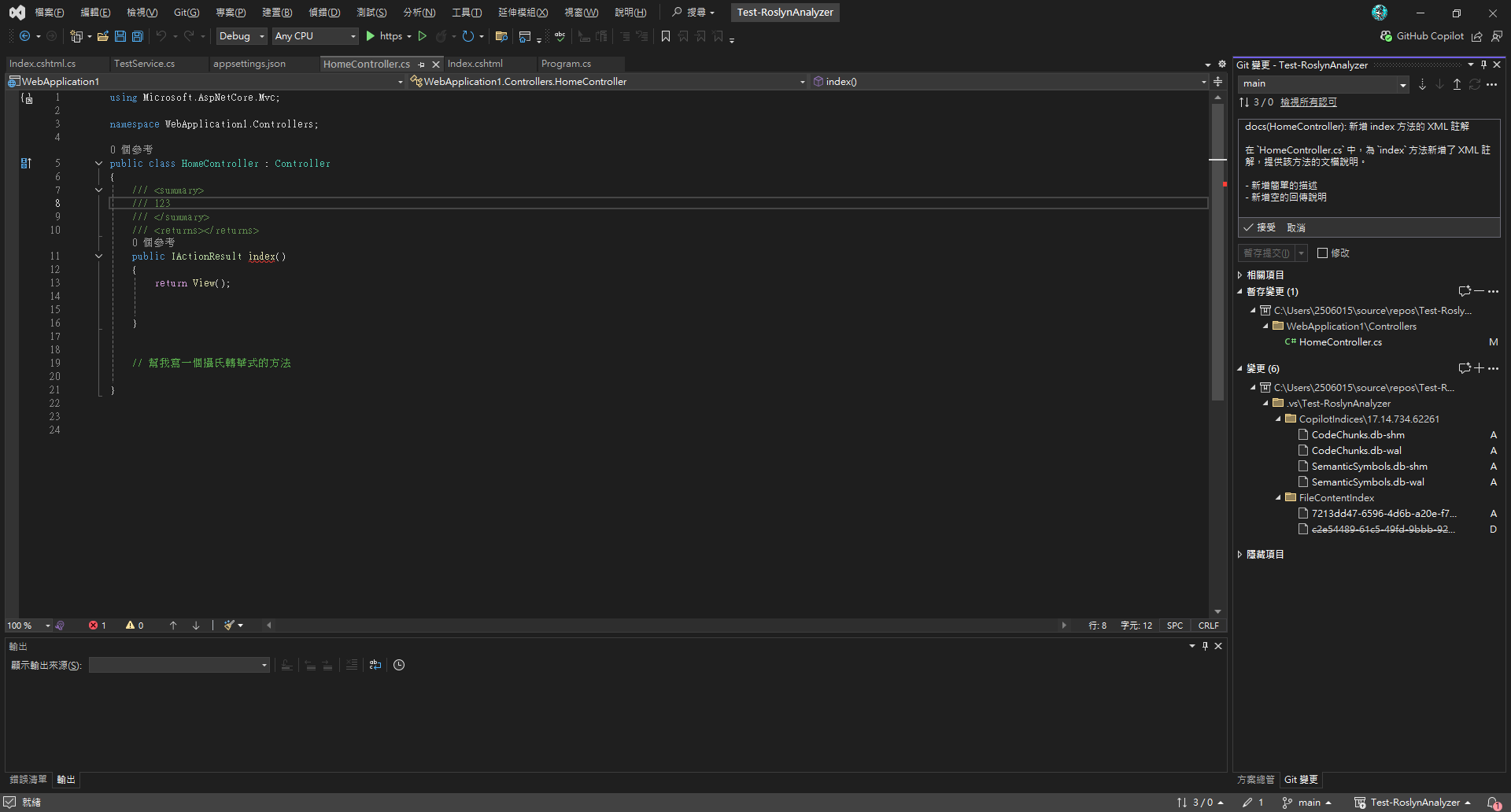
## 3️⃣ GitHub Copilot 自動生成 Commit Message
如果你希望 Copilot 幫依據commit 內容撰寫commit message ,可以參考下面文章。
[文章連結]([可參考延伸閱讀中的「定義 Git 提交訊息產生的自訂指令」,在 Copilot 的自訂指令中加入 Commit 規範(如 Conventional Commits),或在工作流程中加入範例結構,協助自動產生更一致的訊息。](https://blog.miniasp.com/post/2024/12/27/GitHub-Copilot-Cookbook-Define-Custom-Instructions-for-Generating-Git-Commit-Messages)
---
## 4️⃣ 依據 Coding Rules 生成程式碼(Copilot 自訂規則)
### 使用 GitHub Copilot 與自訂規則
GitHub Copilot 是強大的 AI 程式碼助手,可透過設定指令生成符合團隊規範的程式碼。
#### 設定 Copilot 指令
在新的visual studio 在工具>選項 > Github Copilot 預設會啟用參考 github/copilot-instructions 指引及規則做生成相關的程式
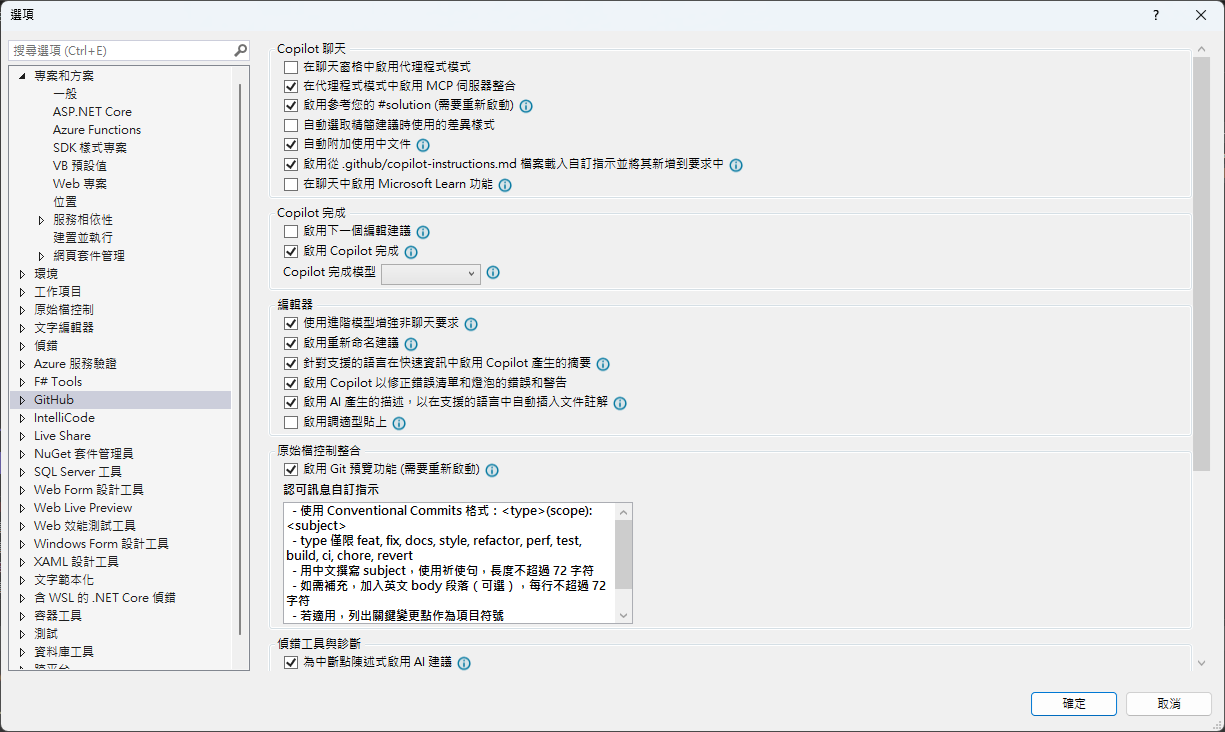
所以我們只要,在專案根目錄建立 `.github/copilot-instructions.md`:
```markdown
程式註解一律使用繁體中文
變數、函數、類別名稱使用英文
函數名稱尾巴加上 123
程式碼最上方加註:由 GitHub Copilot 產生
變數名稱全部大寫並使用底線分隔
```
現在只要打開Copliot Chat,就會依據開發指引來生成程式碼,但 Copilot的自動完成(IntelliSense)不會遵循這些規則。
但可以在註解裡明確引用:例如
```
// 根據 Instructions.md 的規範
```
---
## 5️⃣ GitHub Copilot Code Review
GitHub Copilot 不僅協助生成程式碼,也能進行程式碼審查。透過 AI 協助,可以快速檢查程式碼品質、發現潛在問題並提供改進建議。
> ⚠️ 注意:此功能需 GitHub Copilot Enterprise 訂閱,預設關閉,開啟後才能使用。
---
## 延伸閱讀
- [EditorConfig 官方文件](https://editorconfig.org/)
- [Roslyn Analyzers 文件](https://docs.microsoft.com/en-us/dotnet/fundamentals/code-analysis/)
- [GitHub Copilot 最佳實踐](https://github.com/features/copilot)
- [Visual Studio 程式碼清除功能](https://docs.microsoft.com/en-us/visualstudio/ide/code-styles-and-code-cleanup)
- [讓程式碼更一致:使用 GitHub Copilot 自訂提示的技巧與設定](https://dotblogs.com.tw/anyun/2024/11/23/160548)
- [Git 提交訊息產生的自訂指令](https://blog.miniasp.com/post/2024/12/27/GitHub-Copilot-Cookbook-Define-Custom-Instructions-for-Generating-Git-Commit-Messages)
## 附錄:完整 .editorconfig 範例
以下提供完整可複製的 `.editorconfig` 範例:
```ini
# Editor configuration, see https://editorconfig.org
# 編輯器配置文件,詳見 https://editorconfig.org
root = true
# =============================================================================
# 通用排版規則 - 適用於所有文件類型
# =============================================================================
[*]
# 適用於所有文件的通用設置
charset = utf-8
# 字符編碼設置為 UTF-8
end_of_line = crlf
# 行尾符號使用 CRLF (Windows 風格)
insert_final_newline = true
# 文件結尾自動插入換行符
trim_trailing_whitespace = true
# 自動移除行尾空白字符
indent_style = space
# 縮進樣式使用空格而不是 Tab
### Indentation and spacing
### 縮進和間距設置
indent_size = 4
# 縮進大小為 4 個空格
tab_width = 4
# Tab 寬度為 4 個空格
max_line_length = 120
# 最大行長度為 120 字符
# =============================================================================
# 存檔時自動排版設置
# =============================================================================
# 啟用存檔時自動格式化
dotnet_style_qualification_for_field = false:error
# 字段不需要 this 限定符
dotnet_style_qualification_for_property = false:error
# 屬性不需要 this 限定符
dotnet_style_qualification_for_method = false:error
# 方法不需要 this 限定符
dotnet_style_qualification_for_event = false:error
# 事件不需要 this 限定符
# 強制執行一致的代碼格式
dotnet_diagnostic.IDE0055.severity = error # Remove unnecessary import
# 移除不必要的 import,違反時顯示錯誤
dotnet_diagnostic.IDE0100.severity = error # Remove unnecessary equality operator
# 移除不必要的相等運算子,違反時顯示錯誤
dotnet_diagnostic.IDE0055.severity = error # Fix formatting
# 修復格式化問題,顯示為錯誤
# =============================================================================
# 命名規則 - 根據命名規範精簡版
# =============================================================================
# 強制執行命名規則 (IDE1006) 作為建置錯誤
dotnet_diagnostic.IDE1006.severity = error
# 命名規則違反時顯示錯誤
# =============================================================================
# GitHub Copilot 設置
# =============================================================================
# GitHub Copilot Chat commit message generation instructions
# GitHub Copilot Chat 提交訊息生成指令
github.copilot.chat.commitMessageGeneration.instructions = |
- 使用 Conventional Commits 格式:(scope):
- type 僅限 feat, fix, docs, style, refactor, perf, test, build, ci, chore, revert
- 用中文撰寫 subject,使用祈使句,長度不超過 72 字符
- 如需補充,加入英文 body 段落(可選),每行不超過 72 字符
- 若適用,列出關鍵變更點作為項目符號
- 若有重大變更,加入 BREAKING CHANGE: 說明
- 僅根據實際 diff 與變更檔案撰寫,不要捏造內容
# =============================================================================
# C# 特定規則
# =============================================================================
[*.cs]
# 適用於所有 C# 文件的設置
# 縮進和括號設置
csharp_use_continuous_indent_inside_parens = true
# C# 在括號內使用連續縮進
# var 關鍵字使用規則
csharp_style_var_for_built_in_types = false
# 對於內建類型不使用 var 關鍵字
dotnet_diagnostic.IDE0008.severity = error # var preferences
# var 偏好設置,違反時顯示錯誤
# 命名空間規則
dotnet_style_namespace_match_folder = true
# 命名空間結構應與資料夾結構匹配
dotnet_diagnostic.IDE0130.severity = suggestion # namespace structure not match folder
# 命名空間結構不匹配資料夾時顯示建議
csharp_style_namespace_declarations = file_scoped:error
# 偏好使用檔案範圍的命名空間宣告
dotnet_diagnostic.IDE0161.severity = error # prefer file_scoped, otherwise show error
# 偏好檔案範圍命名空間,否則顯示錯誤
# using 語句規則
csharp_prefer_simple_using_statement = true
# 偏好使用簡單的 using 語句
dotnet_diagnostic.IDE0063.severity = error # prefer to use simple using statment
# 偏好使用簡單的 using 語句,違反時顯示錯誤
# 文檔註解設置
dotnet_diagnostic.CS1591.severity = none # ignore documentation missing before rosly fix #41640
# 忽略缺少文檔註解的警告(在 Roslyn 修復 #41640 之前)
# =============================================================================
# 命名規則 - 根據命名規範精簡版
# =============================================================================
# 強制執行命名規則 (IDE1006) 作為建置錯誤
dotnet_diagnostic.IDE1006.severity = error
# 命名規則違反時顯示錯誤
# 命名空間規則 - 使用 PascalCase
dotnet_style_namespace_match_folder = true
# 命名空間結構應與資料夾結構匹配
# 類型命名規則 - 使用 PascalCase
dotnet_naming_rule.types_should_be_pascal_case.severity = error
dotnet_naming_rule.types_should_be_pascal_case.symbols = types
dotnet_naming_rule.types_should_be_pascal_case.style = pascal_case_style
dotnet_naming_symbols.types.applicable_kinds = class, struct, interface, enum, delegate
dotnet_naming_symbols.types.applicable_accessibilities = public, internal, private, protected, protected_internal, private_protected
dotnet_naming_symbols.types.required_file_paths = **/*.cs
dotnet_naming_symbols.types.excluded_file_paths = **/Service/**, **/Services/**, **/Controller/**, **/Controllers/**, **/Dto/**, **/DTO/**, **/Dtos/**, **/DTOS/**, **/Query/**, **/Queries/**
dotnet_naming_style.pascal_case_style.required_prefix =
dotnet_naming_style.pascal_case_style.required_suffix =
dotnet_naming_style.pascal_case_style.word_separator =
dotnet_naming_style.pascal_case_style.capitalization = pascal_case
# 介面命名規則 - 以 I 開頭
dotnet_naming_rule.interface_types_should_be_prefixed_with_i.severity = error
dotnet_naming_rule.interface_types_should_be_prefixed_with_i.symbols = interface_types
dotnet_naming_rule.interface_types_should_be_prefixed_with_i.style = interface_naming_style
dotnet_naming_symbols.interface_types.applicable_kinds = interface
dotnet_naming_symbols.interface_types.applicable_accessibilities = public, internal, private, protected, protected_internal, private_protected
dotnet_naming_style.interface_naming_style.required_prefix = I
dotnet_naming_style.interface_naming_style.required_suffix =
dotnet_naming_style.interface_naming_style.word_separator =
dotnet_naming_style.interface_naming_style.capitalization = pascal_case
# 私有欄位命名規則 - 以 _ 開頭
dotnet_naming_rule.private_fields_should_be_prefixed_with_underscore.severity = error
dotnet_naming_rule.private_fields_should_be_prefixed_with_underscore.symbols = private_fields
dotnet_naming_rule.private_fields_should_be_prefixed_with_underscore.style = private_field_naming_style
dotnet_naming_symbols.private_fields.applicable_kinds = field
dotnet_naming_symbols.private_fields.applicable_accessibilities = private
dotnet_naming_style.private_field_naming_style.required_prefix = _
dotnet_naming_style.private_field_naming_style.required_suffix =
dotnet_naming_style.private_field_naming_style.word_separator =
dotnet_naming_style.private_field_naming_style.capitalization = camel_case
# 常數命名規則 - 使用 PascalCase
dotnet_naming_rule.constants_should_be_pascal_case.severity = error
dotnet_naming_rule.constants_should_be_pascal_case.symbols = constants
dotnet_naming_rule.constants_should_be_pascal_case.style = pascal_case_style
dotnet_naming_symbols.constants.applicable_kinds = field
dotnet_naming_symbols.constants.required_modifiers = const
# 枚舉命名規則 - 以 Enum 結尾
dotnet_naming_rule.enum_types_should_end_with_enum.severity = error
dotnet_naming_rule.enum_types_should_end_with_enum.symbols = enum_types
dotnet_naming_rule.enum_types_should_end_with_enum.style = enum_naming_style
dotnet_naming_symbols.enum_types.applicable_kinds = enum
dotnet_naming_symbols.enum_types.applicable_accessibilities = public, internal, private, protected, protected_internal, private_protected
dotnet_naming_style.enum_naming_style.required_prefix =
dotnet_naming_style.enum_naming_style.required_suffix = Enum
dotnet_naming_style.enum_naming_style.word_separator =
dotnet_naming_style.enum_naming_style.capitalization = pascal_case
# 方法參數和區域變數命名規則 - 使用 camelCase
dotnet_naming_rule.parameters_and_locals_should_be_camel_case.severity = error
dotnet_naming_rule.parameters_and_locals_should_be_camel_case.symbols = parameters_and_locals
dotnet_naming_rule.parameters_and_locals_should_be_camel_case.style = camel_case_style
dotnet_naming_symbols.parameters_and_locals.applicable_kinds = parameter, local
dotnet_naming_symbols.parameters_and_locals.applicable_accessibilities = public, internal, private, protected, protected_internal, private_protected
dotnet_naming_style.camel_case_style.required_prefix =
dotnet_naming_style.camel_case_style.required_suffix =
dotnet_naming_style.camel_case_style.word_separator =
dotnet_naming_style.camel_case_style.capitalization = camel_case
# =============================================================================
# 特定資料夾的命名規則
# =============================================================================
# Service 資料夾下的類型命名規則 - 以 Service 結尾
dotnet_naming_rule.service_folder_types_should_end_with_service.severity = error
dotnet_naming_rule.service_folder_types_should_end_with_service.symbols = service_folder_types
dotnet_naming_rule.service_folder_types_should_end_with_service.style = service_naming_style
dotnet_naming_symbols.service_folder_types.applicable_kinds = class, struct, interface
dotnet_naming_symbols.service_folder_types.applicable_accessibilities = public, internal, private, protected, protected_internal, private_protected
dotnet_naming_symbols.service_folder_types.required_file_extensions = cs
dotnet_naming_symbols.service_folder_types.required_file_paths = **/Service/**, **/Services/**
dotnet_naming_style.service_naming_style.required_prefix =
dotnet_naming_style.service_naming_style.required_suffix = Service
dotnet_naming_style.service_naming_style.word_separator =
dotnet_naming_style.service_naming_style.capitalization = pascal_case
# Controller 資料夾下的類型命名規則 - 以 Controller 結尾
dotnet_naming_rule.controller_folder_types_should_end_with_controller.severity = error
dotnet_naming_rule.controller_folder_types_should_end_with_controller.symbols = controller_folder_types
dotnet_naming_rule.controller_folder_types_should_end_with_controller.style = controller_naming_style
dotnet_naming_symbols.controller_folder_types.applicable_kinds = class, struct, interface
dotnet_naming_symbols.controller_folder_types.applicable_accessibilities = public, internal, private, protected, protected_internal, private_protected
dotnet_naming_symbols.controller_folder_types.required_file_extensions = cs
dotnet_naming_symbols.controller_folder_types.required_file_paths = **/Controller/**, **/Controllers/**
dotnet_naming_style.controller_naming_style.required_prefix =
dotnet_naming_style.controller_naming_style.required_suffix = Controller
dotnet_naming_style.controller_naming_style.word_separator =
dotnet_naming_style.controller_naming_style.capitalization = pascal_case
# DTO 資料夾下的類型命名規則 - 以 Dto 結尾
dotnet_naming_rule.dto_folder_types_should_end_with_dto.severity = error
dotnet_naming_rule.dto_folder_types_should_end_with_dto.symbols = dto_folder_types
dotnet_naming_rule.dto_folder_types_should_end_with_dto.style = dto_naming_style
dotnet_naming_symbols.dto_folder_types.applicable_kinds = class, struct, interface
dotnet_naming_symbols.dto_folder_types.applicable_accessibilities = public, internal, private, protected, protected_internal, private_protected
dotnet_naming_symbols.dto_folder_types.required_file_extensions = cs
dotnet_naming_symbols.dto_folder_types.required_file_paths = **/Dto/**, **/DTO/**, **/Dtos/**, **/DTOS/**
dotnet_naming_style.dto_naming_style.required_prefix =
dotnet_naming_style.dto_naming_style.required_suffix = Dto
dotnet_naming_style.dto_naming_style.word_separator =
dotnet_naming_style.dto_naming_style.capitalization = pascal_case
# Query 資料夾下的類型命名規則 - 以 Query 結尾
dotnet_naming_rule.query_folder_types_should_end_with_query.severity = error
dotnet_naming_rule.query_folder_types_should_end_with_query.symbols = query_folder_types
dotnet_naming_rule.query_folder_types_should_end_with_query.style = query_naming_style
dotnet_naming_symbols.query_folder_types.applicable_kinds = class, struct, interface
dotnet_naming_symbols.query_folder_types.applicable_accessibilities = public, internal, private, protected, protected_internal, private_protected
dotnet_naming_symbols.query_folder_types.required_file_extensions = cs
dotnet_naming_symbols.query_folder_types.required_file_paths = **/Query/**, **/Queries/**
dotnet_naming_style.query_naming_style.required_prefix =
dotnet_naming_style.query_naming_style.required_suffix = Query
dotnet_naming_style.query_naming_style.word_separator =
dotnet_naming_style.query_naming_style.capitalization = pascal_case
# =============================================================================
# 通用命名規則 (適用於不在特定資料夾中的檔案)
# =============================================================================
# 類型命名規則 - 使用 PascalCase (不包含特定後綴)
dotnet_naming_rule.general_types_should_be_pascal_case.severity = error
dotnet_naming_rule.general_types_should_be_pascal_case.symbols = general_types
dotnet_naming_rule.general_types_should_be_pascal_case.style = general_pascal_case_style
dotnet_naming_symbols.general_types.applicable_kinds = class, struct, interface
dotnet_naming_symbols.general_types.applicable_accessibilities = public, internal, private, protected, protected_internal, private_protected
dotnet_naming_symbols.general_types.required_file_extensions = cs
dotnet_naming_symbols.general_types.required_file_paths = **/*.cs
dotnet_naming_symbols.general_types.excluded_file_paths = **/Service/**, **/Services/**, **/Controller/**, **/Controllers/**, **/Dto/**, **/DTO/**, **/Dtos/**, **/DTOS/**, **/Query/**, **/Queries/**
dotnet_naming_style.general_pascal_case_style.required_prefix =
dotnet_naming_style.general_pascal_case_style.required_suffix =
dotnet_naming_style.general_pascal_case_style.word_separator =
dotnet_naming_style.general_pascal_case_style.capitalization = pascal_case
# =============================================================================
# 其他文件類型規則
# =============================================================================
[*.{json,js,ts,jsx,tsx}]
# JavaScript/TypeScript 文件規則
indent_size = 2
# JavaScript/TypeScript 使用 2 空格縮進
[*.{xml,html,cshtml}]
# XML/HTML 文件規則
indent_size = 2
# XML/HTML 使用 2 空格縮進
[*.{css,scss,less}]
# CSS 文件規則
indent_size = 2
# CSS 使用 2 空格縮進
[*.md]
# Markdown 文件規則
trim_trailing_whitespace = false
# Markdown 文件保留行尾空白(用於換行)
max_line_length = off
# Markdown 不限制行長度
```
---
## 關於本文與作者
本文出自 [Mark Ku's Blog](https://blog.markkulab.net/post/improving-visual-studio-code-quality)
授權條款: [CC BY 4.0](https://creativecommons.org/licenses/by/4.0/) — 轉載或引用請註明作者並附上原文連結
### 關於作者
**[Mark Ku](https://blog.markkulab.net/author/mark-ku)** — Software Solution Provider
- 10+ 年資深軟體工程師,現為 AI 應用 Builder
- 專注大型平台架構設計,從北美電商到AI SaaS訂閱收費系統
- 結合 AI Agent 與自動化,打造高效可演進的產品技術基礎
### 作者開發的免費工具
以下工具皆可免費使用:
- [免費 PDF 簽名工具](https://blog.markkulab.net/tools/pdf-sign): 線上 PDF 簽名工具,瀏覽器內完成手繪、打字、上傳簽名,可拖曳放置、縮放、下載。所有處理都在你的裝置完成,檔案不會上傳。
- [VS Code Refactory](https://blog.markkulab.net/tools/refactory): Refactory 是一款 VS Code 重構擴充套件:34 個重構動作、37 條 code smell 檢查、Code Health 儀表板、18 種語言、534 支測試。懂你的專案慣例:介面放哪、DI 註冊寫在哪、'use client' 該不該加;還會用 git 修改頻率 × 複雜度排出「該先修哪個檔案」,並一鍵把壞味道交給你自己電腦上的 Claude Code 修。免費使用,原始碼不離開你的機器。
- [DB-Kit 資料庫管理工具](https://blog.markkulab.net/tools/db-kit): DB-Kit 是一個用 Tauri + Rust + React 打造的輕量跨平台資料庫管理工具,用單一一致的介面同時管理 MySQL、MariaDB、PostgreSQL、SQL Server、Oracle、SQLite、MongoDB、Redis、Kafka、Elasticsearch 與 RabbitMQ 十一種資料來源:連線密碼以 OS keychain 加密、SSH Tunnel、完整 CRUD、視覺化查詢建構器、多結果集同時顯示、跨連線資料傳輸與比對同步、Excel / CSV 匯入匯出、執行計畫視覺化、ER 圖、排程備份、SQL 壓力測試(p50~p99 延遲百分位)、15 條規則的 SQL 審查、Kafka 訊息瀏覽與監控告警;繁中 / 英文雙語介面,內建 AI 助手(自然語言生成 SQL、AI 審查與調校建議)與命令列工具 dbk。免費開源(MIT),提供 Windows / macOS / Linux 安裝檔。
- [VS Code Super Mermaid](https://blog.markkulab.net/tools/super-mermaid): Super Mermaid 是一款 VS Code 擴充套件:開箱即用的漂亮 Mermaid 圖表,自動上色、即時預覽、滑鼠平移縮放、PNG / SVG 高解析匯出,內建 21 種範本與多種主題。免費開源(MIT)。
- [React Super Mermaid](https://blog.markkulab.net/tools/react-super-mermaid): react-super-mermaid 是一個開源 React 元件庫:一行 即可渲染漂亮的 Mermaid 圖表,內建 colorful / sketch 主題、平移縮放、圖內搜尋、SVG / PNG 高解析匯出。輕量、SSR 安全、完整 TypeScript 型別。免費開源(MIT)。
- [Jira / Confluence Super Mermaid](https://blog.markkulab.net/tools/jira-super-mermaid): Atlassian Forge app:在 Jira issue 與 Confluence 內文直接寫 Mermaid 語法,畫流程圖、時序圖、狀態機與甘特圖。11 種圖表、SVG / PNG 匯出、明暗主題、完整中日韓文字支援。取得 Runs on Atlassian 資格:圖表存在你自己的站台,app 不呼叫任何第三方服務。免費,即將上架 Atlassian Marketplace。
- [Mermaid 線上預覽](https://blog.markkulab.net/tools/mermaid-preview): 在瀏覽器裡寫 Mermaid、即時看圖,整張圖表壓進網址就能分享。免註冊、不上傳伺服器,相容 mermaid.live 的分享連結。
- [React Intl Phone Number](https://blog.markkulab.net/tools/react-intl-phone-number): react-intl-phone-number 是一個開源 React 元件:framework-agnostic、不依賴 antd,提供 E.164 進出、可搜尋國旗 / 國碼下拉、可配置驗證等級(strict / mobile-strict / loose)、可主題化 CSS 與 i18n,電話邏輯由 google-libphonenumber 驅動。輕量、完整 TypeScript 型別。免費開源(MIT)。
- [Uptime Kuma Cluster](https://blog.markkulab.net/tools/uptime-kuma-cluster): 把單機版 Uptime Kuma 改造成高可用叢集:OpenResty + Lua 智慧負載平衡、MariaDB 共享狀態、健康檢查與自動 Failover,附叢集管理 REST API,一行 Docker Compose 啟動。免費開源(MIT)。
- [特教專案](https://blog.markkulab.net/education): 為特殊教育學生製作的學習教材
### 每日 Podcast
- [科技新鮮事](https://blog.markkulab.net/category/tech-news): 每日精選 AI 與科技趨勢,透過語音摘要快速掌握最新技術動態,涵蓋 AI 應用、軟體架構、DevOps 與工程實戰。 — RSS: https://blog.markkulab.net/feed.xml
- [AI股市蝦聊](https://blog.markkulab.net/category/ai-stock-chat): 每個交易日用 AI 分析台股盤勢,以雙人對話聊當天的盤中觀察與隔日預測。 — RSS: https://blog.markkulab.net/ai-stock-chat/feed.xml
### 電子報
[訂閱電子報](https://blog.markkulab.net/subscribe) — 第一時間收到新文章通知,無垃圾信、隨時可取消訂閱。