---
title: "GA4 Upgrade Notes Part 2 - Events"
description: "This is the second post in my GA4 upgrade notes. It explains the relationship between GA and GTM, the four main event categories, and how to send e-commerce events and custom dimensions to Google Analytics 4 using gtag."
canonical_url: "https://blog.markkulab.net/en/post/upgrade-to-ga4-parts-2"
author: "Mark Ku"
author_url: "https://blog.markkulab.net/en/author/mark-ku"
site: "Mark Ku's Tech Notes"
date_published: "2025-01-06 01:01:02 +0800"
category: "Google Analytics"
tags: ["ga4", "gtm", "google tag manager", "events", "ecommerce", "tracking"]
language: "en"
license: "CC BY 4.0"
license_url: "https://creativecommons.org/licenses/by/4.0/"
attribution: "when reusing or quoting, credit the author and link back to the original"
---
# GA4 Upgrade Notes Part 2 - Events
## The Relationship Between GA and GTM
### **Google Analytics (GA)**
GA is a web analytics tool primarily used to collect and analyze user behavior data. With GA, you can gain deep insights into data such as website traffic, user behavior, and conversion rates. The data for GA reports is typically sent via Google Tag Manager (GTM).
### **Google Tag Manager (GTM)**
Google Tag Manager (GTM) was officially launched on October 1, 2012. It's a tool developed by Google to solve the complexity of website tag management. It aims to make it easier for marketers and webmasters to manage tracking codes and tags without frequently relying on engineers to modify the code. GTM is like opening a flexible JavaScript back door for your website.
## Before Discussing GA Events, We Must First Install the Tracking Code on Our Website
In GA4, follow these steps:
1. **Settings** → **Data collection and modification** → **Select data stream**.
2. Click **Tag settings** → **Installation instructions** → select **Install manually**, and embed the provided code into your website.
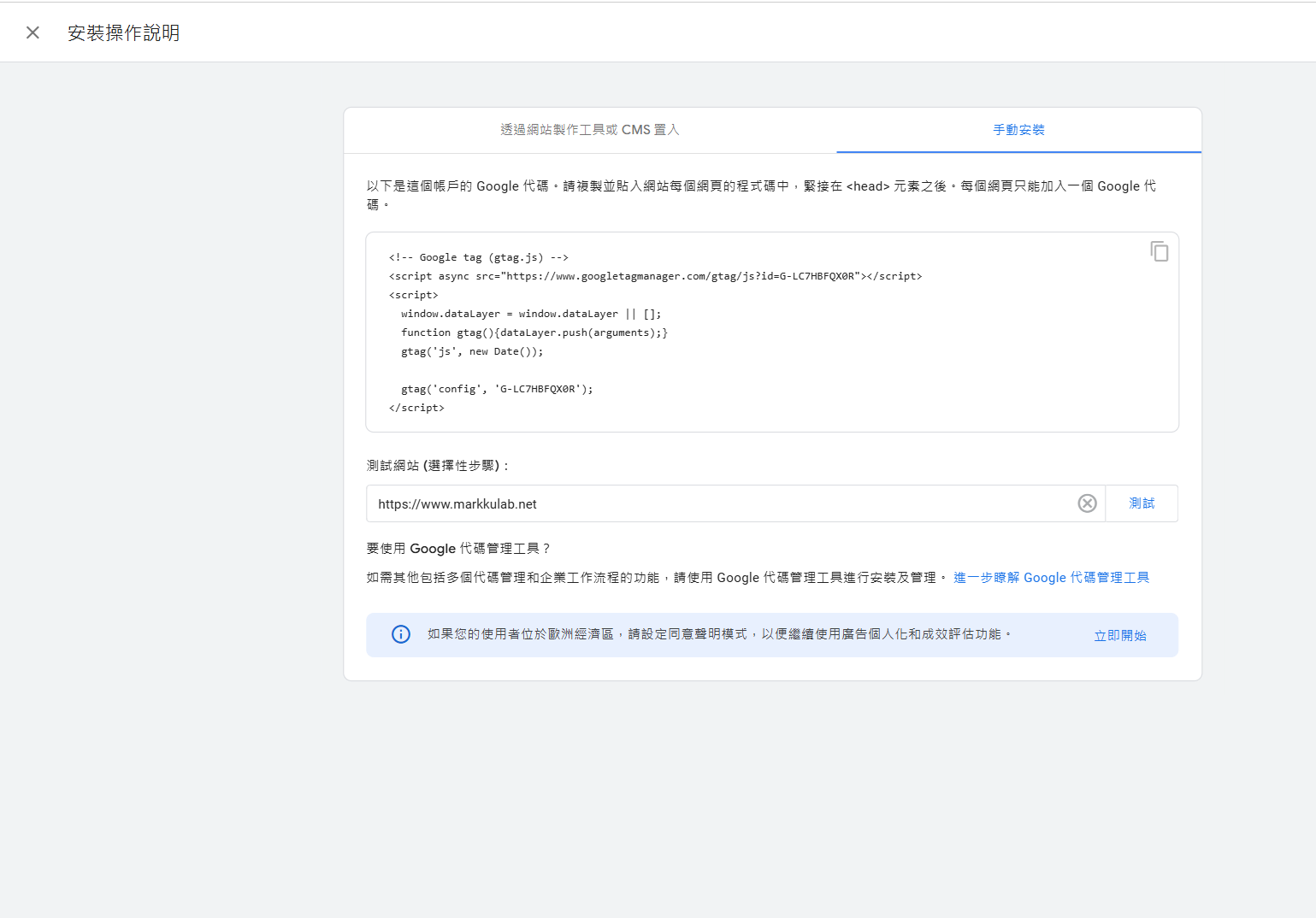
#### **Note:** It's easy to confuse the GTM Container ID with the GA Measurement ID.
Here is a comparison of the two:
| **Feature** | **GA Measurement ID** | **GTM Container ID** |
|---|---|---|
| **Function** | Used for tracking and analyzing data | Used for managing and deploying multiple tags |
| **Format** | `UA-XXXXXX-Y` / `G-XXXXXXXXXX` | `GTM-XXXXXXX` |
| **Direct Deployment Method** | Embed GA tracking code | Embed GTM container code |
| **Flexibility** | Can only track data for a single tool | Supports tag management for multiple tools |
| **Target Audience** | Geared towards technical staff or websites with simple needs | Suitable for marketing teams that need to frequently adjust tags |
If your only requirement is to track GA data and your website structure is simple, you can use the **GA Measurement ID** directly. However, if you need to manage multiple tags (like GA, Facebook Pixel, AdWords, etc.) or frequently perform tests and adjustments, using the **GTM Container ID** is more flexible.
## **GA4 Event Categories**
GA4 events are divided into four main categories. We can choose the appropriate event type based on our needs.
### [1. **Automatically collected events**](https://support.google.com/analytics/answer/9234069?hl=en&ref_topic=9756175)
These events require no extra setup. As soon as you embed the GA4 tag, it starts collecting them automatically. For example: page views (Page View).
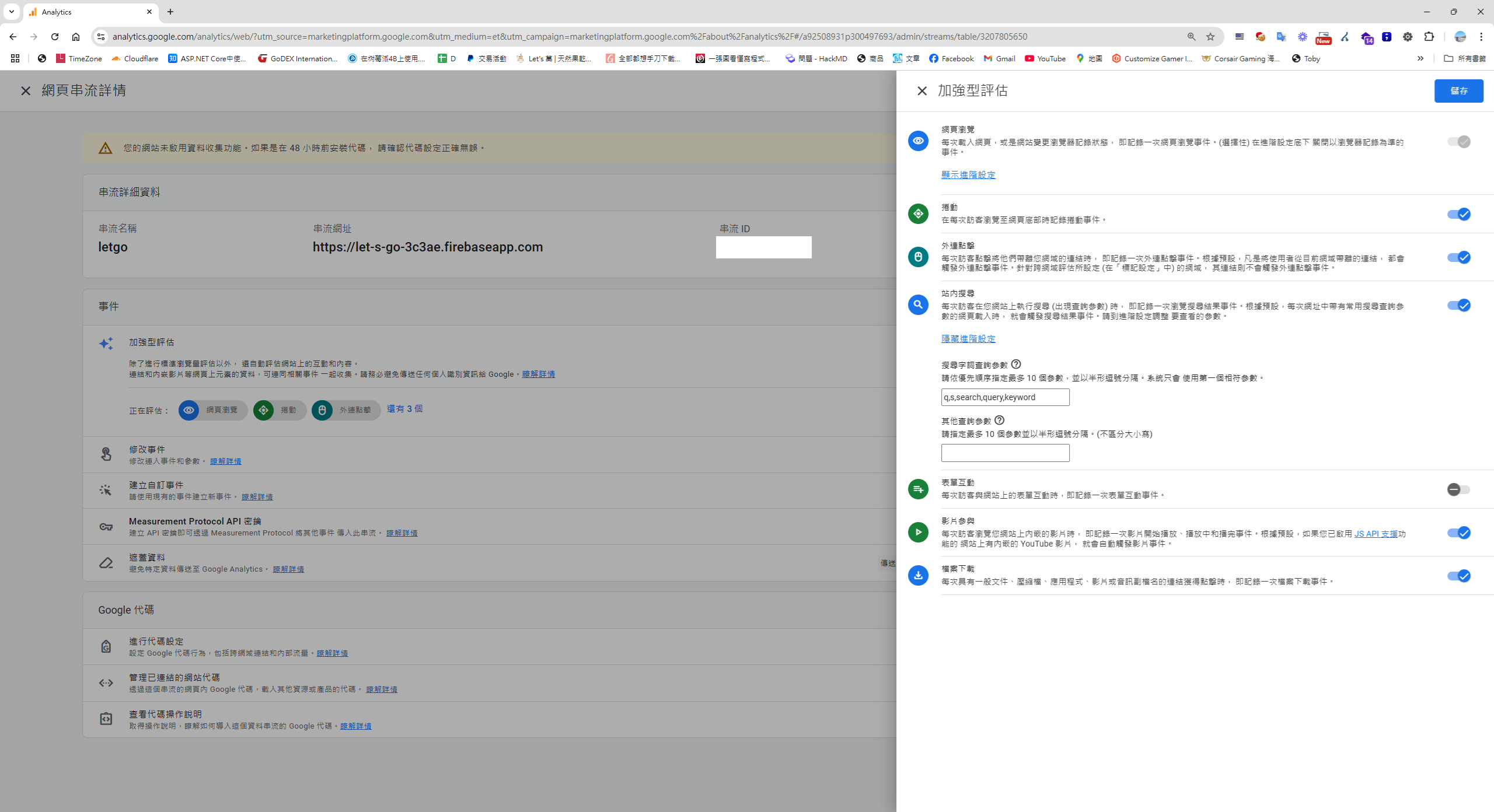
### [2. **Enhanced measurement events**](https://support.google.com/analytics/answer/9216061?hl=en&ref_topic=9756175)
You need to enable "Enhanced measurement" in your data stream. Once enabled, it will automatically collect common interaction data, such as:
- Scrolls
- Outbound clicks
- Site search > based on URL parameters
- Video engagement
- File downloads
### [3. **Recommended events**](https://support.google.com/analytics/answer/9267735?hl=en&ref_topic=9756175)
Recommended events need to be configured according to official guidelines, and the data is sent to GA by implementing code. For example:
- Login
- Logout
- Order
- [Ecommerce Events](https://developers.google.com/analytics/devguides/collection/ga4/ecommerce?client_type=gtag&hl=en)
For e-commerce sites, here are some common recommended events:
- `view_item_list`: View item list
- `view_item`: View item details
- `add_to_cart`: Add to cart
- `add_payment_info`: Add payment info
- `purchase`: Purchase
For detailed guidance, please refer to the [official documentation](https://developers.google.com/analytics/devguides/collection/ga4/ecommerce?client_type=gtm&hl=en#view_item_details).
### [4. **Custom events**](https://support.google.com/analytics/answer/12229021?hl=en&ref_topic=9756175)
If automatically collected and recommended events don't meet your needs, you can use custom events to collect specialized data and generate reports tailored to your business requirements.
Examples of custom event applications:
- Analyzing which button types users prefer to click.
- Tracking users' preferred login methods (e.g., Google, Facebook, Email).
## Next, We'll Pass Parameters for Recommended/Custom Events to GA via GTM
### 1. On the website frontend, pass product parameters to GTM using gtag. Let's use `add_to_cart` as an example.
```
gtag('event', 'add_to_cart', {
currency: 'USD', // 幣別
value: 29.99, // 總價值
items: [
{
item_name: 'Gaming Keyboard', // 商品名稱
item_id: 'SKU12345', // 商品 ID
price: 29.99, // 商品價格
quantity: 1, // 商品數量
item_brand: 'HYTE', // 品牌
item_category: 'Peripherals', // 類別
item_variant: 'Black', // 商品變體
},
],
});
```
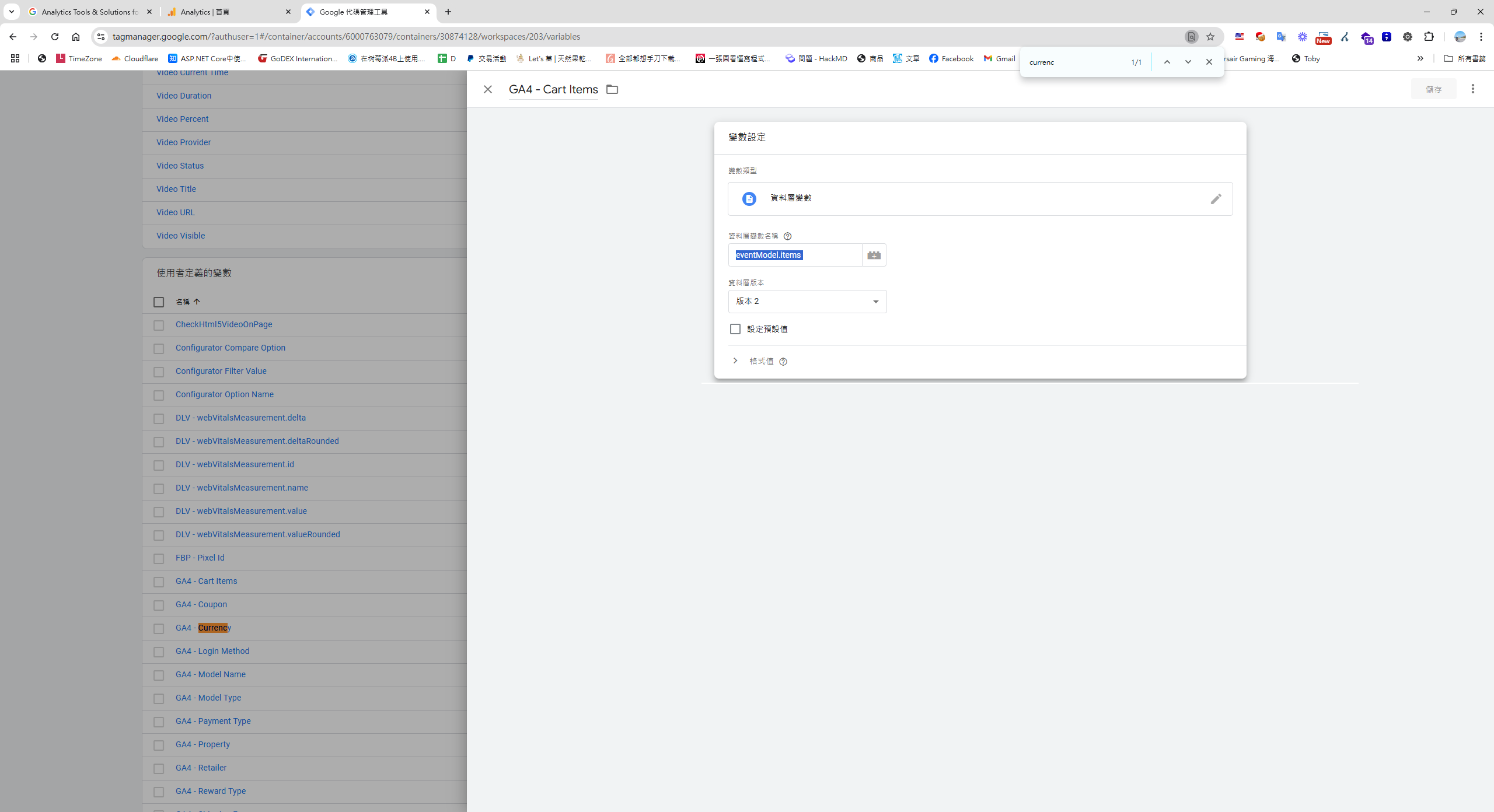
### 2. Next, go to [Google Tag Manager](https://tagmanager.google.com/), and navigate to Variables -> New.
Create variables one by one based on the incoming parameter properties to pass them as event parameters to GA.
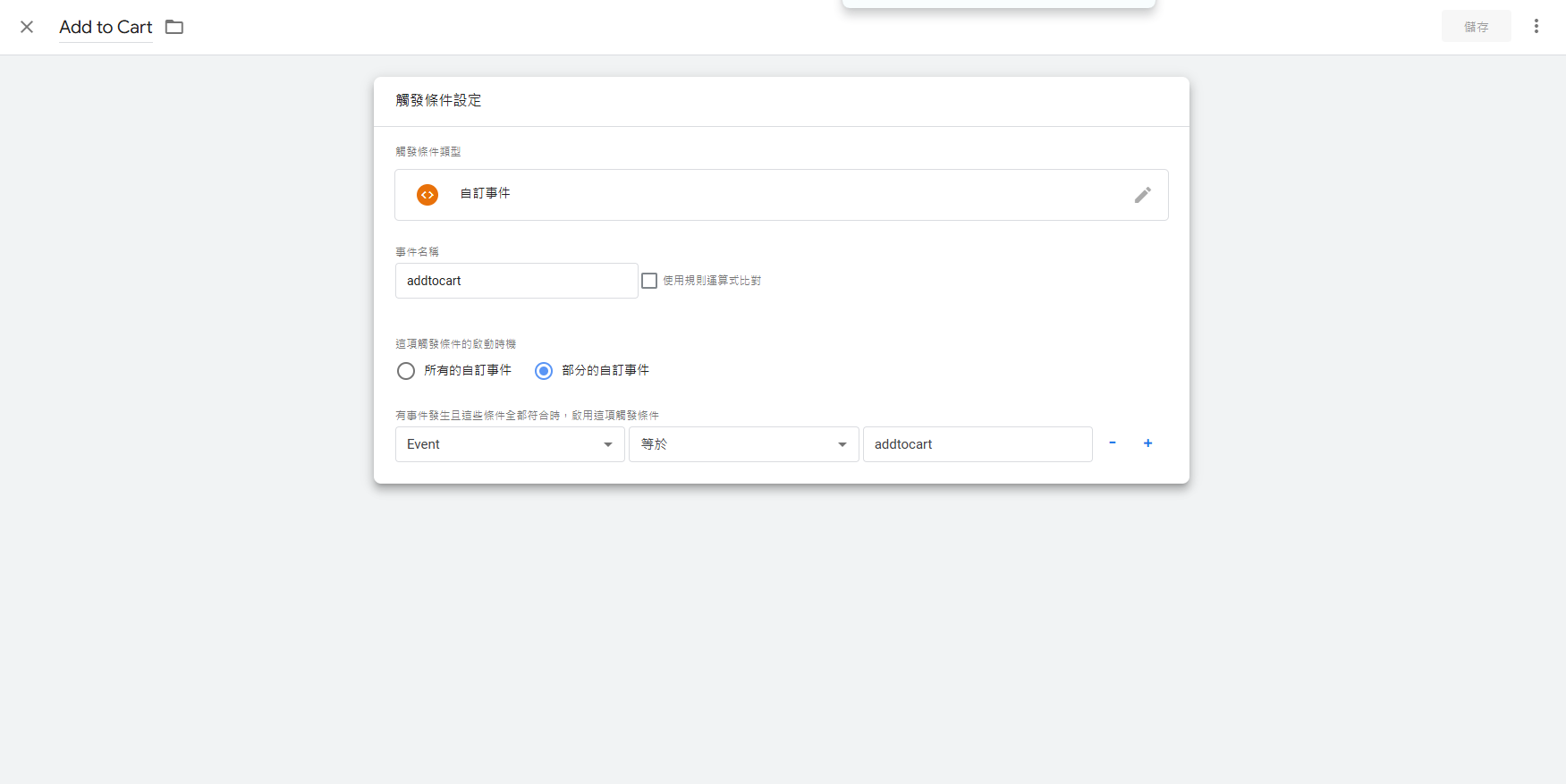
### 3. Set up a trigger: Triggers -> New.
### 4. Go to the Tag Manager: Tags -> New.
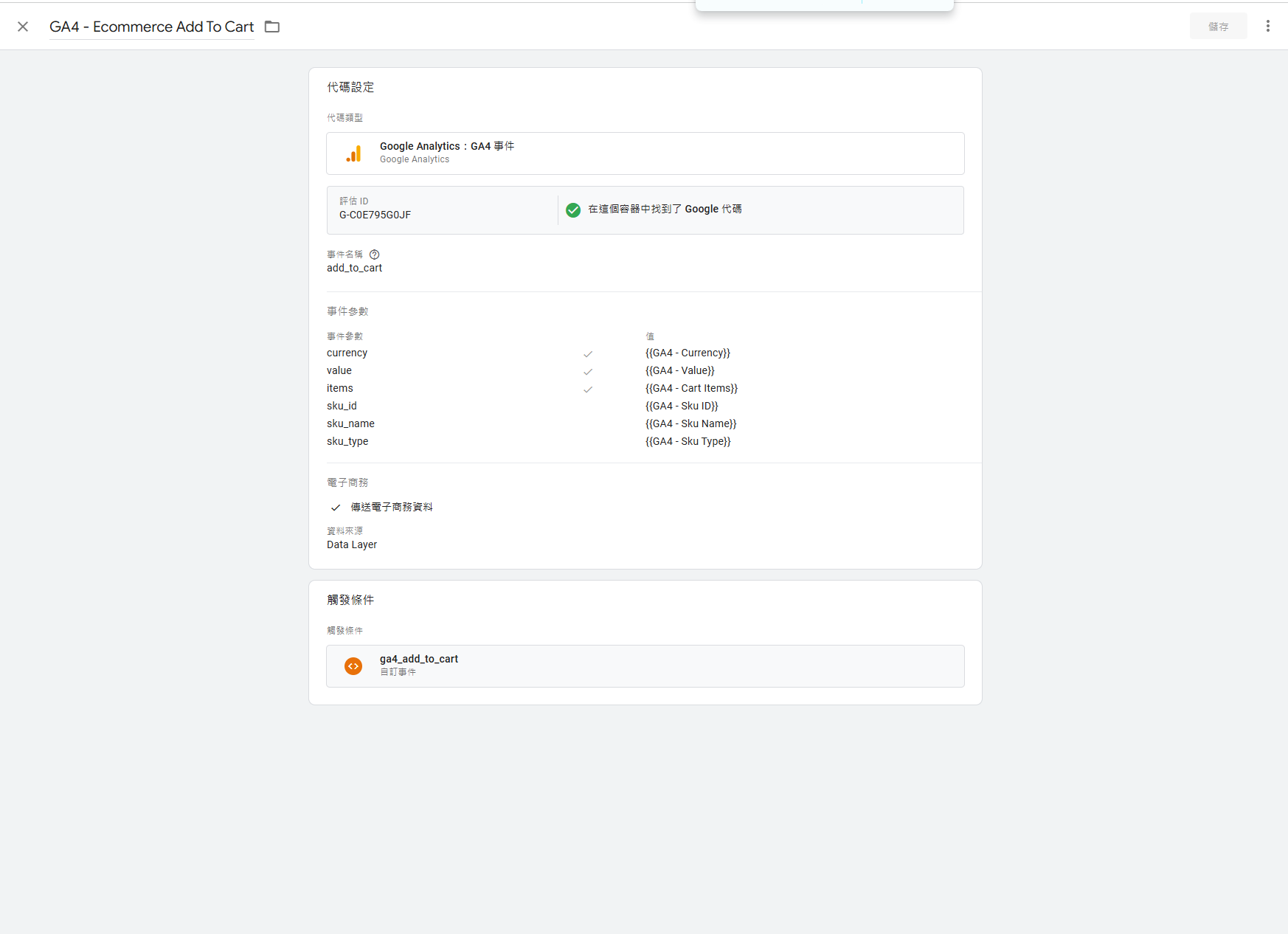
P.S. When looking at GA4 examples, you'll see `gtag` and `dataLayer`. `dataLayer` is actually the foundation of `gtag.js`. The operation of `gtag.js` is based on `dataLayer`. When you call the `gtag()` function, it actually pushes the parameters into the `dataLayer`, which then passes them to the relevant Google tools.
## Debugging GTM Events
If you want to confirm whether your JavaScript is being sent to GTM correctly, you can use **[Tag Assistant](https://tagassistant.google.com/)** for debugging.
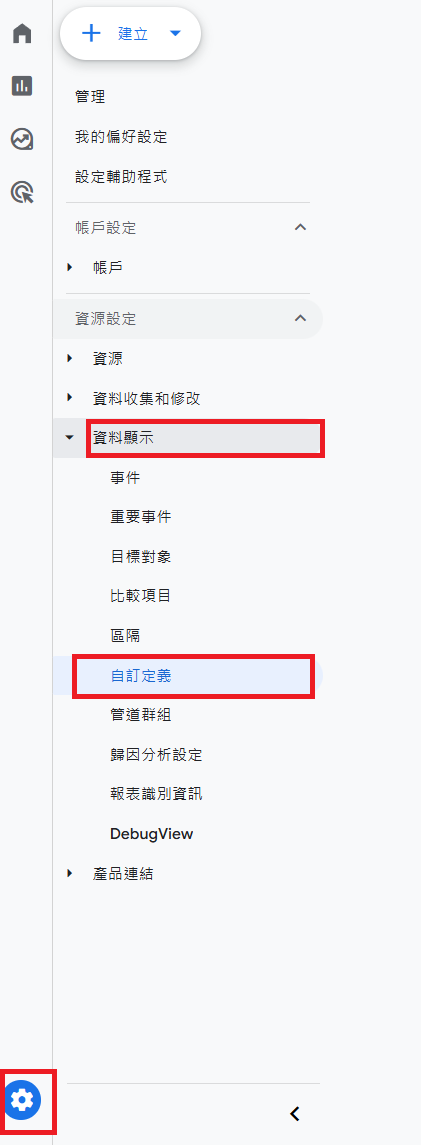
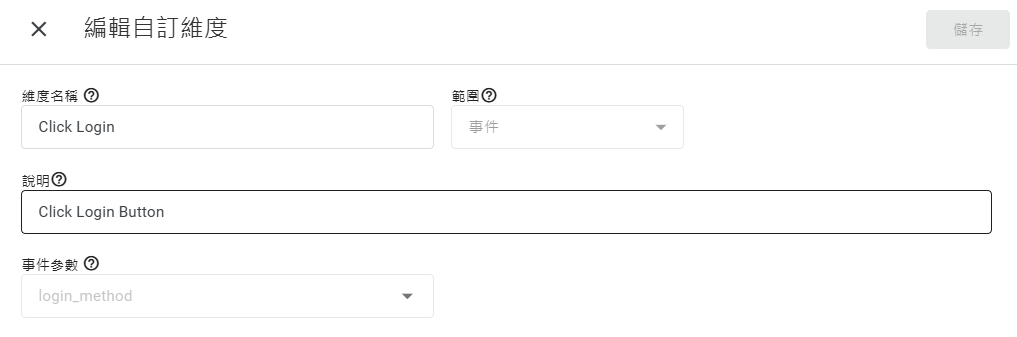
## For custom events, return to GA and connect them using custom dimensions. This allows you to use these custom dimensions in your custom reports.
Admin (bottom left) > Data display > Custom definitions > Create custom dimensions
## GA Debugging
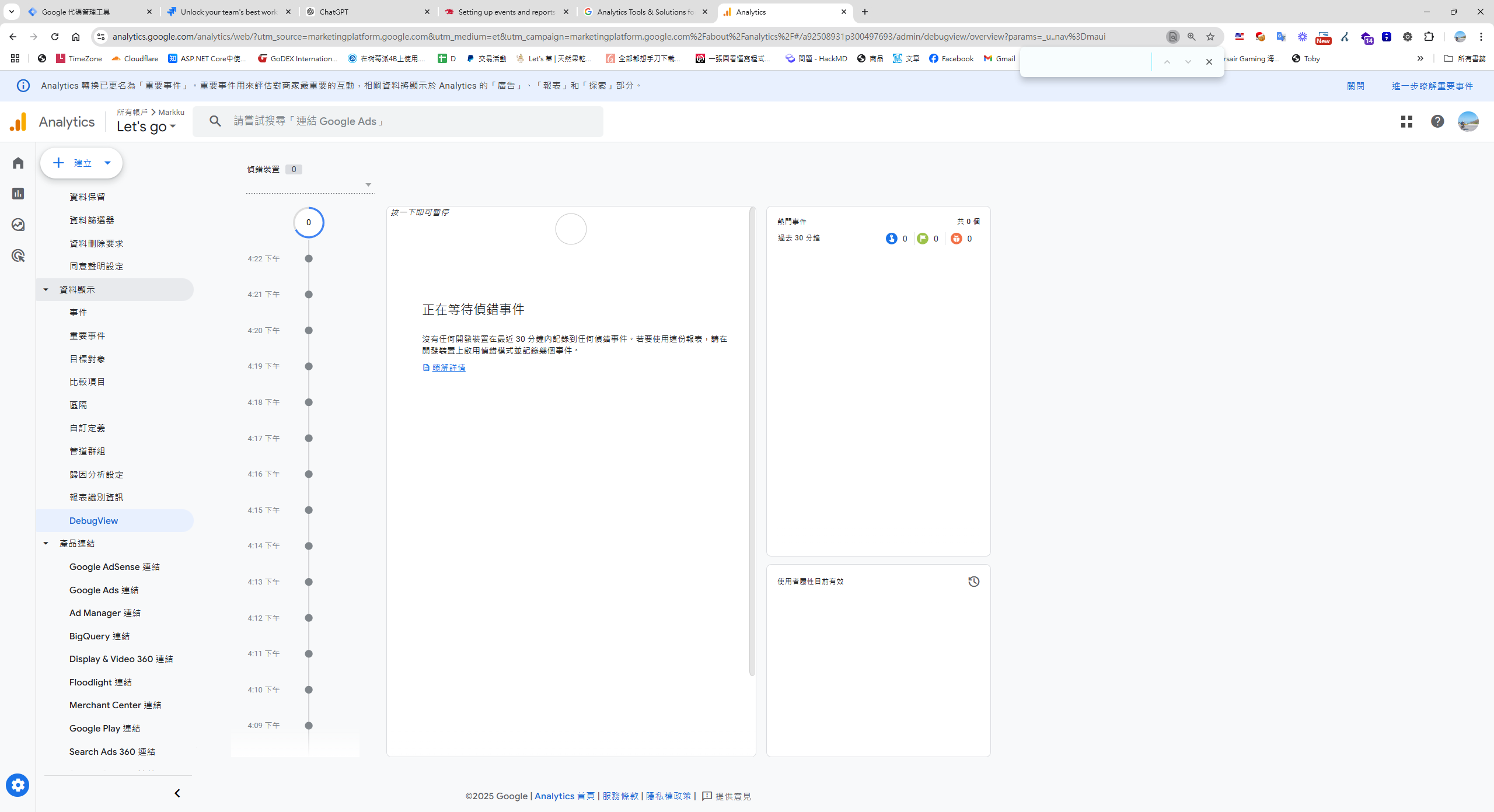
Back in GA > Admin (bottom left) -> DebugView
## Bonus - Loading a Third-Party JS, Clarity.js, via GTM
**Microsoft Clarity** is a free user behavior analytics tool that helps you understand how users interact with your website. Here's how to load the Clarity JS via GTM:
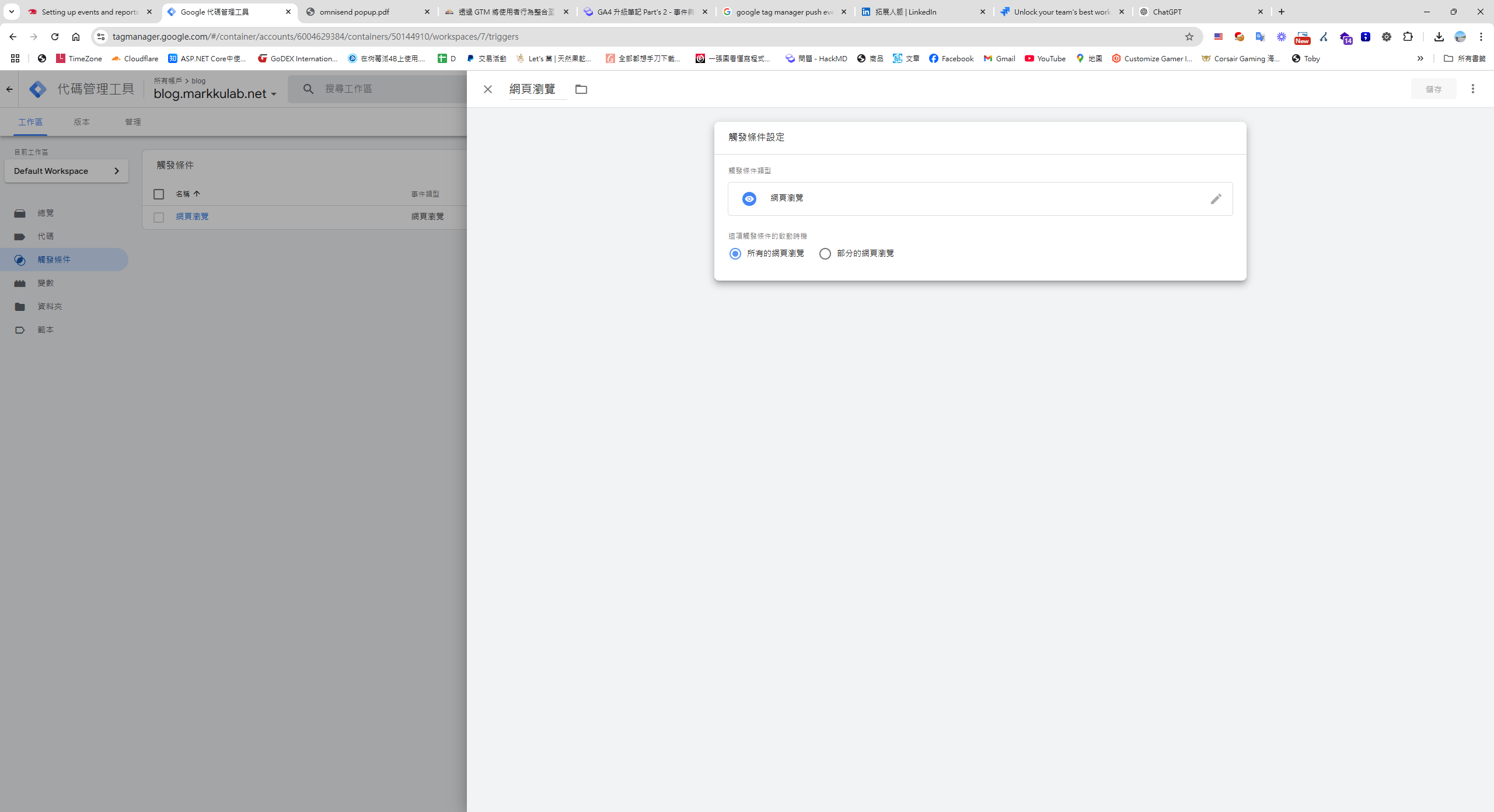
### Step 1: Triggers > New
In GTM, create a trigger, for example, "All Pages", or set specific conditions based on your needs, as shown in the image below:
### Step 2: Tags > New
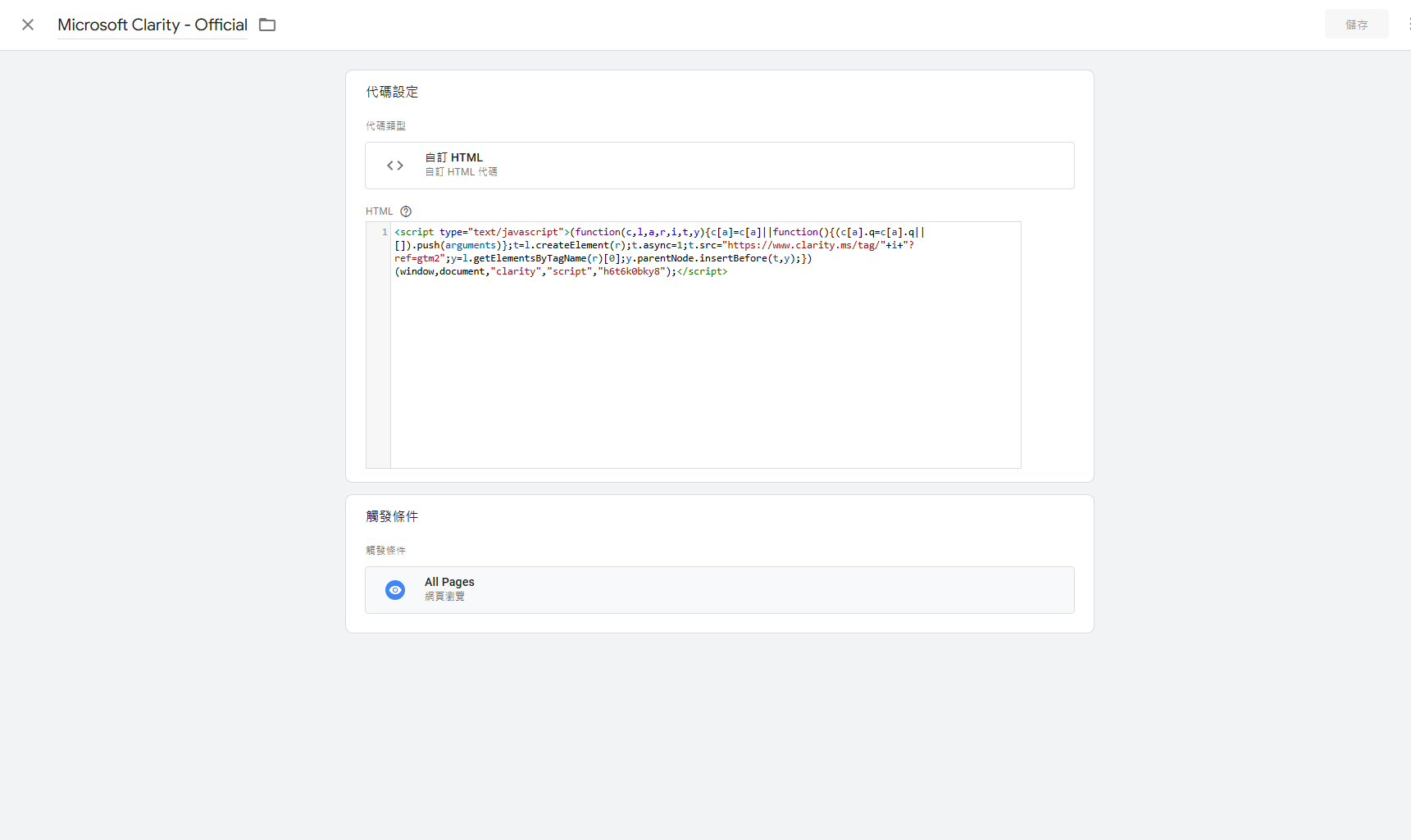
```html
```
Note: Replace `h6t6k0bky81` with your own Clarity project ID.
### **Step 3: Submit and Publish**
After completing the trigger and tag setup, follow these steps:
1. Click the **Submit** button in GTM.
2. Fill in the change description, for example, "Add Clarity tag".
3. Publish the changes.
## References
* [Measure ecommerce](https://developers.google.com/analytics/devguides/collection/ga4/ecommerce?client_type=gtm)
* [Google Analytics 4 E-commerce Event Setup Implementation](https://www.haranhuang.com/google-analytics-4-implements-e-commerce-event-setup.html)
* [Measure ecommerce](https://developers.google.com/analytics/devguides/collection/ga4/ecommerce?client_type=gtm&hl=en#view_item_details)
* [Google tag API reference](https://developers.google.com/tag-platform/gtagjs/reference?hl=en#event)
* [Guide to the New GA4 Official Recommended Events List](https://www.turingdigital.com.tw/blog/ga4-recommended-events)
---
## About this article and its author
Originally published on [Mark Ku's Tech Notes](https://blog.markkulab.net/en/post/upgrade-to-ga4-parts-2)
License: [CC BY 4.0](https://creativecommons.org/licenses/by/4.0/) — when reusing or quoting, credit the author and link back to the original
### About the author
**[Mark Ku](https://blog.markkulab.net/en/author/mark-ku)** — Software Solution Provider
- 10+ years senior software engineer, now an AI Builder
- Focused on large-platform architecture — North-American e-commerce, AI SaaS subscription billing
- Combining AI Agents and automation to build evolvable product foundations
### Free tools built by the author
All of these are free to use:
- [Free PDF Sign Tool](https://blog.markkulab.net/en/tools/pdf-sign): Online PDF sign tool — draw, type, or upload a signature, then drag, resize, and download. Everything runs in your browser; nothing is uploaded.
- [VS Code Refactory](https://blog.markkulab.net/en/tools/refactory): Refactory is a VS Code refactoring extension: 34 actions plus a 37-rule code-smell inspection layer with a Code Health dashboard, across 18 languages, backed by 534 tests. It learns your repo's conventions: where interfaces live, where DI is registered, whether 'use client' belongs. It ranks files by git churn × complexity so you know what to fix first, and hands any smell to the Claude Code already on your machine. Free to use, and your source never leaves your computer.
- [DB-Kit Database Manager](https://blog.markkulab.net/en/tools/db-kit): DB-Kit is a lightweight, cross-platform database manager built with Tauri + Rust + React. Manage MySQL, MariaDB, PostgreSQL, SQL Server, Oracle, SQLite, MongoDB, Redis, Kafka, Elasticsearch and RabbitMQ from one consistent interface: passwords encrypted in the OS keychain, SSH tunnels, full CRUD, a visual query builder, stacked multi-statement result sets, cross-connection data transfer and compare/sync, Excel / CSV import & export, visualized execution plans, ER diagrams, scheduled backups, SQL stress testing with p50–p99 latency percentiles, a 15-rule SQL review engine, Kafka message browsing with monitoring & alerts, a bilingual UI (Traditional Chinese / English), a built-in AI assistant (natural-language SQL, AI review and tuning advice) and the dbk CLI. Free and open source (MIT), with installers for Windows, macOS and Linux.
- [VS Code Super Mermaid](https://blog.markkulab.net/en/tools/super-mermaid): Super Mermaid is a VS Code extension for beautiful Mermaid diagrams out of the box: auto-colored live preview, mouse pan & zoom, high-res PNG / SVG export, 21 templates and multiple themes. Free and open source (MIT).
- [React Super Mermaid](https://blog.markkulab.net/en/tools/react-super-mermaid): react-super-mermaid is an open-source React component library: render beautiful Mermaid diagrams with a single , with built-in colorful / sketch themes, pan & zoom, in-diagram search, and high-res SVG / PNG export. Lightweight, SSR-safe, fully typed. Free and open source (MIT).
- [Jira / Confluence Super Mermaid](https://blog.markkulab.net/en/tools/jira-super-mermaid): An Atlassian Forge app: write Mermaid syntax directly inside a Jira issue or a Confluence page and get flowcharts, sequence diagrams, state machines and Gantt charts. 11 diagram types, SVG / PNG export, light and dark themes, full CJK support. Runs on Atlassian: your diagrams live in your own site and the app calls no third-party service. Free, coming soon to the Atlassian Marketplace.
- [Mermaid Live Preview](https://blog.markkulab.net/en/tools/mermaid-preview): Write Mermaid in your browser, see it render instantly, and share the whole diagram as a single link. No sign-up, nothing uploaded to a server, and mermaid.live share links work as-is.
- [React Intl Phone Number](https://blog.markkulab.net/en/tools/react-intl-phone-number): react-intl-phone-number is an open-source React component: framework-agnostic and antd-free, with E.164 in/out, a searchable flag / country-code dropdown, configurable validation levels (strict / mobile-strict / loose), themeable CSS, and i18n — phone logic powered by google-libphonenumber. Lightweight and fully typed. Free and open source (MIT).
- [Uptime Kuma Cluster](https://blog.markkulab.net/en/tools/uptime-kuma-cluster): Turn single-node Uptime Kuma into a highly available cluster: OpenResty + Lua smart load balancing, shared MariaDB state, health checks and automatic failover, plus cluster-management REST APIs. One Docker Compose command to start. Free and open source (MIT).
- [Special Education](https://blog.markkulab.net/en/education): Learning materials crafted for special education students
### Daily podcasts
- [Mark's Tech Insights — Daily AI News](https://blog.markkulab.net/en/category/tech-news): Daily curated AI and tech trends. Catch the latest developments via audio summaries — covering AI applications, software architecture, DevOps, and engineering practice. — RSS: https://blog.markkulab.net/feed.xml
- [AI股市蝦聊](https://blog.markkulab.net/en/category/ai-stock-chat): Every trading day, an AI-analyzed take on the Taiwan stock market, delivered as a two-host conversation covering the session and the next-day outlook. — RSS: https://blog.markkulab.net/ai-stock-chat/feed.xml
- [開源好物週報](https://blog.markkulab.net/en/category/open-source-weekly): A weekly two-host pick of free open-source tools surfaced from real Hacker News, GitHub, and Reddit buzz — what pain they solve and the fastest way to get started. — RSS: https://blog.markkulab.net/open-source-weekly/feed.xml
### Newsletter
[Subscribe to the newsletter](https://blog.markkulab.net/en/subscribe) — Be the first to know about new posts. No spam, unsubscribe anytime.